Set up and use
At Bank Alfalah
- Get your sandbox (and later production) merchant account.
- In the merchant portal, note the Merchant ID and create an API password.
- Under Webhook Notifications, generate the notification secret.
In Odoo
- Open the payment providers and click Bank Alfalah:
- Odoo 20: Invoicing > Configuration > Online Payments, or Website > Configuration > Payments.
- Odoo 17 to 19: Invoicing (or Website) > Configuration > Payment Providers.
- Enter the Merchant ID, the API password and, in Webhook Notification Secret, the notification secret.
- Copy the Webhook URL shown on the form into the merchant portal (Webhook Notifications).
- Test with sandbox credentials first, then switch to your production credentials and publish the provider:
- Odoo 20: with Live switched off the sandbox gateway is used; switch on Live for real payments.
- Odoo 17 to 19: set the state to Test for the sandbox and Enabled for real payments.
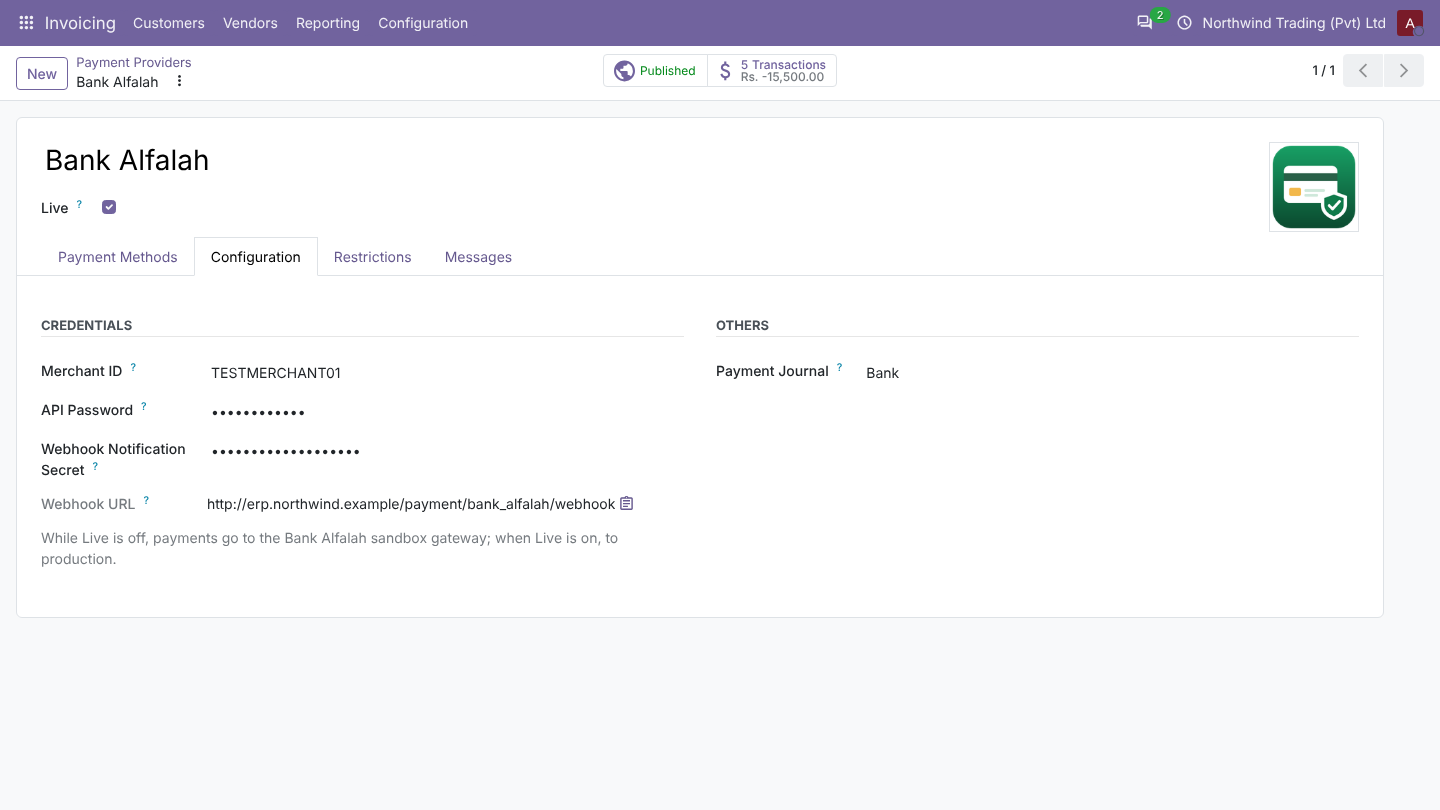
Credentials are visible to administrators only. In multi-company databases, set up one provider per company.
Taking payments
eCommerce
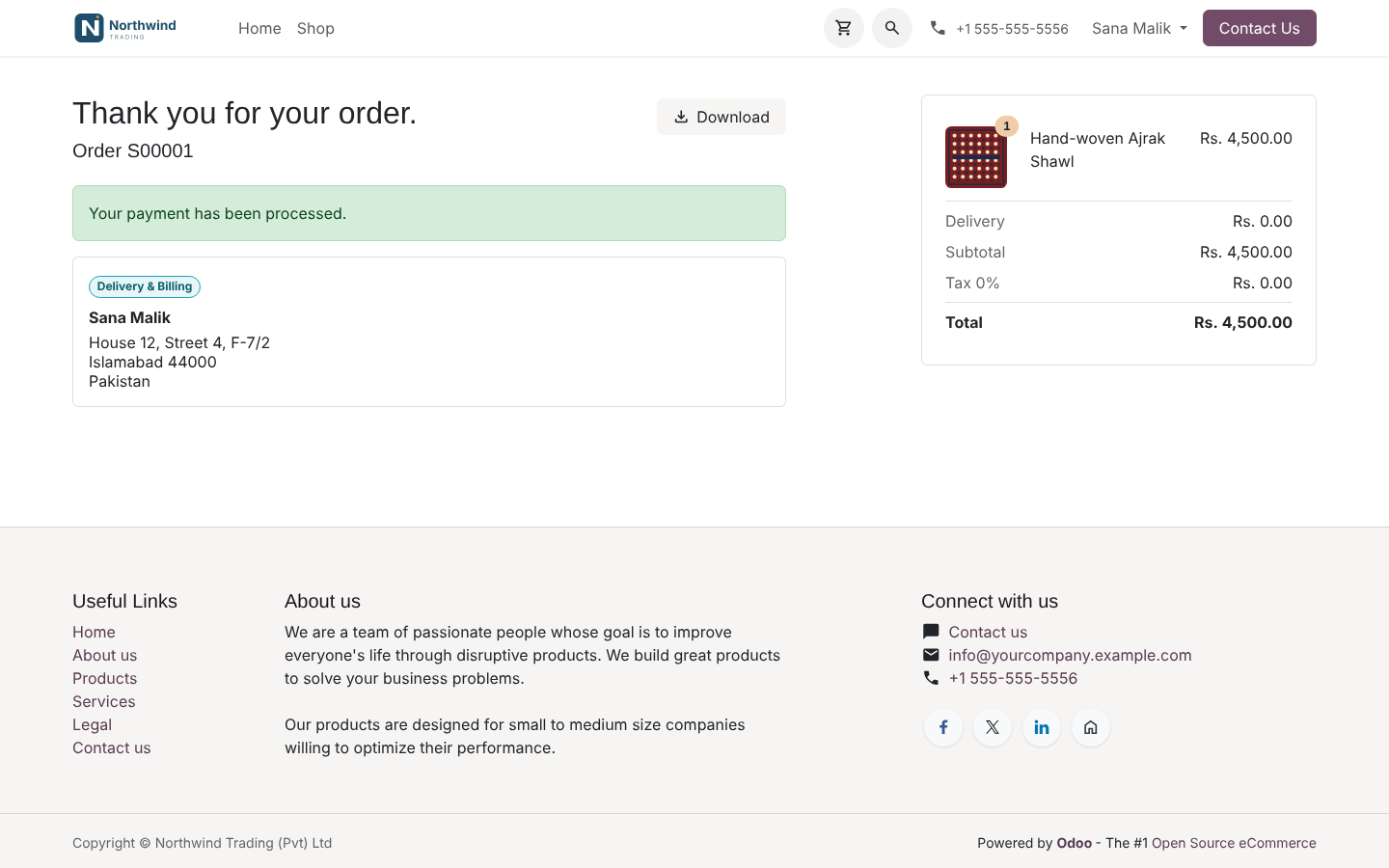
Bank Alfalah appears as Card on the payment step of your shop. The shopper pays on the bank's page and comes back to the order confirmation, with the sales order already confirmed. If they close the browser, the webhook still confirms the order; a declined card leaves the cart open to try again.
Invoices and payment links
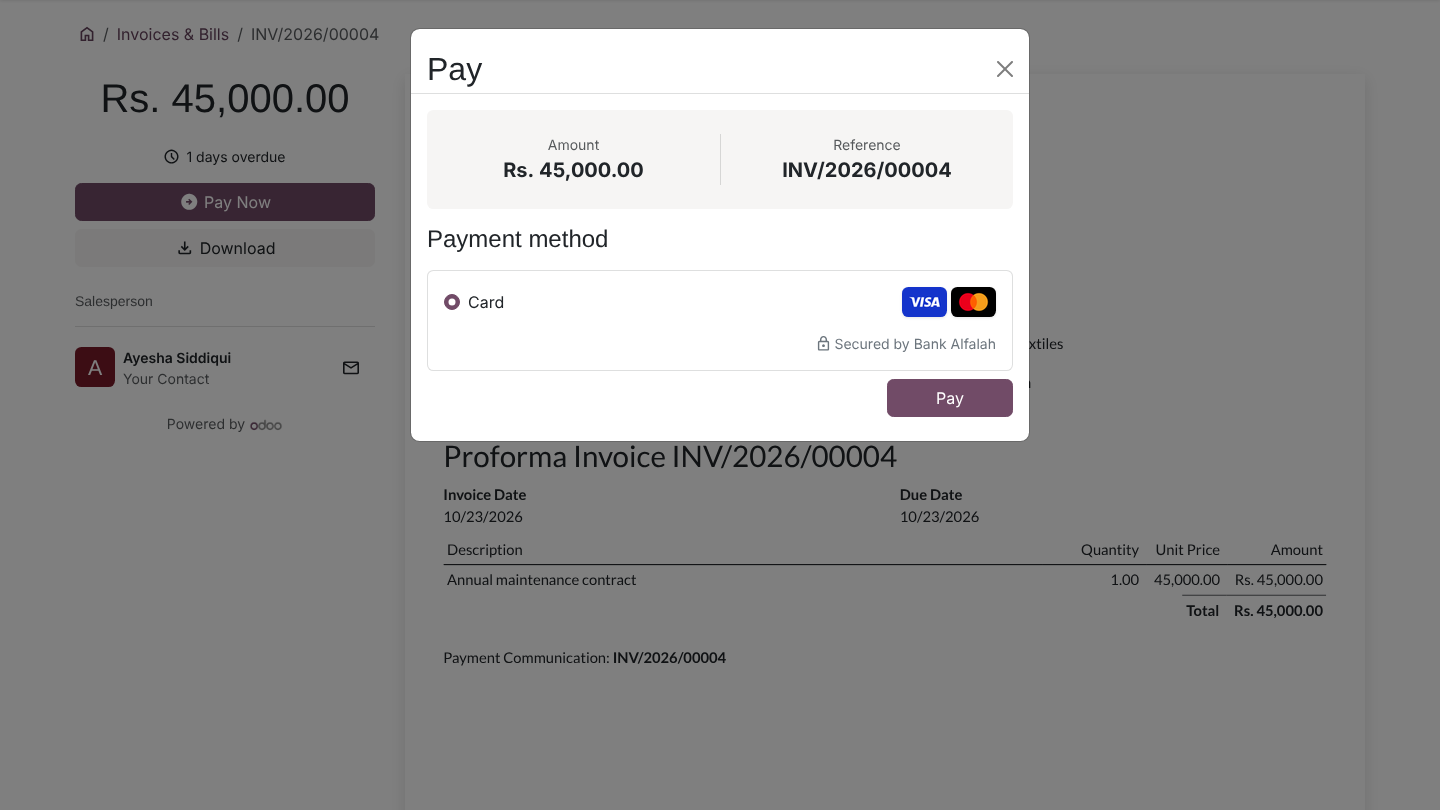
Send an invoice or a payment link; the customer clicks Pay Now, pays on the Bank Alfalah page and the invoice is marked Paid.
How payments are confirmed
On every return and webhook, Odoo asks the gateway for the order's real status:
| Gateway answer | In Odoo |
|---|---|
| Captured | Payment confirmed, invoice paid |
| Declined or failed | Error with the bank's reason |
| Still authenticating | Pending until the webhook arrives |
| Wrong amount or currency | Refused |
| Gateway unreachable | Nothing changes until it answers |
Webhooks without your notification secret are refused.
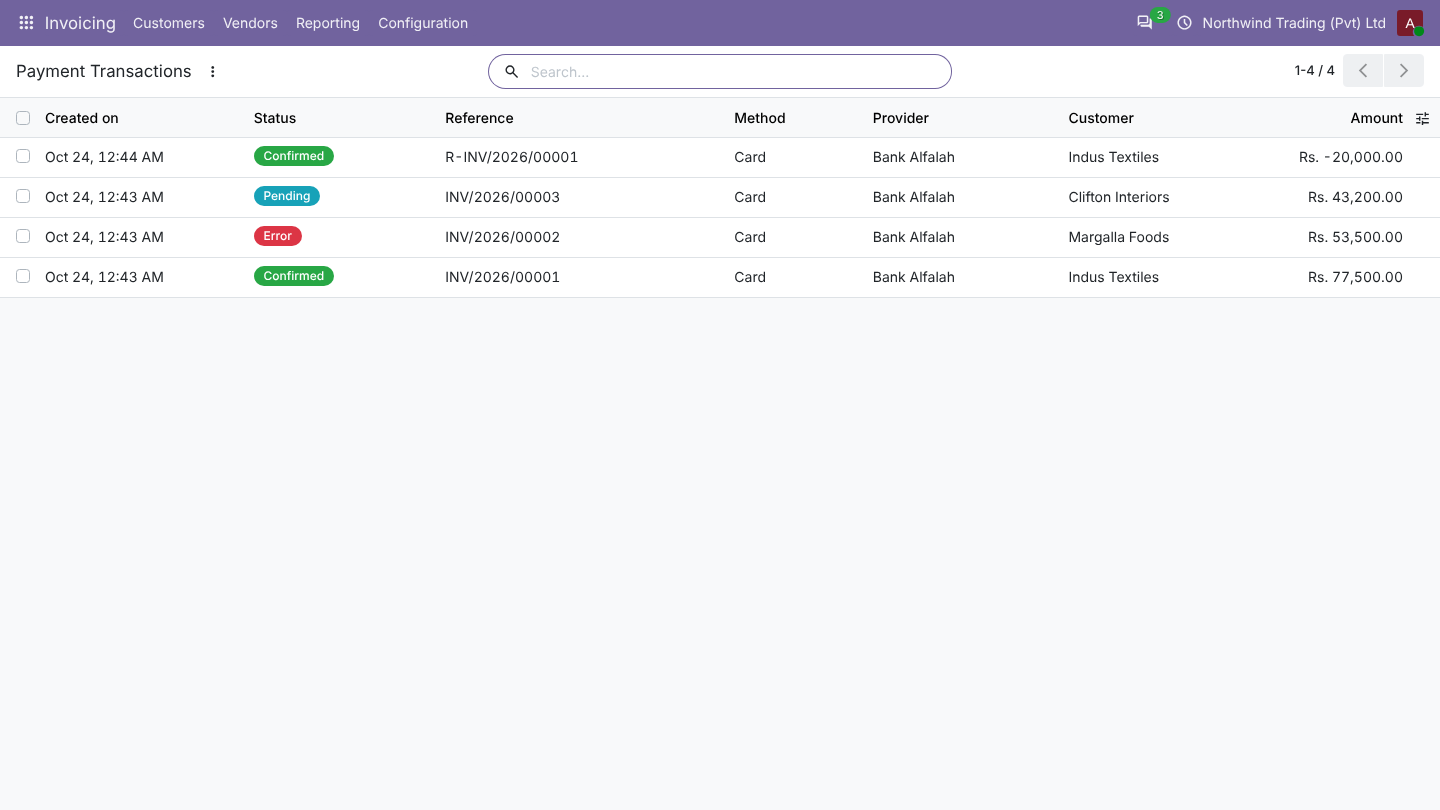
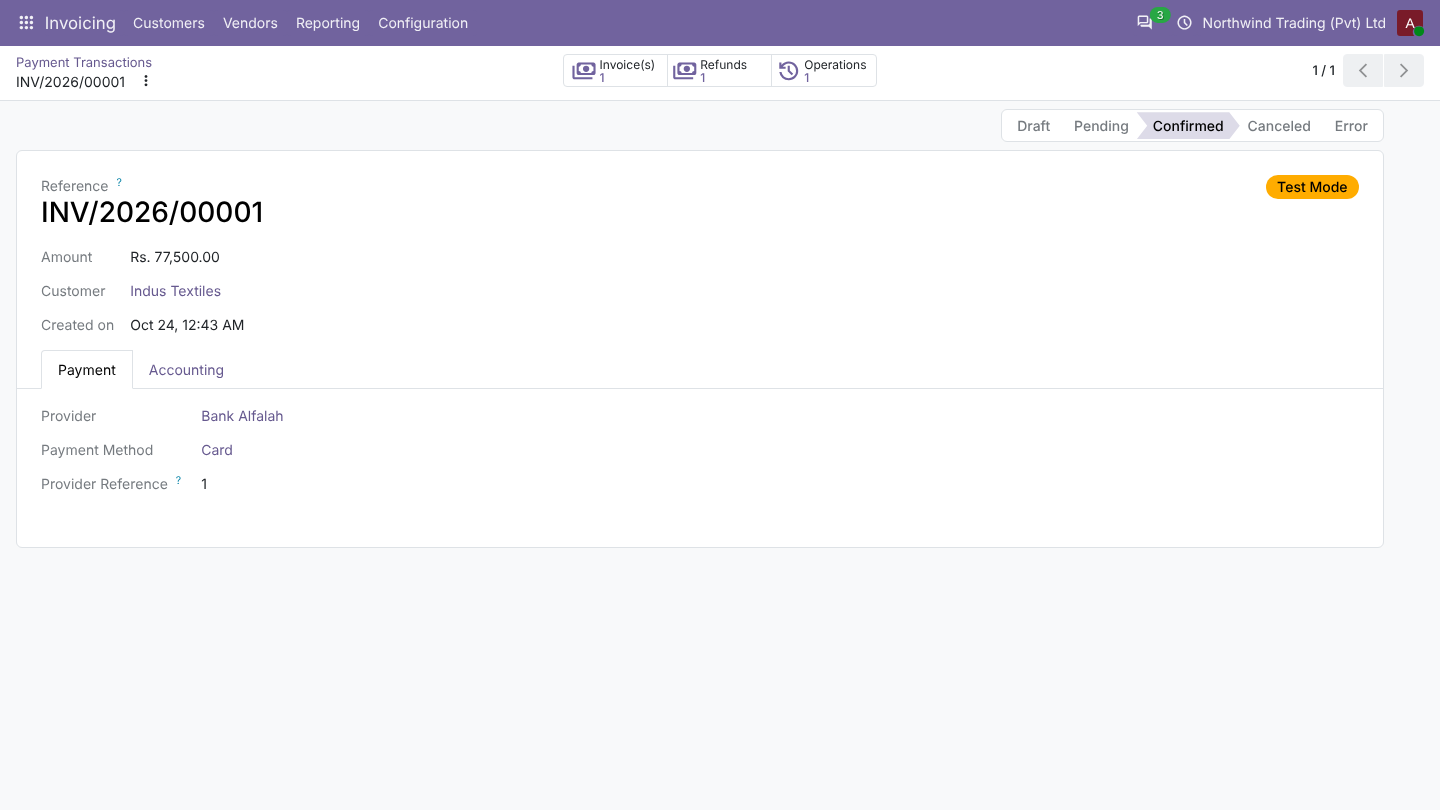
Invoicing > Customers > Payments, or the provider's Transactions, list every payment with its gateway result.
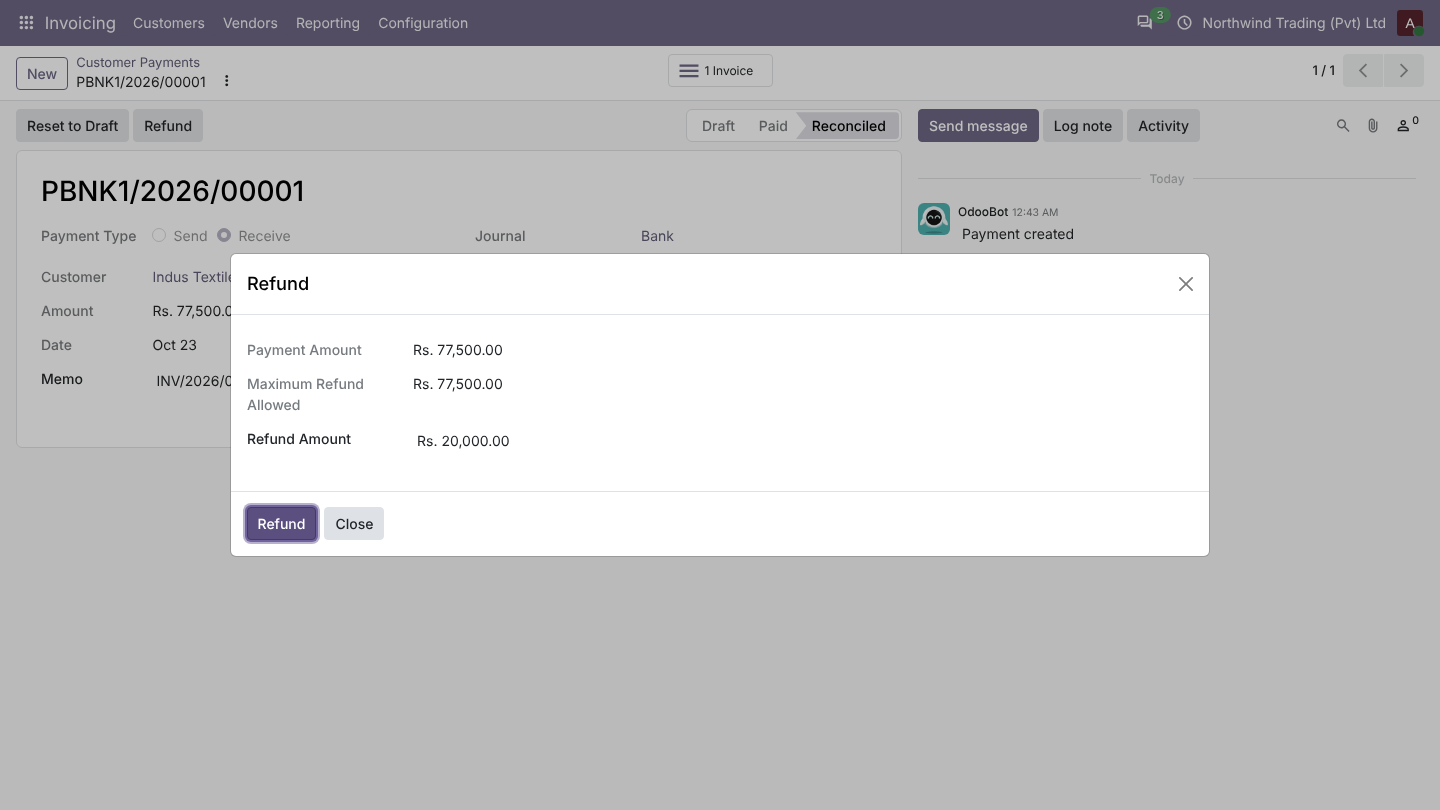
Refunds
Open the customer payment, click Refund and enter the amount. Odoo sends the refund to the gateway and records the refund transaction with the gateway's ID. Full and partial refunds, several per payment; a refusal shows the gateway's reason.