Restrict users to their devices (Device Access Control)
Set up in three steps
- Restrict the user. Open the user (Settings > Users), tab Device Access, switch on Device Restriction and add a device, for example Finance Laptop.
- Generate a code. Click Generate Registration Code. The 8-character code is valid for 30 minutes and only for that user.
- Sign in once with the code. On that computer, the user signs in with their password and the code. From then on, that browser signs in normally.
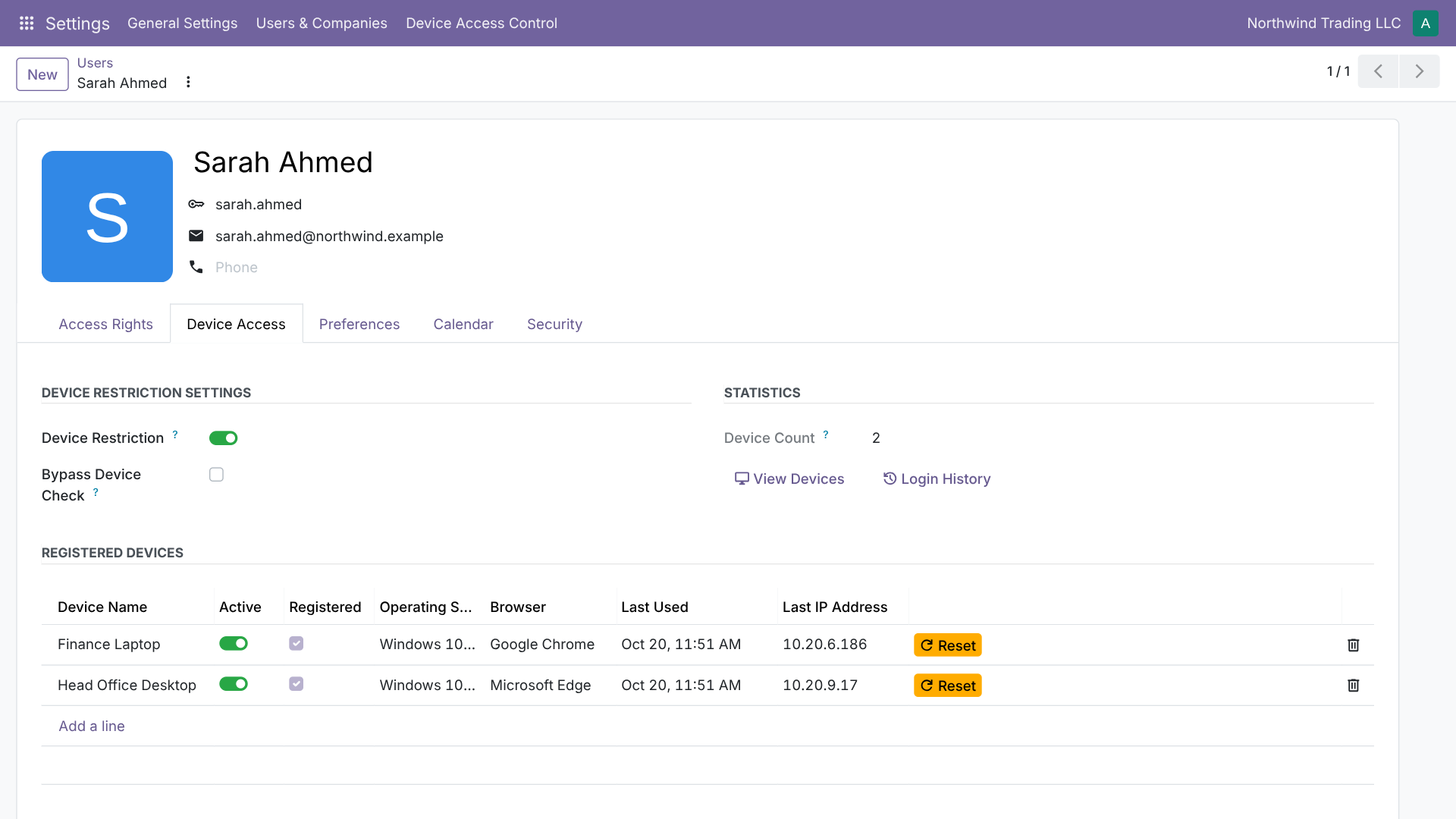
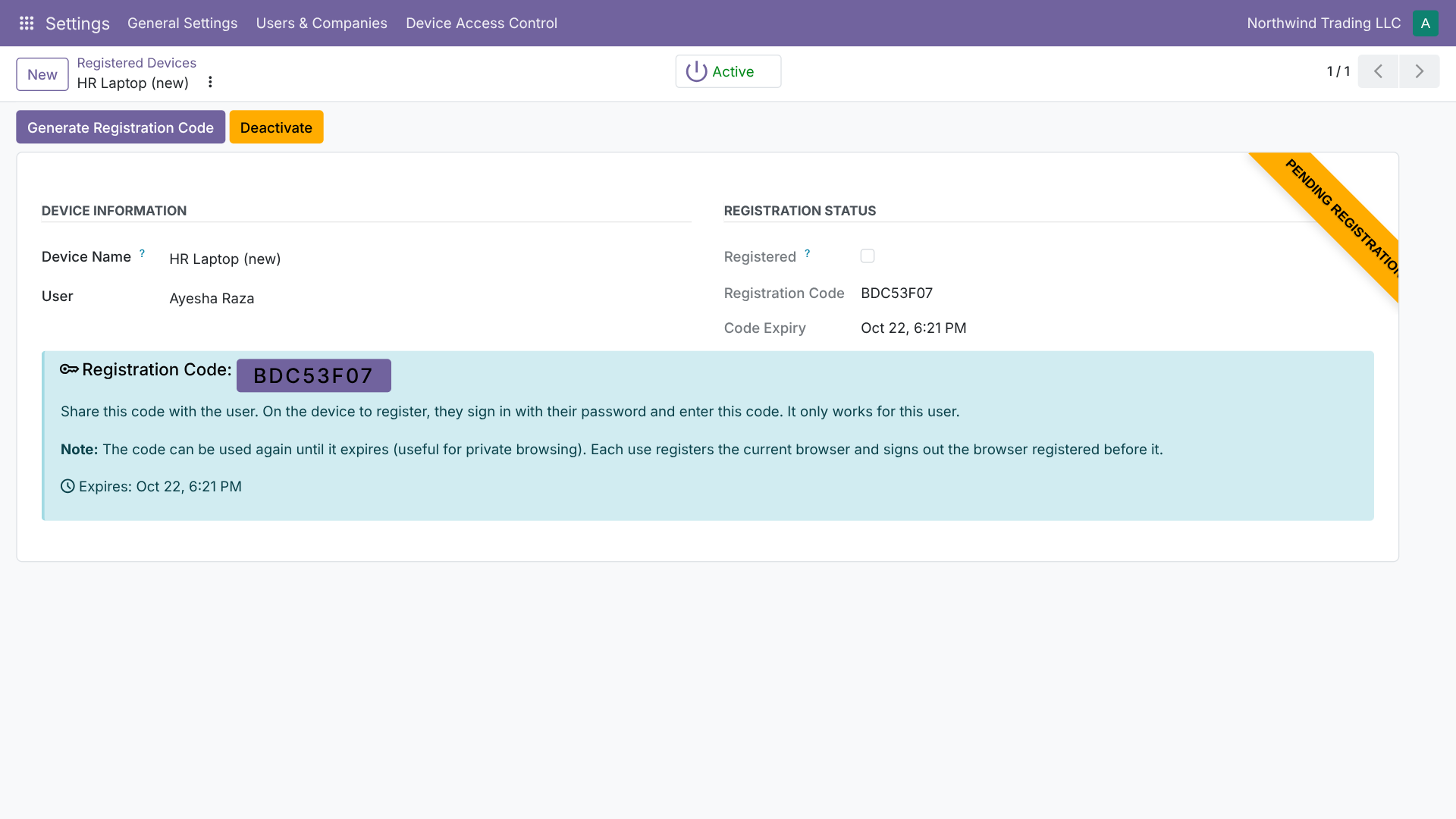
Unrestricted users are not affected at all. A user can have several devices: office desktop, laptop, home PC. A phone or tablet is registered the same way, from its browser.
Who manages devices
The Device Manager group manages devices and reads the audit. The menus are under Settings, so a Device Manager also needs access to the Settings app. Users only see their own devices and history.
Registered devices
Settings > Device Access Control > Registered Devices shows every approved device with its operating system, browser, screen, last use and last IP address.
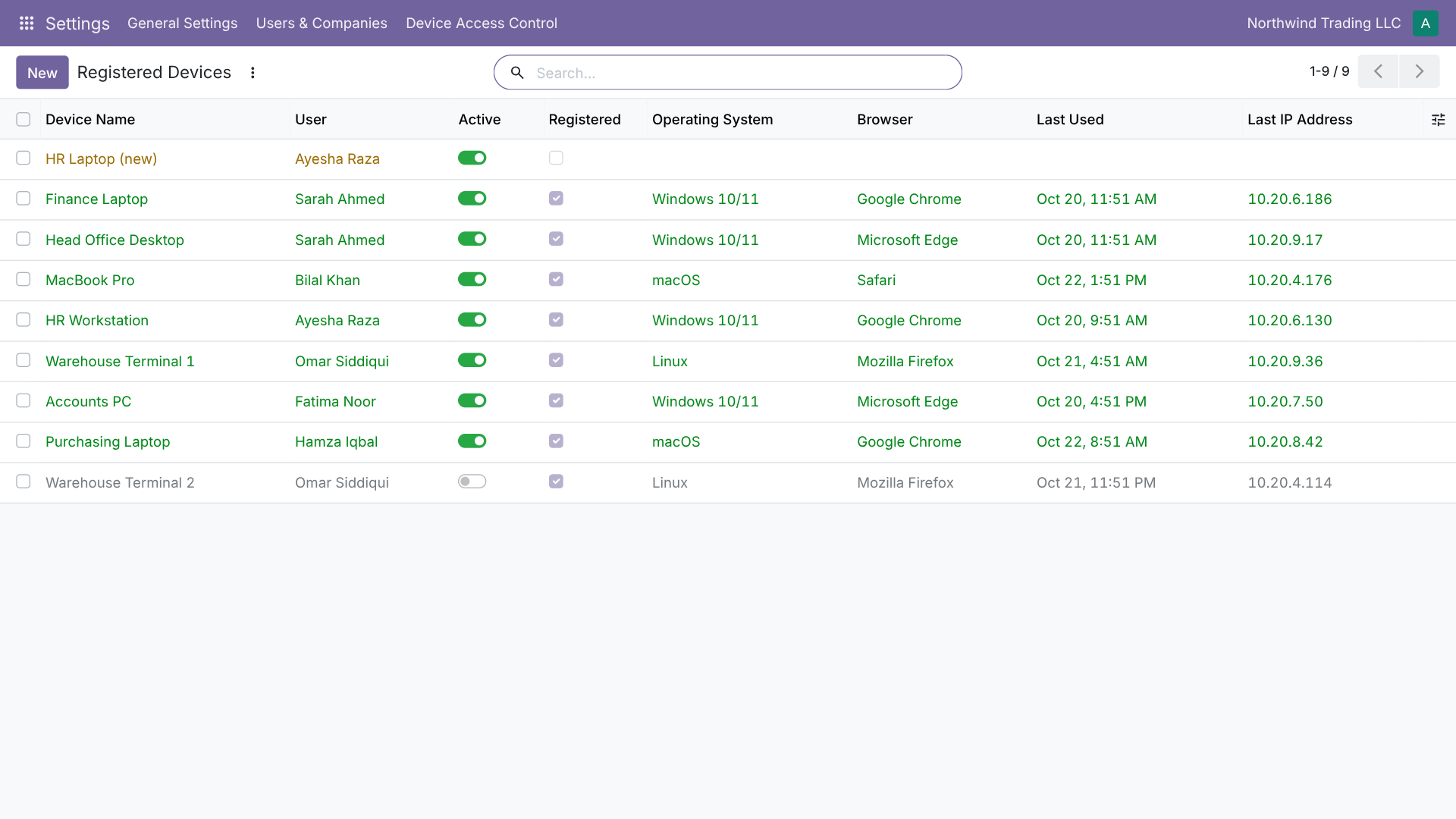
- Deactivate a lost laptop: its open sessions are signed out immediately.
- Reset Device to register a new browser on it.
- A warning appears when a browser presents a different fingerprint than at registration.
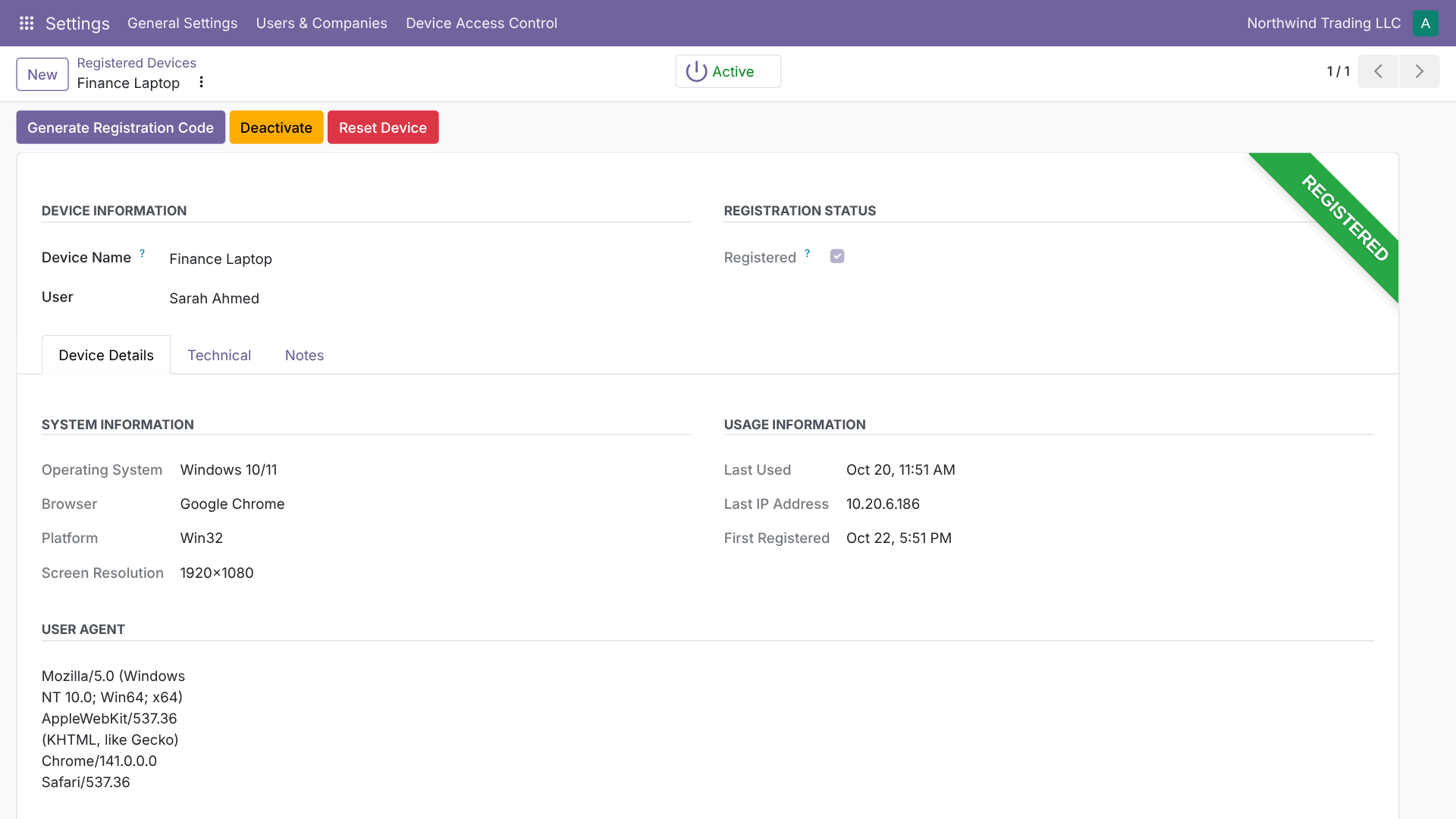
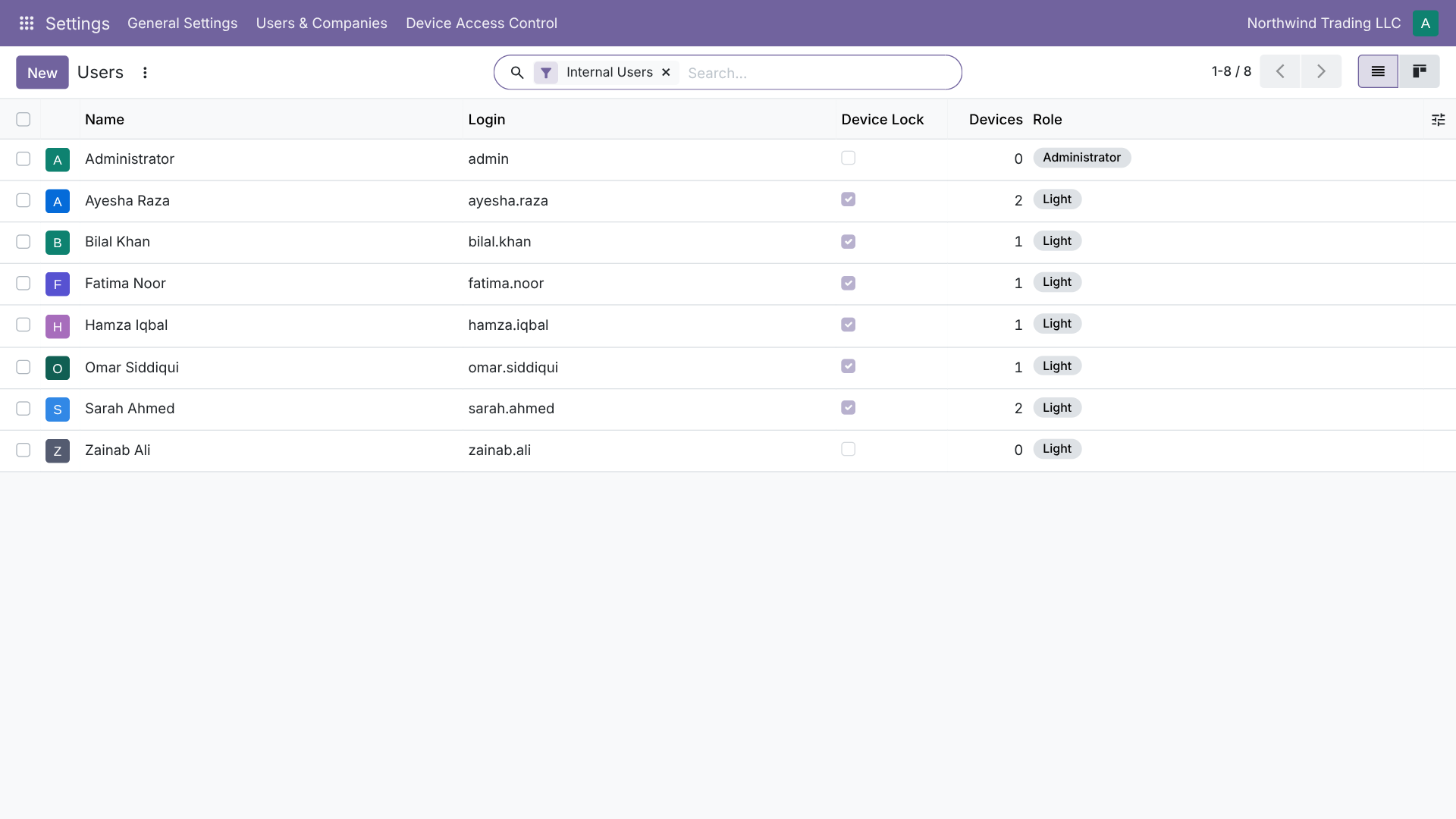
The users list shows each user's device count and lock status.
Every way into Odoo is covered
| Sign-in path for a restricted user | From an unregistered device | From a registered device |
|---|---|---|
| Login page (password, passkey, two-factor) | Refused | Signed in |
| JSON-RPC session login (scripts, custom apps) | Refused | Browser only |
| XML-RPC with password or API key | Refused | Use an unrestricted integration user |
| Another user's registration code | Refused | Not needed |
| Sessions opened before the restriction | Signed out | Sign in again once |
Switching on the restriction, deactivating, resetting or deleting a device, or ending a bypass signs the user out of every open session.
Login audit
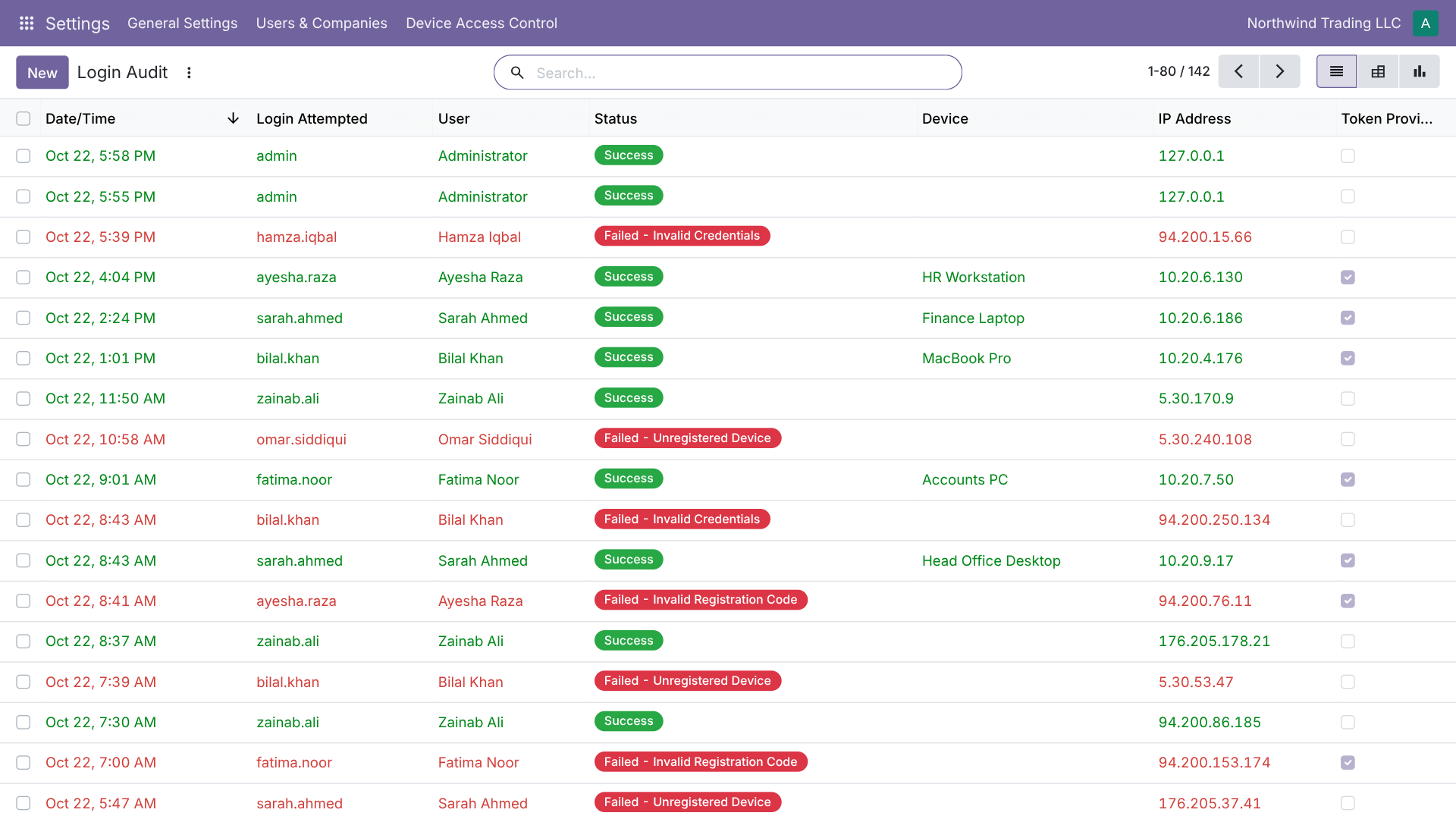
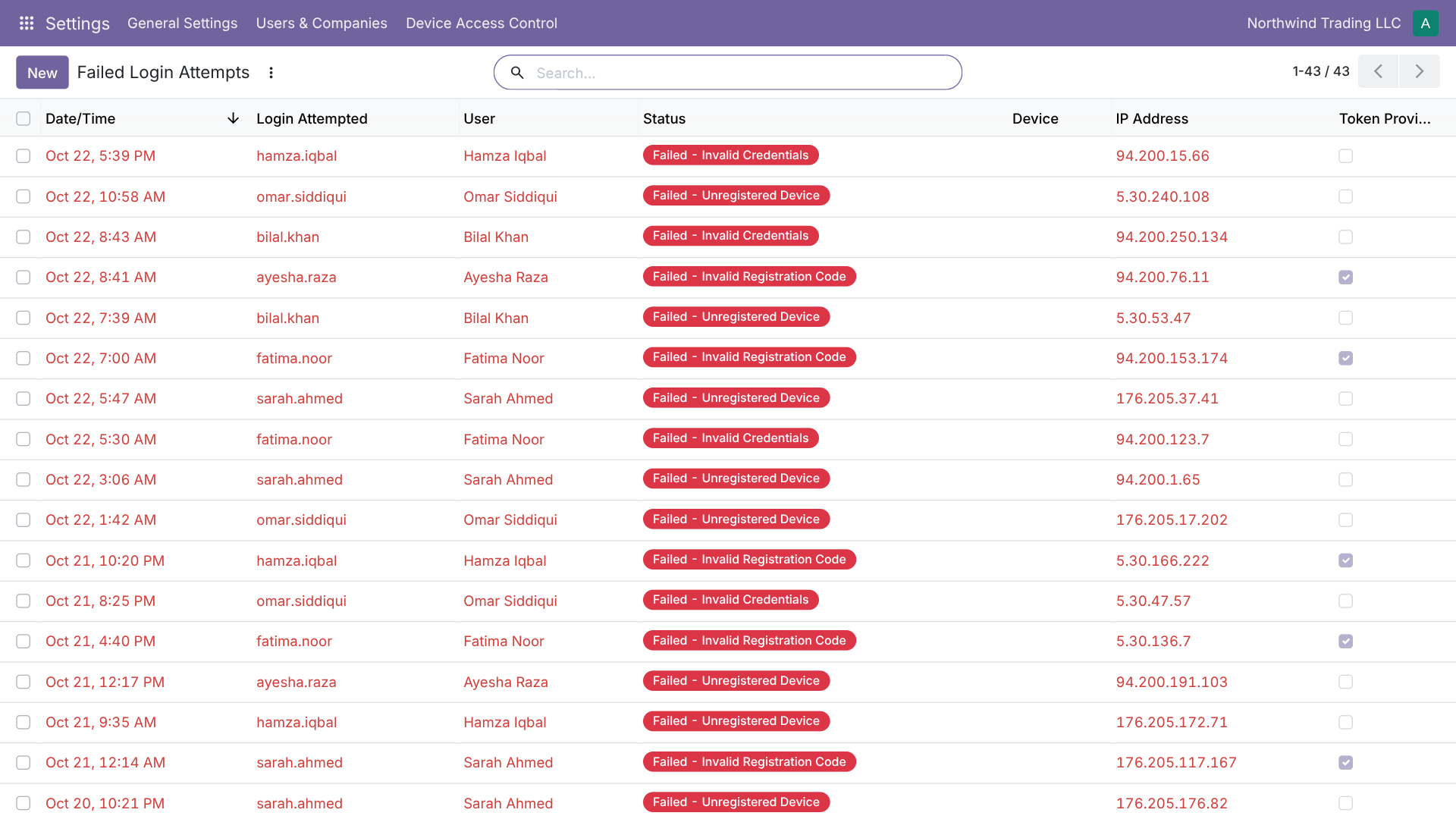
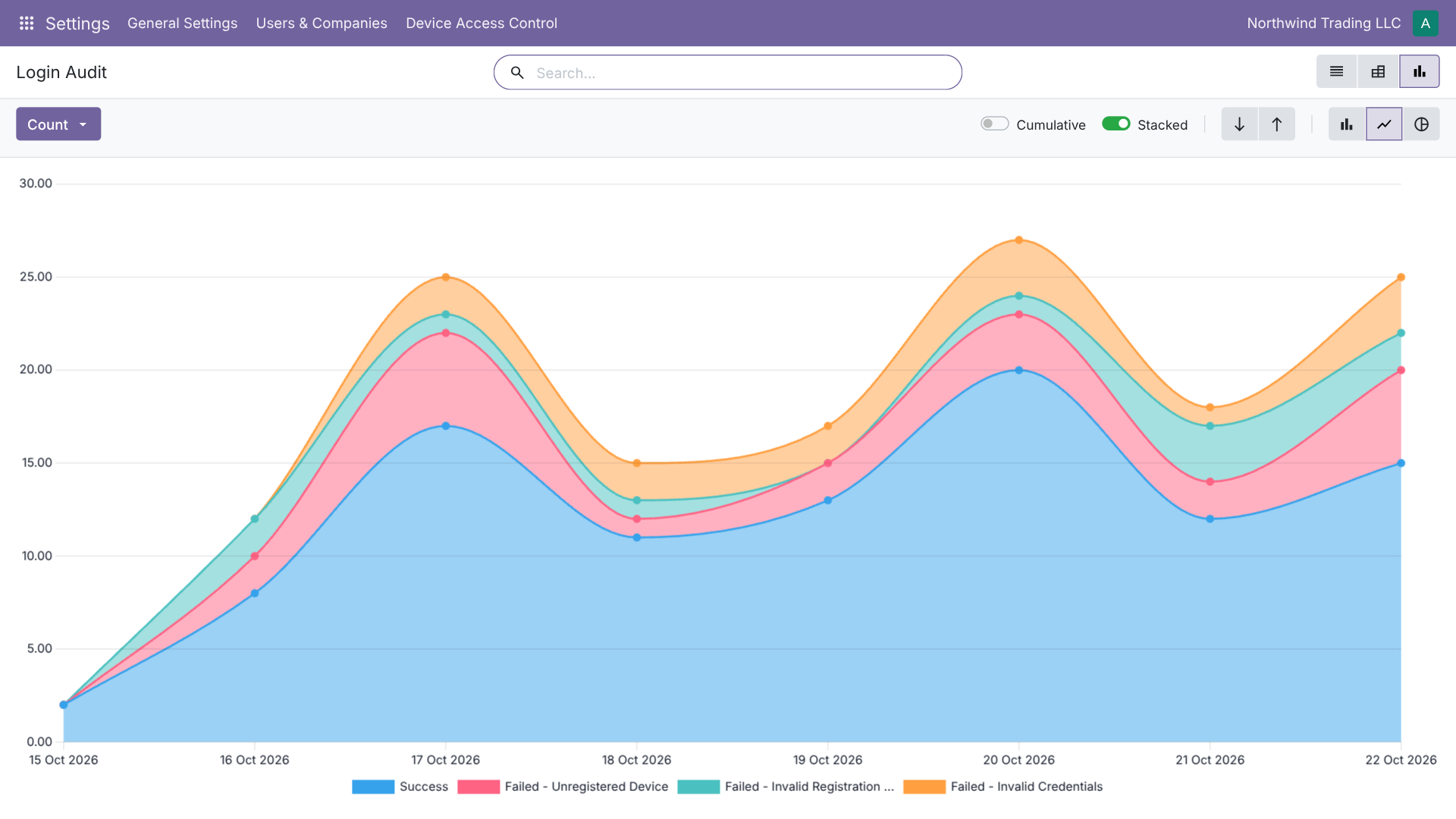
Settings > Device Access Control > Login Audit and Failed Logins record every attempt with the device, IP address, browser and the reason for a refusal: wrong password, unregistered device or invalid registration code.
Emergency access
If someone is locked out, tick Bypass Device Check on the user (still fully logged), or generate a new registration code.
Keep administrators unrestricted, or give them two registered devices, so nobody locks the whole company out.