Printing, rules and automatic printing
Print as usual
Click Print on any document as you always do. Instead of a PDF download, the document comes out of your printer and Odoo confirms it. Several records at once work too.
Choose the printer each time
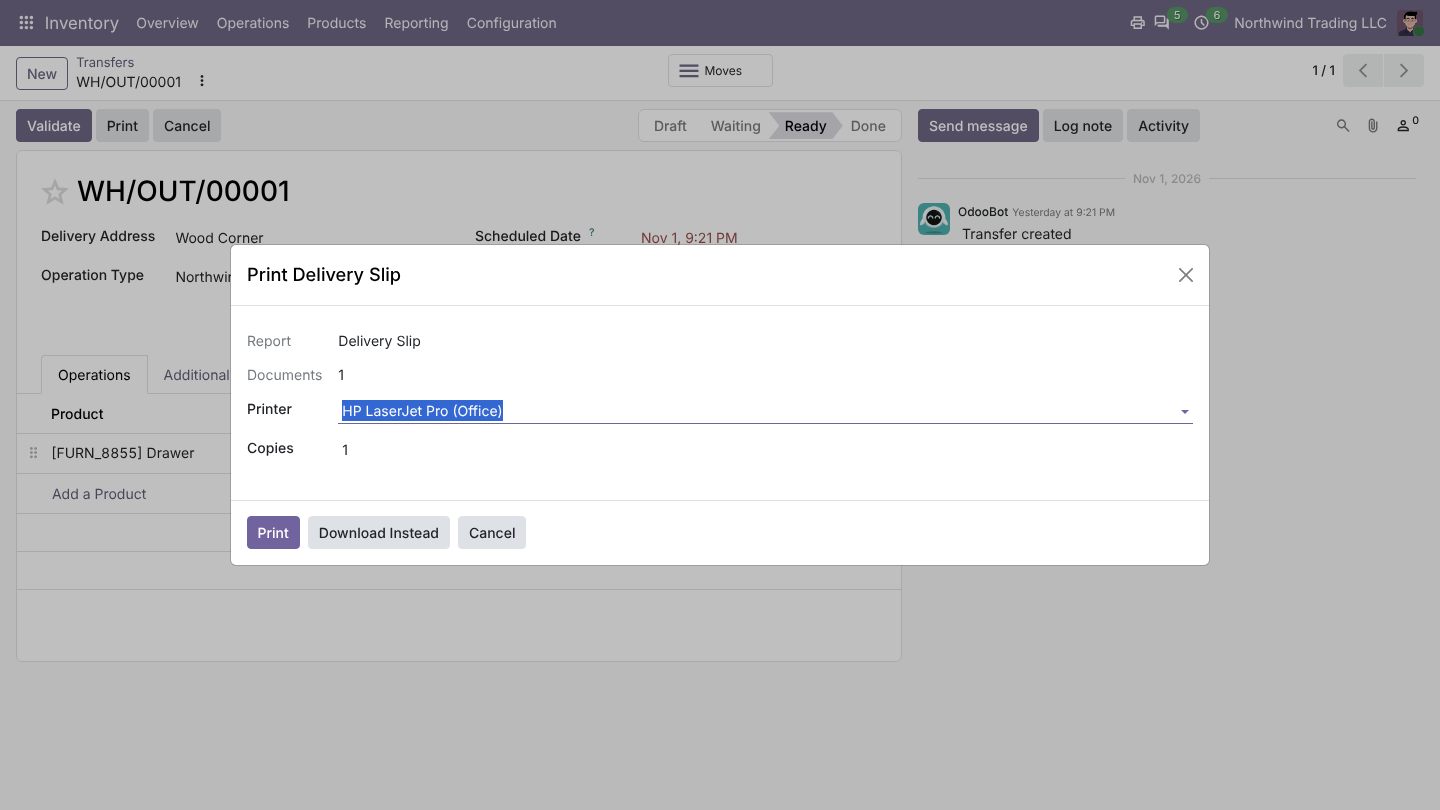
Tick Ask which printer each time in the printer menu. Every Print then opens a small window: pick the printer and the number of copies, or Download Instead. Only printers that can print that report are offered.
Labels on Zebra printers
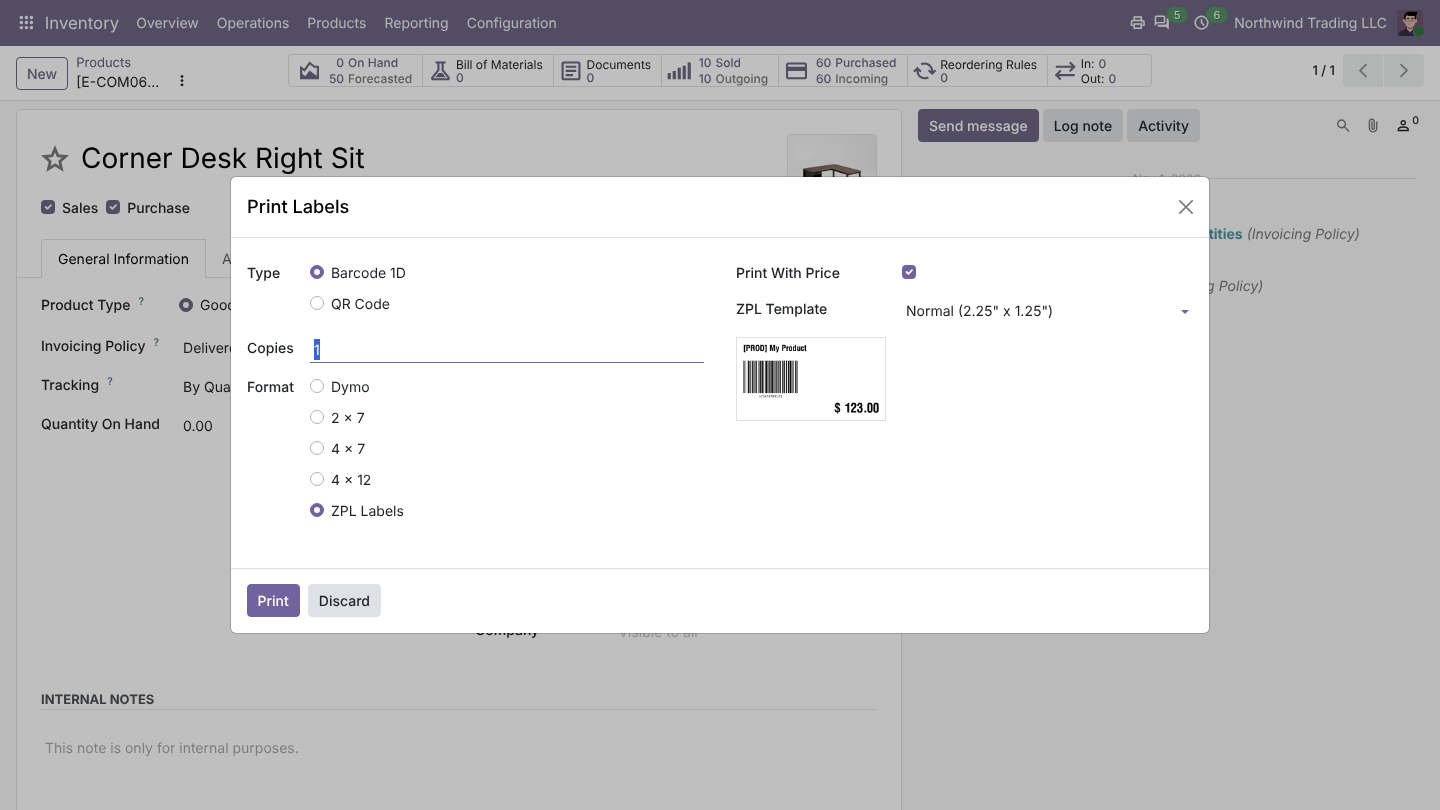
Choose ZPL in Odoo's Print Labels window and the labels go raw to the Zebra or other ZPL printer, with no driver dialog and no scaling. Network label printers on port 9100 work without a driver. PDF labels can go to any printer.
Print rules
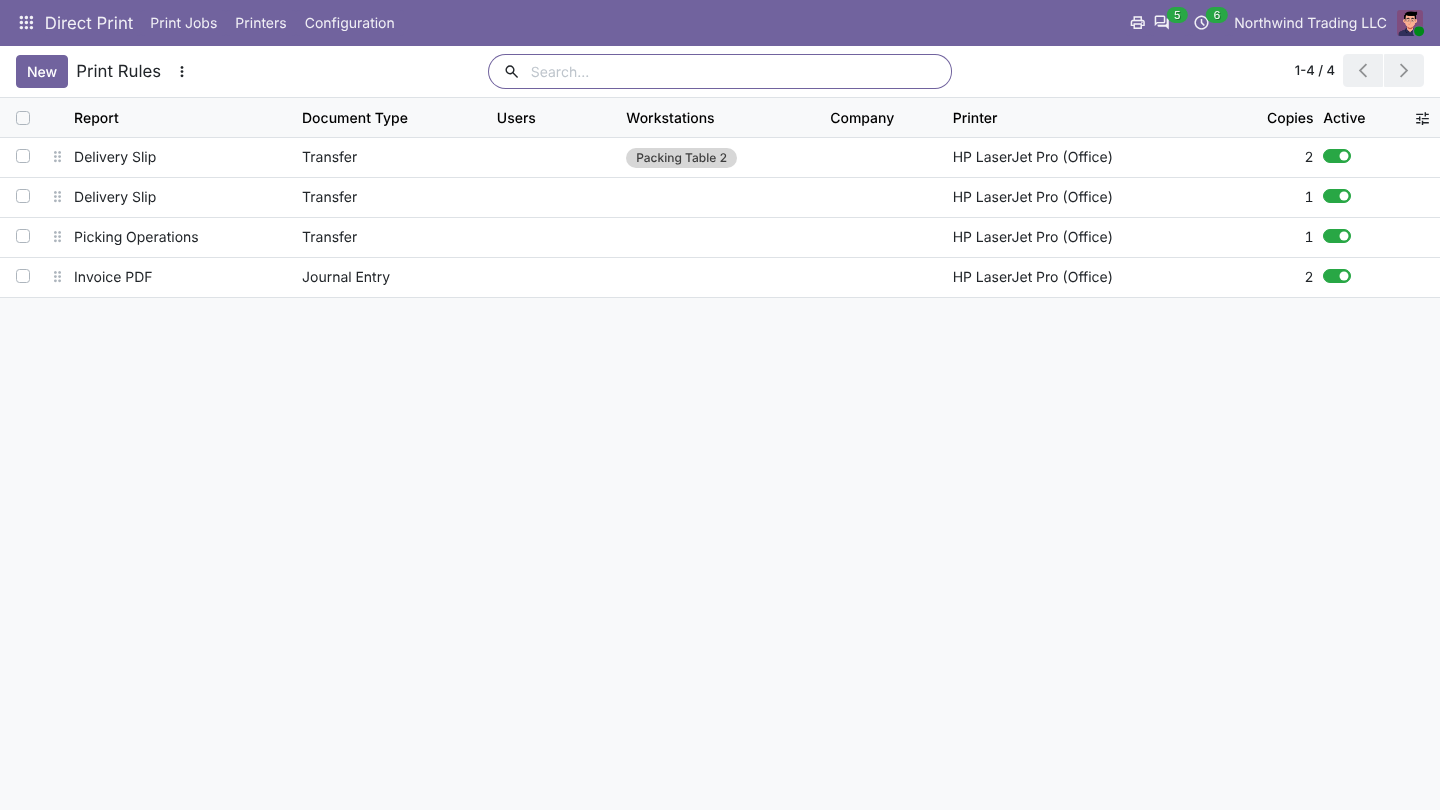
Direct Print > Configuration > Print Rules sends each document to the right printer: delivery slips to the warehouse, labels to the Zebra, two copies of every invoice to the office. Rules match by report, document type, company, user and workstation. The first matching rule wins; users without a rule print to their own printer.
Workstations
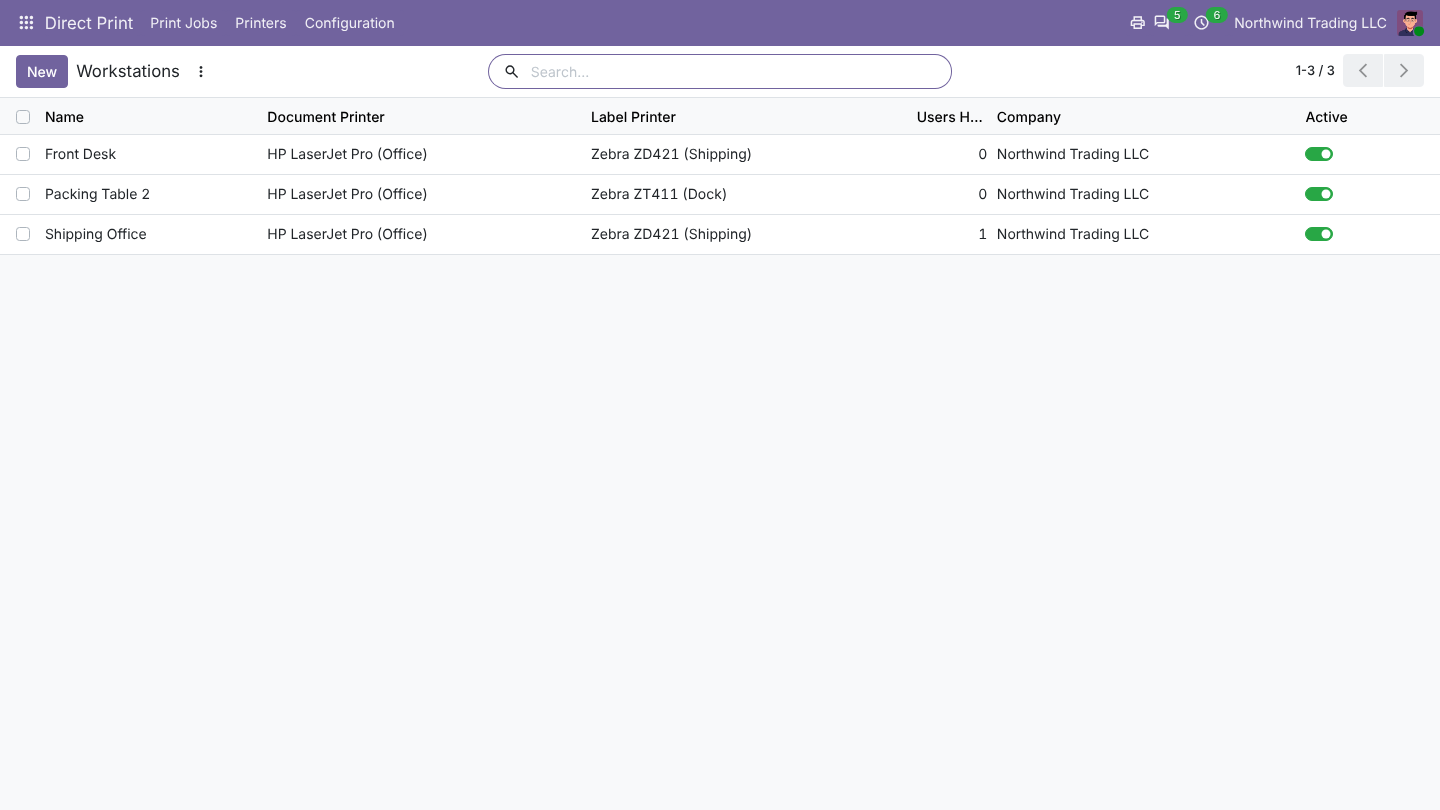
Direct Print > Configuration > Workstations: set up your packing tables, front desk or shipping office once, each with its document and label printer. Whoever signs in at that computer picks the workstation in the printer menu and prints to the printers next to them. The choice is kept per browser, so shared computers just work.
Automatic printing
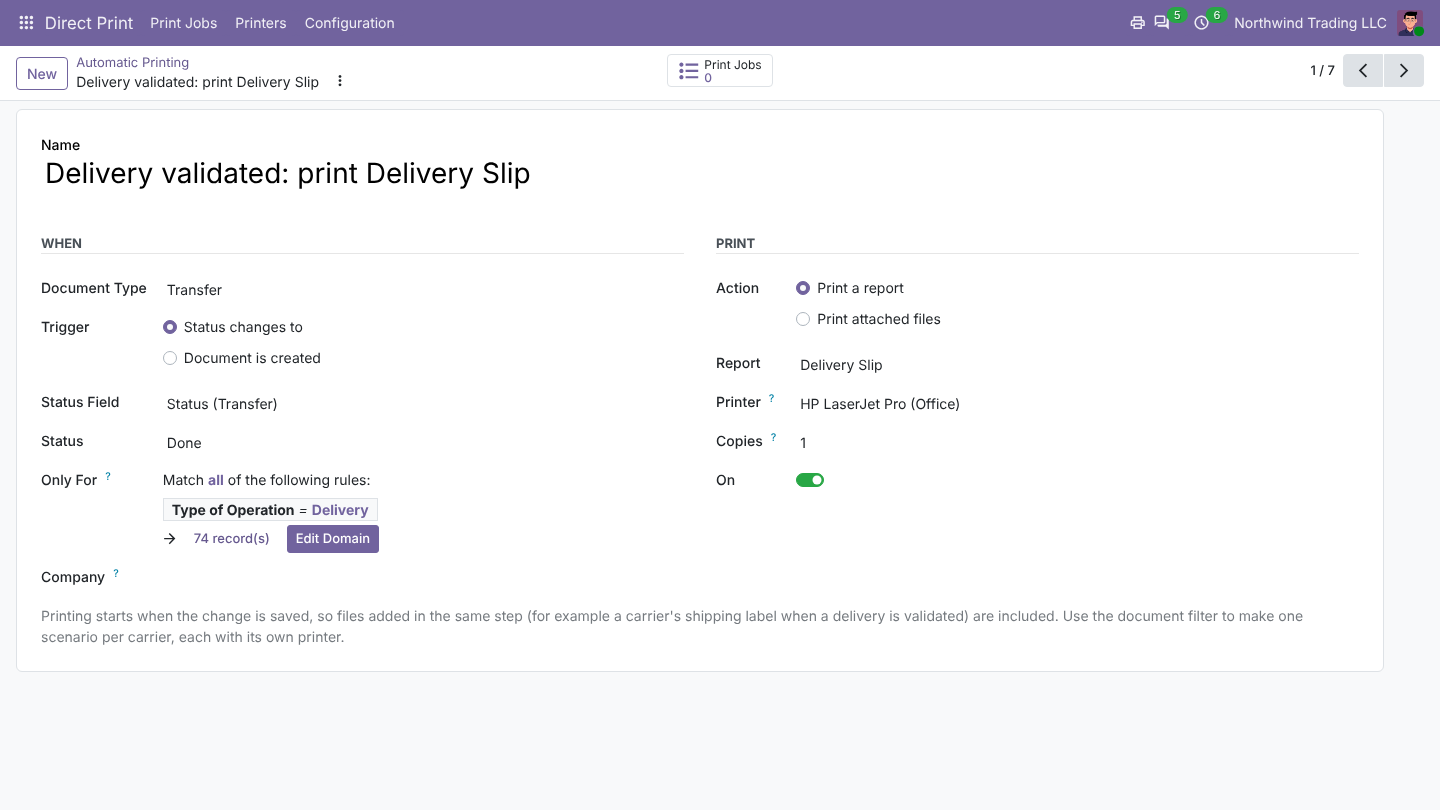
Direct Print > Configuration > Automatic Printing prints without clicking: the delivery slip when a delivery is validated, the invoice when it is posted, the order when it is confirmed. Filter by document type, status or company. Add Examples creates ready-made ones (delivery slips, invoices, orders, Put in Pack, lot and serial labels).
Shipping labels
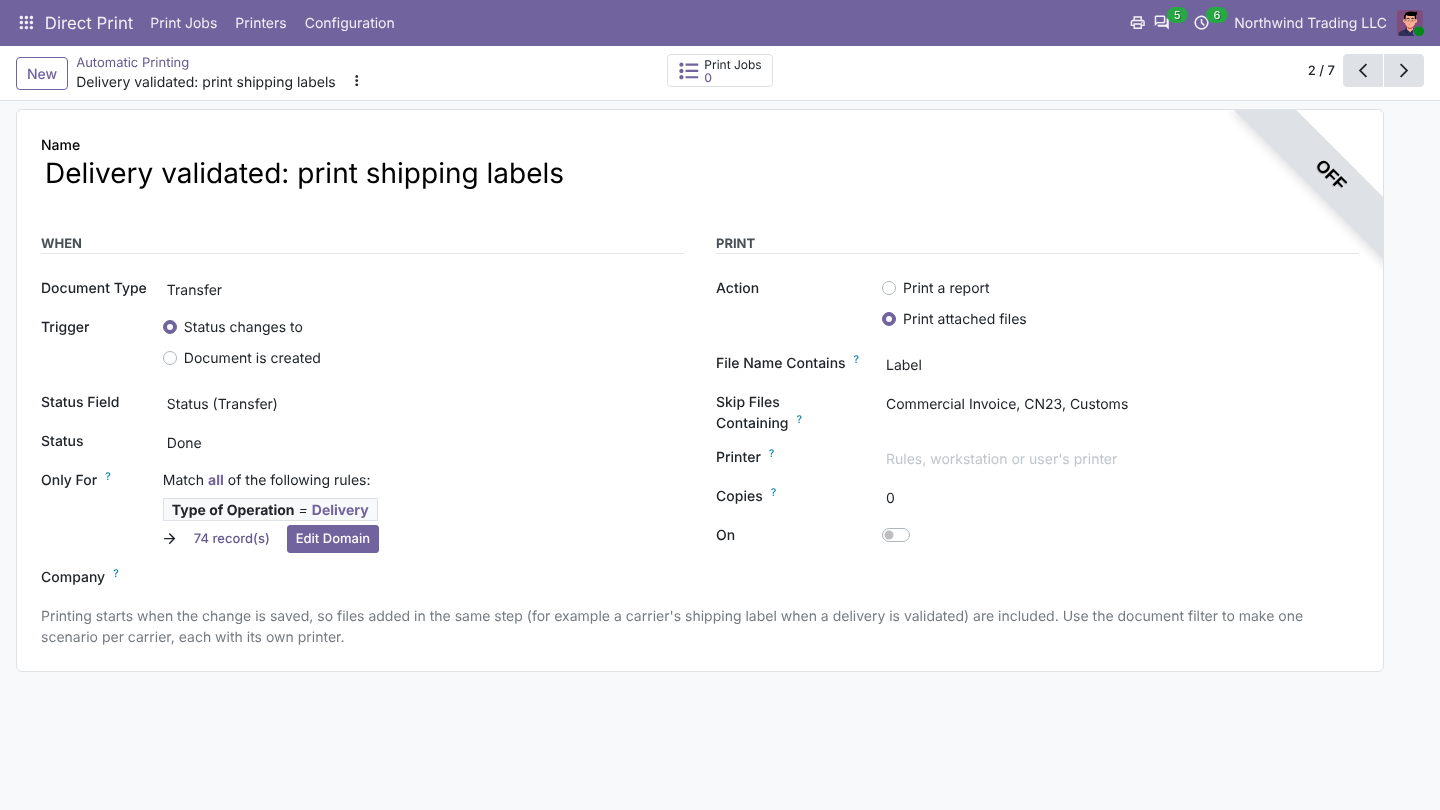
When a delivery is validated, the label your carrier attaches (DHL, FedEx, UPS, Sendcloud...) goes to the label printer. Filter files by name to skip customs papers, or send them to the office printer. Set one scenario per carrier, each with its own printer.
Print jobs
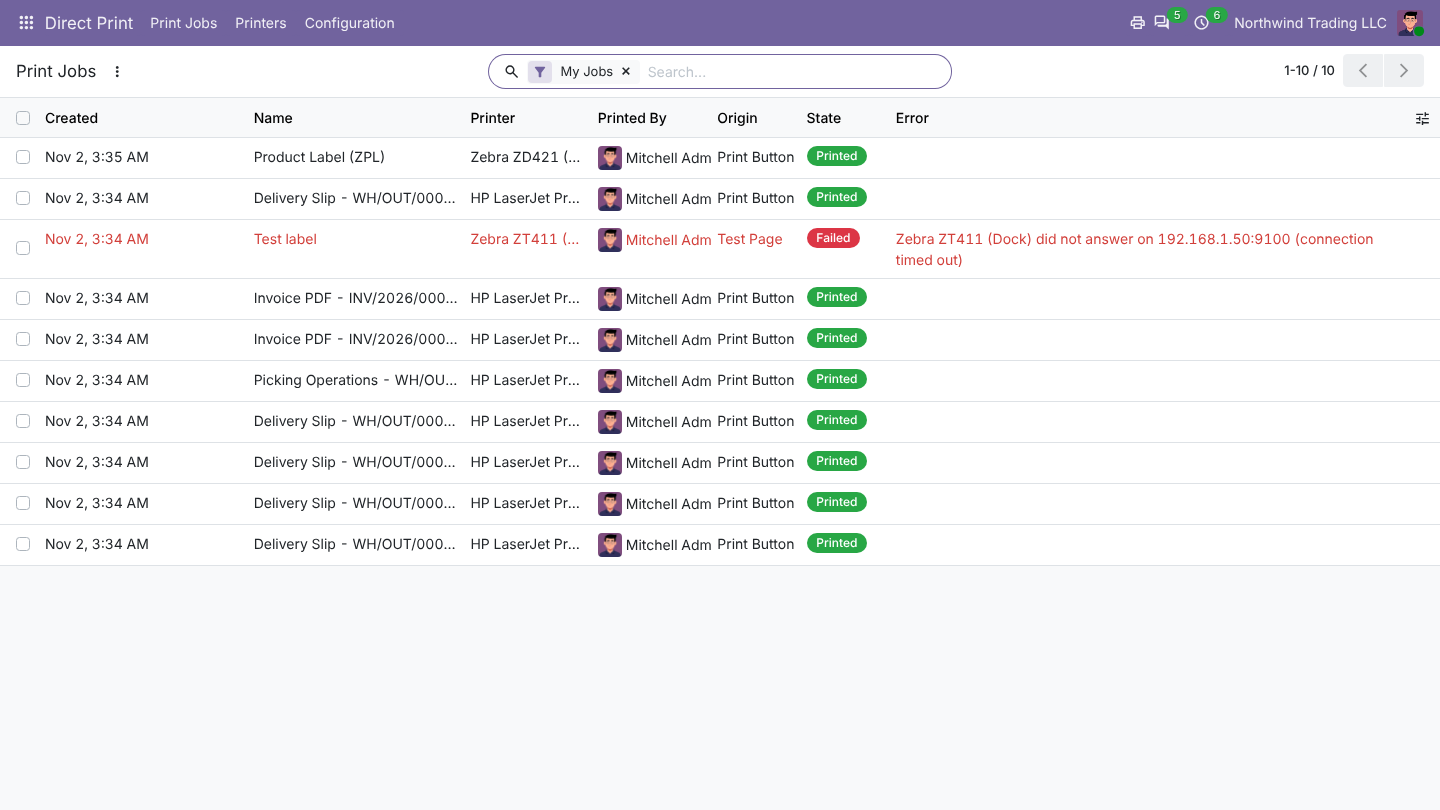
Direct Print > Print Jobs lists every document sent to a printer with its printer, user and status (Printed, Waiting, Failed, Cancelled). If a printer is out of paper or unreachable, the error is shown and you can Send Again, reprint or cancel.