Move old files to the cloud (Storage Manager)
Storage Manager moves old attachments to cloud storage you already pay for. Users keep clicking attachments in the chatter as before: the file is fetched, checked against its checksum and cached in Odoo.
Who can do what
Storage Manager has three levels, enforced on the server: User (opens offloaded files, views the analysis), Manager (rules, runs, analyses, offloaded files, logs) and Settings administrators (connections and credentials, deleting remote copies).
1. Connect your storage
Open Storage > Configuration > Storage Backends. Every connector is included, and you can run several connections at once, for example one per company.
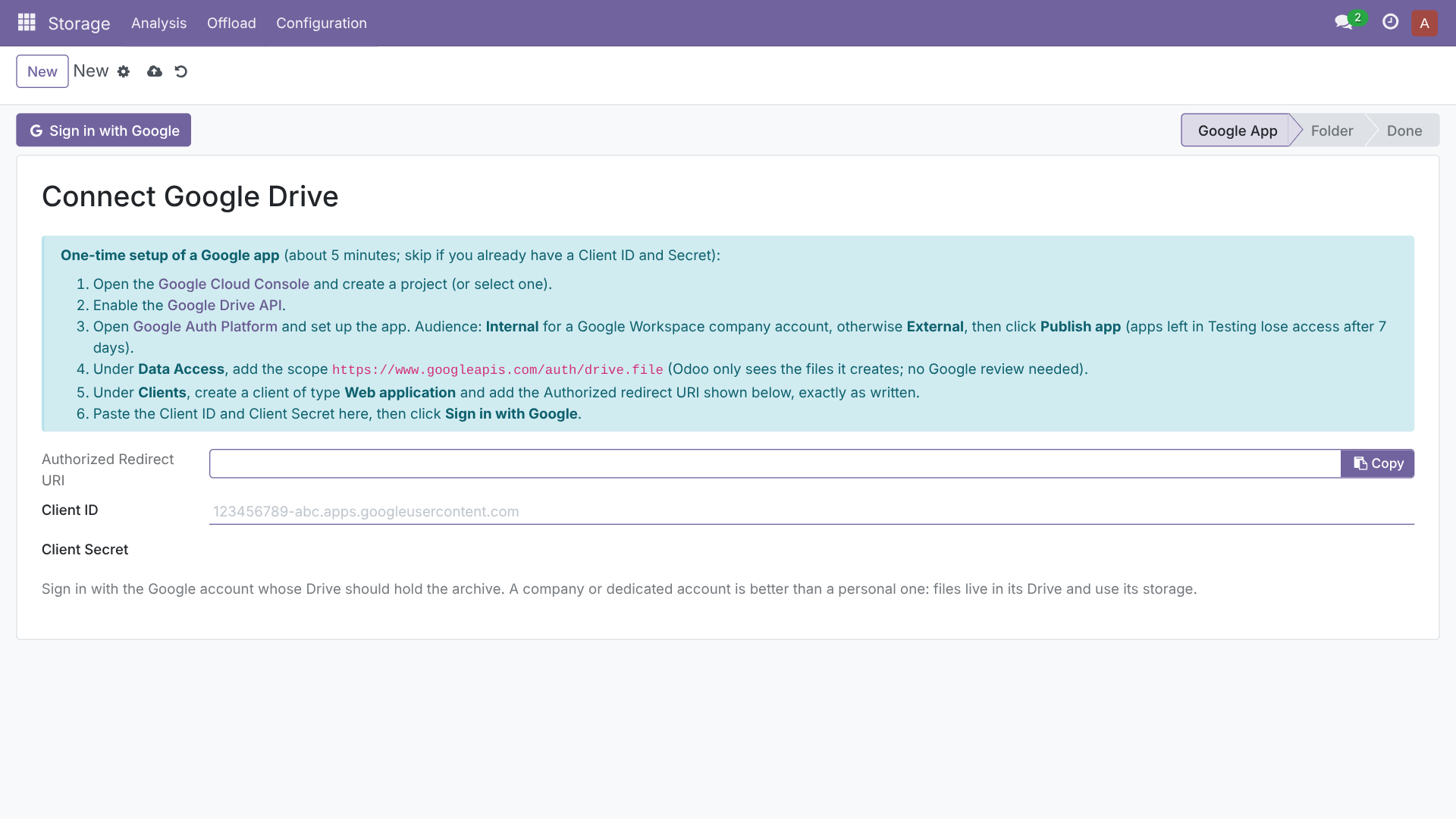
Google Drive
Click Connect Google Drive. A wizard walks you through the one-time Google app setup with links, then Sign in with Google. It uses the limited drive.file scope, so Odoo only sees the files it creates and Google requires no app review. Service accounts with Shared Drives work too.
Cloudflare R2 and any S3 storage
Create a connection of type S3 for Cloudflare R2, AWS S3, Wasabi, Backblaze B2, MinIO, DigitalOcean Spaces or any S3-compatible service: endpoint, bucket, access key and secret. Test Connection checks read, write and delete before a single file moves.
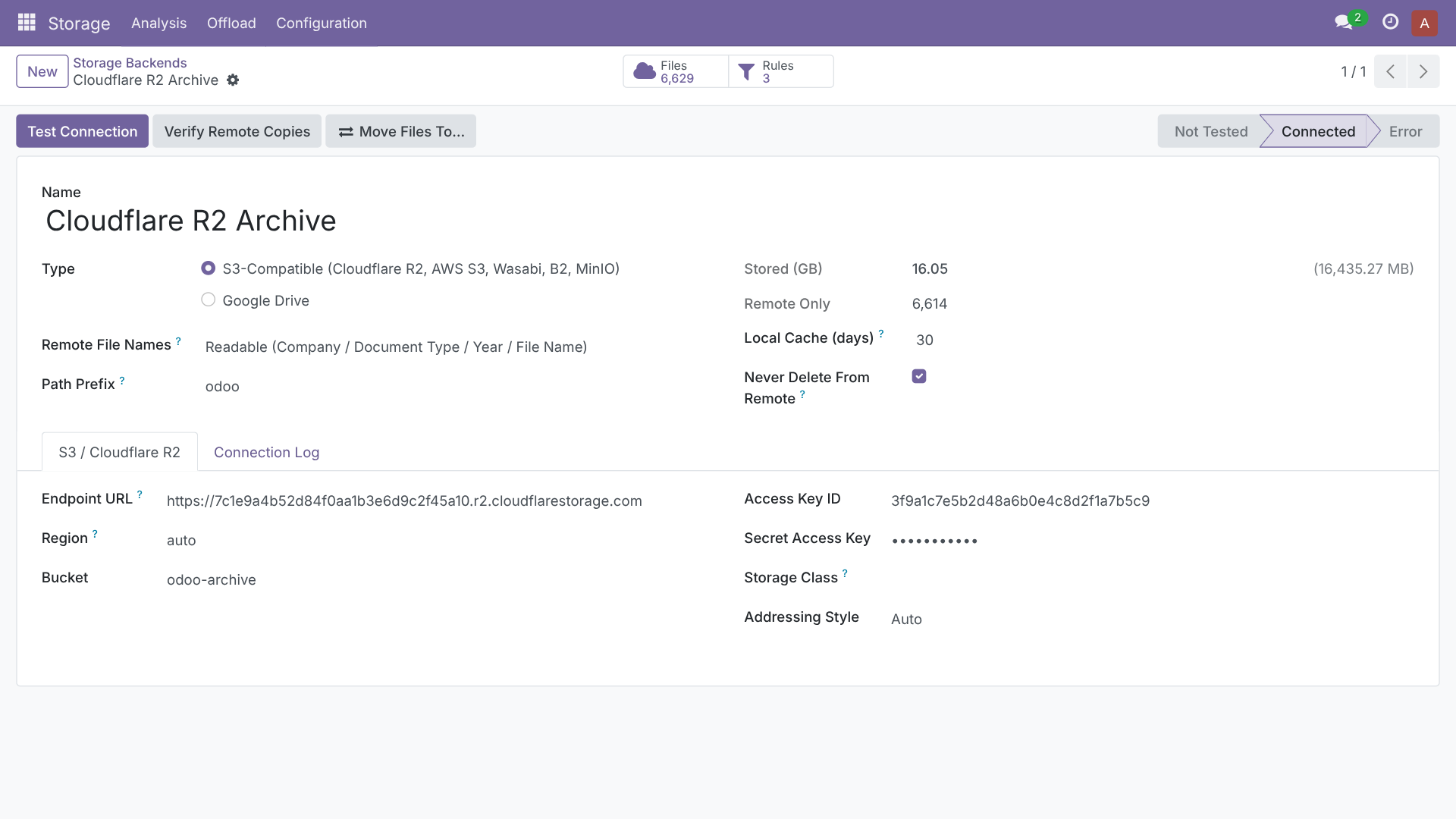
Cloudflare R2 has no download (egress) fees, which makes it ideal for files you rarely open.
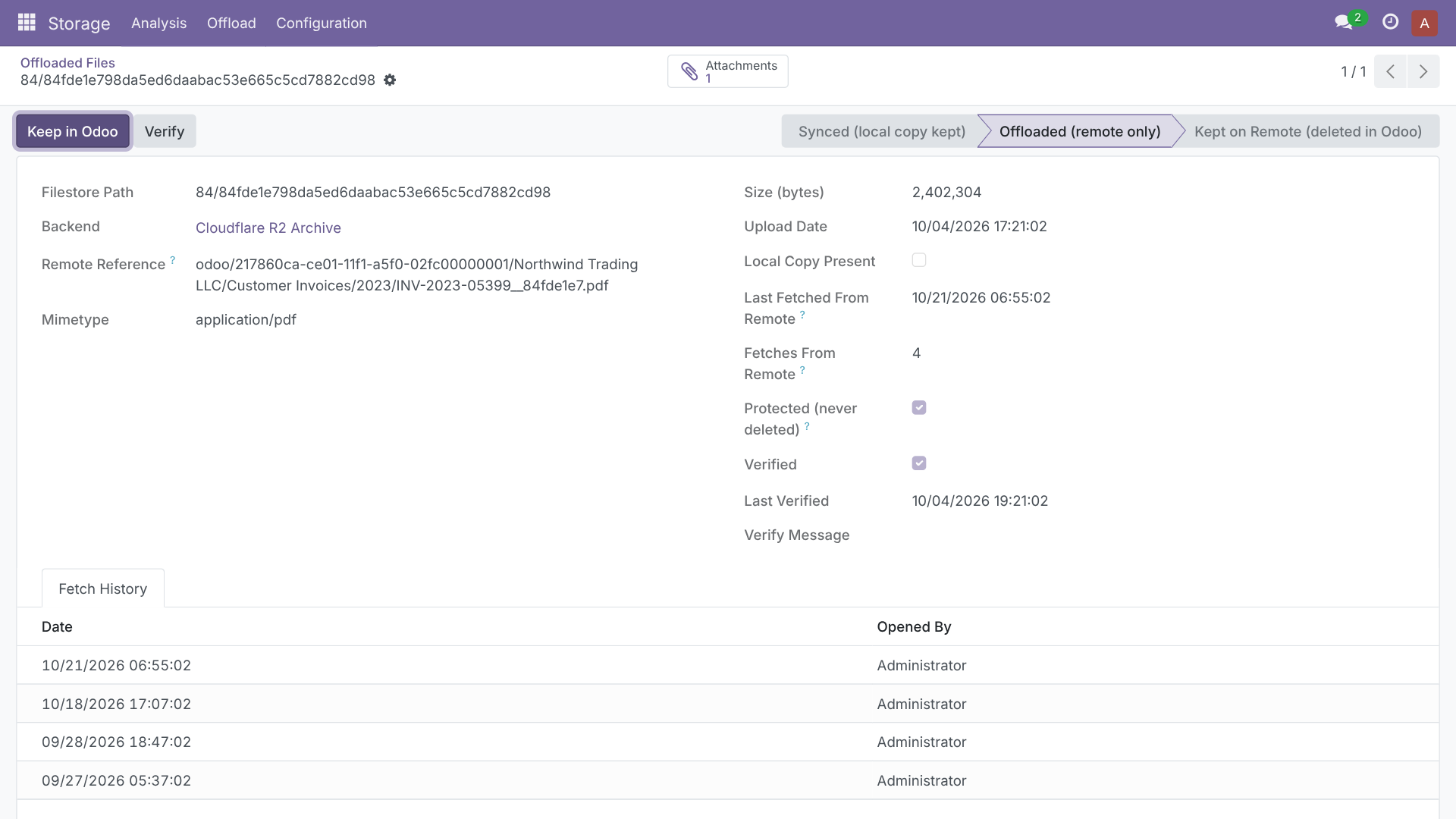
Files are stored as Company / Document Type / Year / File Name, for example My Company / Vendor Bills / 2021 / BILL-2021-0042.pdf, so the archive is readable without Odoo. Renaming or moving folders on Drive breaks nothing: Odoo tracks each file by its remote ID.
2. Create offload rules
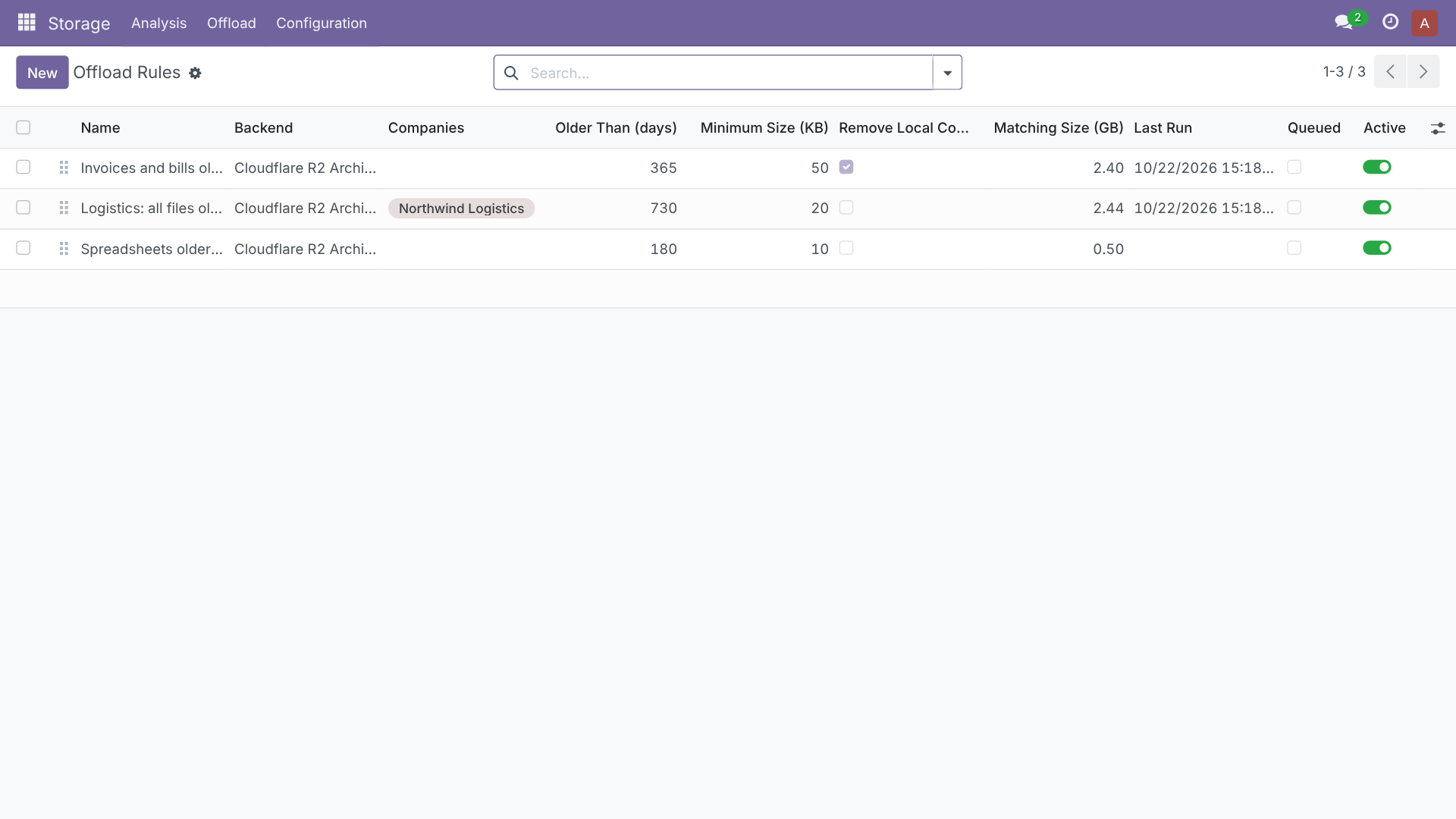
Open Storage > Offload > Offload Rules and create a rule, for example PDFs and images older than 2 years, larger than 50 KB, for one company.
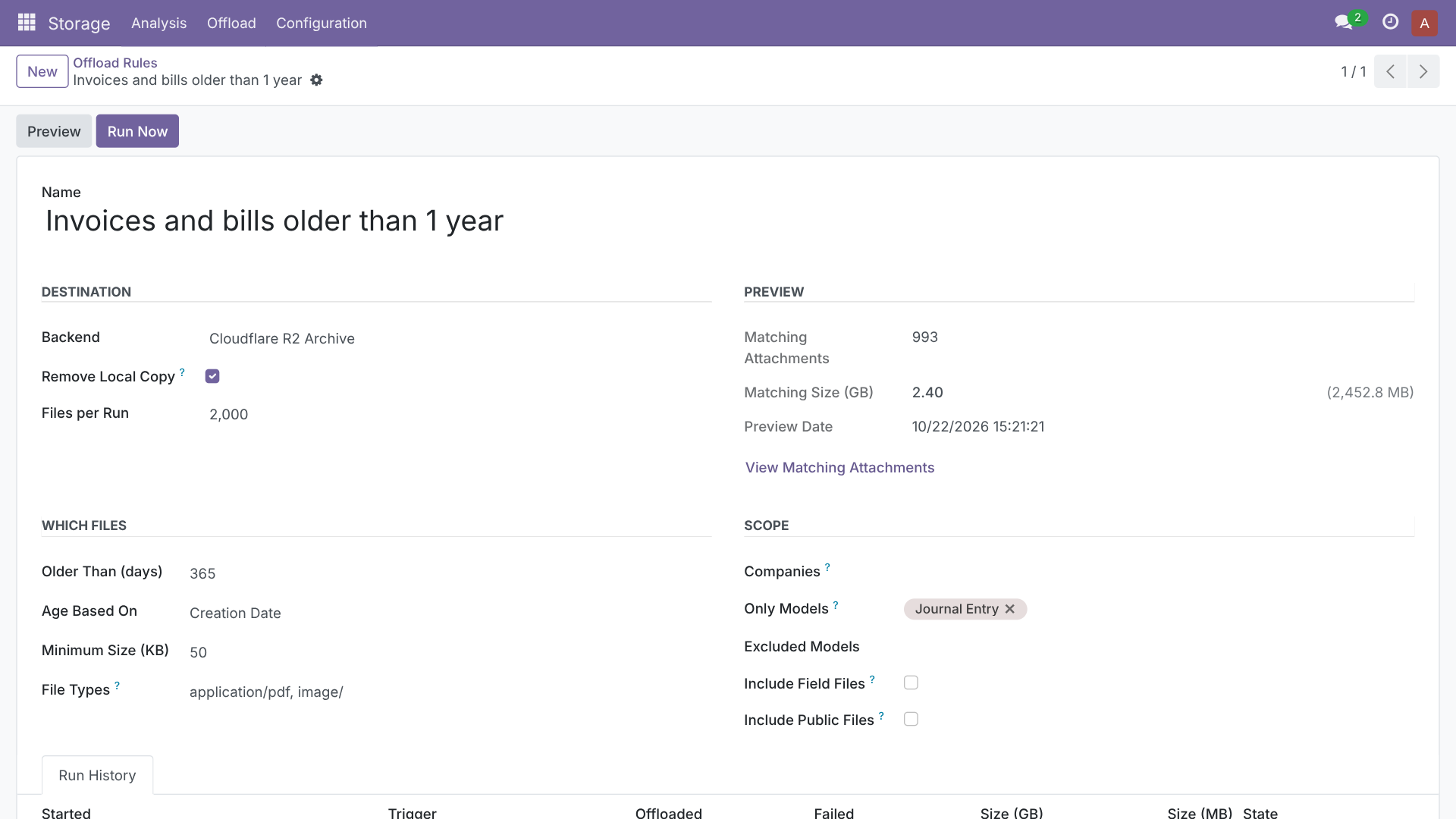
- Filter by company, document types (include or exclude), file types, minimum size and age (by creation or last change date).
- Optional: files in binary fields (product images, signed documents) and public files.
- Backup mode: switch off Remove Local Copy on a rule to copy files to the remote storage and keep the local file.
- Preview shows how many files and how many GB match before anything moves.
Rules run in the background every hour in small batches with a 10 minute budget and continue where they stopped, so they never hit request timeouts (also on Odoo.sh). To move specific files now, select attachments and use Action > Offload to Remote Storage.
3. Work as usual
Offloaded files stay attached to their invoices, bills, contacts and payments. Every attachment card shows where the file lives (for example Cloudflare R2 or Google Drive); hover to see when it was copied and last fetched.
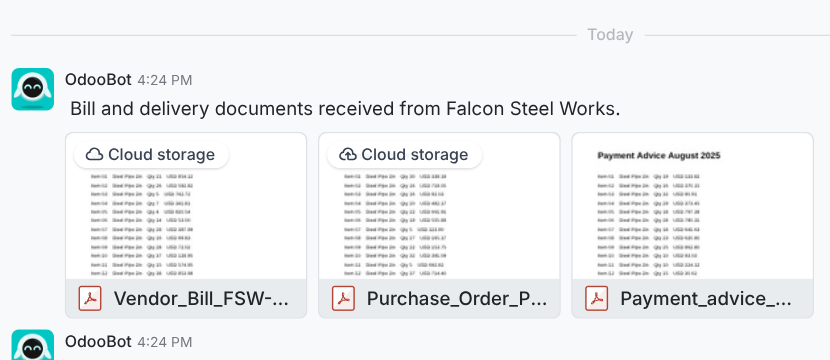
- Keep in Odoo brings a file back permanently.
- Remove from Odoo (keep remote copy) frees local space again for files that already have a remote copy.
- Cached copies that nobody opened for a set number of days are removed every night.
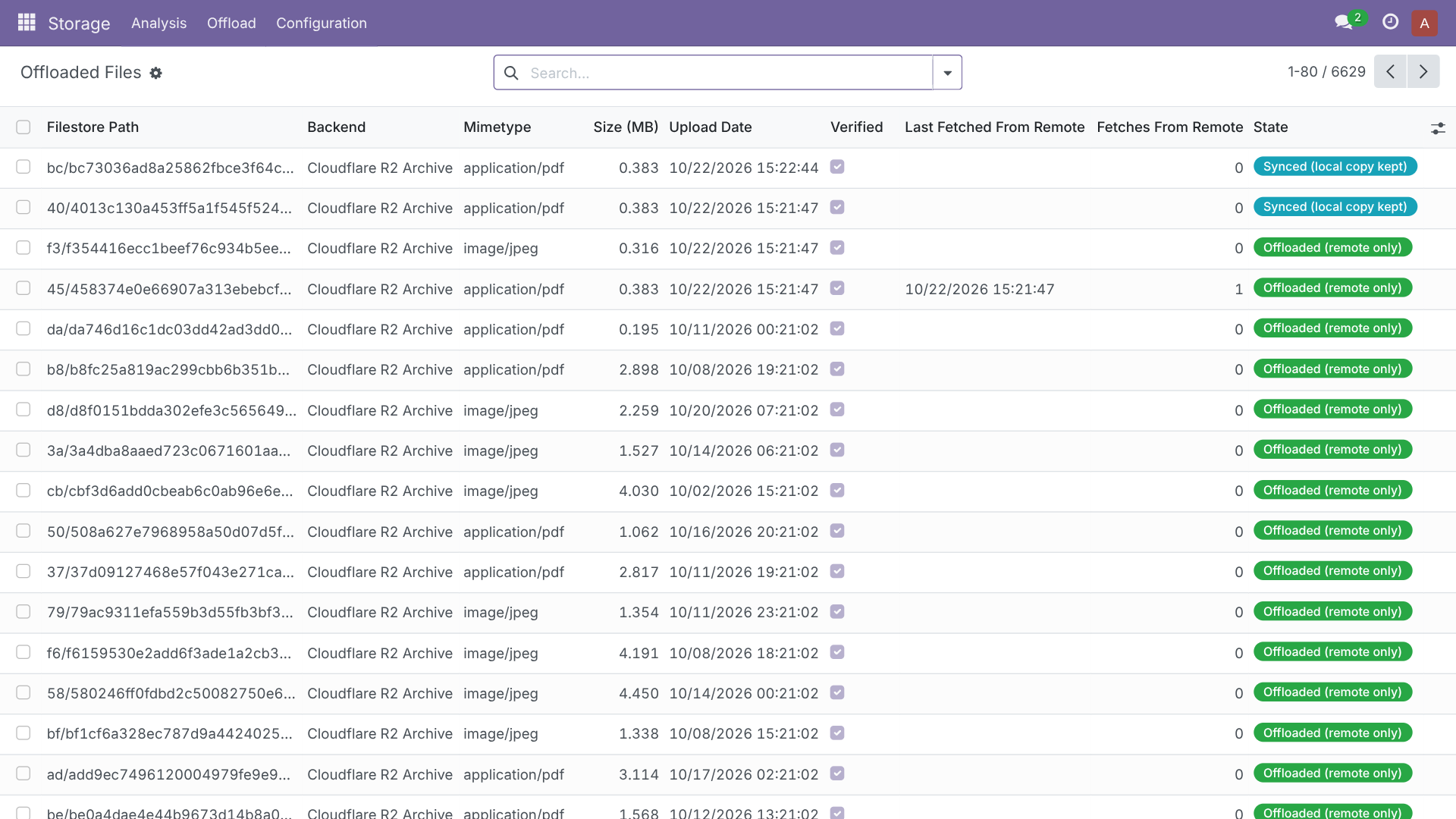
Offloaded files and fetch tracking
Storage > Offload > Offloaded Files lists every moved file with Last Fetched From Remote and Fetches From Remote. The filters Fetched in Last 30 Days and Never Fetched tell you whether your rules are well tuned. Opening a copy that is still cached is not counted.
Logs
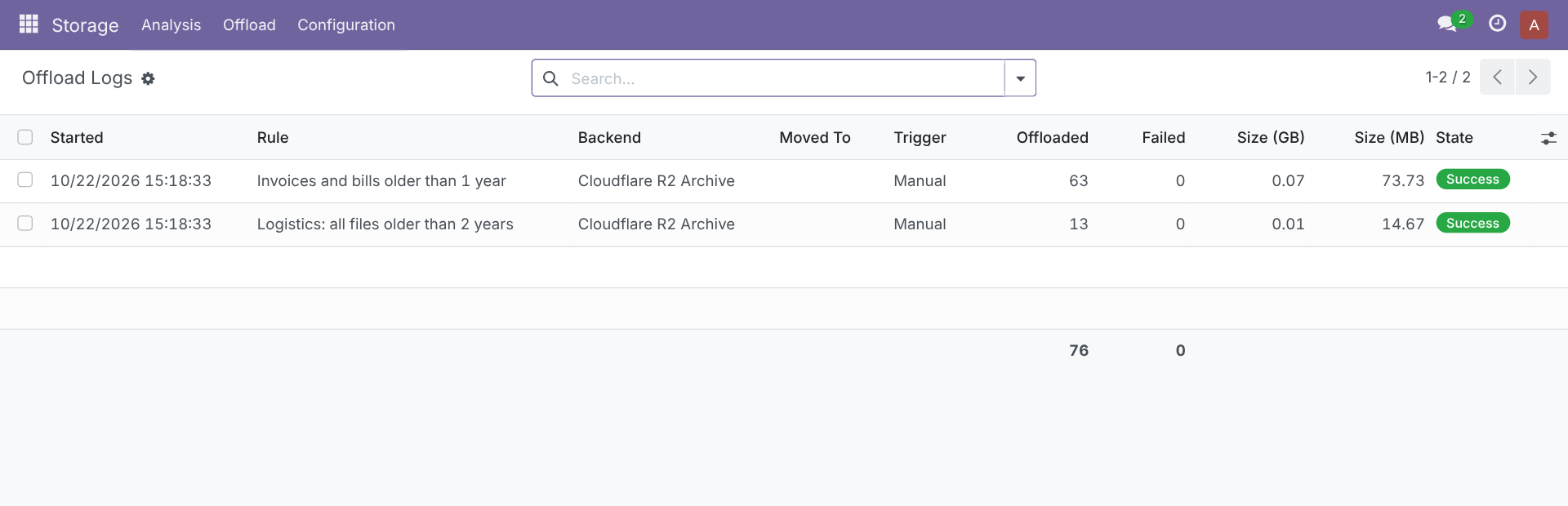
Storage > Offload > Logs records each run: start, trigger, files moved, failures and size. Runs that reach the time budget are marked and simply continue at the next run.
Your archive is safe
- Never delete from remote (on by default): deleting or replacing an attachment in Odoo never deletes the remote copy.
- Test databases cannot touch it: each connection remembers the database that created it. A duplicated or staging copy can read offloaded files but cannot upload or delete.
- The local copy is removed only after the upload is verified and saved.
- Verify Remote Copies on a connection checks that every remote file still exists with the right size.
- Web assets, views, module data and files younger than 7 days are never offloaded. A connection that holds files cannot be deleted, and the app cannot be uninstalled while files exist only remotely.
Moving to another storage
Switching from a personal Drive to the company account, or from Drive to R2? A background job copies, verifies and switches each file while it keeps opening. Nothing is deleted from the old connection.