Connect your store
You need an Odoo administrator and a WordPress user with the Administrator or Shop manager role.
Before you start
- The store must use pretty permalinks: in WordPress, Settings > Permalinks, anything but Plain.
- WooCommerce 5.8 or newer.
- For webhooks and for product images sent by link, the store must be able to reach your Odoo address (the web.base.url system parameter). If your server hosts several databases, set a database filter so the webhook address opens the right one.
1. Create the API key in WooCommerce
- In WordPress, go to WooCommerce > Settings > Advanced > REST API and click Add key.
- Enter a description (for example Odoo), choose the user and set Permissions to Read/Write.
- Click Generate API key and keep the page open: the consumer secret is shown only once.
2. Connect the store in Odoo
- Open the Online Stores app and click New.
- Enter a Name, choose the platform WooCommerce.
- On the Connection tab, fill in Store Address (for example
https://shop.example.com), Consumer Key and Consumer Secret. Leave Authentication on Automatic. - Click Test Connection. The store currency and WooCommerce version appear at the top.
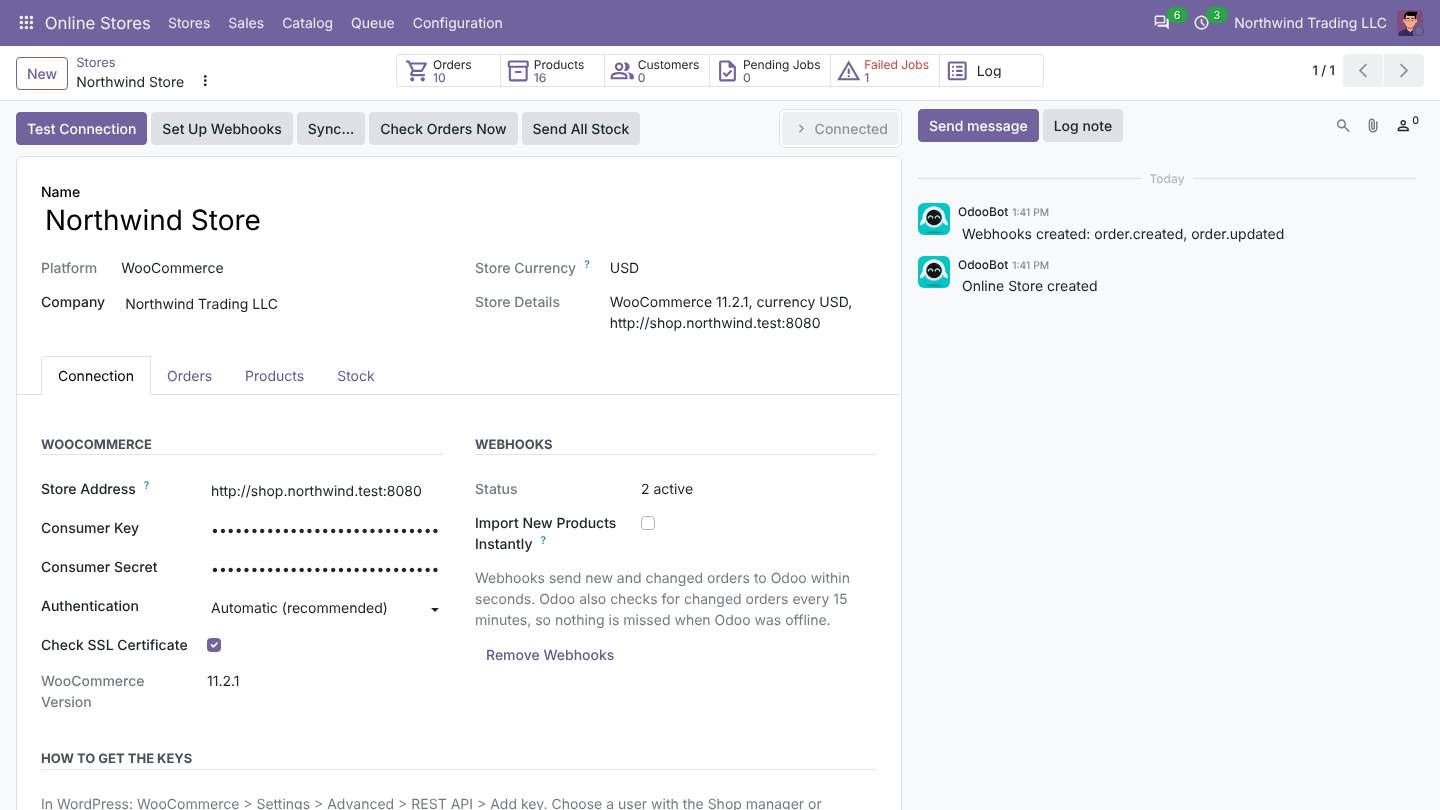
Only Odoo administrators see the Connection tab and the keys.
3. Check the settings
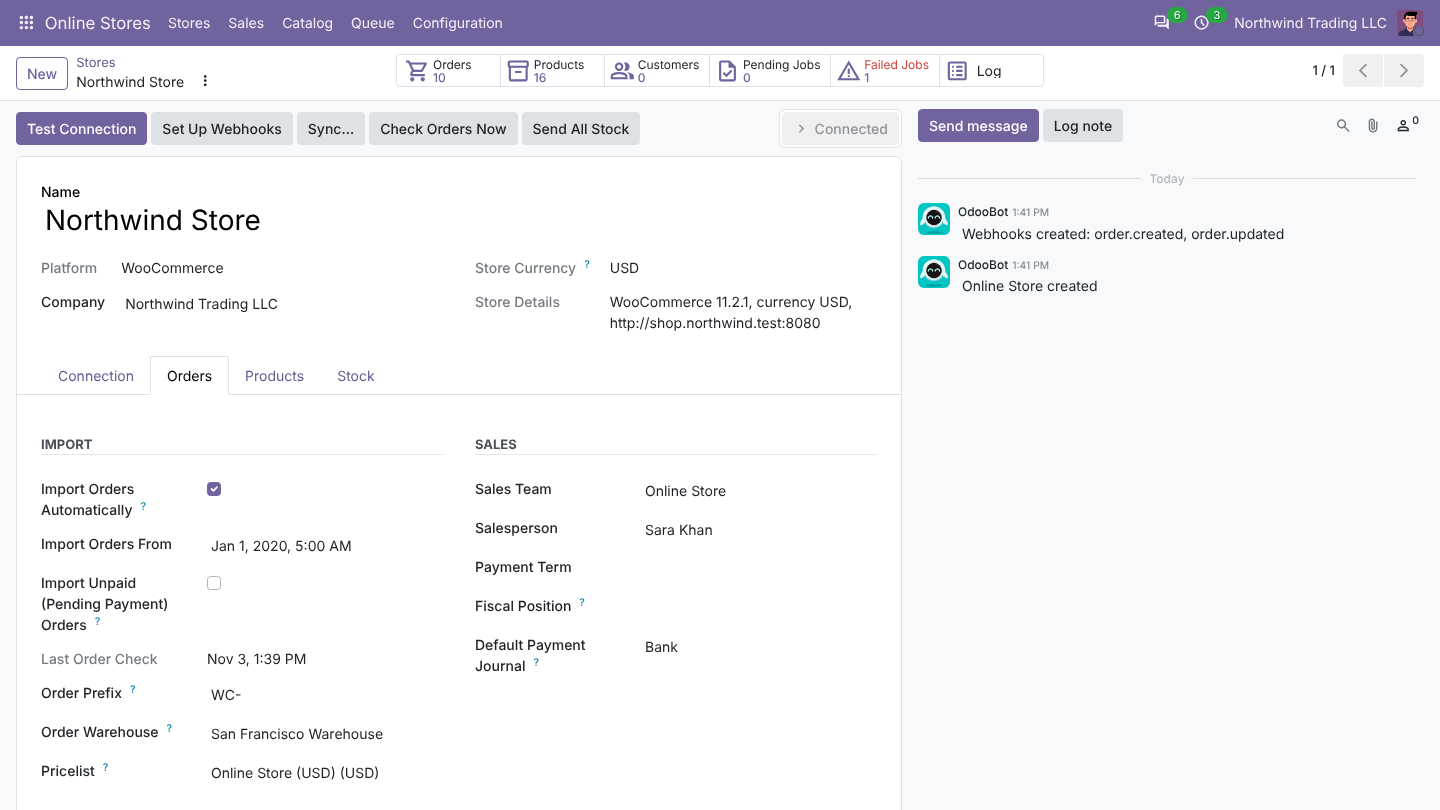
- Orders tab: Import Orders From (orders changed before this date are not imported by the scheduled check), Order Prefix (default
WC-), Order Warehouse, Pricelist, Sales Team, Salesperson, Tax Mode and the extra products for shipping, discounts and fees. - Products tab: how products are matched (Match Products By), Import Unknown Products With Orders, Product Images.
- Stock tab: what quantity the store shows. See Products, stock and prices.
4. Import your catalog
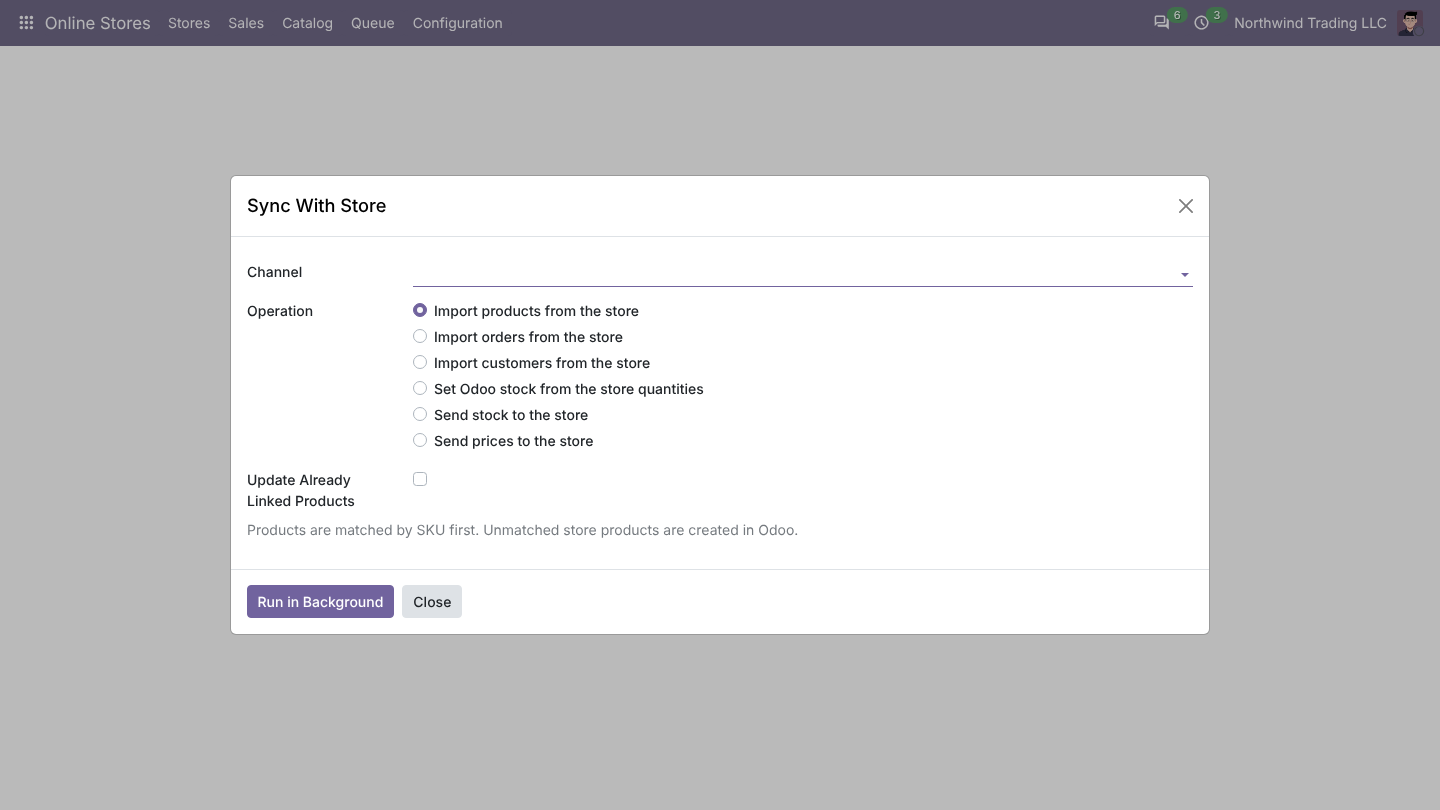
- Click Sync... on the store.
- Choose Import products from the store and click Run in Background. Products are matched with your Odoo products by SKU first; the others are created.
- Optional, once, when you start: Set Odoo stock from the store quantities sets the on-hand quantity of linked products in the chosen location.
5. Set up webhooks
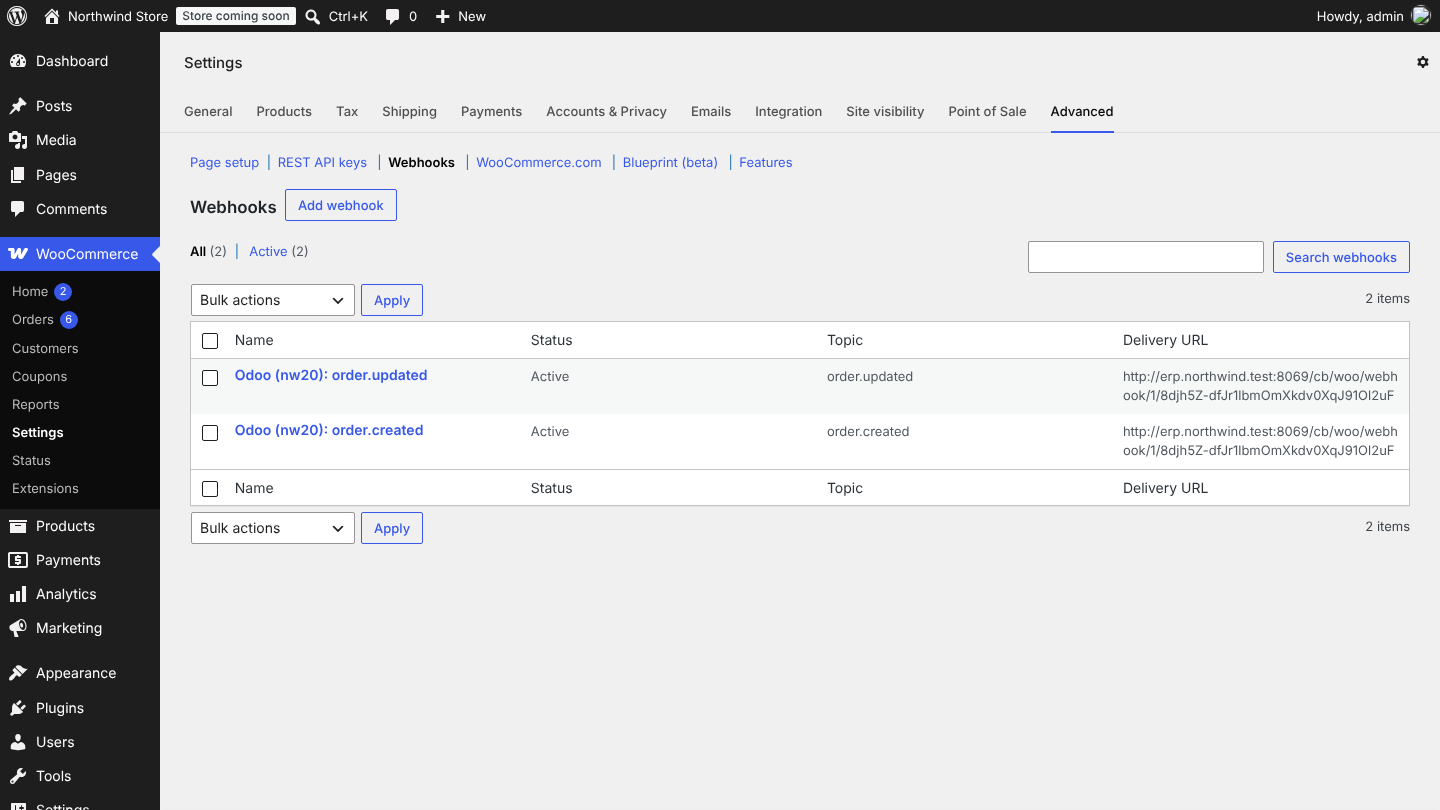
Click Set Up Webhooks. Odoo creates two webhooks in WooCommerce (order created and order updated), each signed with a secret of this store. From now on, new and changed orders reach Odoo within seconds. Odoo also checks every 15 minutes, so orders placed while Odoo was offline are not missed.
6. After the first orders
Open Configuration > Payment Methods and decide, per payment method, what Odoo does with the order. See Orders, invoices and payments.
Several stores
Create one store per WooCommerce site. Each has its own warehouse, pricelist, taxes, payment methods and order prefix, and can belong to its own company.
Was this page helpful?