Payment methods and order workflows
Payment methods in WooCommerce
Each order carries its payment method code (payment_method) and title. The first order with a new method creates the payment method in Online Stores > Configuration > Payment Methods, with the store's Default Payment Journal and a log line New payment method ... added. Check its settings.
Common WooCommerce codes:
| Code | Gateway | Usually paid at checkout | Typical setup |
|---|---|---|---|
stripe | Stripe (card) | Yes | Confirm, invoice, register payment in a Stripe journal |
ppcp-gateway | PayPal Payments | Yes | Confirm, invoice, register payment in a PayPal journal |
woocommerce_payments | WooPayments | Yes | Confirm, invoice, register payment |
bacs | Direct bank transfer | No (order On hold) | Confirm only; payment when the money arrives |
cheque | Check payments | No (order On hold) | Confirm only |
cod | Cash on delivery | No (order Processing, unpaid) | Confirm; invoice and payment when the courier pays |
An order is paid for Odoo when WooCommerce has a payment date on it (date_paid). Bank transfer and cash on delivery orders get it when you mark them paid or completed in WooCommerce; Odoo then invoices and registers the payment on the next update.
How the workflow works
What Odoo does with an imported order depends on how it was paid. Each payment method WooCommerce reports (for example a card gateway, bank transfer or cash on delivery) gets a line in Online Stores > Configuration > Payment Methods, created automatically the first time an order uses it.
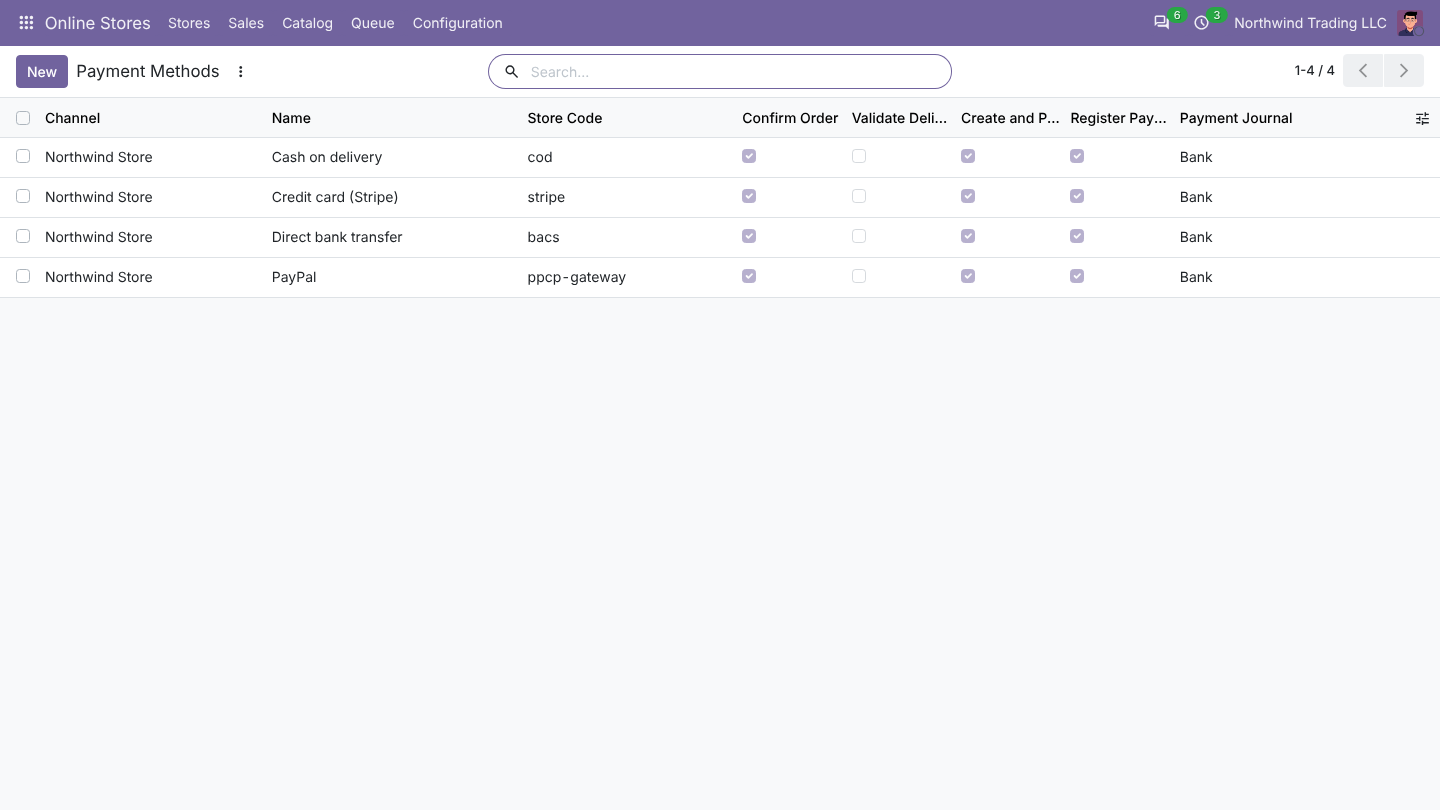
Fields
| Field | Default | What it does |
|---|---|---|
| Store | The store the method belongs to. Each store has its own methods. | |
| Name | The name WooCommerce sends | Shown in the order's Online Store tab. |
| Store Code | The code WooCommerce sends | How Odoo recognises the method. Do not change it. |
| Confirm Order | On | Confirm the quotation into a sales order. |
| Validate Delivery | Off | Validate the delivery right away when every product is in stock. For digital goods, services or stock shipped by a third party. |
| Create and Post Invoice | On | Create the invoice and post it. |
| Register Payment When Paid | On when the store has a Default Payment Journal | Register the payment on the invoice in the journal below. |
| Payment Journal | The store's Default Payment Journal | Bank or cash journal of the payment. Required when Register Payment When Paid is on. |
| Payment Term | Empty | Payment term of orders paid this way. Wins over the store's Payment Term. |
What happens, in this order
Each time an order is imported or updated, Odoo runs these steps. A step that is already done is skipped.
- Confirm, when Confirm Order is on and the store status is one the connector treats as confirmed (paid, processing, on hold or completed). Unpaid orders the connector imports as pending stay quotations.
- Validate the delivery, when Validate Delivery is on and every product can be reserved. If something is missing, the delivery stays open and Odoo tries again at the next update of the order. A delivery that needs a decision (for example lots or serial numbers) is left for you, with a warning in the log.
- Invoice, when Create and Post Invoice is on and the order is paid in the store or completed. An order is invoiced once: credit notes of later refunds never lead to a second invoice.
- Register the payment, when Register Payment When Paid is on, a journal is set and the order is paid in the store.
Without a payment method (some orders have none, for example a free order), Odoo confirms the order and invoices it once it is paid or completed, but registers no payment.
A step that fails (for example an invoice that cannot be posted because of a missing account) does not stop the import. The order is kept, the failed step is listed in the log as a warning, and it is tried again with the next update of the order. Click Update From Store on the order to try right away.
Recommended setups
| Payment method | Confirm | Validate Delivery | Invoice | Register Payment | Journal |
|---|---|---|---|---|---|
| Card gateway (paid at checkout) | On | Off | On | On | A bank or clearing journal for that gateway |
| Bank transfer | On | Off | On | On | Your bank journal (the payment is registered when the store marks the order paid) |
| Cash on delivery | On | Off | On | On | A cash or courier journal. The invoice is created once the store marks the order paid or completed. |
| Marketplace or gift card paid elsewhere | On | Off | On | Off | Reconcile the payout yourself |
FAQ
Why is my order not invoiced? The order is not paid or completed in WooCommerce yet, or Create and Post Invoice is off for its payment method, or the order is already invoiced. Check the order's Online Store tab (Paid in the Store, Store Status) and the log.
Can I change the settings later? Yes. New settings apply to the next import or update of each order. Orders already invoiced are not touched.
A method appears twice. WooCommerce sends a different code (for example after you renamed or reinstalled a payment app). Set both lines the same way.