Taxes
WooCommerce tax rates
Each WooCommerce order line lists the tax rates applied to it by rate ID (the rate in WooCommerce > Settings > Tax > Standard rates, for example US CA 7.25% - Sales tax). The order's tax lines give each rate's label and percentage. Odoo keeps one tax mapping per store and rate ID.
- Only rates that actually charged something on the line are used.
- Shipping lines and fee lines carry their own rates and are mapped the same way.
- Prices sent from WooCommerce are tax excluded, also when the shop shows prices including tax, so Odoo's taxes must be tax excluded (the mapping looks for and creates those).
Odoo can take the taxes from WooCommerce or from the Odoo products. Choose with Tax Mode on the store's Orders tab.
| Tax Mode | Lines get | Use it when |
|---|---|---|
| Use the taxes charged by the store (default) | The Odoo tax mapped to each tax WooCommerce charged on that line. A line without store tax gets no tax. | WooCommerce calculates your taxes (the usual case). Odoo then matches the store total. |
| Use the Odoo product taxes | The taxes of the Odoo product, adjusted by the fiscal position | Odoo is the reference for taxes and the store only shows prices. The Odoo total can then differ from the store total. |
Tax mapping
With store taxes, each tax WooCommerce uses gets a line in Online Stores > Configuration > Taxes the first time it appears in an order.
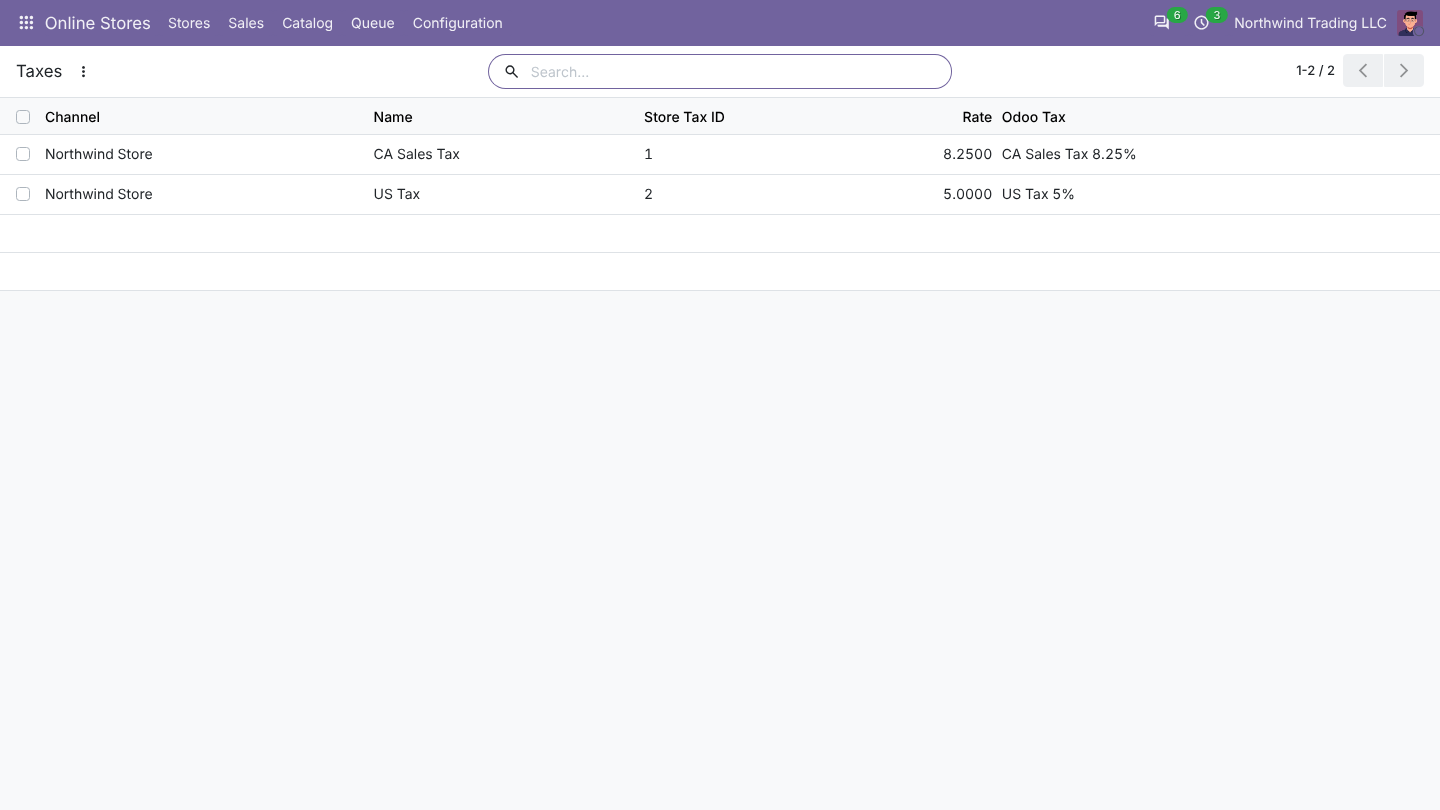
| Column | Meaning |
|---|---|
| Store | The store |
| Name | The tax name in WooCommerce |
| Store Tax ID | How Odoo recognises the tax |
| Rate | The rate in percent |
| Odoo Tax | The Odoo sales tax used on order lines. You can change it. |
When a new store tax appears, Odoo fills Odoo Tax with the first sales tax of the store's company that is a percentage, has the same rate and is not included in the price. If there is none:
- with Create Missing Taxes on, Odoo creates one, named after the store tax and its rate (for example HST 13%), tax excluded, and notes it in the log;
- with it off, the order waits in the queue with Store tax "X" (r%) has no Odoo tax. Map it in Configuration > Taxes. Map it, then click Retry on the job.
Check every created tax once, before the first invoices are posted. Odoo creates it without a tax account and without tax grids, so its amount would be booked on the income account and missing from tax reports. Set the accounts and grids on the tax, or map the store tax to an existing Odoo tax instead.
Totals that differ
After each import Odoo compares its order total with the WooCommerce total. When they differ by more than one cent:
- the order shows a yellow banner The total of this order differs from the store total,
- the log gets a warning,
- the store card on Stores shows total differences, and the filter Total Differs From Store on Orders lists them.
The usual causes are a store tax mapped to an Odoo tax with another rate or set as included in price, a fiscal position replacing taxes, or Tax Mode set to Odoo taxes. Fix the mapping, then click Update From Store on the order while it is not invoiced yet.
FAQ
Can one store tax use two Odoo taxes? No, one Odoo tax per store tax. Store orders with two taxes on a line (for example federal and provincial) get both mapped taxes.
I changed a mapping. Are old orders updated? No. The mapping is used for orders imported or updated afterwards, as long as they are not delivered or invoiced.
What about prices shown with tax included in the store? The connector converts the store amounts to amounts without tax before creating the lines, so Odoo taxes stay tax excluded.