Store settings reference
Open Online Stores, click the store. This page explains every field, tab by tab. Fields not mentioned here are standard Odoo fields.
Header and buttons
| Button | What it does |
|---|---|
| Test Connection | Reads the WooCommerce system status and sets the store to Connected or Connection Error. See Connect the store. |
| Set Up Webhooks | Creates the webhooks in WooCommerce (visible when connected, administrators only). See Webhooks. |
| Sync... | Opens the bulk operations window: import products, orders, customers, stock; send stock or prices. See Sync with store. |
| Check Orders Now | Queues the order check that otherwise runs every 15 minutes. |
| Send All Stock | Sends the quantity of every linked product again, also unchanged ones. |
| Use in This Database | Shown in a copied database. Makes this database the live one. See Test copies. |
At the top: Store Currency and Store Details are read from the store by Test Connection. The smart buttons open the store's orders, linked products, customers, jobs, failed jobs and log.
Connection tab
Only administrators see this tab.
WooCommerce
| Field | Default | What it does |
|---|---|---|
| Store Address | Address of the shop, for example https://shop.example.com. Odoo adds /wp-json/wc/v3/ to it. | |
| Consumer Key, Consumer Secret | The REST API key, see Create the API key. Hidden as passwords. | |
| Authentication | Automatic (recommended) | How the key is sent: Automatic, HTTP Basic (https), Keys in the address (https, when the host removes the Authorization header), OAuth 1.0a signature (http). See Authentication modes. |
| Check SSL Certificate | On | Refuse stores with an invalid certificate. Turn off only for test stores. |
| WooCommerce Version | Read only, filled by Test Connection. |
Webhooks
| Field | Default | What it does |
|---|---|---|
| Status | Not set up | N active after Set Up Webhooks. |
| Import New Products Instantly | Off | Also creates a product created webhook, so new store products are imported within a minute. Click Set Up Webhooks again after changing it. |
| Remove Webhooks | Deletes the webhooks this Odoo created in WooCommerce. |
Orders tab
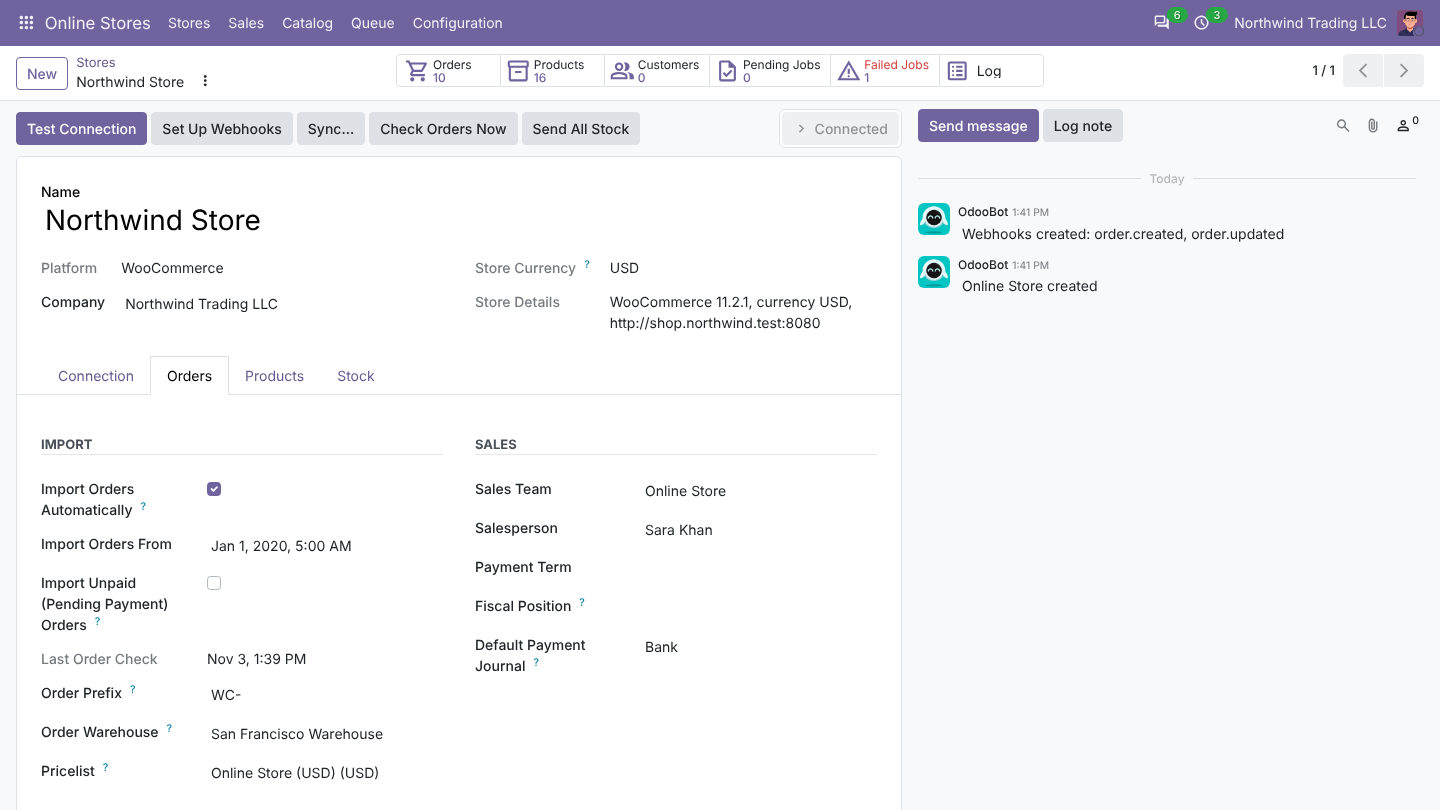
The Orders tab of a store decides how WooCommerce orders become Odoo sales orders. Open it from Online Stores > Stores, click the store, then the Orders tab.
Import
| Field | Default | What it does |
|---|---|---|
| Import Orders Automatically | On | Every 15 minutes Odoo asks WooCommerce for orders created or changed since the last check. This is the safety net next to webhooks: orders placed while Odoo was offline or while a webhook failed still arrive. |
| Import Orders From | The moment the store was created | The scheduled check never goes further back than this date. Set it before the first check if you want older orders; leave it if you only want new orders. |
| Last Order Check | Empty | Read only. When the scheduled check last ran. The next check starts from here (minus two minutes, so nothing on the edge is missed). Empty means the next check starts from Import Orders From. |
| Order Prefix | WC- | Added in front of the WooCommerce order number to build the Odoo order reference, for example WC-1001. The plain store number is also kept in Customer Reference and Store Order Number. Change it before the first import: existing orders keep their names. |
| Order Warehouse | The first warehouse of the company | Imported orders are delivered from this warehouse. |
| Pricelist | Empty | The pricelist of imported orders, and the regular prices sent to the store (see prices). When an order comes in another currency, Odoo uses a pricelist in that currency instead (see below). |
When an order's currency differs from the store Pricelist, Odoo takes the first pricelist of the company in that currency. If there is none, Odoo creates one named after the store and the currency (for example Northwind Store CAD) and activates the currency if needed. If the currency does not exist in Odoo at all, the order stops with Currency XXX does not exist in Odoo.
Sales
| Field | Default | What it does |
|---|---|---|
| Sales Team | Empty | Sales team of imported orders. |
| Salesperson | Empty | Salesperson of imported orders. Empty: the salesperson of the customer, if the customer has one, otherwise none. The background jobs never set themselves as salesperson. |
| Payment Term | Empty | Payment term of imported orders. A payment term on the payment method wins over this one. |
| Fiscal Position | Empty | Optional. Empty: Odoo picks one from the customer address, as for any sales order. |
| Default Payment Journal | Empty | Given to every payment method Odoo sees for the first time in an order, and Register Payment When Paid is switched on for it when a journal is set. Change it per method later in Configuration > Payment Methods. |
Taxes and Extra Lines
| Field | Default | What it does |
|---|---|---|
| Tax Mode | Use the taxes charged by the store | Use the taxes charged by the store: every line gets the Odoo tax mapped to the tax WooCommerce charged. Use the Odoo product taxes: lines get the taxes of the Odoo product and fiscal position, as in a manual quotation. See taxes. |
| Create Missing Taxes | On | Only with store taxes. When no Odoo tax matches a store tax, Odoo creates one. Off: the order waits in the queue until you map the tax. |
| Shipping Product | Shipping (online store) CB-SHIP | Product of shipping lines, unless the shipping method has its own product. |
| Discount Product | Discount (online store) CB-DISC | Product of the discount lines. |
| Fee Product | Fee (online store) CB-FEE | Product of extra fee lines, for platforms that send fees. |
Status Changes
| Field | Default | What it does |
|---|---|---|
| Cancel Orders Cancelled in the Store | On | An order cancelled in WooCommerce is cancelled in Odoo, unless it is already delivered or invoiced. |
| Cancel in the Store When Cancelled in Odoo | On | Cancelling an imported order in Odoo cancels it in WooCommerce. |
| Send Deliveries to the Store | On | When the delivery of an imported order is validated in Odoo, the delivery (with tracking number) is sent to WooCommerce. |
| Send Tracking Note to the Customer | On | Shown when the field above is on. WooCommerce tells the customer about the shipment. |
| Import Refunds as Credit Notes | On | Refunds made in WooCommerce become credit notes in Odoo. |
| Send Credit Notes to the Store as Refunds | On | Posting a credit note for an imported order creates a refund in WooCommerce. |
What Odoo does after an order is imported (confirm, deliver, invoice, register the payment) is not on this tab. It is set per payment method in Configuration > Payment Methods.
WooCommerce options on the Orders tab
| Field | Default | What it does |
|---|---|---|
| Import Unpaid (Pending Payment) Orders | Off | WooCommerce creates a Pending payment order as soon as a buyer reaches the payment page, so many of them are abandoned checkouts. Off: they are skipped until they become Processing or On hold. On: they are imported as quotations (not confirmed). |
| Send Tracking As | Order note | How the tracking number reaches WooCommerce when a delivery is sent: Order note, WooCommerce Shipment Tracking extension, or Order meta field. See Deliveries and tracking. |
| Tracking Meta Key | _tracking_number | With Order meta field: the meta key that receives the tracking numbers (comma separated). Use the key your shipping or email plugin reads. |
| Refund Through the Payment Gateway | Off | When Odoo sends a credit note, ask WooCommerce to refund the money through the payment gateway (if the gateway supports it). Off: the refund is only recorded in WooCommerce. |
| Restock in WooCommerce on Refund | Off | When Odoo sends a credit note, put the items back in WooCommerce stock. Leave it off when Odoo manages your stock (Odoo sends the right quantity anyway). |
Products tab
The Products tab decides how WooCommerce products are matched with, and created as, Odoo products.
Matching
| Field | Default | What it does |
|---|---|---|
| Match Products By | Internal Reference, then Barcode = SKU | Internal Reference = SKU: a store product matches the Odoo product whose Internal Reference equals its SKU. Internal Reference, then Barcode = SKU: when no internal reference matches, Odoo also tries the Barcode. |
| Import Unknown Products With Orders | On | When an order contains a product that is not linked yet and no SKU matches, Odoo imports that product from WooCommerce first, then the order. Off: the order waits in the queue with Products not found in Odoo. |
| Category for New Products | Empty | Product category of products created by an import. A store category mapped to an Odoo category wins (Catalog > Store Categories). Empty: Odoo's default category. |
| Import Images | On | Downloads the main image (and variant images) of products Odoo creates, and of linked products that have no image yet. Images over 10 MB or files that are not images are skipped. |
Prices
| Field | Default | What it does |
|---|---|---|
| Send Prices Automatically | Off | Every hour, Odoo sends prices that changed. Off: prices are sent only when you ask. |
| Sale Price Pricelist | Empty | Optional. When this pricelist gives a lower price than the store Pricelist, the lower price is sent as the sale price. |
The regular price comes from the Pricelist on the Orders tab, or the product's Sales Price when no pricelist is set.
Product images
Product Images decides how Odoo sends images when you send products to the store:
| Choice | How it works | Needs |
|---|---|---|
| Store downloads them from Odoo (Odoo must be reachable from the store) (default) | Odoo sends a signed link to the image. WooCommerce downloads it into its media library. | The store must reach your Odoo address (web.base.url). |
| Odoo uploads them to the WordPress media library (application password) | Odoo uploads the image file itself, then attaches it to the product. | WordPress User and Application Password (see Create the API key). |
| Do not send images | Products are sent without images. |
An image that did not change since the last send is not sent again (Odoo compares a checksum).
Stock tab
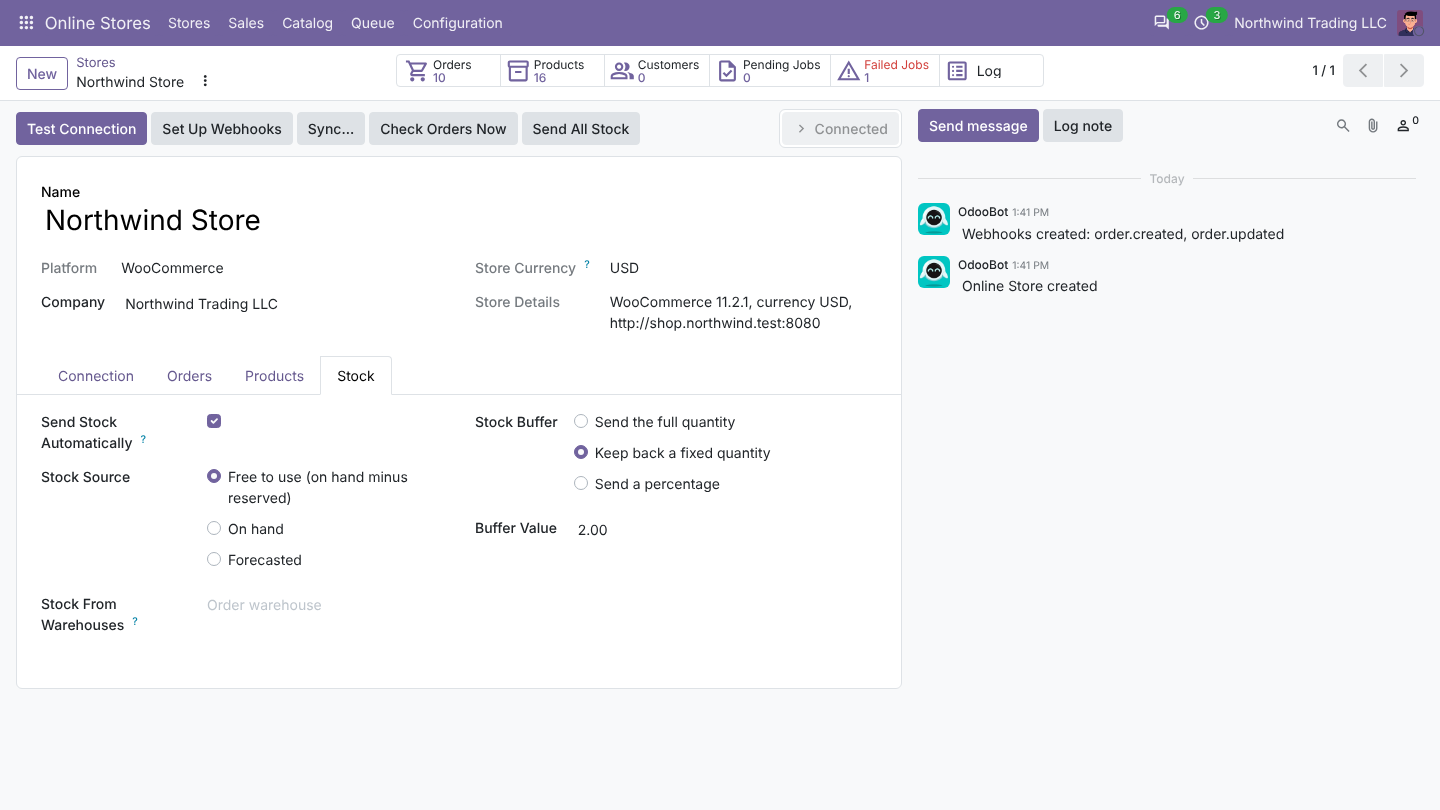
The Stock tab decides which quantity WooCommerce shows for each linked product.
| Field | Default | What it does |
|---|---|---|
| Send Stock Automatically | On | Odoo sends stock when it moves in Odoo (about a minute after the move), and every hour as a safety net. |
| Stock Source | Free to use (on hand minus reserved) | Free to use: on hand minus what is already reserved for other deliveries. On hand: everything in stock. Forecasted: on hand plus incoming minus outgoing. |
| Stock From Warehouses | Empty | The quantity is the sum of these warehouses. Empty: the Order Warehouse only. |
| Stock Buffer | Send the full quantity | Keep back a fixed quantity or Send a percentage, to avoid overselling the last items. |
| Buffer Value | 0 | The quantity to keep back, or the percentage to send. Cannot be negative. |
Quantities are rounded down to whole units and never go below zero.
More detail: Send stock to the store.