Send stock to WooCommerce
What WooCommerce receives
For each linked product or variation Odoo sets Manage stock on and sends the Stock quantity. WooCommerce then shows In stock or Out of stock and applies its own backorder settings. Simple products are sent 100 per request, variations 100 per request per parent product. A product WooCommerce refuses is logged with its reason and sent again next time.
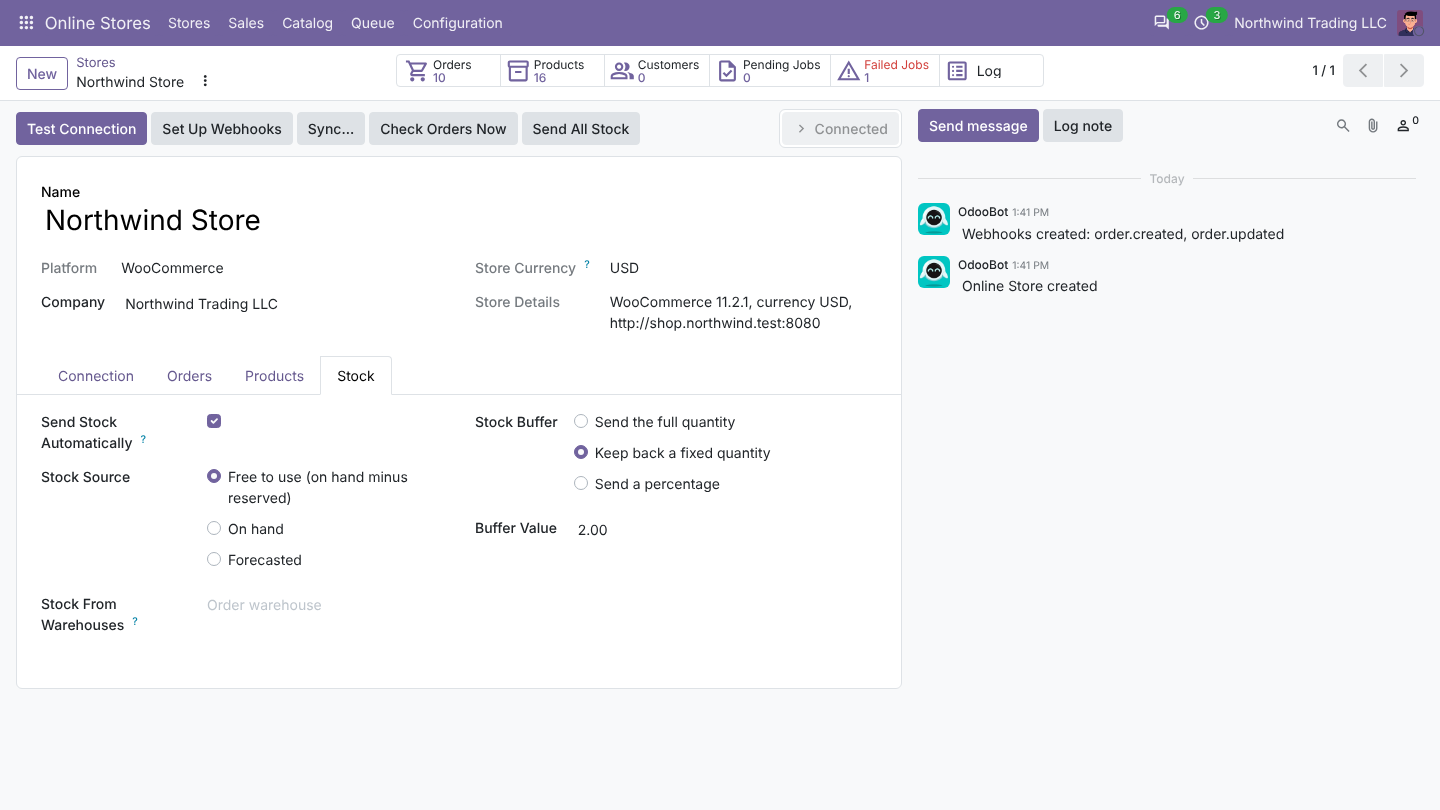
Odoo is the master of stock: it sends WooCommerce the quantity of every linked product. Stock is sent only for products in Product Links with Send Stock on.
The quantity sent
- Odoo takes the quantity of the Stock Source in the Stock From Warehouses (or the Order Warehouse): free to use (on hand minus reserved), on hand or forecasted.
- It applies the Stock Buffer.
- It rounds down to whole units. Negative quantities become 0.
| Stock Source quantity | Stock Buffer | Buffer Value | Sent |
|---|---|---|---|
| 12 | Send the full quantity | 12 | |
| 12 | Keep back a fixed quantity | 2 | 10 |
| 1 | Keep back a fixed quantity | 2 | 0 |
| 12 | Send a percentage | 80 | 9 (9.6 rounded down) |
| 2.5 kg | Send the full quantity | 2 |
On Odoo 18, 19 and 20, Stock From Warehouses is respected from Commerce Bridge 1.0.2. Version 1.0.1 sent the stock of all warehouses of the company there.
When stock is sent
| When | What is sent |
|---|---|
| Stock moves in Odoo (a delivery or receipt is validated, products are reserved or unreserved, an inventory adjustment is applied) | About one minute later, one job sends every linked product whose quantity changed since it was last sent. Many moves within that minute become one job. |
| Every hour | The same check, as a safety net. |
| Send All Stock on the store, or Sync... > Send stock to the store | Every linked product, also when nothing changed. |
| Product Links, select lines, Action > Send Stock to Store | The selected products, also when nothing changed. |
Automatic sending needs Send Stock Automatically on and the store Connected. A test copy of the database never sends stock.
Reading Product Links
| Column | Meaning |
|---|---|
| Send Stock | Switch off to leave the quantity of this product to WooCommerce, for example for a product you manage only in the store. |
| Stock Sent | The quantity WooCommerce accepted last time |
| Stock Sent On | When |
The filters Stock Not Sent and Out of Stock in Store help to check what customers see.
Setting Odoo stock from the store
When you start, your stock may only be correct in WooCommerce. Sync... > Set Odoo stock from the store quantities sets the on-hand quantity of every linked product, in the location you choose, to the store quantity, as an inventory adjustment. Use it once, at the start: afterwards Odoo is the master and sends its quantities.