Import products
Three ways products reach Odoo
| Method | When | Setting |
|---|---|---|
| Sync... > Import products from the store | Once when you start, and when you add many products in WooCommerce | |
| With an order | An order contains a product that is not linked yet | Import Unknown Products With Orders (Products tab) |
| Webhook | A product is created in WooCommerce | Import New Products Instantly (Connection tab), then Set Up Webhooks |
Before you start
- The store is Connected.
- Give your existing Odoo products an Internal Reference equal to the WooCommerce SKU (or a barcode, see Match Products By). Products found by SKU are linked instead of created twice.
- Set Category for New Products on the Products tab if new products should not land in the default category.
- Leave Import Images on if you want the main image of new products.
Import in bulk
- Open the store and click Sync....
- Choose Import products from the store.
- Tick Update Already Linked Products to read linked products again (to refresh their links and categories). Off: only products that are not linked yet are imported.
- Click Run in Background.
Odoo first reads all product categories (the whole tree, with parents), then reads the products 25 per page, all statuses (published, draft, pending, private). Each product becomes one job Import product ...; follow them in Queue > Jobs.
What is read from WooCommerce
| WooCommerce | Odoo |
|---|---|
| Name | Product name |
| Type simple | One product without variants |
| Type variable with its variations | One product with variants (attributes used for variations become Odoo attributes) |
| Types grouped and external | Skipped, with a warning in the log |
| SKU | Internal Reference (new products) |
GTIN, UPC, EAN or ISBN (global_unique_id) | Barcode (new products, when not used by another product) |
| Regular price (price when no regular price) | Sales price |
| Weight | Weight |
| Short description | Sales description (as text, new products) |
| Description | Not imported (WooCommerce HTML stays in the store) |
| Categories | Store categories on the product link; the Odoo category of a new product comes from the category mapping (below) or Category for New Products |
| First image | Product image (new products, or products without image) |
| Variation image | Variant image (new products) |
| Status, permalink | Store status and link on Catalog > Store Products |
Categories
WooCommerce categories are kept per store in Online Stores > Catalog > Store Categories (name and parent, as in WooCommerce). Give a store category an Odoo Category to put new products of that category there. Without a mapping, new products get Category for New Products, or Odoo's default category.
What changes in Odoo
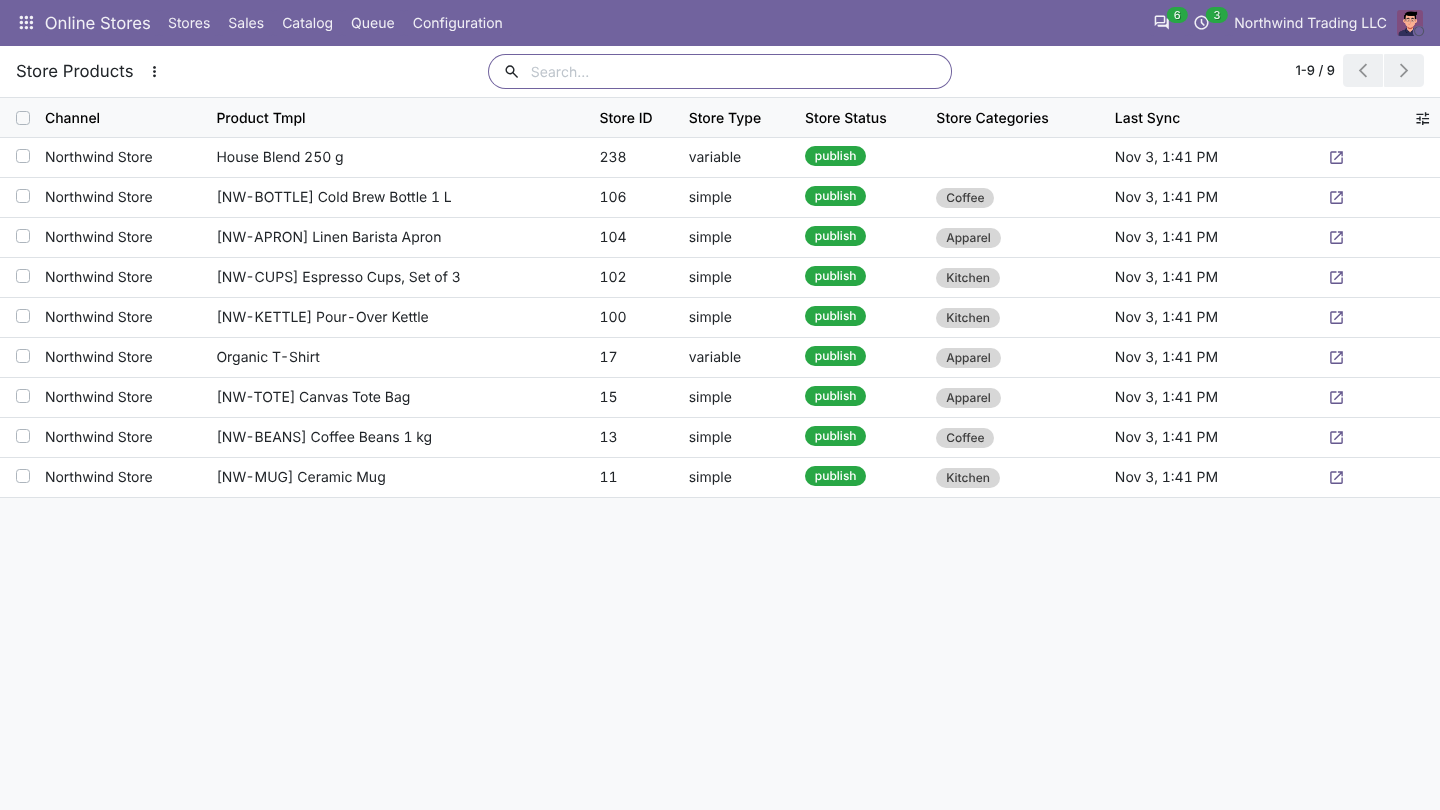
- Catalog > Store Products: one line per WooCommerce product (store ID, type, status, categories, link).
- Catalog > Product Links: one line per variant (store ID, parent ID for variations, SKU, stock and price last sent).
- New products when no match was found, see How products are matched.
- Stock is not changed by a product import. Use Import stock once if WooCommerce has the right quantities.
Good to know
- Re-importing never overwrites names, prices or descriptions of products already in Odoo. Odoo is the master for products once they are linked.
- A WooCommerce product whose SKU matches an Odoo product that is already linked to another store product stops with a SKU clash error. Fix the duplicate SKU in WooCommerce, then Retry the job.
- Variations that cannot be matched to an Odoo variant are listed in a warning (store variations not matched in Odoo). Add the attribute value in Odoo or fix the variation in WooCommerce, then import again.
FAQ
The import created products I already had. Their Internal Reference or barcode did not match the SKU. Archive the new ones, set the reference on the old ones, delete the links in Catalog > Store Products, and import again.
Are products deleted in WooCommerce removed from Odoo? No. The link stays; archive the Odoo product yourself.
Can I import only some products? Not by filter. Import all, or create the products in Odoo and send them.