Send products to WooCommerce
Before you start
- The store is Connected (and this is not a test copy of the database).
- Products have an Internal Reference (it becomes the SKU) and a sales price in the store Pricelist.
- Choose Product Images on the store's Products tab (Store settings).
Send products
- Open Sales > Products (or Inventory > Products) and switch to the list view.
- Select the products.
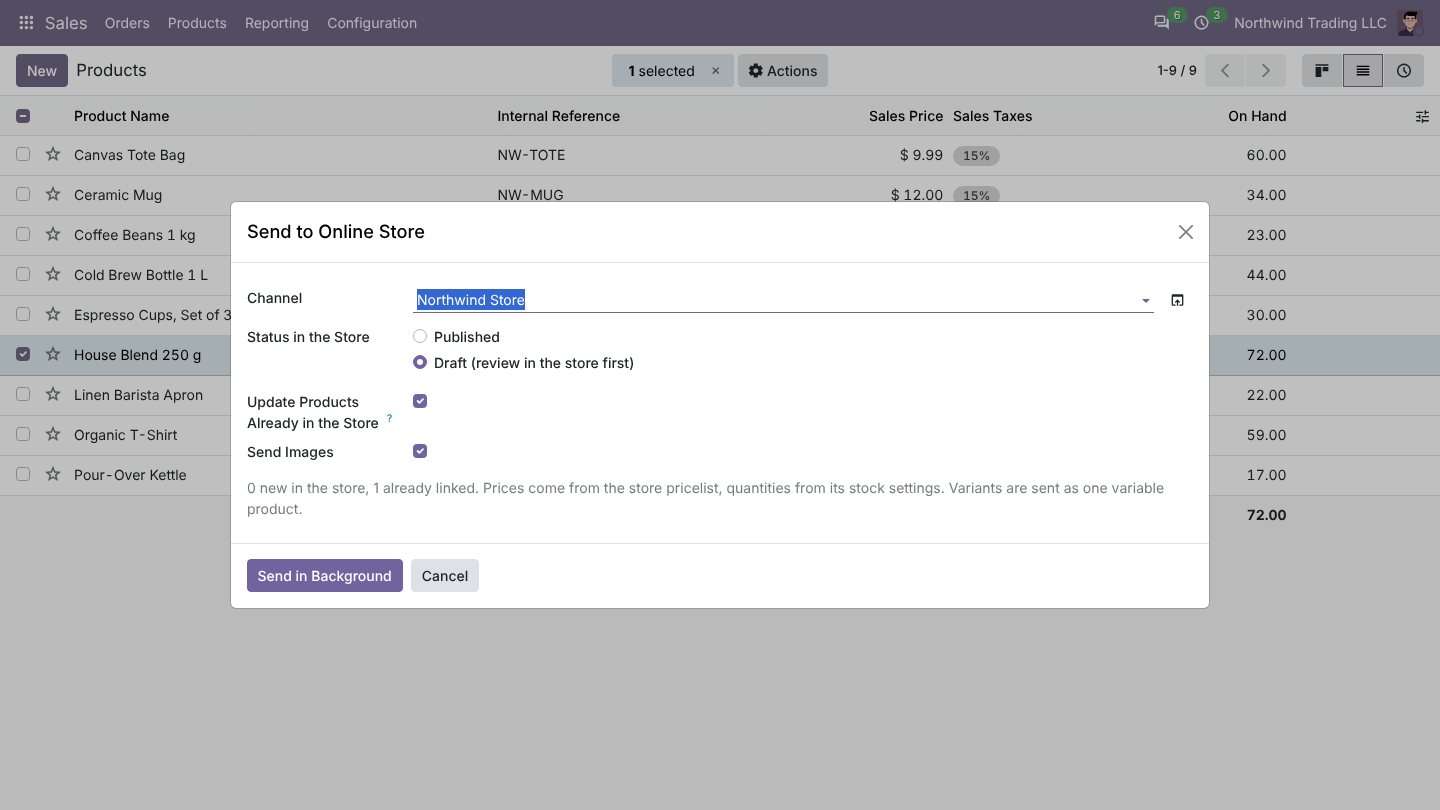
- Click Actions > Send to Online Store.
- In the window:
- Store: preselected when you have one connected store.
- Status in the Store: Draft (review in the store first) (default) or Published.
- Update Products Already in the Store: on, linked products are updated (name, description, prices, stock and image). Off, only new products are sent.
- Send Images: off to leave images alone.
- Click the button to queue them. Each product becomes a job Send ... to the store.
What is sent
| Odoo | WooCommerce |
|---|---|
| Name | Name |
| Description | Description |
| Sales description | Short description |
| Weight | Weight |
| Category (by name) | Category: an existing store category with the same name, or a new one |
| Image | Product image (see below) |
| Simple product: Internal Reference | SKU |
| Barcode | GTIN/UPC/EAN/ISBN (global_unique_id); skipped when the store refuses it |
| Price from the store Pricelist | Regular price |
| Lower price from the Sale Price Pricelist | Sale price |
| Quantity from the stock settings | Stock quantity, with Manage stock on |
| Product with variants: attributes and values | Attributes used for variations, visible on the product page |
| Each variant: Internal Reference, prices, quantity, weight, attribute values, variant image | One variation |
Attributes set to Never create variants are not sent.
Create or update
Odoo decides per product:
- Linked (it appears in Catalog > Store Products): the WooCommerce product is updated.
- Not linked, simple product with a SKU that exists in WooCommerce: that product is updated and linked. No duplicate is created.
- Otherwise: a new product is created with the chosen status.
For variants, an existing variation is reused when it is linked, or when it has the same attribute values; the others are created. Variations are sent 100 at a time.
Images
- Store downloads them from Odoo: WooCommerce receives a signed link to the image and downloads it. The link works without login and only for that image.
- Odoo uploads them to the WordPress media library: Odoo uploads the file (PNG, GIF, WebP or JPEG) with the application password, then attaches it.
- An unchanged image is not sent again. Variant images are sent with the variations.
What changes in Odoo
- Catalog > Store Products gets the product with its store ID, type, status and link.
- Catalog > Product Links gets one line per variant, with the stock and price just sent.
- The log has a line Product ... sent to the store (draft/publish).
Good to know
- Publishing later: send again with Published. Sending again with Draft does not unpublish a published product.
- Products created in WooCommerce get the stock that Odoo computes. Stock and prices then follow automatically (Send stock, Prices).
- Removing a product from Odoo does not delete it in WooCommerce.
FAQ
The job fails with "Variation ... not created". WooCommerce refused a variation, often because the SKU is used by another product. Fix the SKU and Retry the job.
Images are missing in WooCommerce. With Store downloads them from Odoo, the store must reach your Odoo address. Switch to Odoo uploads them to the WordPress media library or check web.base.url.
The product went to the wrong category. Odoo uses the categories already linked to the product; for new products the Odoo category name. Rename the category or set the category in WooCommerce, then import products with Update Already Linked Products.