Send products to Shopify
You can create products in Odoo and send them to Shopify, or update products that are already linked.
Before you start
- The store is connected and Product Images (Products tab) is set the way you want.
- Give each product, or each variant, an Internal Reference: Shopify uses it as SKU, and Odoo uses it to avoid creating the same product twice.
- Products with variants need attributes that create variants (Instantly). Attributes that never create variants are not sent.
Method 1: from the product list
- Open Sales > Products > Products (or Inventory > Products), switch to the list view and select the products.
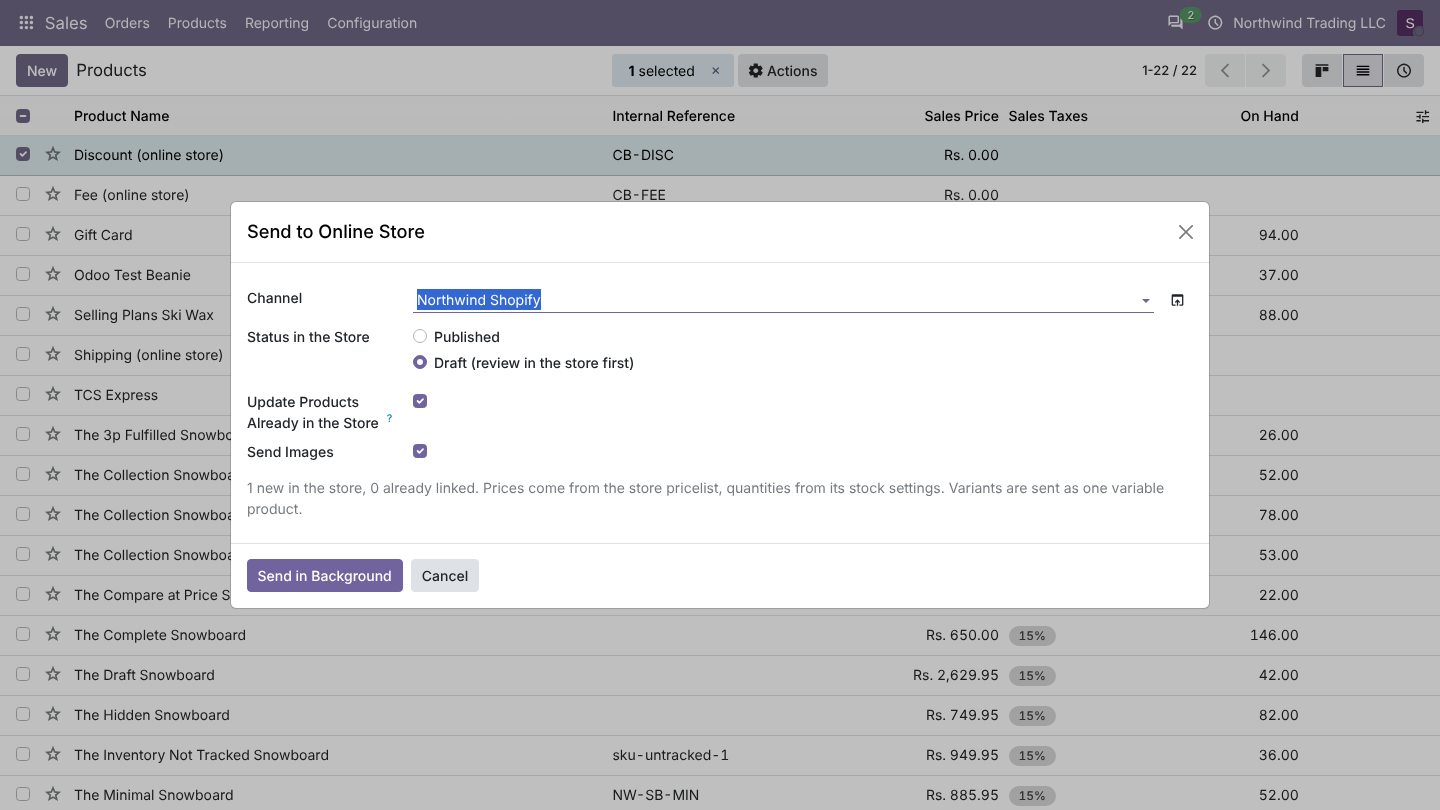
- Click Action > Send to Online Store.
- Fill in the dialog:
| Field | What it does |
|---|---|
| Store | The Shopify store. Filled in when you have only one connected store. |
| Status in the Store | Draft (review in the store first): new products get the store's Status of New Products (Draft by default). Published: new and existing products become Active. |
| Update Products Already in the Store | On: linked products are updated too. Off: only new products are sent. |
| Send Images | Send the main image and variant images. |
- Click Send in Background. One job per product (Send Wool Hat to the store).
Method 2: automatic
There is no automatic product export. Stock and prices of linked products are sent automatically (Send stock, Send prices).
What is sent
| Odoo | Shopify |
|---|---|
| Name | Title |
| Description (or Sales Description when the description is empty) | Description |
| Product Category name | Product type |
| Attributes and values | Options and option values. A simple product gets Shopify's default option Title / Default Title. |
| Per variant: Internal Reference | SKU |
| Per variant: Barcode | Barcode |
| Per variant: price of the store Pricelist, and sale price of the Sale Price Pricelist | Price; when there is a sale price, the price is the sale price and the regular price goes to compare-at |
| Per variant: Weight | Weight in kilograms |
| Quantity tracking | Always on |
| Image and variant images | Product media (main image, variant images) |
What happens step by step
- Find the Shopify product. A linked product is updated. A product that is not linked yet is looked up by SKU (up to its first three SKUs): if Shopify already has a variant with that SKU, that product is updated and linked instead of creating a duplicate. Otherwise a new product is created.
- Create or update in one call. Odoo sends the whole product (Shopify's productSet), so options and variants in Shopify end up exactly as in Odoo.
- Link the variants. Each Shopify variant is matched to its Odoo variant by option values, and Odoo stores the variant and inventory item IDs.
- Stock and Market prices. Odoo sends the stock of each variant to the mapped locations and the prices to your Markets. If that step fails, the product stays linked, a warning is logged and the stock is sent again 2 minutes later.
Images
| Product Images | How it works | When to use |
|---|---|---|
| Odoo uploads them to Shopify (default) | Odoo uploads the file to Shopify's file storage, then attaches it. | Always works when Odoo can reach Shopify's upload host on the internet. Works when Odoo itself is not public. |
| Shopify downloads them from Odoo | Odoo gives Shopify a signed link to the image; Shopify fetches it. | When Odoo is public and you prefer not to upload. |
| Do not send images | No media are sent. | Images are managed in Shopify. |
The main image is sent again only when it changed since the last send. Variant images are sent with each send.
Good to know
- Sending replaces the options and variants of the Shopify product with Odoo's. Variants that exist only in Shopify are removed by Shopify.
- Collections, tags, vendor, SEO fields and metafields are not sent in version 1.0.
- Sales channel publication follows Shopify's defaults for new products.
- A test copy of the database never sends products.
FAQ
The job failed with a Shopify message about a field. Shopify checks every variant (for example a duplicate option combination, or a barcode format). Fix the product in Odoo and click Retry on the job.
I created a product in Shopify by hand that also exists in Odoo. Give both the same SKU and import products, or send it from Odoo: the SKU lookup links them.
Was this page helpful?