Locations and warehouses
Shopify keeps a quantity per location (a shop, a warehouse, a fulfillment centre). Odoo keeps stock per warehouse. On the Stock tab of the store you decide which Odoo warehouses feed each Shopify location.
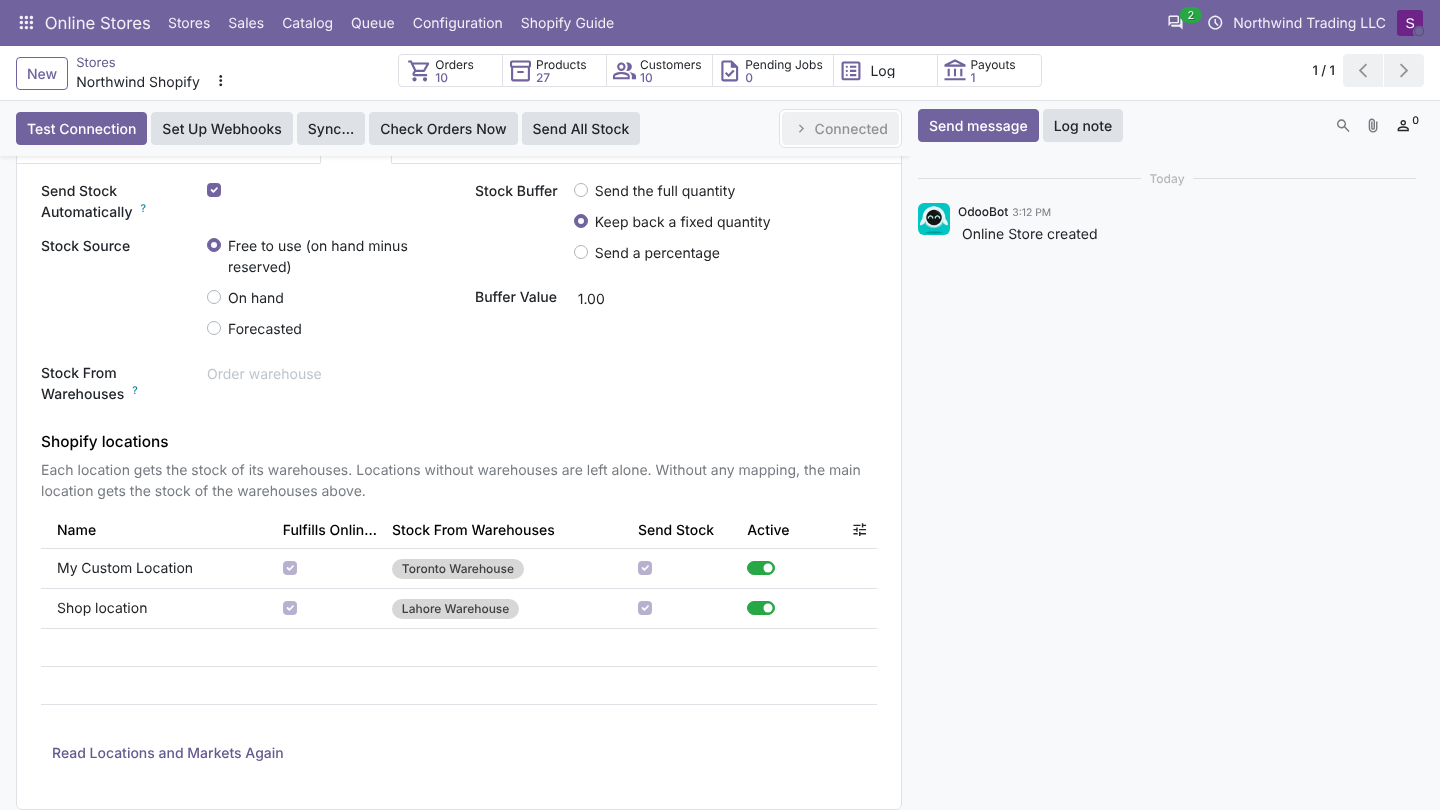
- The store is connected. Test Connection reads the active locations of your shop and lists them under Shopify locations.
- Decide which warehouse ships online orders. That is the store's Order Warehouse (Orders tab); it has nothing to do with the location mapping, which only controls the quantities shown in Shopify.
The locations list
| Column | What it means |
|---|---|
| Name | Location name in Shopify (read only). |
| Fulfills Online Orders | Read from Shopify: the location can fulfill online orders. Used to pick the main location (see below). |
| Stock From Warehouses | The Odoo warehouses whose stock this location shows. The quantity sent is the sum of these warehouses. Empty: Odoo does not send stock to this location. |
| Send Stock | Switch off to stop sending stock to this location while keeping its warehouses. |
| Active | Off when the location was deactivated or deleted in Shopify. Inactive locations are ignored. |
The list has no New button: locations come from Shopify. Click Read Locations and Markets Again after you add, rename or close a location in Shopify.
How Odoo decides where stock goes
Every time stock is sent, Odoo builds a list of target locations:
- Mapped locations: every location that is Active, has Send Stock on, and has at least one warehouse in Stock From Warehouses. Each gets the stock of its own warehouses.
- Fallback: if no location is mapped, Odoo sends to one location only: the first active location that Fulfills Online Orders (or else the first active location). It gets the stock of the store's Stock From Warehouses field above the list, or of the Order Warehouse when that field is empty.
- If the store has no location at all, Odoo reads the locations from Shopify first. If there is still none, the job fails with No Shopify location to send stock to. Test the connection to read the locations.
The quantity per location follows the store's Stock Source and Stock Buffer (see Stock rules).
On the first Test Connection, when no location has a warehouse yet, Odoo puts the store's warehouses on the main location. So a single-location shop works without any setup.
Examples
| Shopify | Mapping in Odoo | What Shopify shows |
|---|---|---|
| One location Shop location | (automatic) Shop location: San Francisco Warehouse | Free stock of San Francisco. |
| Lahore store and Karachi warehouse | Lahore store: Lahore; Karachi warehouse: Karachi | Each location its own warehouse. |
| Online fed by two warehouses | Online: Karachi, Lahore | The sum of both. |
| Pop-up you manage by hand in Shopify | Pop-up: no warehouse | Odoo never changes Pop-up quantities. |
What changes in Shopify
- Odoo sets the available quantity of each linked variant at each target location (reason correction, so it shows in the Shopify inventory history).
- An item that is not stocked at a target location yet is first stocked there, with the quantity in the same call. Shopify ignores quantities for items that are not stocked at a location, so this step matters. Odoo remembers per variant which locations it already stocked.
- An item whose quantity is not tracked in Shopify is switched to tracked the first time Odoo sends its stock.
Good to know
- Orders are not routed by Odoo: Shopify assigns each order to a location. Odoo fulfills the fulfillment orders Shopify created, whatever their location.
- Removing a warehouse from a location stops updates; Shopify keeps the last quantity Odoo sent.
- Setting Odoo stock from Shopify (Sync... > Set Odoo stock from the store quantities) reads each mapped location into the stock location of its first warehouse. See Import stock.
FAQ
Can one warehouse feed several locations? Yes. Each location then shows the full quantity of that warehouse, so the same units can be sold twice. Use it only when that is what you want (for example the same stock shown in a shop and online).
I closed a location in Shopify. Click Read Locations and Markets Again. The location becomes inactive and is skipped.