Connect the store
- The Shopify app is created, released with Custom distribution and installed (Create the Shopify app).
- You are an Odoo administrator, or have the Administrator right of Online Stores. Only they see the Connection tab and the keys.
1. Create the store in Odoo
- Open Online Stores > Stores and click New.
- Enter a Name, for example Northwind Shopify, and choose the Platform Shopify.
- The Order Prefix becomes
SH-(orders are namedSH-1001). Change it now if you prefer another prefix.
2. Fill in the Connection tab
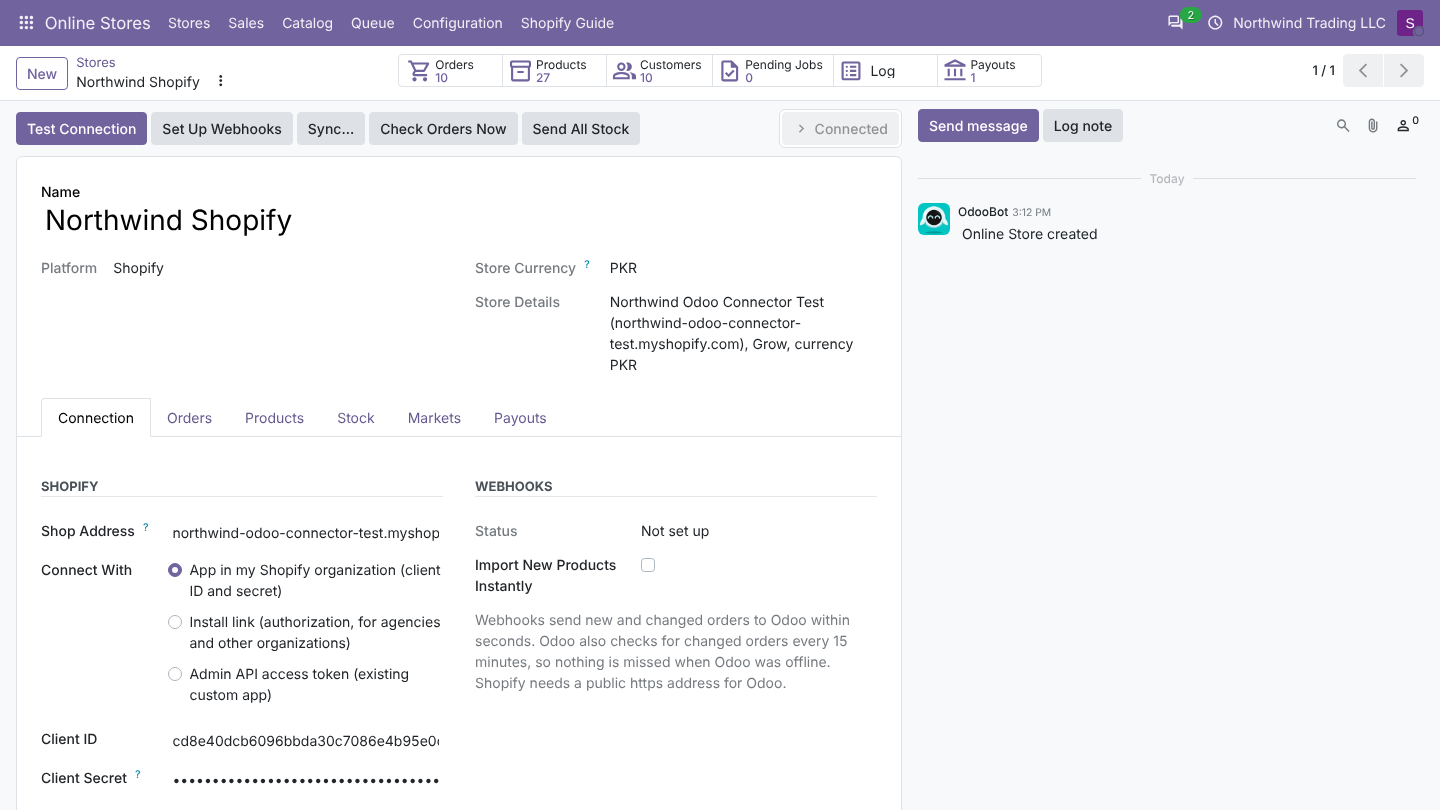
| Field | What to enter |
|---|---|
| Shop Address | Your .myshopify.com address, for example northwind.myshopify.com. You may paste the admin URL or only the name: Odoo keeps northwind.myshopify.com. Your own domain (shop.example.com) does not work here. |
| Connect With | How Odoo gets an access token, see below. |
| Client ID | From the app's credentials. Not needed with Admin API access token. |
| Client Secret | From the app's credentials (or the API secret key of an existing custom app). Always needed: it also checks that webhooks really come from Shopify. |
| Access Token | Only with Admin API access token: the shpat_... token of the existing custom app. |
| API Version | Shopify API version used for every request. Default 2026-10. Leave it unless Novator support tells you otherwise. |
| Shop Name, Shopify Plan | Filled by Test Connection. |
The three ways to connect
| Connect With | Use it when | How the token is obtained |
|---|---|---|
| App in my Shopify organization (client ID and secret) | The app was created in the Dev Dashboard of the store's own organization. The usual case for merchants. | Odoo asks Shopify for a token with the client ID and secret (client credentials grant). The token is valid for about 24 hours; Odoo gets a new one 10 minutes before it ends, and at once if Shopify refuses the old one. Token Valid Until shows when it ends. |
| Install link (authorization, for agencies and other organizations) | The app belongs to another organization, for example your agency's, and is installed on the merchant's store. | Click Authorize in Shopify. Shopify shows the scopes, the store owner approves, and Shopify returns to Odoo with a permanent token. Needs the redirect URL in the app. |
| Admin API access token (existing custom app) | You have a custom app created in the store admin before 2026. | You paste the token. It does not expire. |
Changing Shop Address, Client ID, Client Secret or Connect With removes the stored token (except with Admin API access token), so the next request gets a fresh one.
3. Test the connection
Click Test Connection. Odoo:
- Gets a token (or uses the one you entered).
- Reads the shop: name, plan, currency and
myshopify.comaddress. They appear in Store Details, and Store Currency is set. - Reads your locations and lists them on the Stock tab. If no location has a warehouse yet, the main location (the one that fulfills online orders) gets the store's warehouses, so stock can be sent right away. See Locations.
- Reads your Markets and lists them on the Markets tab. See Markets.
- Sets the store to Connected.
If something fails, the store is set to Connection Error, the reason is posted in the chatter and shown on screen. See the FAQ for the usual messages.
With the install link
- Fill in Shop Address, Client ID and Client Secret, choose Install link and save.
- Click Authorize in Shopify. Your browser opens the store admin.
- Approve the app. Shopify sends you back to the store in Odoo.
- Odoo checks Shopify's answer (signature, shop, and a code tied to this store), stores the token, posts the granted scopes in the chatter and tests the connection.
The install link must be used from the Odoo address in web.base.url, by a user with the Administrator right of Online Stores. If Shopify's answer cannot be verified, Odoo shows The answer from Shopify could not be verified. Try again from Odoo.
After connecting
- Check the store settings, tab by tab.
- Map locations to warehouses.
- Import products.
- Set up webhooks.
- After the first orders, set up payment methods.
Good to know
- Create one Odoo store per Shopify store. Each has its own warehouse, prefix, pricelist, payment methods and company.
- The keys are only visible to Online Stores administrators. Salespeople and users see orders and jobs but not the connection.
- In a copy of the database (staging, test), the store reads from Shopify but never writes to it. See Test copies of your database.
FAQ
Test Connection says the token request was refused. Check the shop address, client ID and secret. With App in my Shopify organization, the app must be installed on the store and belong to the same organization as the store; otherwise use the install link.
Can I connect a development store first and the live store later? Yes. Create a second Odoo store for the live shop. Products link per store, so import or link them again for the live one.