Choose a layout
Pick the company layout
- Go to Settings > General Settings, find Document Layout and click Configure Document Layout.
- Under Layout, click one of the corporate layouts: Executive, Ledger, Meridian or Charter (free), or Atlas, Monarch, Grid, Summit, Heritage or Bilingual (Pro). The preview on the right changes as you click.
- Check Logo, Colors (primary and secondary), Text (font), Address, Tagline and Footer. The layouts use exactly these.
- Click Continue (or Save) to keep the layout.
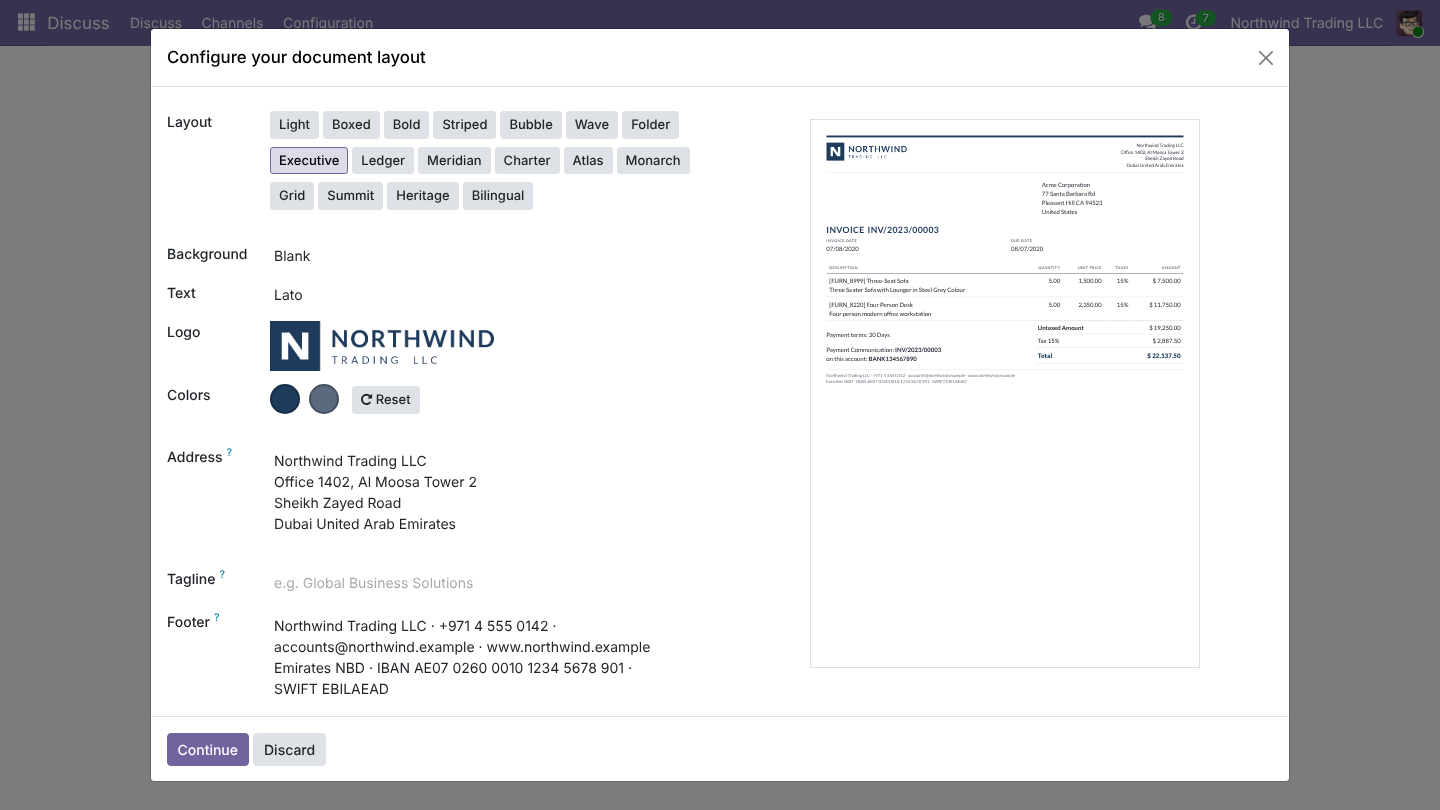
Every PDF report that uses the company layout now prints with it. In a database with several companies, each company keeps its own layout and colors, also when you print documents of several companies at once.
The layouts use your primary color for rules, titles and totals, and light tints of it for backgrounds. Dark, saturated colors (navy, green, burgundy) look most corporate and print well in black and white.
The free layouts
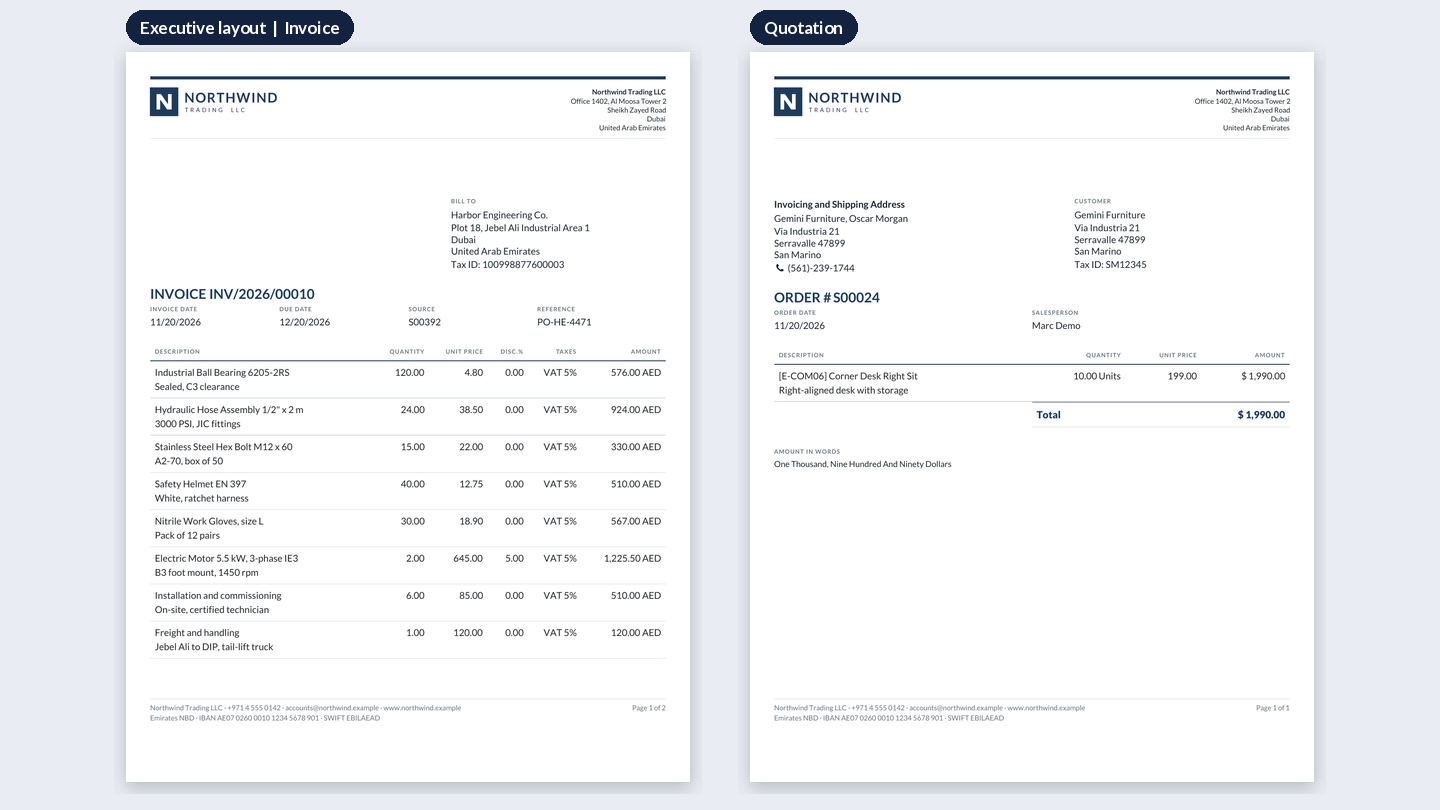
Executive
A thin bar in your primary color across the top, the logo left and the company details right. Light, letter-spaced titles and a primary rule above the total.
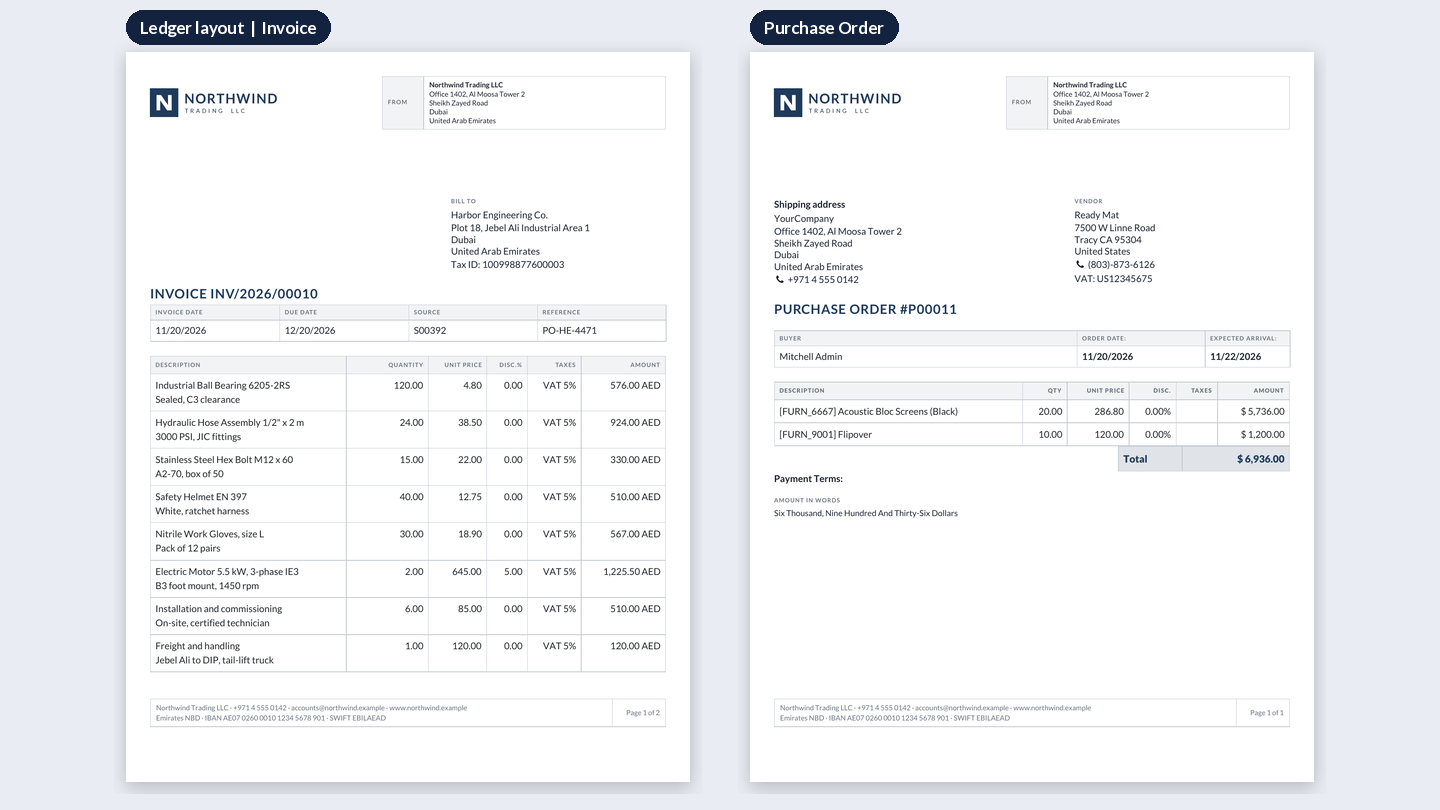
Ledger
An accountant's layout: the company details in a ruled box, the key facts of the document in boxes, a fully gridded table with a tinted header and boxed totals.
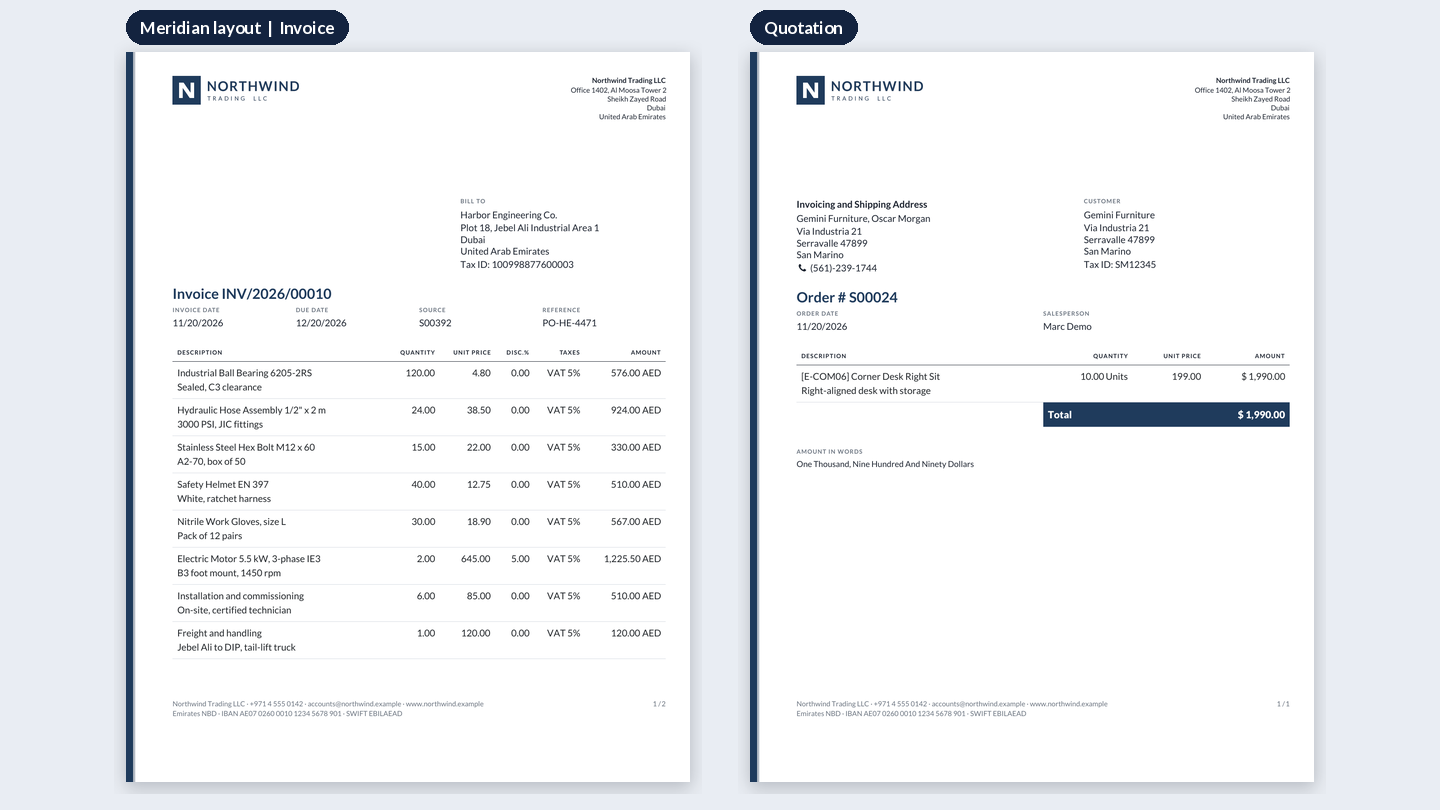
Meridian
A primary and a secondary band down the left edge of every page, the company block on the right and a solid total bar.
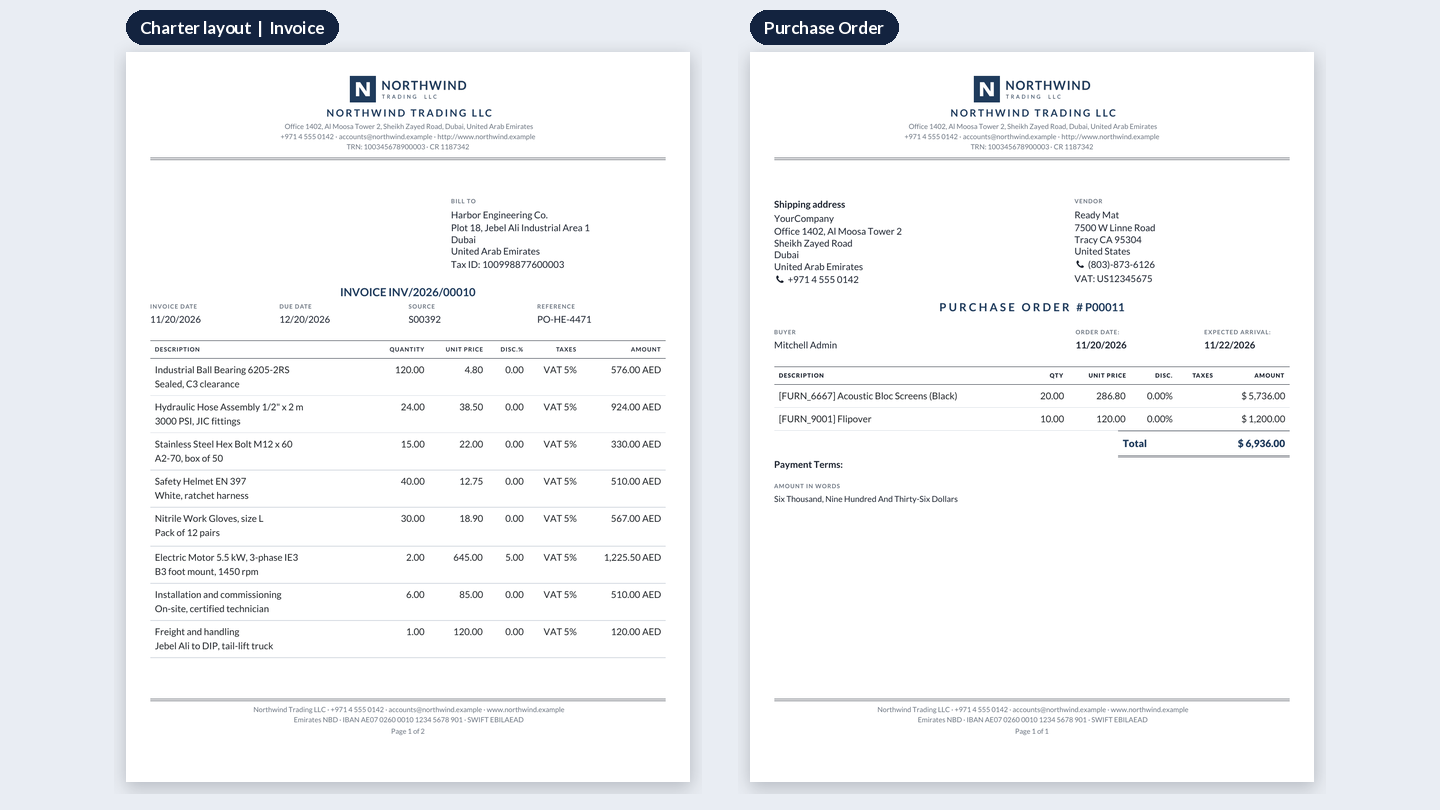
Charter
A centered letterhead with the legal name in spaced capitals and a double rule, a centered title and a double-underlined total. The address, contact details and tax ID print on one or two lines.
The Pro layouts
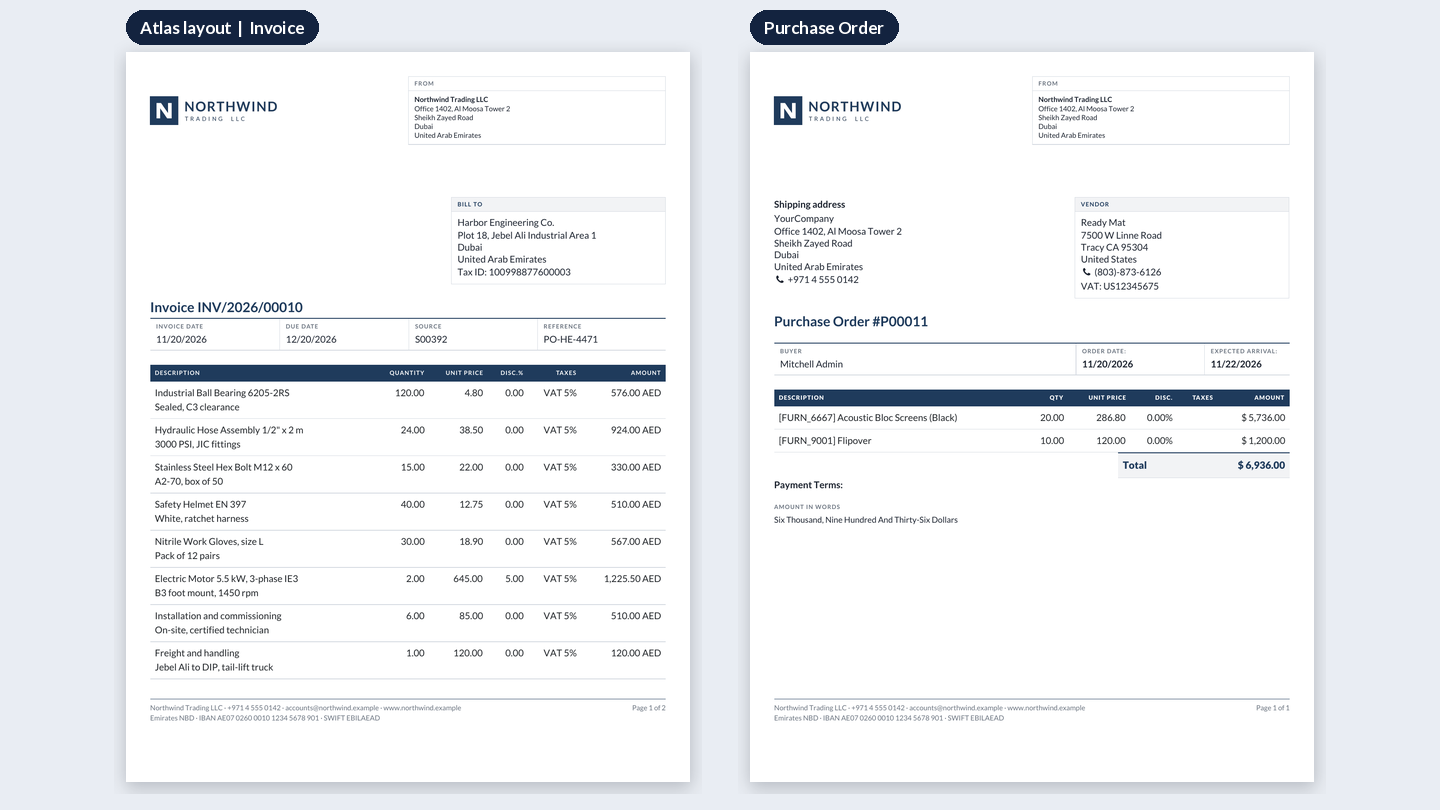
Atlas
From and Bill To in cards with tinted label strips, the key facts in a strip under your primary rule and a primary table header.
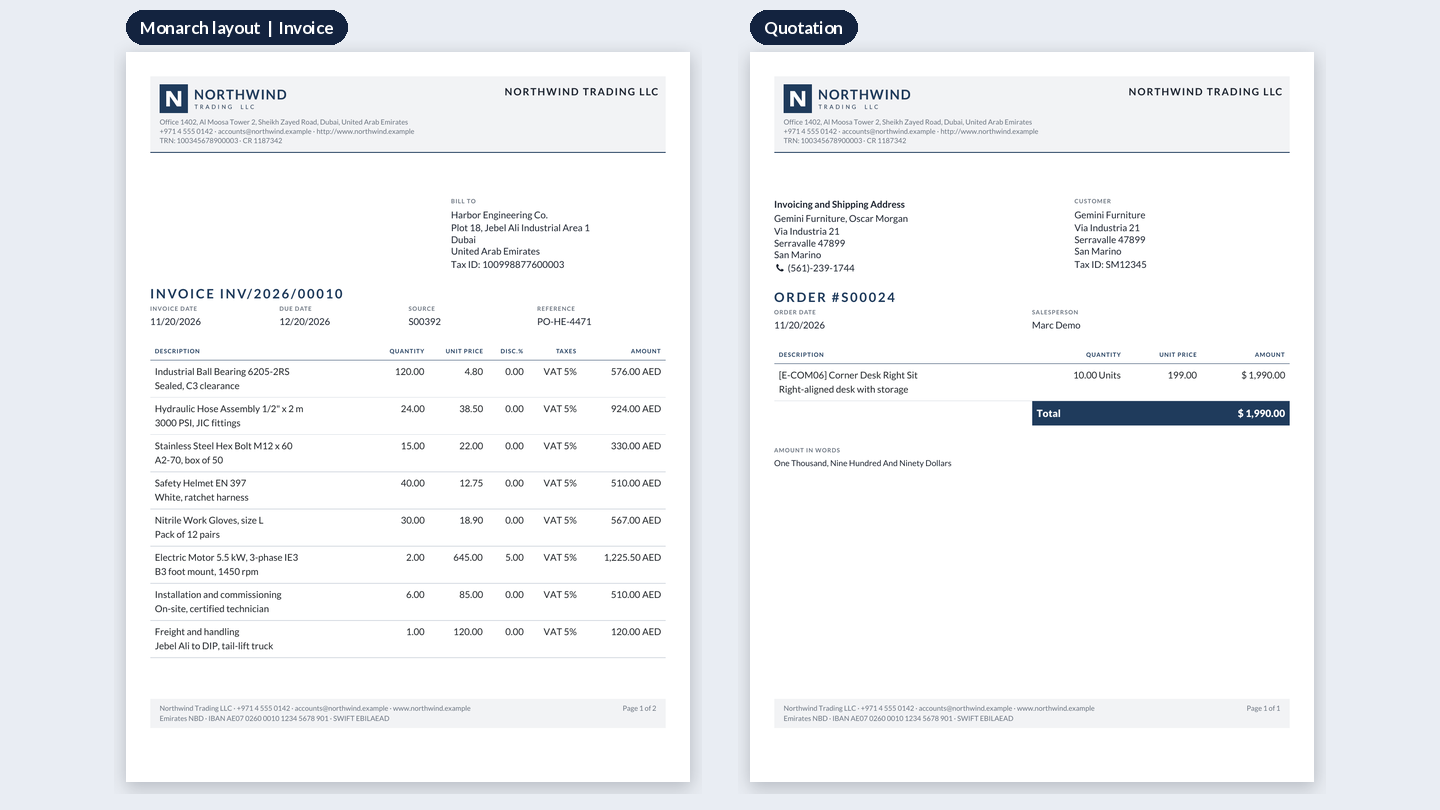
Monarch
A tinted header band with a primary rule, your company name in spaced capitals, a matching footer band and a filled total bar.
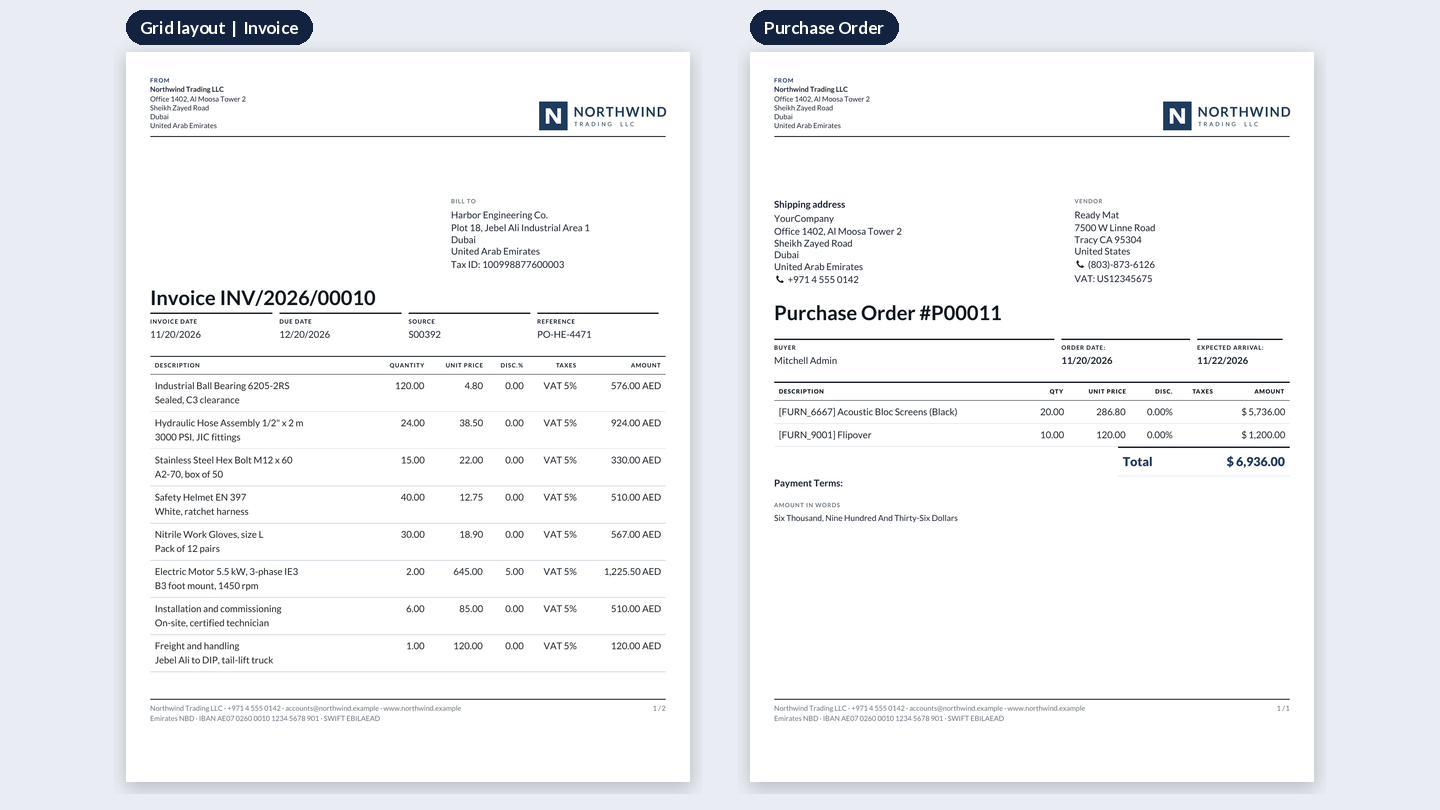
Grid
International typographic style: a large document number, strong near-black rules, and your color only as an accent.
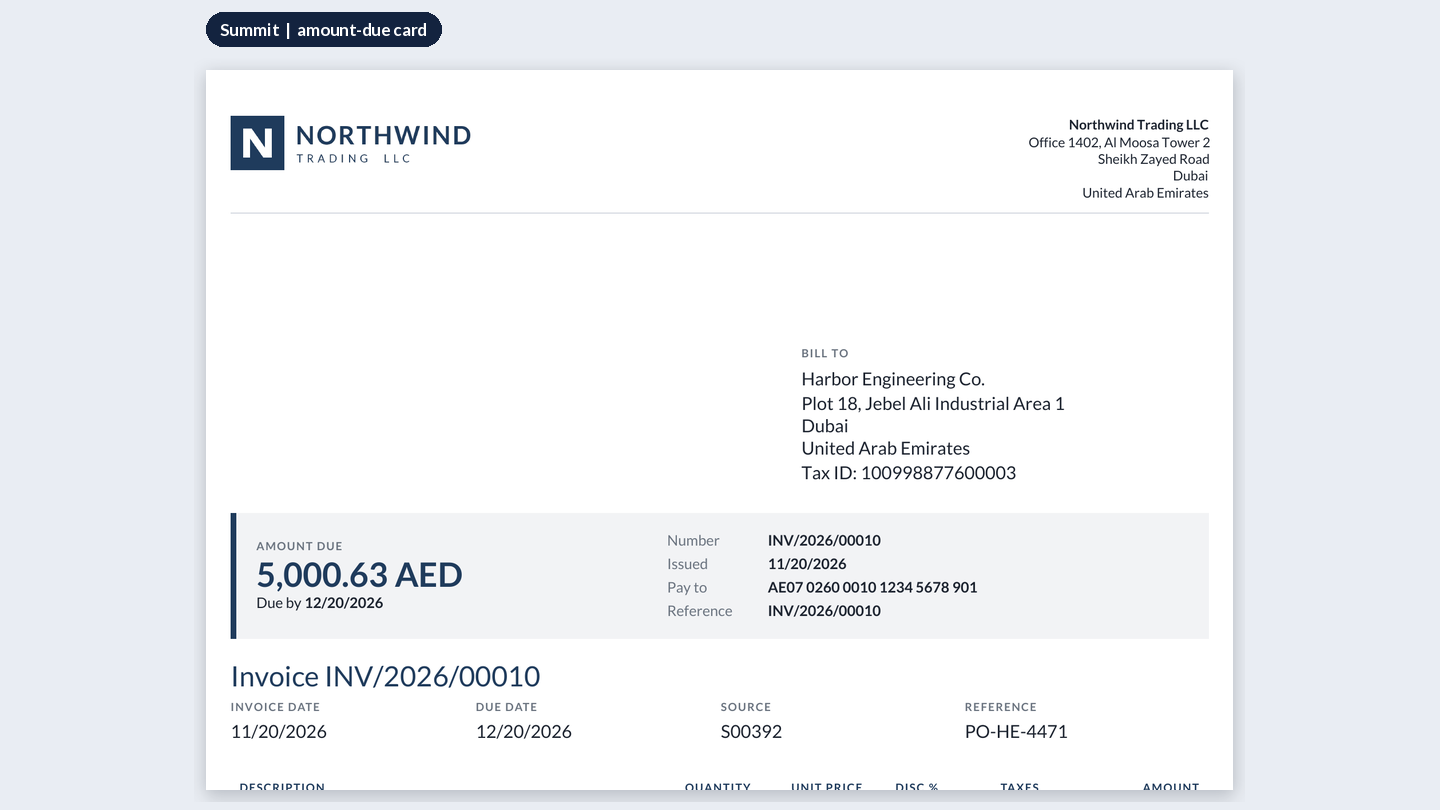
Summit
A card at the top of the document with the amount due, the due date, the account to pay to and the payment reference. Quotations and orders show their total and date.
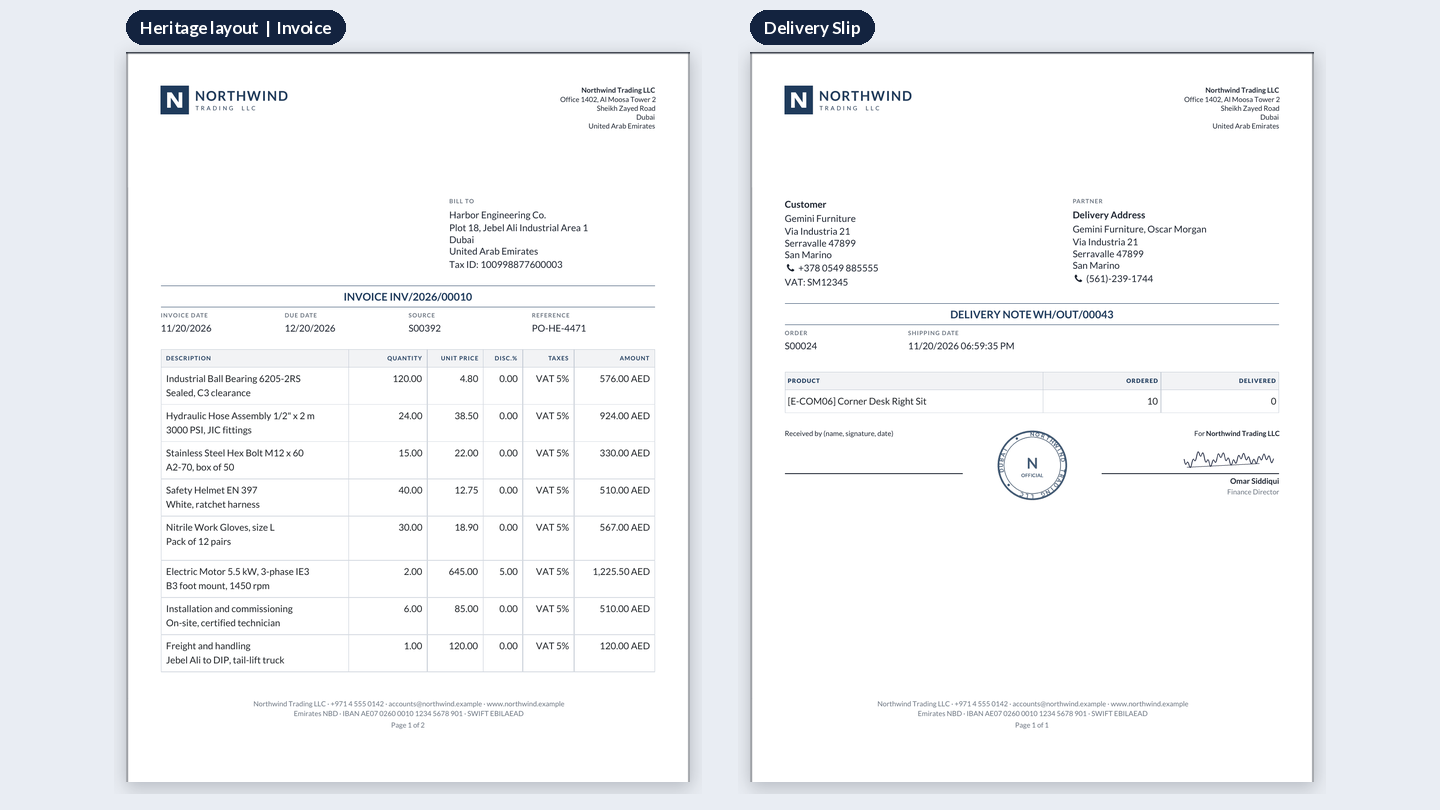
Heritage
A double page frame, a ruled title band, a gridded table and boxed totals. Heritage always prints the signature and stamp block (see Pro settings).
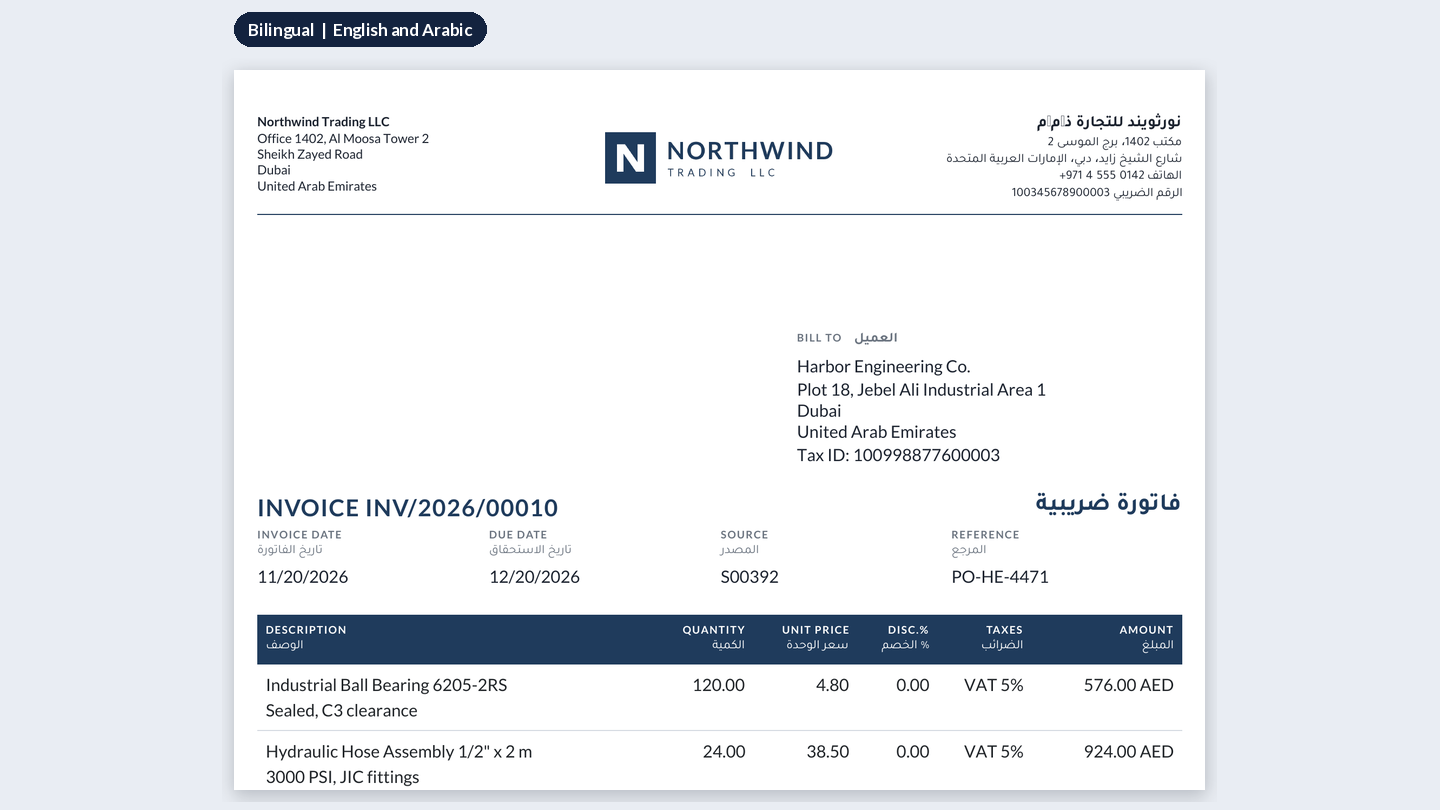
Bilingual
English with Arabic or Urdu: the column headers, dates, totals, the document title (for example فاتورة ضريبية for a tax invoice), the customer label and your company block in the second language. Set the language and your company name and address in that language in Pro settings.
What changes in the documents
All layouts:
- draw their own header and footer (logo, company details, your Footer text and page numbers);
- label the address block: Bill To on customer invoices, Credit To on credit notes, Vendor on bills and purchase orders, Customer on quotations and sales orders;
- style Odoo's own title, information blocks, lines table and totals.
The content of the documents does not change: the same lines, taxes, notes and payment details, in the same order.