Pro settings
Corporate Report Layouts Pro adds a Report Layouts tab to the company form.
- Go to Settings > Users & Companies > Companies and open your company.
- Open the Report Layouts tab.
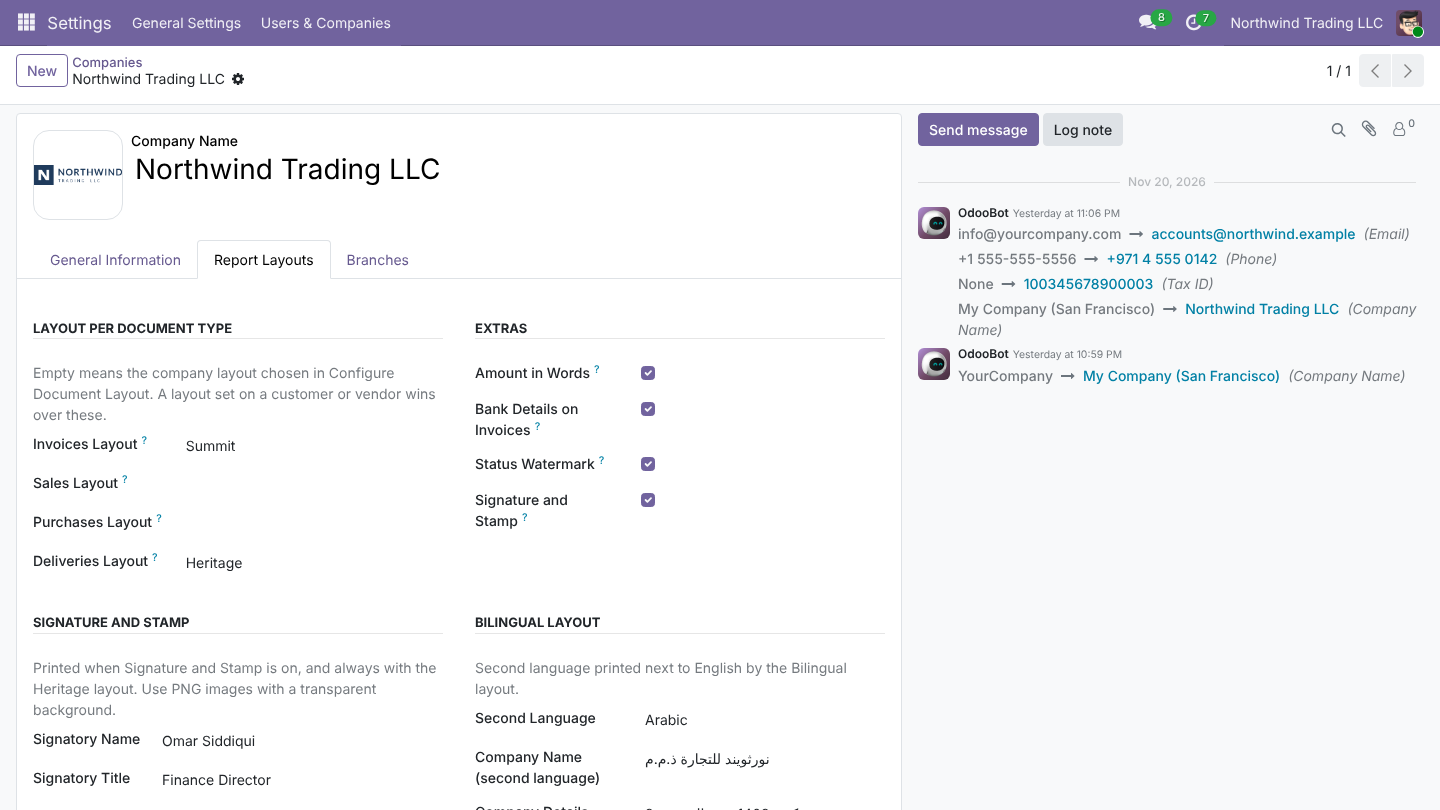
Layout per document type
| Field | Used for |
|---|---|
| Invoices Layout | customer invoices, credit notes and vendor bills |
| Sales Layout | quotations and sales orders |
| Purchases Layout | requests for quotation and purchase orders |
| Deliveries Layout | delivery slips and other transfers |
Leave a field empty to use the company layout chosen in Configure Document Layout.
Layout per customer or vendor
- Open the customer or vendor and go to the Sales & Purchase tab.
- Under Misc, set Document Layout.
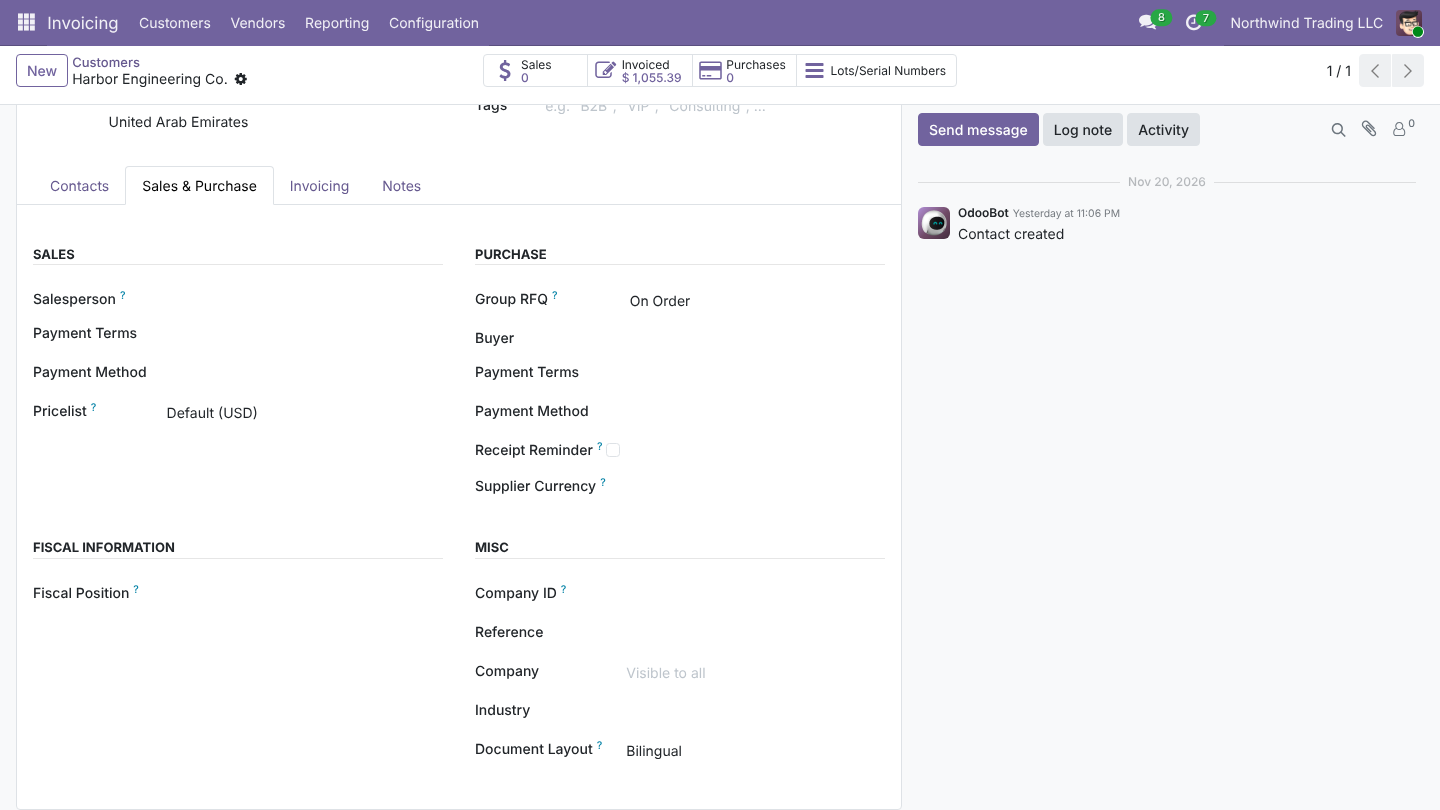
Their invoices, credit notes, quotations, orders and deliveries print with that layout. The field is read on the company the contact belongs to (the commercial entity), so the contacts of that company follow it too.
Which layout wins: the customer's or vendor's Document Layout, then the layout for the document type, then the company layout.
Extras
| Field | What it prints |
|---|---|
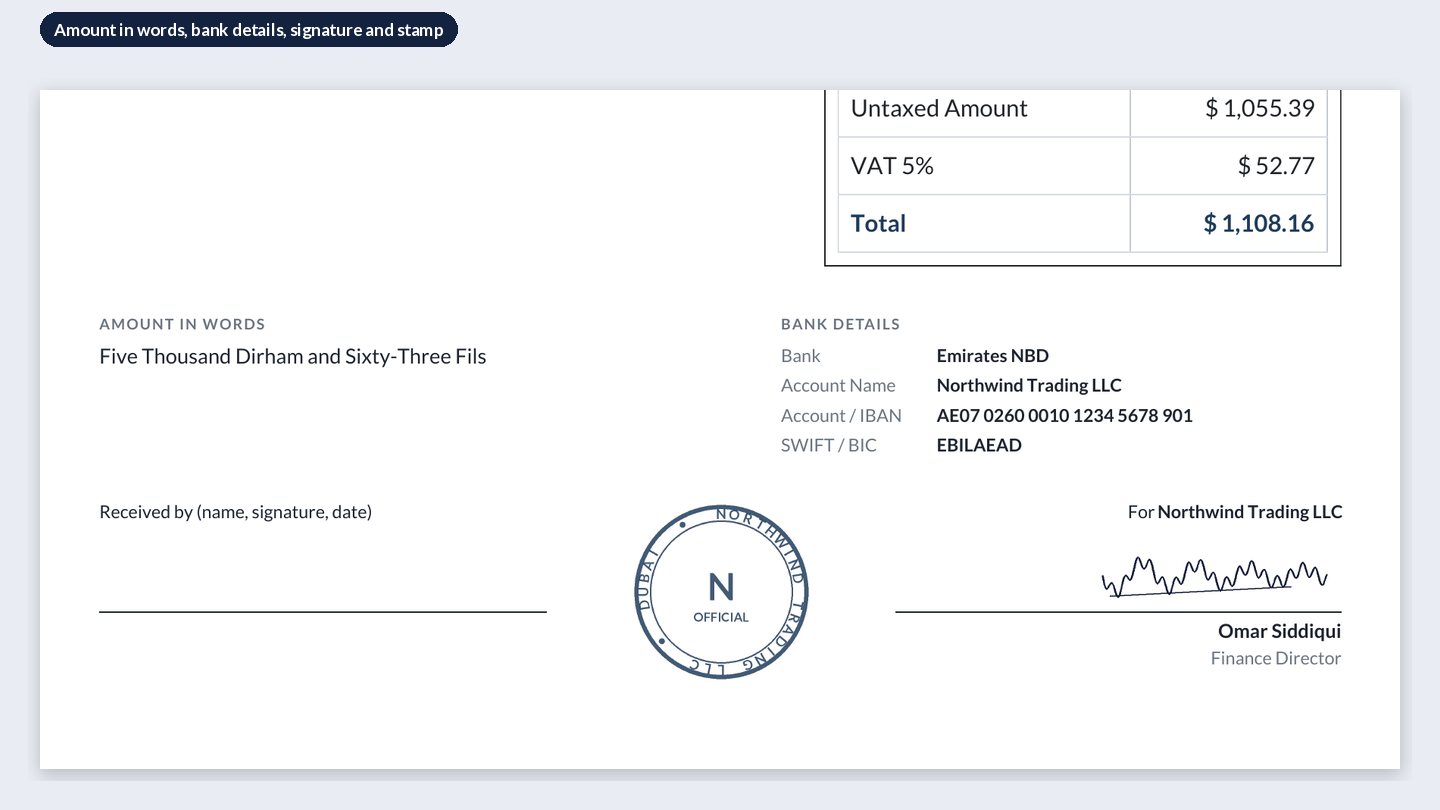
| Amount in Words | the total in words under invoices, quotations and purchase orders, in the customer's language (for example Five Thousand Dirham and Sixty-Three Fils) |
| Bank Details on Invoices | bank, account name, account number or IBAN (in groups of four) and SWIFT/BIC, taken from the bank account of the invoice, else the first bank account of the company |
| Status Watermark | DRAFT on draft invoices, CANCELLED on cancelled documents, PAID on paid customer invoices |
| Signature and Stamp | a signature block (see below) on every document |
Signature and stamp
| Field | What it does |
|---|---|
| Signatory Name | printed under the signature line |
| Signatory Title | printed under the name, for example Finance Director (default Authorised Signatory) |
| Signature Image | a scan of the signature, printed above the line |
| Stamp Image | your company stamp, printed in the middle; without an image a dashed circle marks the place for a rubber stamp |
Use PNG images with a transparent background. Invoices and delivery slips also get a Received by (name, signature, date) line for the customer. The block prints when Signature and Stamp is ticked, and always with the Heritage layout.
Bilingual layout
| Field | What it does |
|---|---|
| Second Language | Arabic or Urdu |
| Company Name (second language) | printed at the top right and in the footer |
| Company Details (second language) | address, phone and tax number in the second language, one line per row |
The Bilingual layout adds the second-language labels under the English ones: the columns of the lines table, the dates and references, the totals, the title of the document and the customer label. Product names and notes print as you entered them.
Arabic uses the Tajawal font that comes with Odoo; Urdu uses Noto Naskh Arabic, which comes with the app. Nothing is sent outside Odoo.