Product Stock Audit
See exactly what happened to one product in a period: how much you had, how much you bought, sold, got back, gave away or wrote off, and how much is left. The audit explains it in plain sentences and checks the closing stock against Odoo's own on-hand quantity.
Free, LGPL-3.
Odoo 13.0 - 20.0 Community & Enterprise Free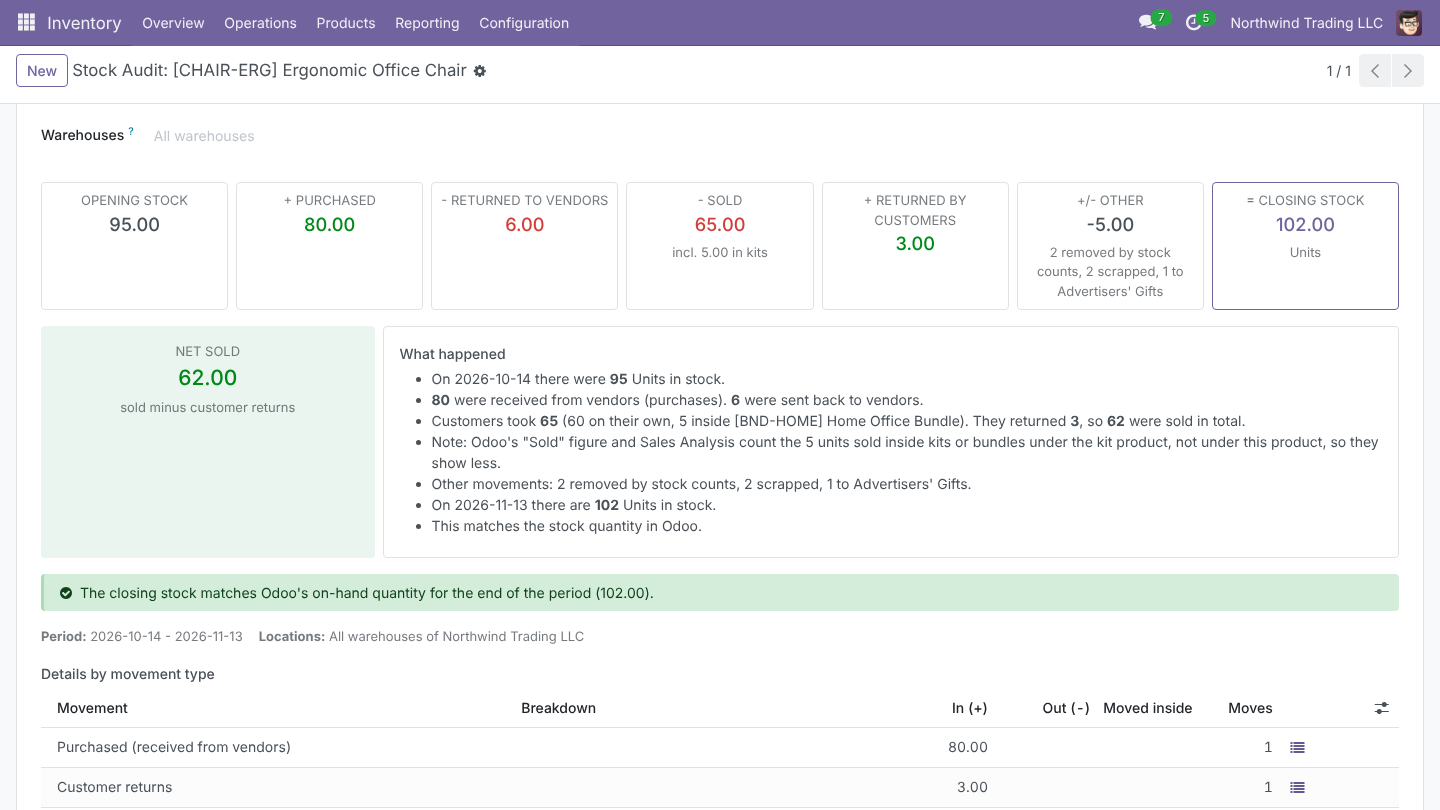
See it in two minutes
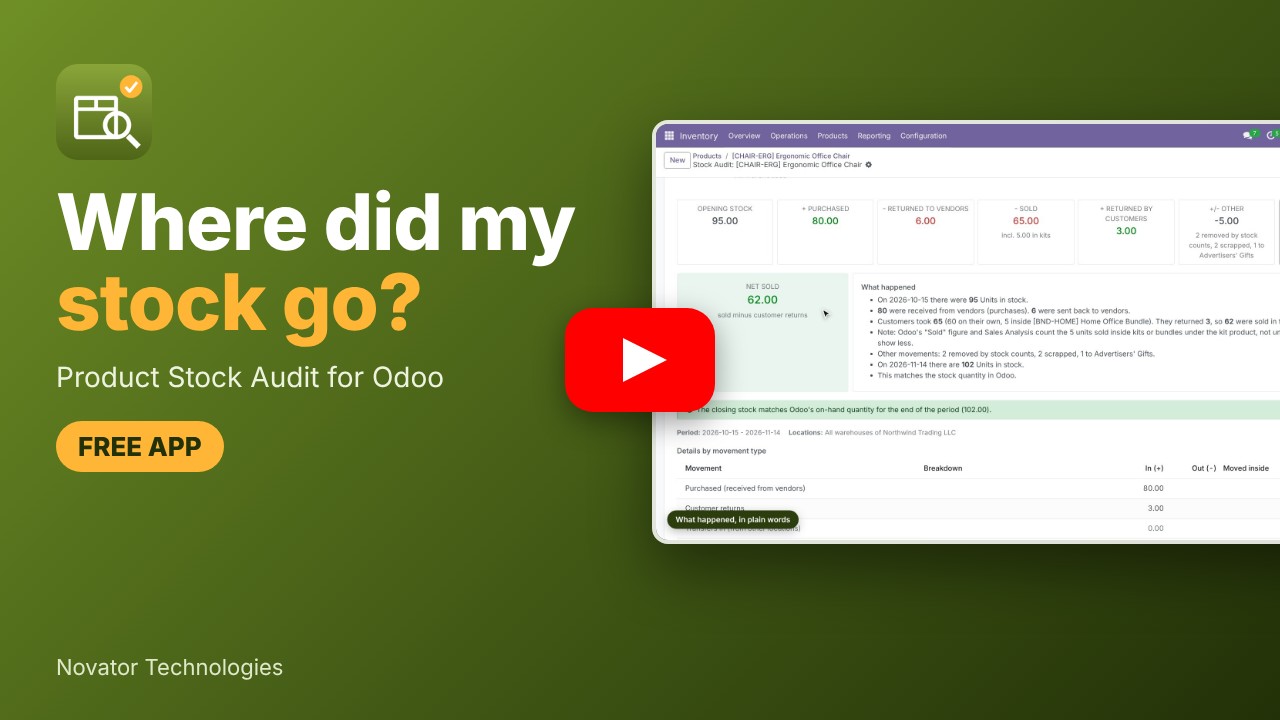
Watch the demo on YouTube: a product whose Sold figure does not add up, the Stock Audit button, the cards from opening to closing stock, What happened in plain words, sales inside kits, gifts, the moves behind each line and the PDF.
Why it matters
When a count does not match, the usual question is "where did the stock go?". Odoo has the answer, but it is spread over receipts, deliveries, returns, POS orders, stock counts and scrap. The product's Sold figure can also differ from what left the warehouse, for example when the product is sold inside a kit or bundle. The audit puts every movement of the product in one screen, grouped by type, with the numbers adding up from opening to closing stock.
Start here
- Install the app.
- Open a product and click More → Stock Audit, or go to Inventory → Reporting → Product Stock Audit.
- Choose the period and click Run Audit: Run an audit.
- Read the cards and the What happened box: Read the results.
In this guide
- Install: versions and installation.
- Run an audit: product, period, warehouses, locations, lots, PDF.
- Read the results: every card and movement type, kits and bundles, gifts, the check against Odoo.
- FAQ.
Need every product, day by day?
Daily Stock Ledger shows opening, in, out and closing stock for all products at once, day by day, with Excel and PDF exports and a pivot analysis.