Set up POS Keyboard Shortcuts
Who can do what
- Point of Sale / Administrator creates and edits shortcut profiles and switches shortcuts on.
- Point of Sale / User (cashiers) uses the shortcuts in the register.
Switch shortcuts on (1 minute)
- Open Point of Sale > Configuration > Settings and select the Point of Sale at the top.
- Under PoS Interface, tick Keyboard Shortcuts.
- Choose the Profile. The app installs a profile called Default Shortcuts, already selected on every Point of Sale.
- Click Save and open (or reload) the register.
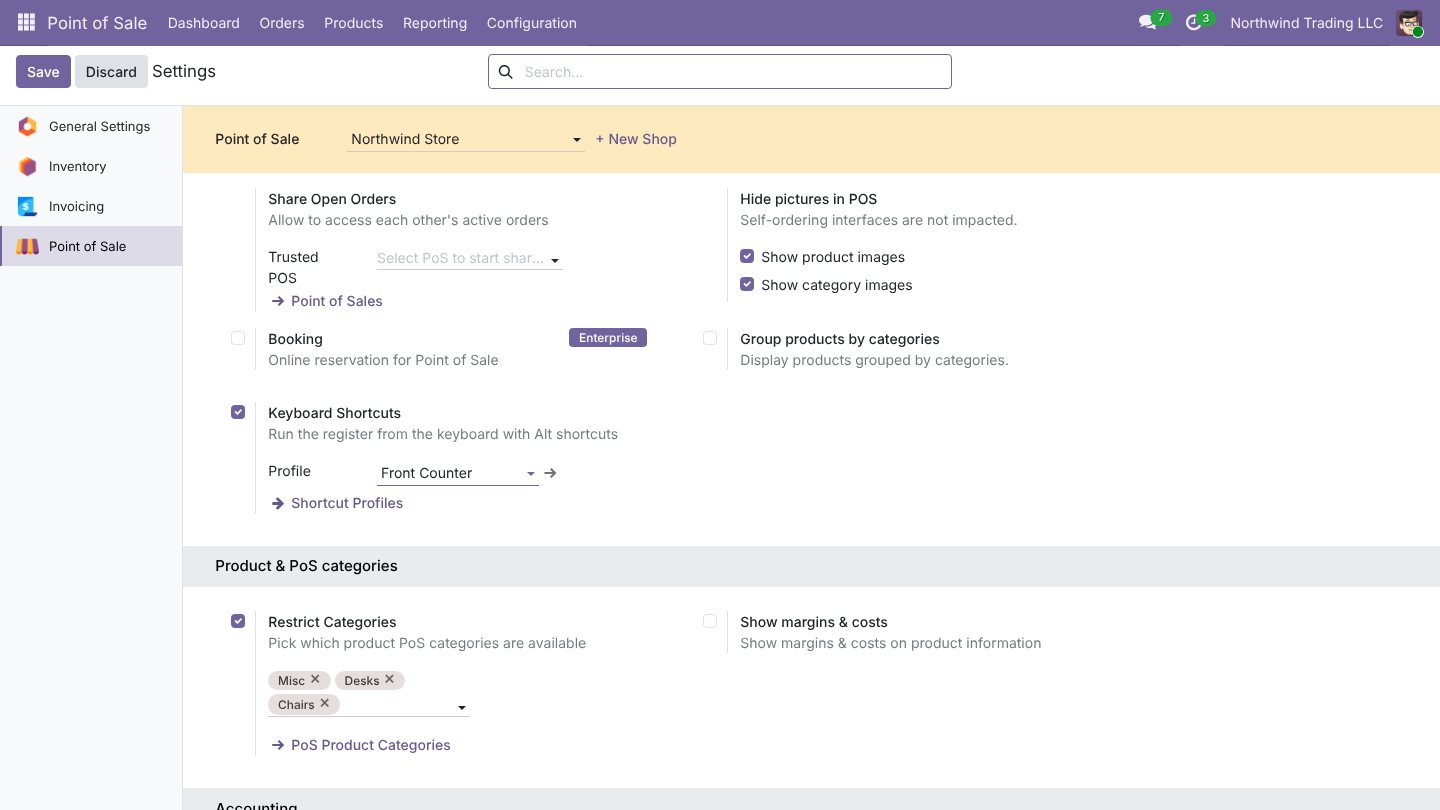
Shortcuts are off until you tick the option, Point of Sale by Point of Sale.
Change the keys
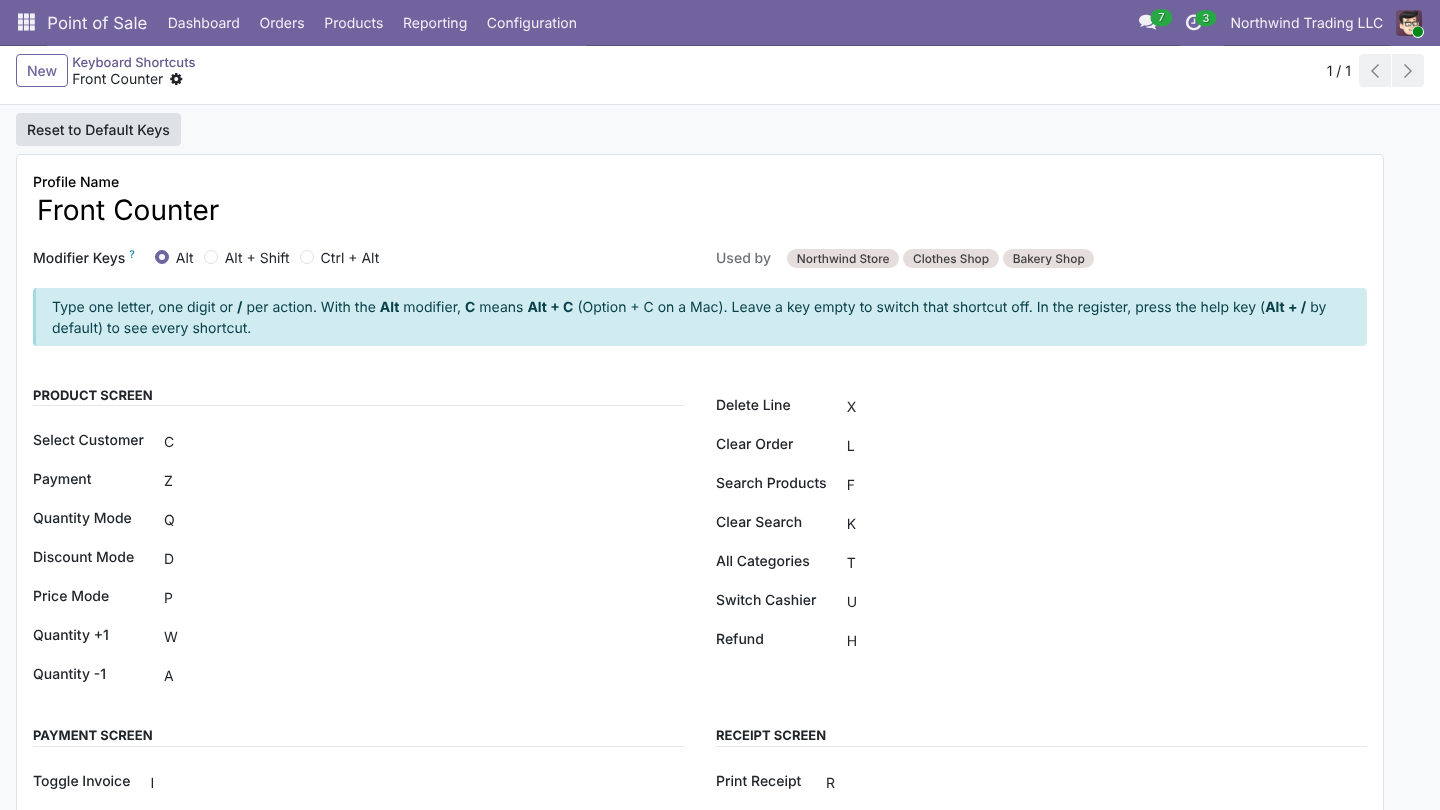
Open Point of Sale > Configuration > Keyboard Shortcuts and open a profile, or click Shortcut Profiles under the setting.
| Field | What it does |
|---|---|
| Profile Name | Name shown in the POS settings, for example Front Counter. |
| Modifier Keys | Keys held with the shortcut letter: Alt (default), Alt + Shift or Ctrl + Alt. On a Mac, Alt is the Option key and Ctrl is Control. |
| Used by | The Points of Sale that use this profile (read only). |
| One field per action | The letter (A-Z), digit (0-9) or / for that action. Leave it empty to switch the shortcut off. |
| Payment Methods | One line per payment method with its key, for example Cash on 1 and Card on 2. Drag the lines to order them in the help popup. |
Odoo refuses a key used twice in the same profile (payment method keys included), a character other than a letter, digit or /, and two keys for the same payment method.
Reset to Default Keys at the top of the form puts every action back on its default key (payment method keys stay).
Several counters
Create one profile per way of working (for example Front Counter and Restaurant Bar) and select it in the settings of each Point of Sale. Changes to a profile apply the next time the register is opened or reloaded.
On Firefox for Windows or Linux, Alt + letter opens Firefox's own menus. Set Modifier Keys to Alt + Shift for registers running Firefox. Chrome and Edge work with Alt.