Use the shortcuts
Hold the modifier (Alt by default, Option on a Mac) and press the key. Press Alt + / or click Shortcuts in the register at any time to see the keys of your profile.
The keys below are the defaults; your manager may have changed them. A shortcut only works on its own screen, and never while a popup is open (except Alt + /, which also closes the help).
Product screen
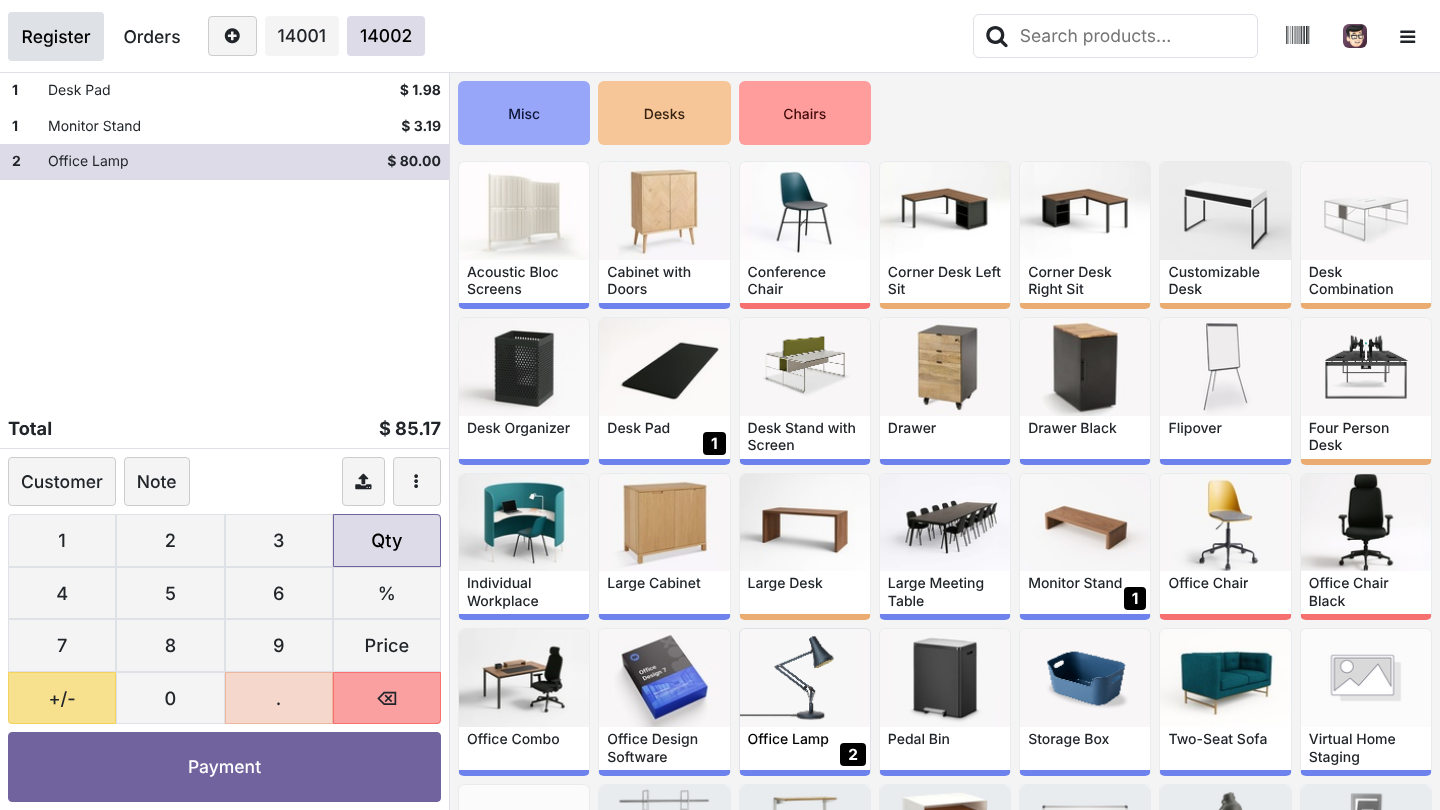
| Keys | Action |
|---|---|
| Alt + C | Select the customer |
| Alt + Z | Go to the payment screen |
| Alt + Q / Alt + D / Alt + P | Numpad in quantity / discount / price mode, then type the value |
| Alt + W | Quantity +1 on the selected line |
| Alt + A | Quantity -1 on the selected line (stops at 1: use Alt + X to remove the line) |
| Alt + X | Delete the selected line |
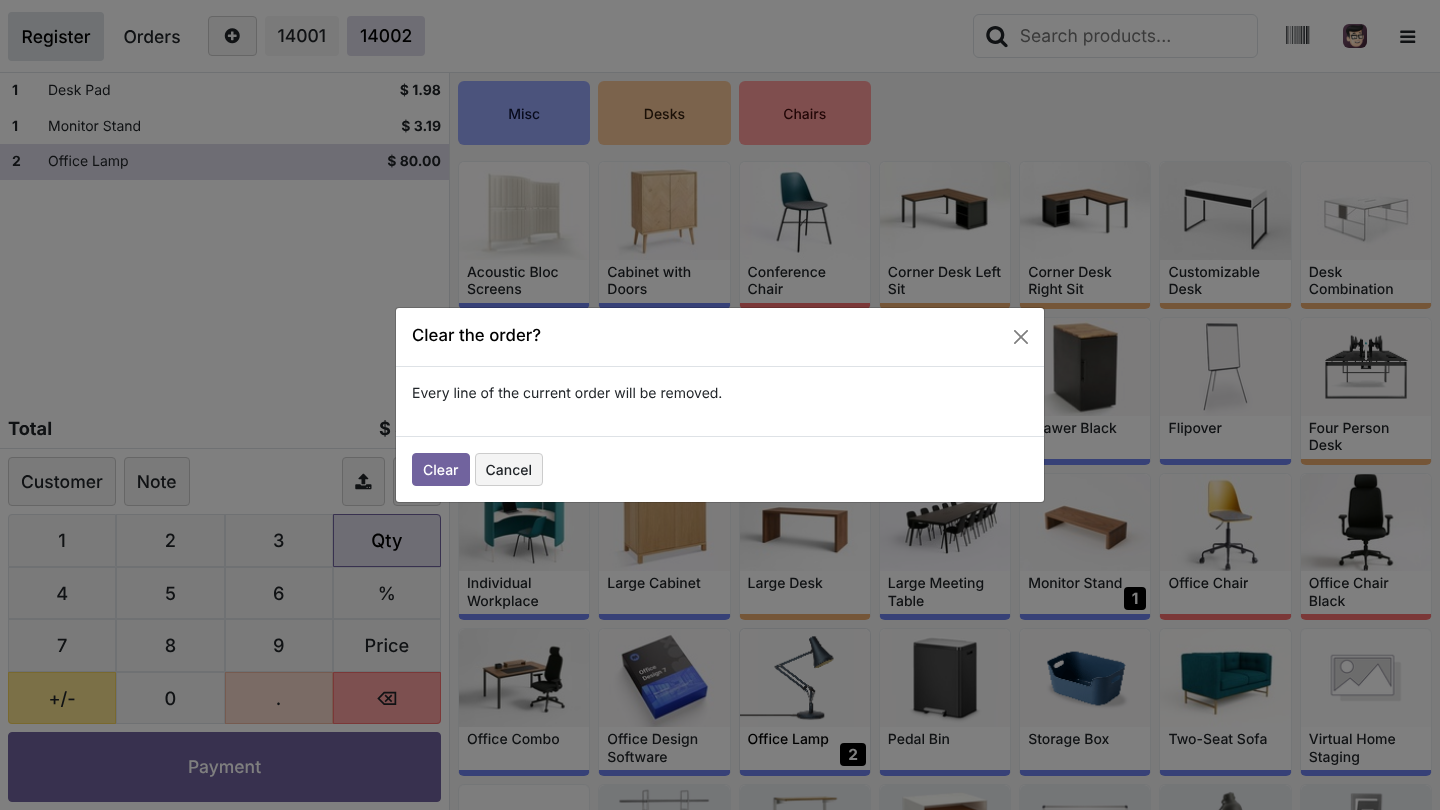
| Alt + L | Clear the whole order (asks first) |
| Alt + F | Put the cursor in the product search |
| Alt + K | Clear the search |
| Alt + T | Show all categories |
| Alt + U | Switch cashier (needs Log in with Employees in the POS settings) |
| Alt + H | Refund: opens the orders list ready to pick the order to refund |
Payment screen
| Keys | Action |
|---|---|
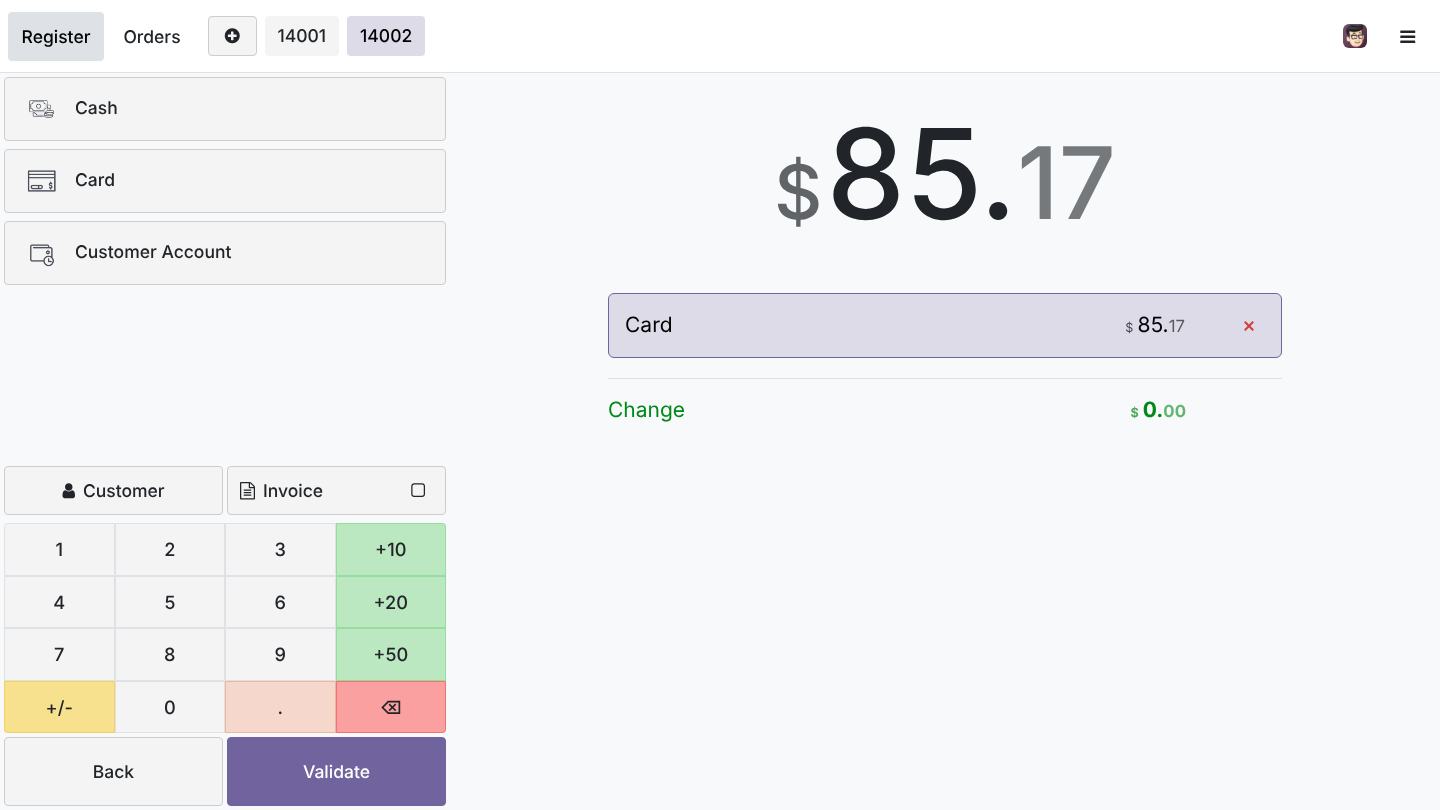
| Alt + 1, Alt + 2 ... | Add a payment line with the payment method on that key (set in the profile) |
| Alt + J | Set the selected payment line to the amount still due |
| Alt + I | Invoice on / off |
| Alt + V | Validate the order |
| Alt + B | Back to the products |
A typical sale: scan the products, Alt + Z, Alt + 1 (cash) or Alt + 2 (card), Alt + V.
Receipt screen
| Keys | Action |
|---|---|
| Alt + R | Print the receipt |
| Alt + E | Email the receipt (to the address in the email box; puts the cursor there when it is empty) |
| Alt + N | Next order |
On Odoo 20.0 the screen after payment is the confirmation screen: Alt + R opens its print options and Alt + E its send options.
Everywhere
| Keys | Action |
|---|---|
| Alt + O | Orders list |
| Alt + Y | Switch to the next open order |
| Alt + G | Full screen on / off |
| Alt + M | Close the session (opens Odoo's closing window) |
| Alt + / | Show or hide the shortcut help |
Was this page helpful?