Set up POS Tax on Original Price
The app is switched on for every Point of Sale as soon as it is installed. You only need this page to change how it works.
Who can do what
- Point of Sale / Administrator changes the settings and creates promotions and loyalty programs.
- Point of Sale / User (cashiers) applies codes and rewards in the register as usual.
The settings
- Open Point of Sale > Configuration > Settings and select the Point of Sale at the top.
- Find Tax on Original Price, next to Global Discounts.
- Change the options below and click Save.
- Reload any register that is open.
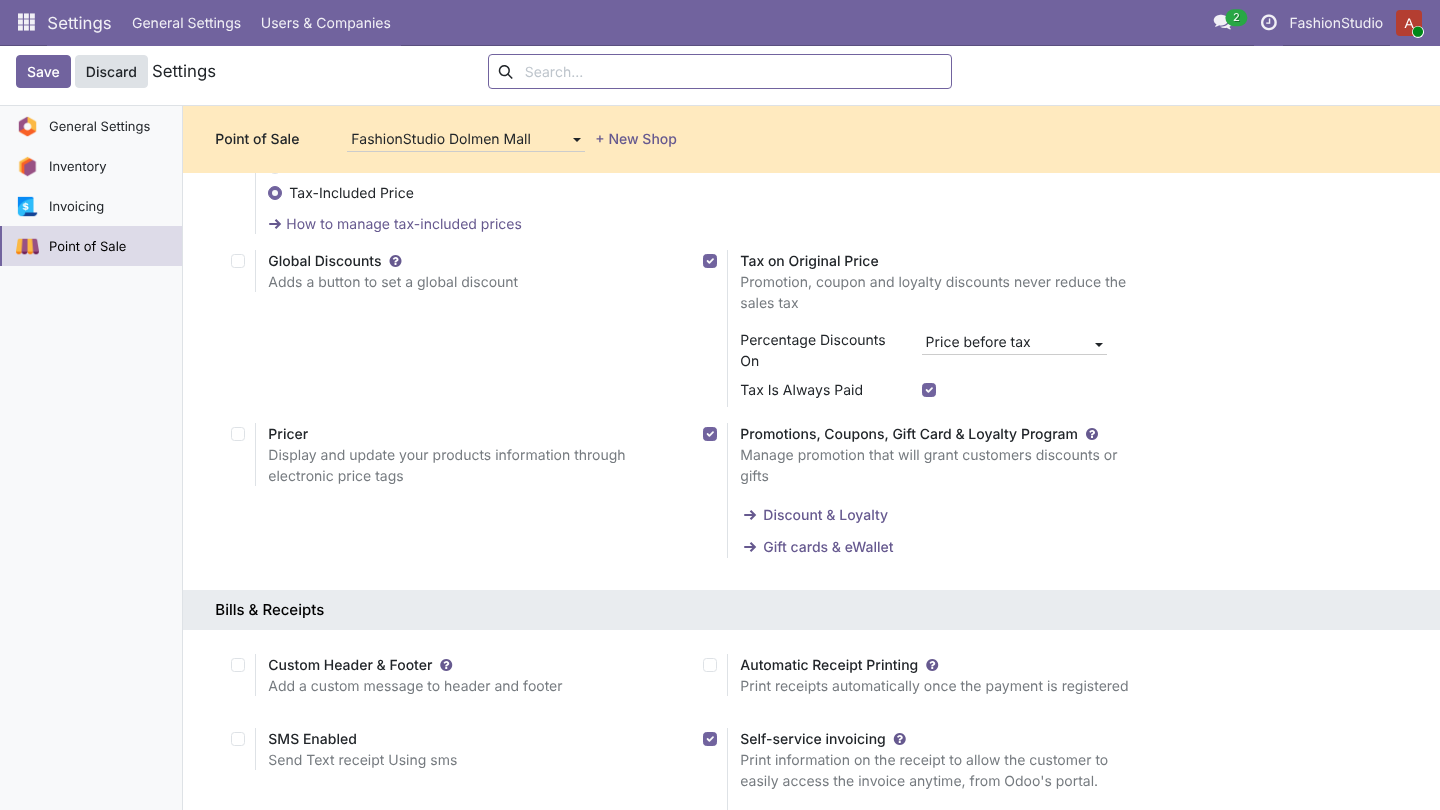
| Field | What it does |
|---|---|
| Tax on Original Price | On (default): promotion, coupon and loyalty discounts carry no tax, so the tax stays on the original price. Off: standard Odoo, the discount lowers the tax. |
| Percentage Discounts On | Price before tax (default): 10% off a Rs. 1,180 item (Rs. 1,000 + Rs. 180 GST) takes Rs. 100 off. Price after tax: it takes Rs. 118 off. The GST stays Rs. 180 in both cases. |
| Tax Is Always Paid | On (default): loyalty points, vouchers and fixed discounts are capped at the price before tax, so the customer always pays the tax, and fewer points are used when a reward is capped. Off: points and vouchers can also cover the tax. |
The User guide link under the setting opens this guide.
Create your discounts
Promotions, coupons, discount codes and loyalty programs are Odoo's own: create them in Point of Sale > Products > Discount & Loyalty. The app changes how their discount is worked out and taxed, nothing else. Rewards of the Discount type are covered; see How each kind of discount works.
tip
Using it for a client with several shops? The settings are per Point of Sale, so one shop can keep standard Odoo while the others use the tax on the original price.
Was this page helpful?