Pause, stop and download
Keep working while it records
Move between apps, records and menus as usual. The red timer stays in the top bar on every screen. Reloading or closing the tab ends the recording, so the browser asks first.
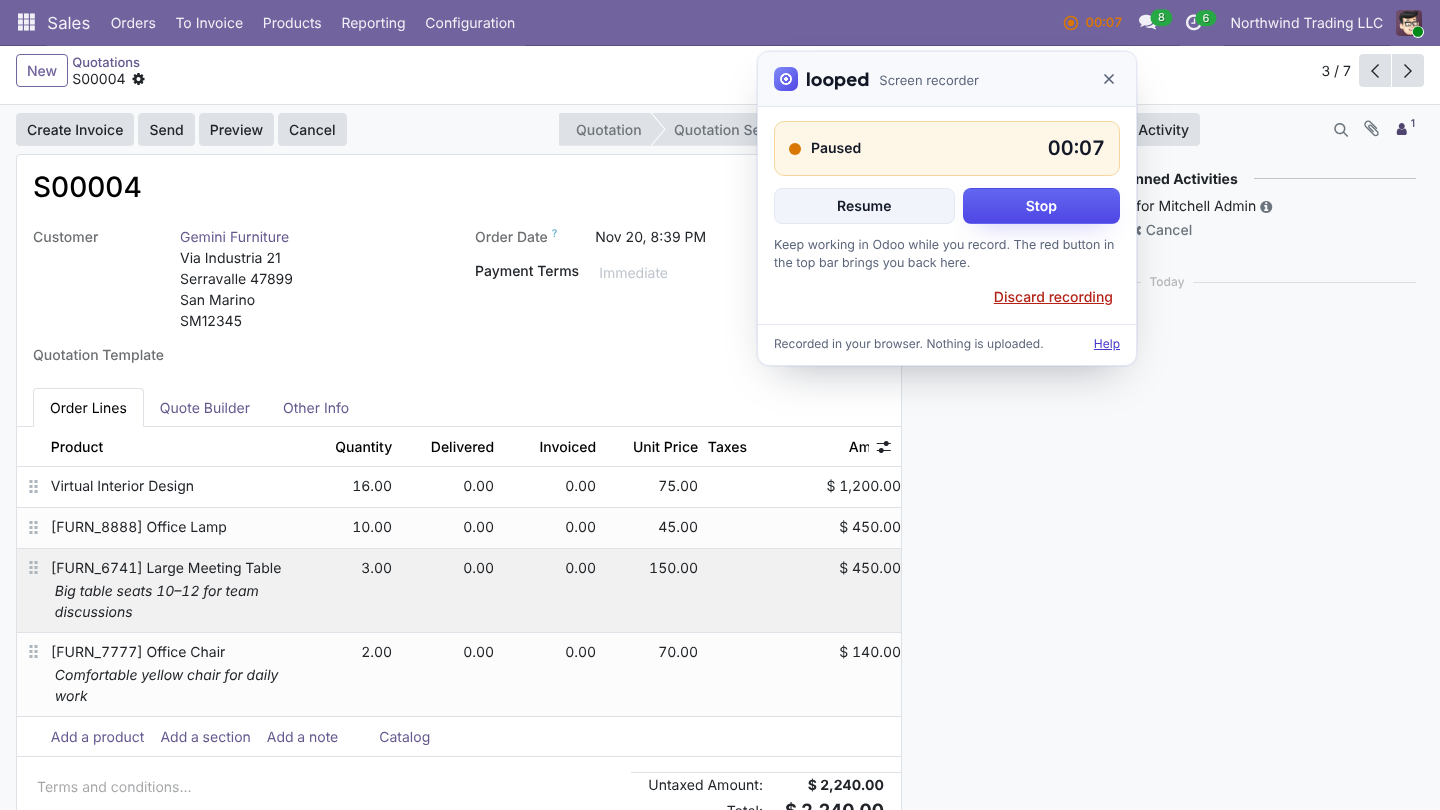
Pause, resume or stop
Click the red timer to open the controls.
- Pause freezes the video and the timer; Resume continues in the same file.
- Stop ends the recording and opens the preview.
- Discard recording throws it away after you confirm.
If you click Stop sharing in the browser's own bar, the recording stops cleanly and the clip is kept.
Preview and download
- Watch the clip in the preview.
- Change the File name if you like. Characters that files can't use are removed.
- Click Download. The browser saves the file to your usual downloads folder.
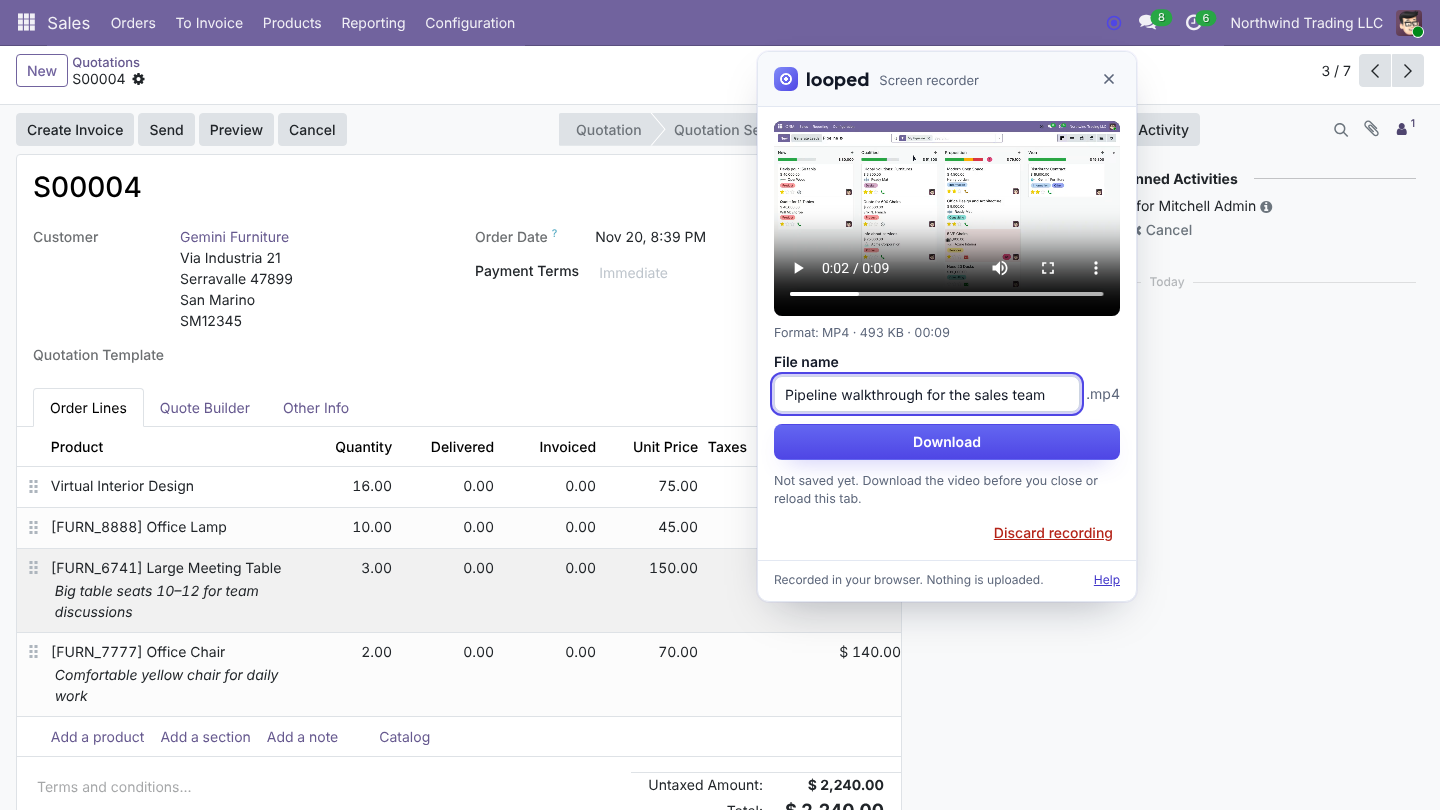
The panel shows the format, size and length. Chrome and Edge record MP4 (H.264), which opens in every common player. Browsers that can't record MP4 produce WebM; the app writes the length into the file so players can seek. The extension always matches the real format.
Until you download, the video exists only in this browser tab. The panel says Not saved yet and the browser warns before you close or reload the tab. After the download, click New recording to start again.
Discard
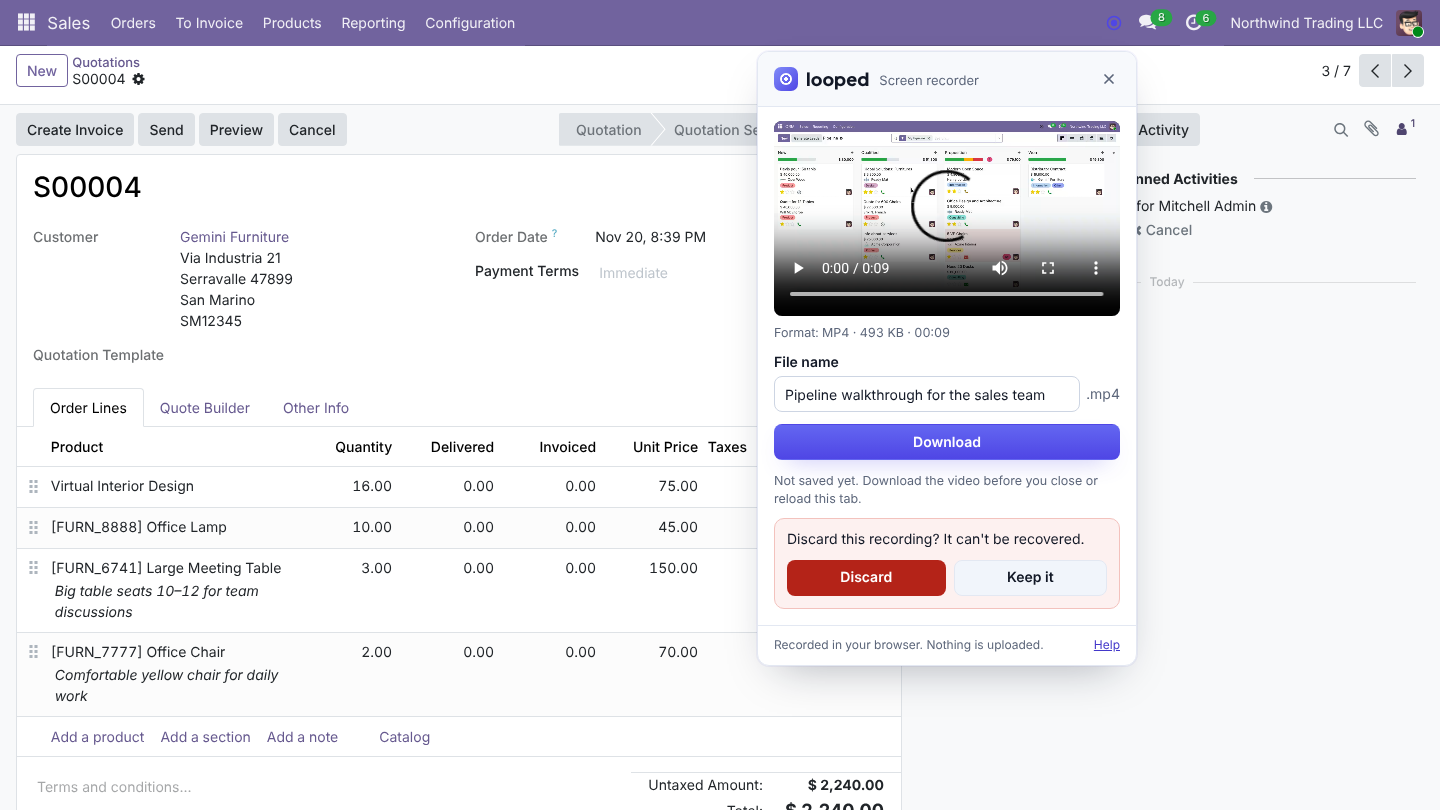
Discard recording asks for confirmation first, so a stray click can't lose your work. Discarding releases the screen, microphone and audio at once.
Keyboard
The record icon and every control work with Tab, Enter and Space. Escape closes the panel and returns focus to the record icon. Screen readers announce when a recording starts, pauses, resumes and stops.