Record your first video
Before you start
- Open Odoo with https:// (or on
localhost). Browsers only allow screen capture on secure pages; on a plainhttp://address the panel tells you so. - Use Chrome or Edge on a computer. Phones and tablets can't record the screen.
- Every internal user sees the record icon. There is nothing to configure and no access rights to set.
Start a recording
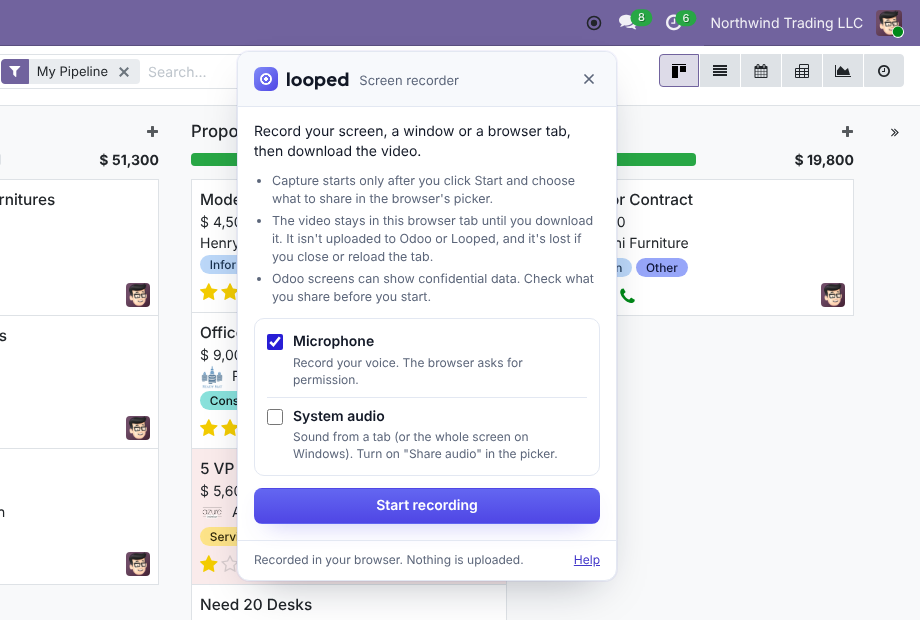
- Click the record icon (a ring with a dot) in the top bar, next to the chat and activity icons.
- Read the short note in the panel: capture starts only after you click Start and choose what to share.
- Optional: tick Microphone to record your voice, and System audio to record sound from a tab.
- Click Start recording.
- The browser opens its own picker. Choose a tab, a window or the entire screen, then click Share.
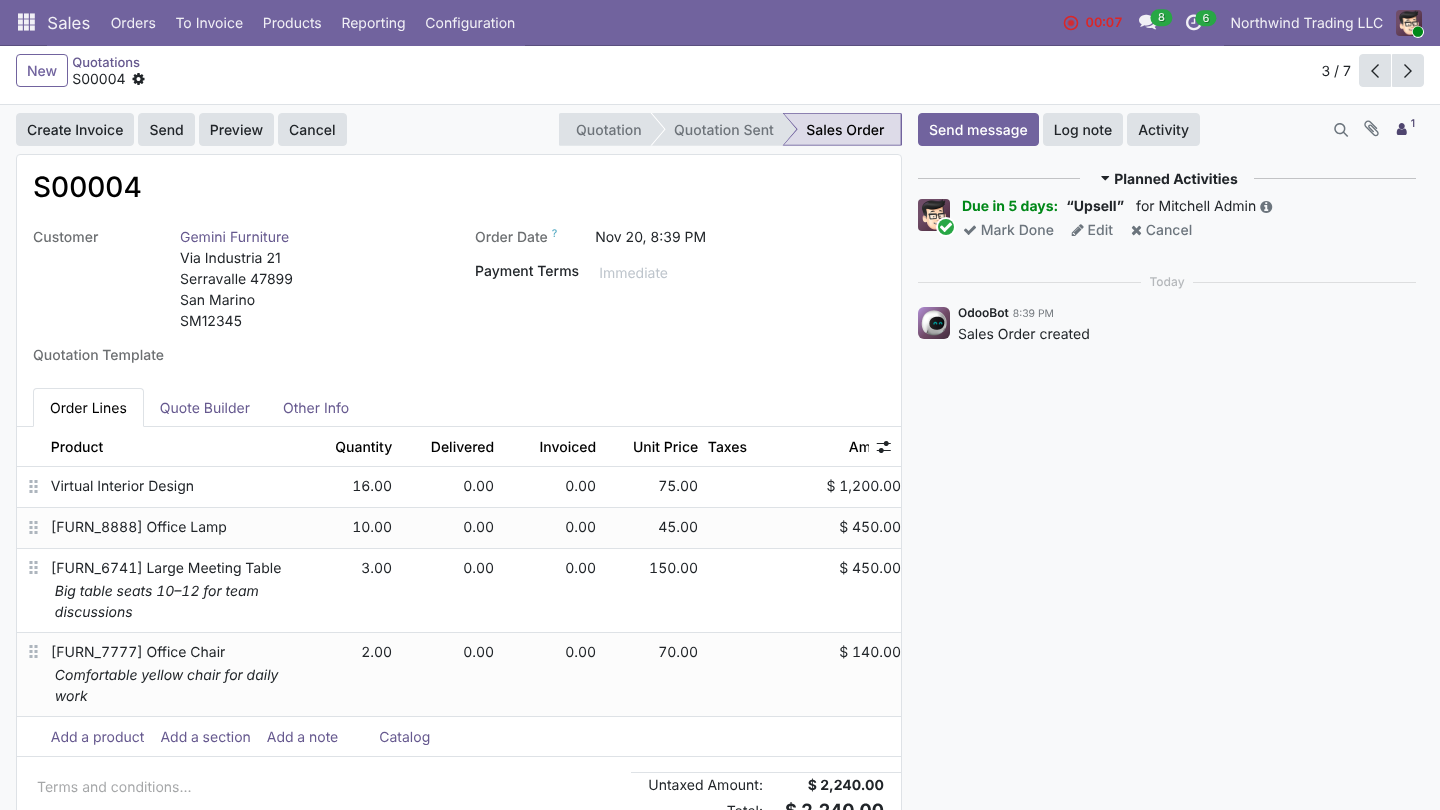
The panel closes so it isn't in your video, and the record icon turns red with a timer.
tip
To include sound from a video or call in a browser tab, choose that tab in the picker and turn on Share tab audio. Chrome and Edge record tab audio on every system, and whole-screen audio on Windows and ChromeOS.
If the picker was cancelled
Clicking Cancel in the picker simply returns you to the panel with a short message. Click Start recording again to choose. If the browser blocked sharing, allow it from the icon in the address bar; on macOS, also allow Screen Recording for your browser in System Settings > Privacy & Security.
Was this page helpful?