Azure SSO Pro
Pro installs on top of the free app and keeps its settings and linked users. It adds the menu Settings > Users & Companies > Microsoft Entra ID with Tenants, Sign-in log and Leaver checks and imports.
Each tenant (one Azure app registration) has the tabs Connection, Users, Group mapping, Profile, Leavers and Client secret. The tenant set up in General Settings is the first one.
Azure permissions
Each feature needs its own Microsoft Graph permission. In Azure, open the app registration, then API permissions > Add a permission > Microsoft Graph, and Grant admin consent once.
| Feature | Permission | Type |
|---|---|---|
| Sign-in | openid, profile, email | Delegated |
| Profile sync | User.Read | Delegated |
| Groups read from Graph | GroupMember.Read.All | Delegated |
| Leaver check | User.Read.All (and GroupMember.Read.All for the group rule) | Application |
| Import from a group | GroupMember.Read.All | Application |
| Secret expiry from Azure | Application.Read.All | Application |
Application permissions need the tenant ID or domain in Tenant, not organizations.
Group mapping
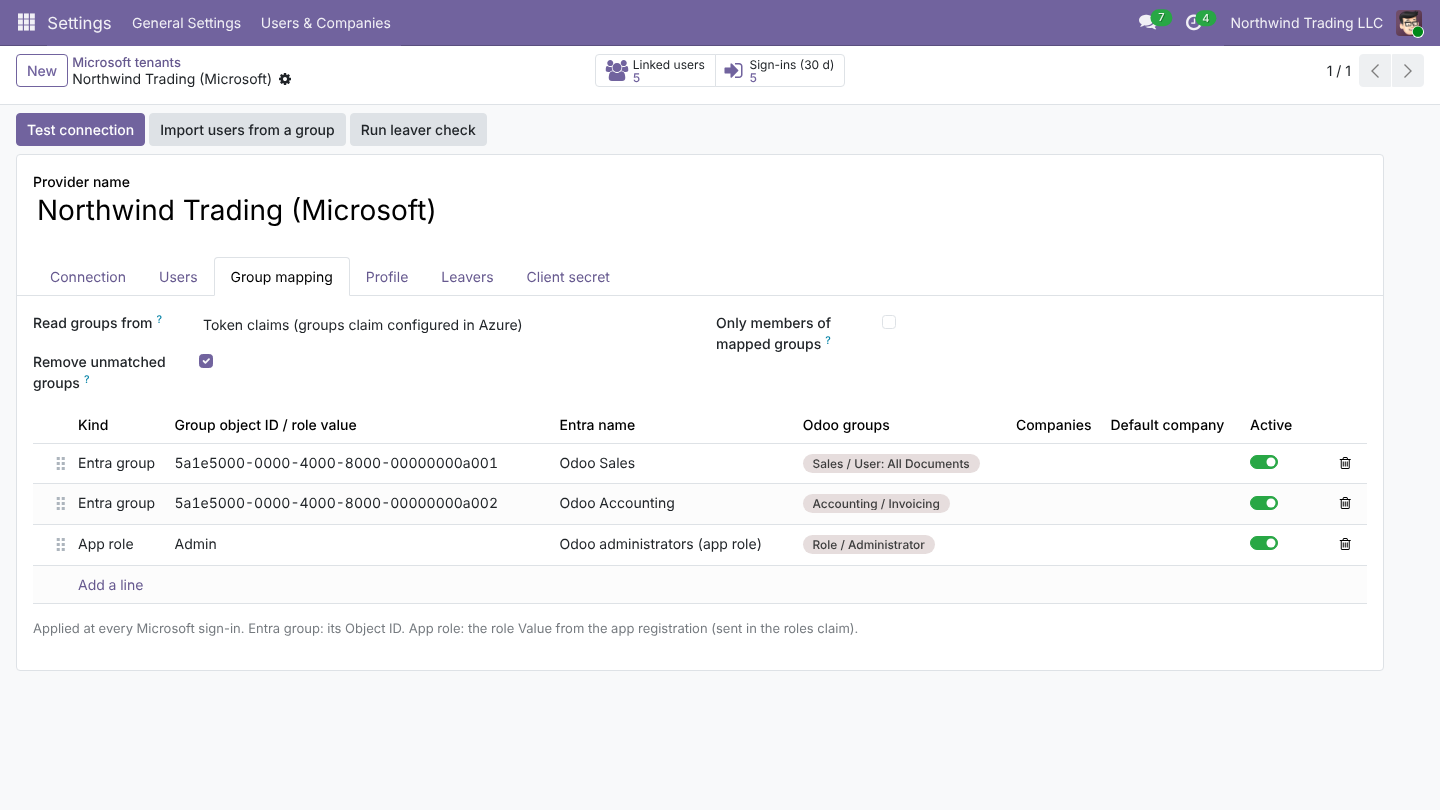
On the Group mapping tab, each line gives Odoo access to the members of an Entra group or app role:
| Column | What it does |
|---|---|
| Kind | Entra group or App role. |
| Group object ID / role value | For a group: its Object ID (Entra ID > Groups > the group). For an app role: the role Value from the app registration. |
| Entra name | For your reference. |
| Odoo groups | Groups given while the user is a member, for example Sales / User: All Documents. |
| Companies, Default company | Companies the user gets, in multi-company databases. |
Options on the tab:
| Option | What it does |
|---|---|
| Read groups from | Token claims: in Azure, Token configuration > Add groups claim (Security groups). Microsoft Graph: also nested groups; needs GroupMember.Read.All (delegated). With more than 200 groups Microsoft leaves them out of the token; the app then reads them from Graph. |
| Remove unmatched groups | Odoo groups used in the mapping are removed when the user leaves the Entra group. Groups not used in any line are never touched. |
| Only members of mapped groups | Sign-ins of users that match no line are refused. |
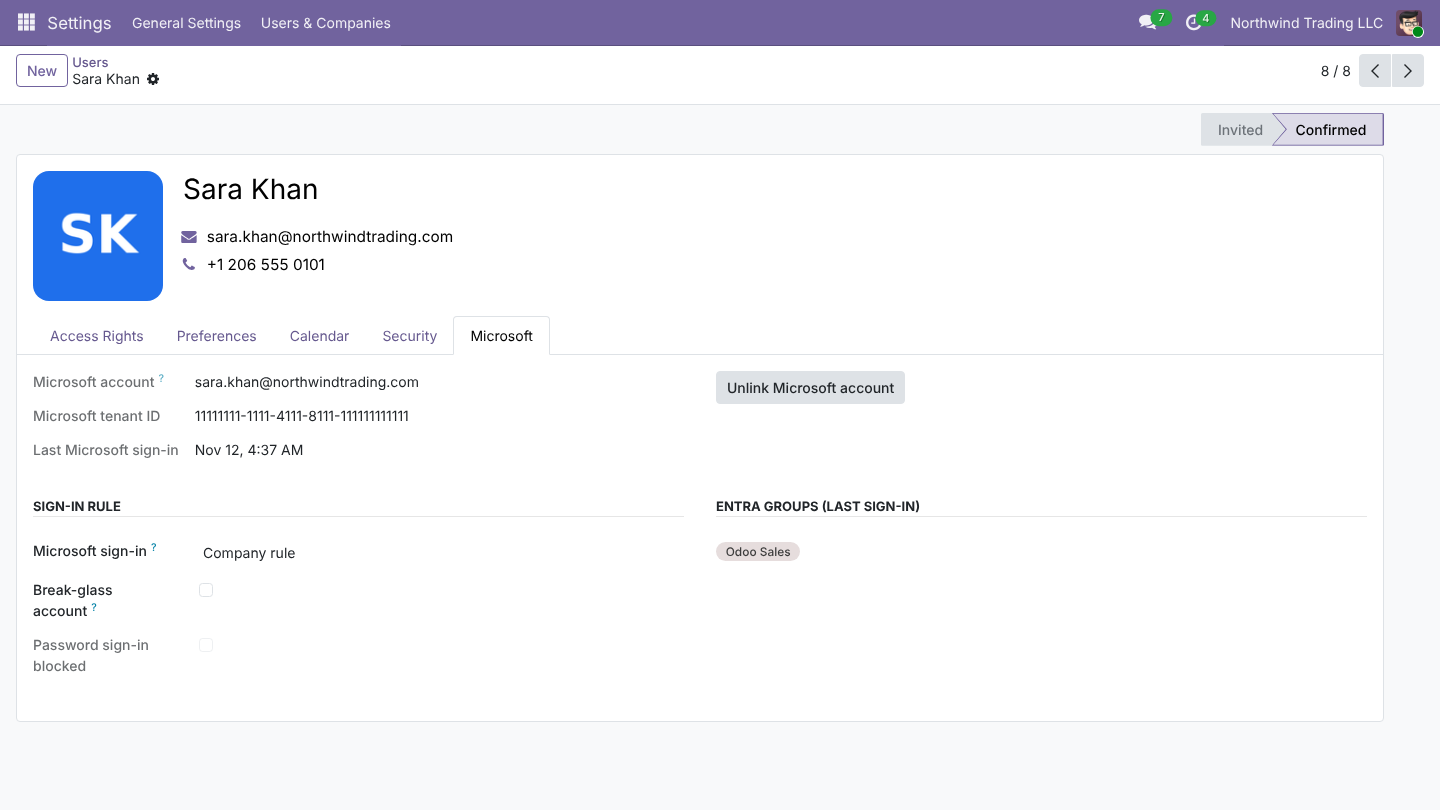
The mapping is applied at every Microsoft sign-in. A portal user mapped to an internal group becomes an internal user. The user's Microsoft tab shows the matched lines.
Require Microsoft sign-in
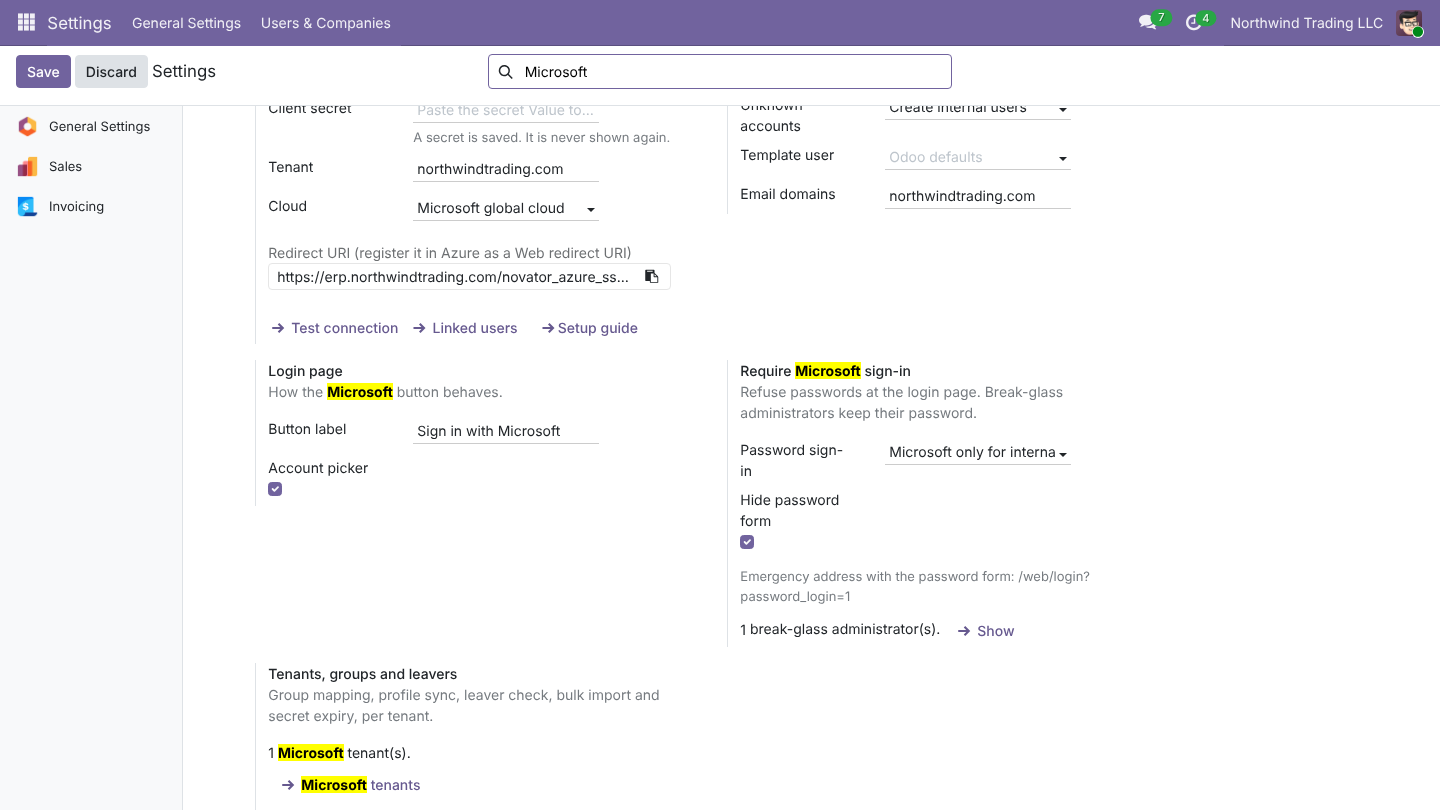
In Settings > General Settings > Microsoft Azure SSO (Entra ID) > Require Microsoft sign-in:
| Field | What it does |
|---|---|
| Password sign-in | Password and Microsoft, Microsoft only for internal users, Microsoft only for everyone or Microsoft only for selected groups. |
| Groups | With selected groups: members of these groups sign in with Microsoft only. |
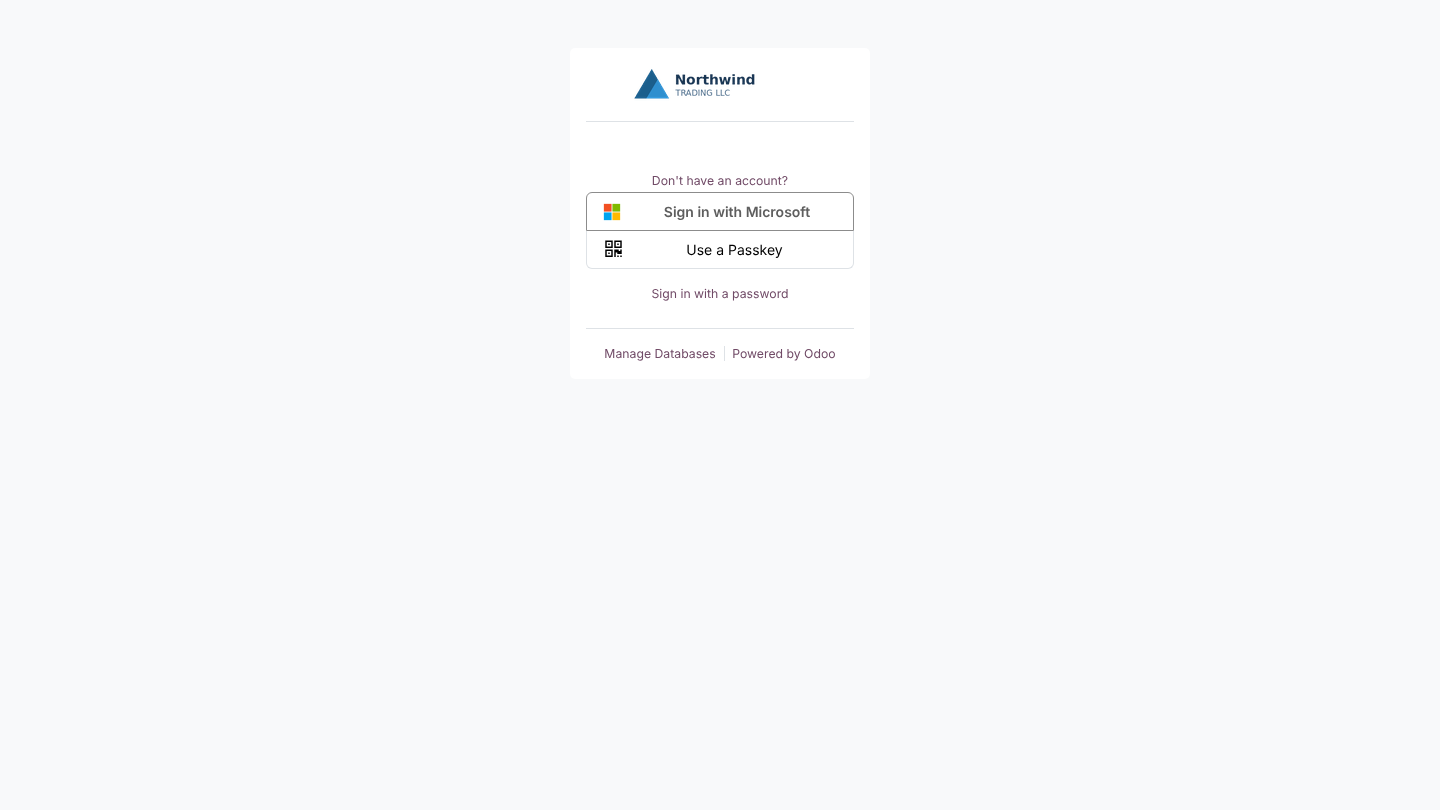
| Hide password form | The login page shows only the Microsoft button and a Sign in with a password link. |
On each user, the Microsoft tab has Microsoft sign-in: Company rule, Microsoft only or Password allowed, and Password sign-in blocked shows the result.
Break-glass administrators
A break-glass account always keeps its password, never loses groups through the mapping and is never archived by the leaver check. The main administrator is one from installation. The setting cannot be saved without at least one break-glass administrator.
If Microsoft is down or the secret expired: open /web/login?password_login=1 and sign in with a break-glass account.
Only interactive sign-ins are checked. API keys and integrations keep working. Users who sign in with Microsoft only cannot confirm their password for sensitive actions such as creating an API key; set them to Password allowed if they need that.
If no Microsoft tenant is active, passwords are accepted again for everyone, so nobody is locked out.
Leaver check
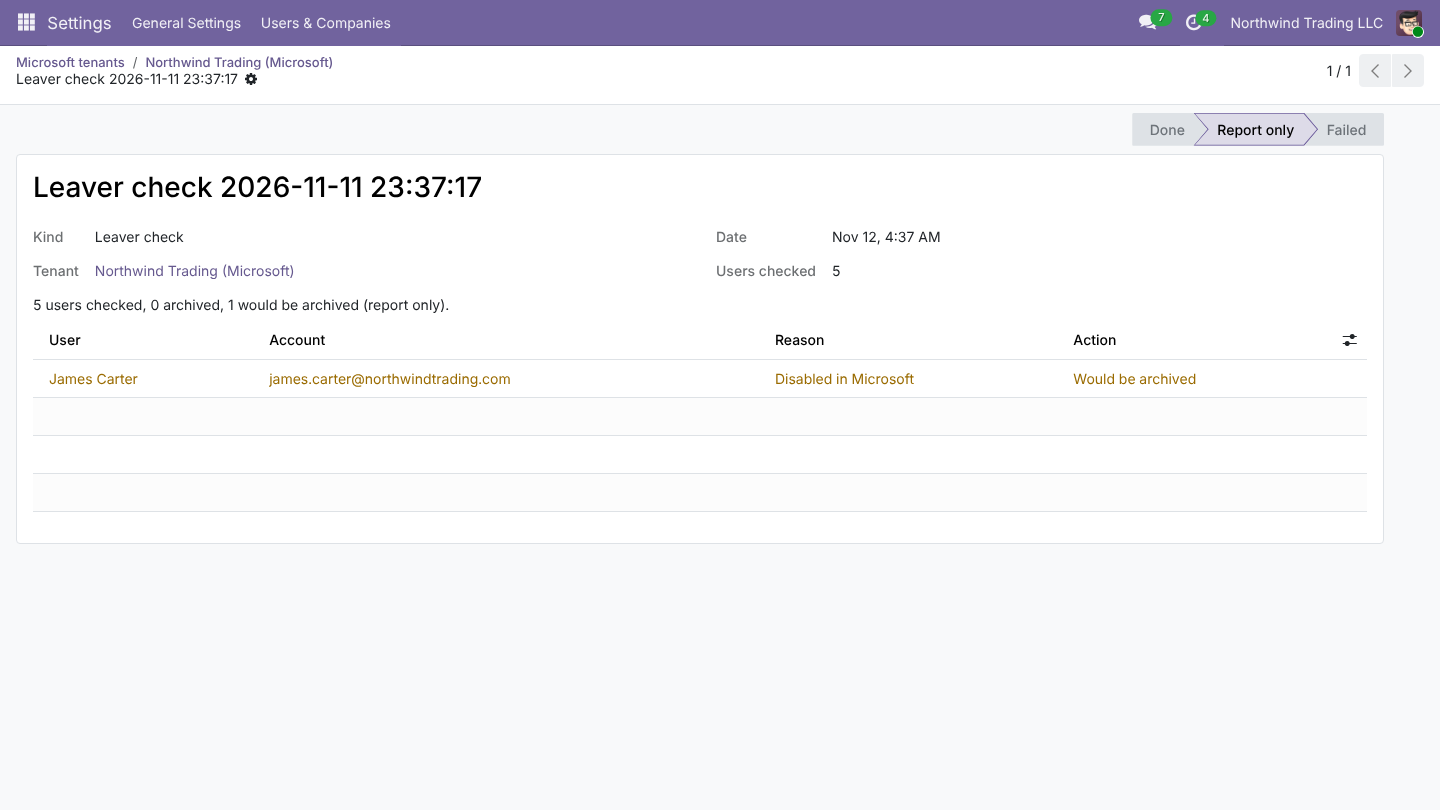
On the Leavers tab, Archive users who leave runs a check every night (scheduled action Microsoft Azure SSO: leaver check). For every user linked to the tenant, it asks Microsoft Graph whether the account was deleted, disabled, or (with Also when they leave the mapped groups) is no longer in any mapped Entra group, and archives the Odoo user.
Start with Report only: the report lists who would be archived, and nobody is archived. Run leaver check at the top of the tenant runs it now. Reports are in Microsoft Entra ID > Leaver checks and imports.
Break-glass accounts and the last administrator are never archived.
Import users from a group
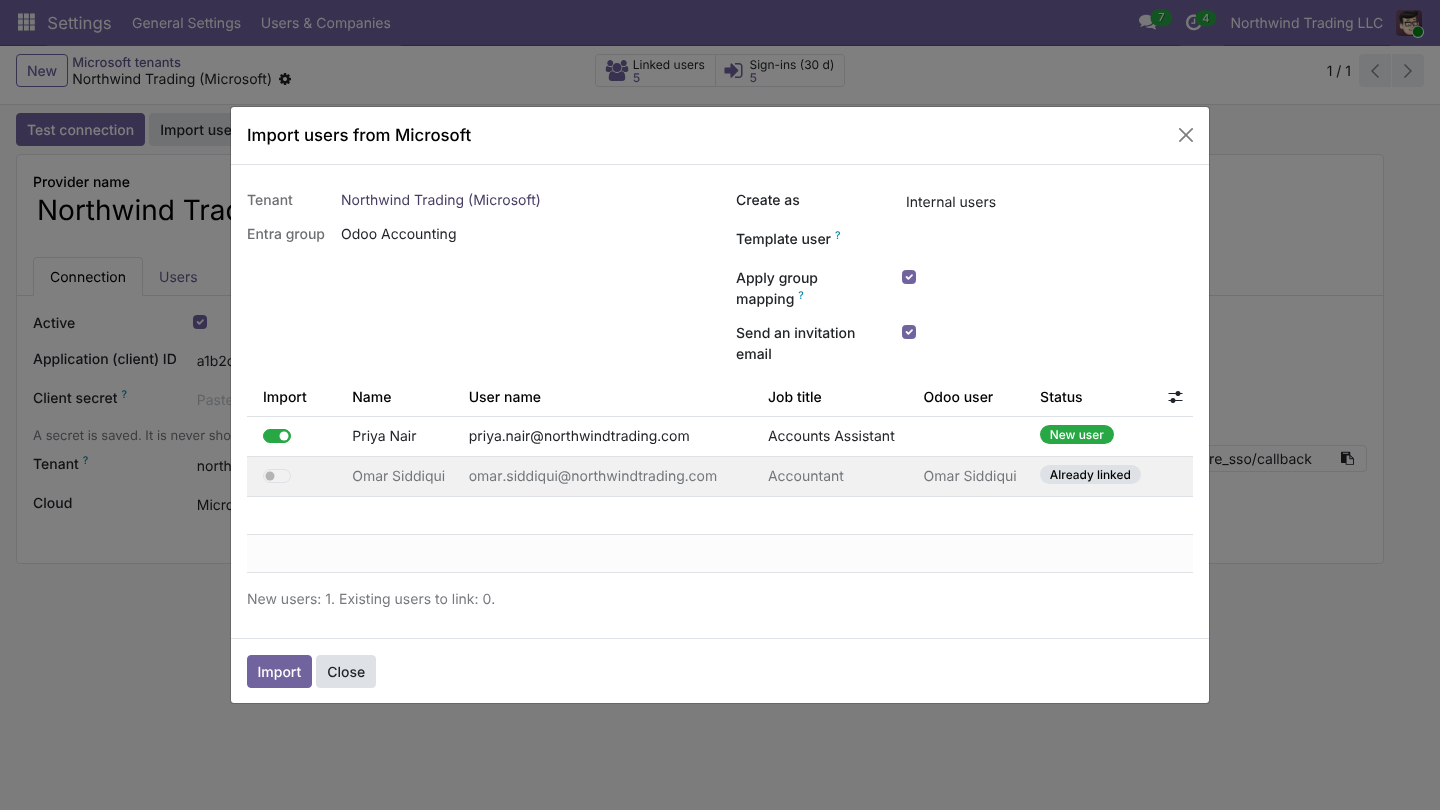
Import users from a group at the top of the tenant:
- Choose the Entra group and click Show members.
- Each member shows its status: New user, Link existing user or Already linked. Untick anyone to skip.
- Choose Create as (internal or portal) or a Template user, Apply group mapping and Send an invitation email.
- Click Import.
The invitation (email template Microsoft SSO: invitation) has a Sign in with Microsoft button.
Client secret expiry
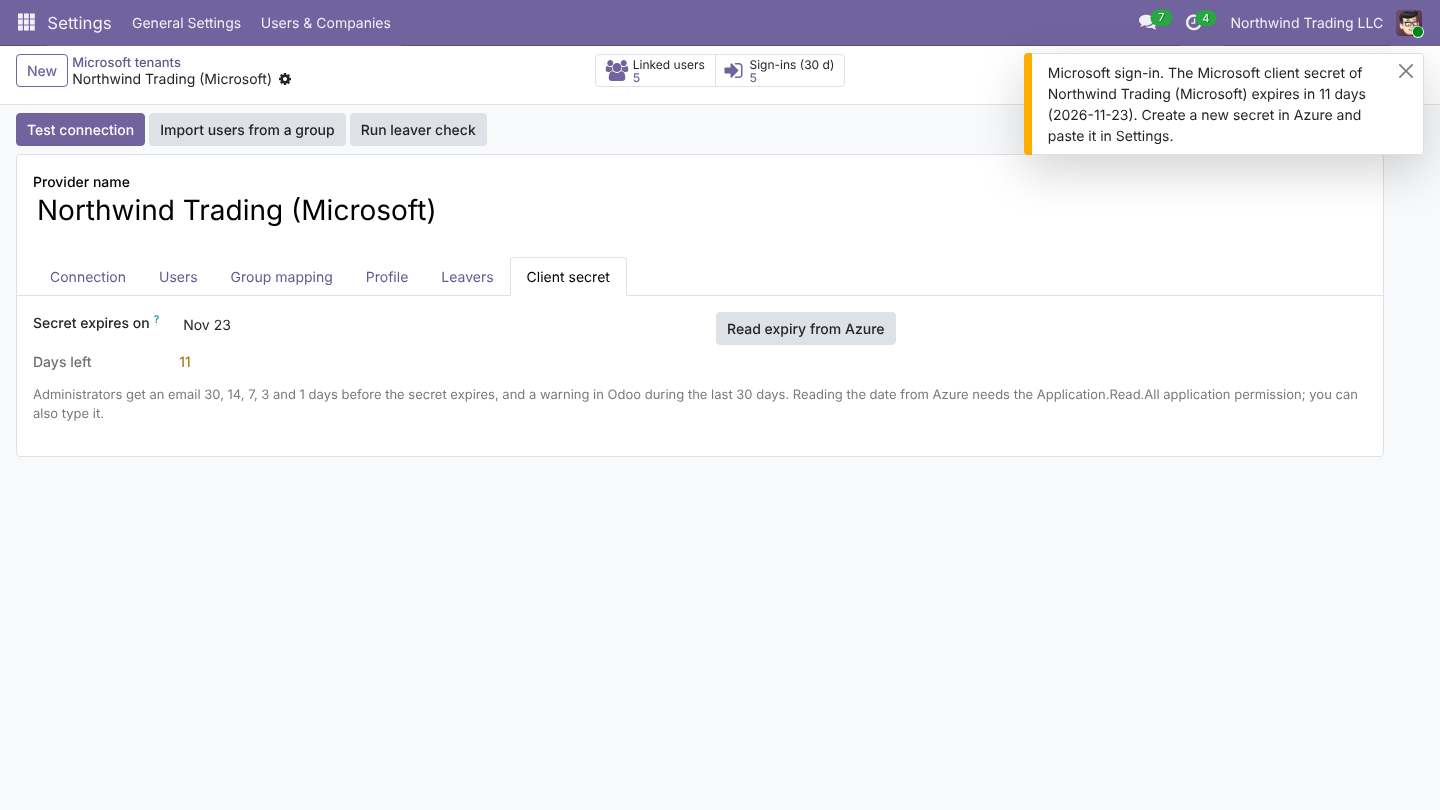
On the Client secret tab, Read expiry from Azure reads the date of the secret in use (needs Application.Read.All), or type it in Secret expires on. Every day the app refreshes the date, and administrators get an email 30, 14, 7, 3 and 1 days before, then weekly after the expiry. During the last 30 days, administrators also see a warning when Odoo opens.
To renew: create a new secret in Azure, paste its value in Client secret and save. The reminders start again for the new date.
Profile sync
On the Profile tab, choose what is copied from Microsoft at every sign-in: name, job title, phone numbers and photo. Job title, phones and photo need User.Read (delegated), added to the sign-in automatically.
Several tenants, one per company
Microsoft Entra ID > Tenants > New adds another app registration, for example for a second company or a partner tenant. Each tenant has its own button on the login page (its Button label), its own settings and an optional Company: users created through it get that company.
Sign-in log
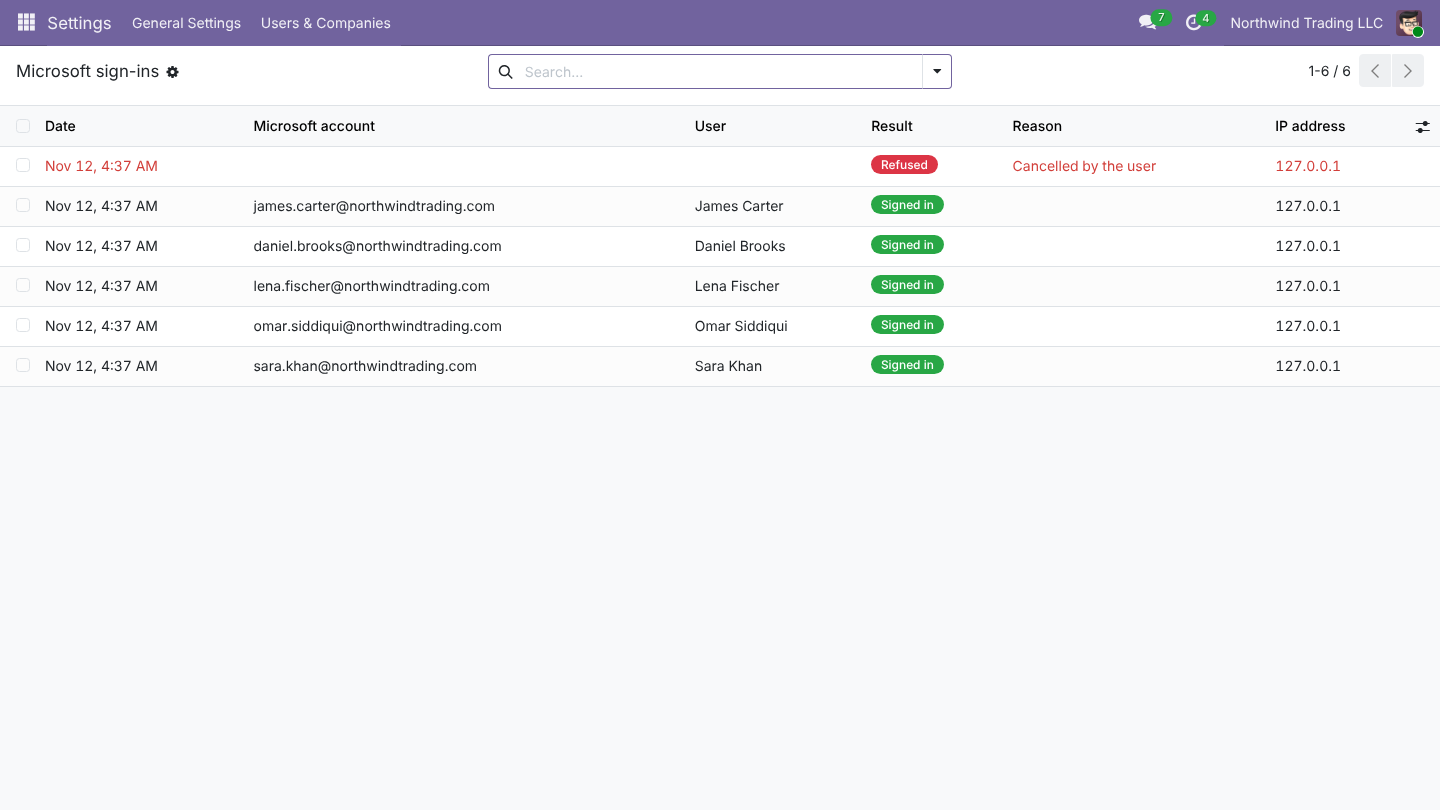
Microsoft Entra ID > Sign-in log lists every Microsoft sign-in with the account, Odoo user, IP address and browser, and every refusal with its reason. Filter on Refused, group by Reason or User. Lines older than 180 days are removed weekly; change it in Keep sign-in log in Settings.