Set up
Setup takes three values from the Azure portal: the Application (client) ID, a client secret and your tenant. You need an Azure account that can create app registrations (Application Developer or higher).
1. Copy the redirect URI from Odoo
In Odoo, open Settings > General Settings and find the block Microsoft Azure SSO (Entra ID). Copy the Redirect URI with the copy button. It is your Odoo address followed by /novator_azure_sso/callback, for example https://erp.example.com/novator_azure_sso/callback.
The redirect URI is built from the system parameter web.base.url. If Odoo is reached through several addresses, freeze it on the public one (web.base.url.freeze = True). Microsoft only accepts https addresses, except http://localhost for tests.
2. Register Odoo in Azure
- Open the Azure portal, then Microsoft Entra ID > App registrations > New registration.
- Name: for example Odoo.
- Supported account types: Accounts in this organizational directory only (one company), or any organizational directory if users from several tenants will sign in.
- Redirect URI: platform Web, paste the address from Odoo.
- Click Register. On the Overview page, copy the Application (client) ID and the Directory (tenant) ID.
3. Create a client secret
- In the app registration, open Certificates & secrets > Client secrets > New client secret.
- Choose a description and an expiry, then Add.
- Copy the Value right away. Microsoft shows it only once. The Secret ID next to it is not the secret.
Write down the expiry date: when the secret expires, nobody can sign in with Microsoft until you paste a new one. Pro reminds you before it happens.
The sign-in only needs the delegated permissions openid, profile and email, which Azure grants by default. No admin consent is needed for the free app in most tenants.
4. Connect Odoo
Back in Settings > General Settings > Microsoft Azure SSO (Entra ID):
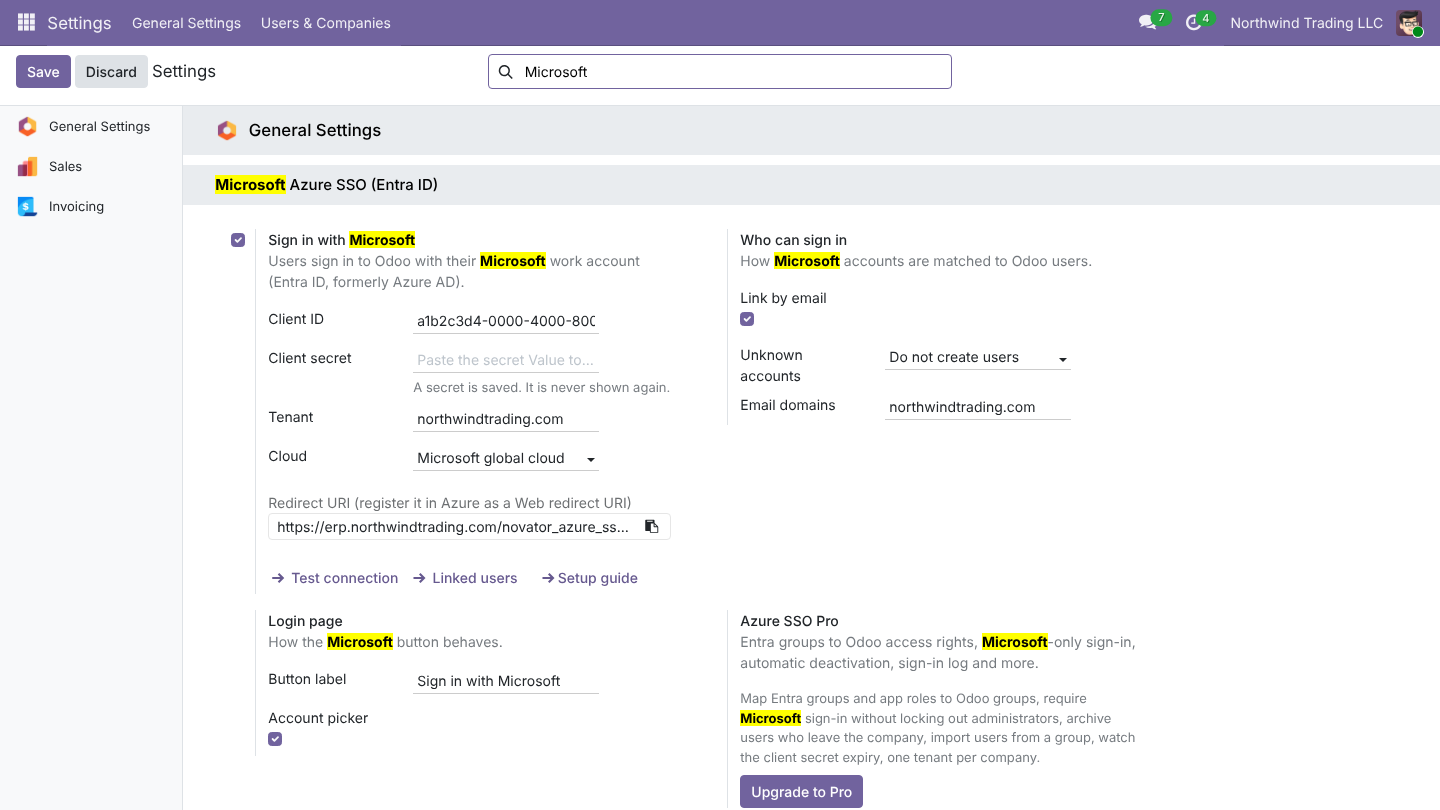
| Field | What to enter |
|---|---|
| Sign in with Microsoft | Tick it to show the button on the login page. |
| Client ID | The Application (client) ID. |
| Client secret | The secret Value. It is stored and never shown again; paste a new value to replace it. |
| Tenant | Your Directory (tenant) ID or a verified domain such as example.com. Use organizations to accept any work or school account, common to also accept personal Microsoft accounts. |
| Cloud | Microsoft global cloud, or US Government (GCC High / DoD) or China (21Vianet) for those clouds. |
| Link by email | At the first Microsoft sign-in, an active Odoo user whose login or email matches the Microsoft account is linked to it. |
| Unknown accounts | Do not create users (default), Create portal users or Create internal users. |
| Template user | New users get the access rights of this user. Empty: Odoo's defaults. |
| Email domains | Only these domains may sign in, for example example.com, example.co.uk. Empty: all. |
| Allowed tenants | Shown when the tenant is organizations or common: the directory IDs allowed to sign in. |
| Button label | The text of the button, Sign in with Microsoft by default. |
| Account picker | Microsoft asks which account to use, handy on shared computers. |
Click Save, then Test connection.
5. Test the connection
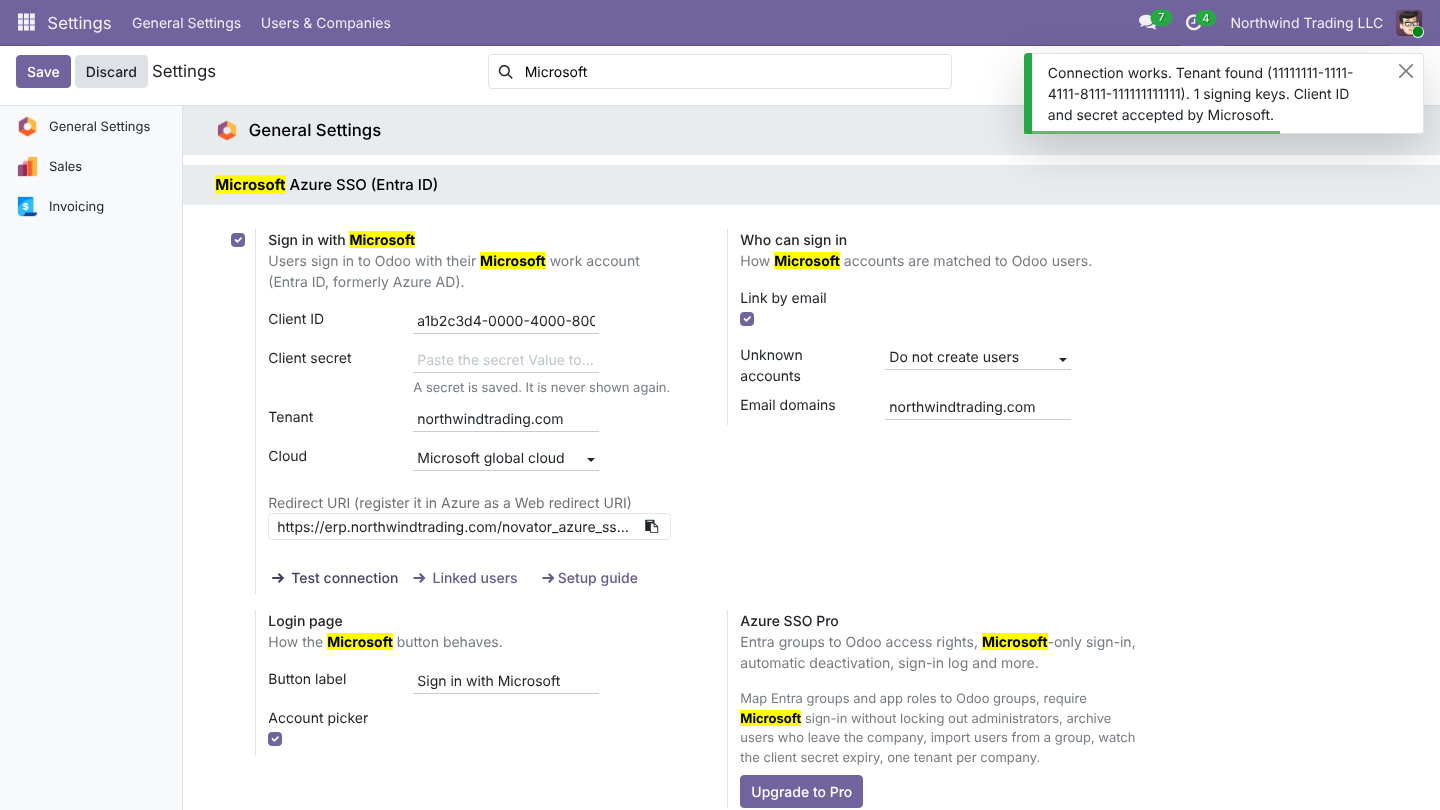
Test connection reads your tenant and its signing keys, and asks Microsoft to accept the client ID and secret. When something is wrong it says what:
| Message | Fix |
|---|---|
| Tenant not reachable | Check the tenant ID or domain, and that Odoo can reach login.microsoftonline.com. |
| The client secret is wrong | Paste the secret Value, not the Secret ID. |
| The client secret has expired | Create a new secret in Azure and paste it. |
| No application with this client ID in the tenant | Check the Application (client) ID and the tenant. |
With the tenant organizations or common, the secret cannot be tested this way; try a real sign-in.
Several tenants (multi-tenant)
With the tenant organizations or common, anyone with a Microsoft work account can reach the Microsoft page. Odoo only links or creates users when you list the Allowed tenants. This protects existing users: in another tenant, anybody can put any address in the email of their account, so the app never uses that email to take over an Odoo user without the allow-list.