Cloud Drive Pro
Pro installs on top of the free app. Your accounts, rules and folders carry over. It removes the limits (any number of accounts and kinds of records) and adds the features below.
Two-way sync
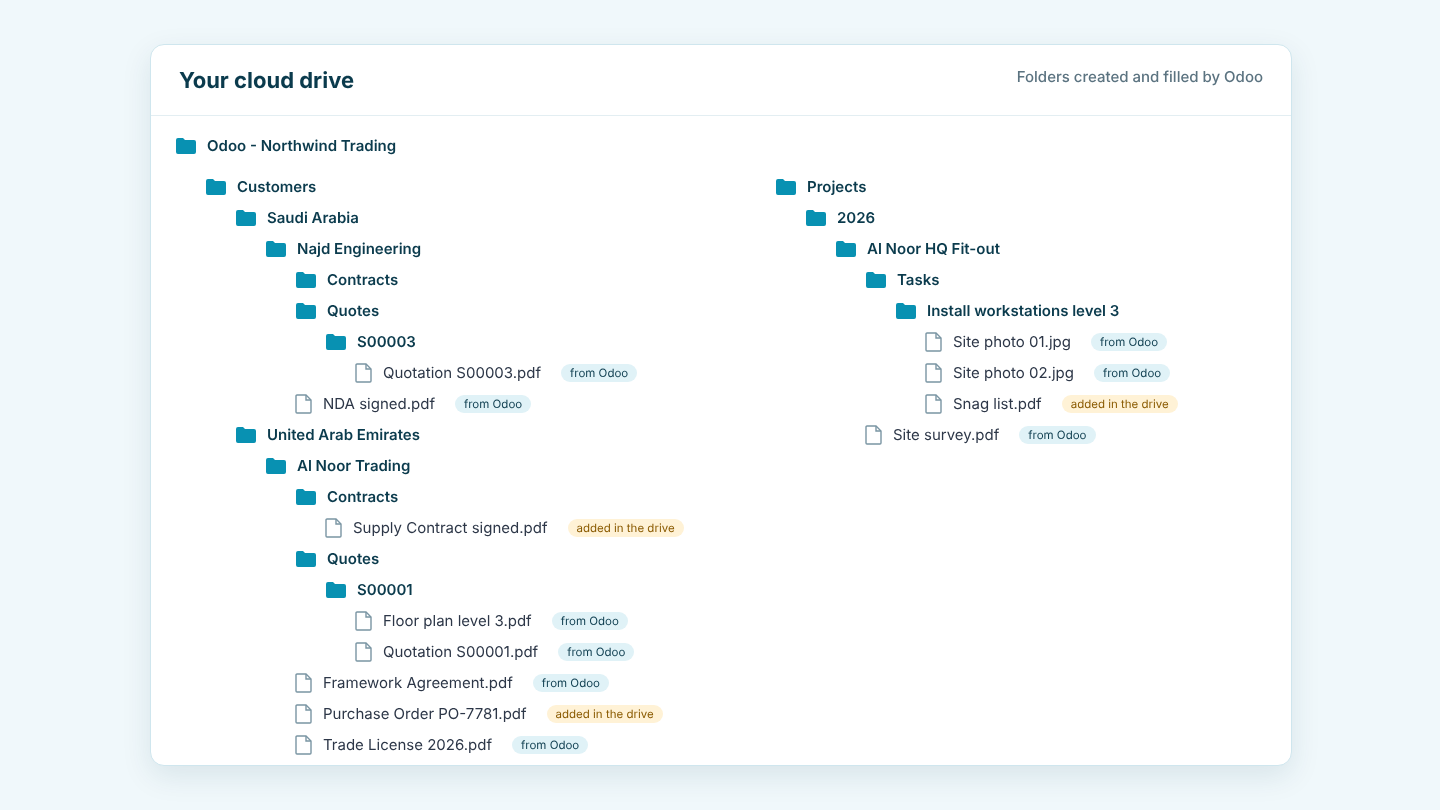
Tick Two-way Sync on a folder rule (on by default). Every 10 minutes Odoo looks at the record folders and their subfolders:
- A file added in the drive is attached to the record, with a note in the chatter.
- A file renamed in the drive is renamed in Odoo.
- With Sync Deletions, a file deleted on one side goes to the trash on the other side.
- Files larger than Largest File to Bring In stay in the drive only.
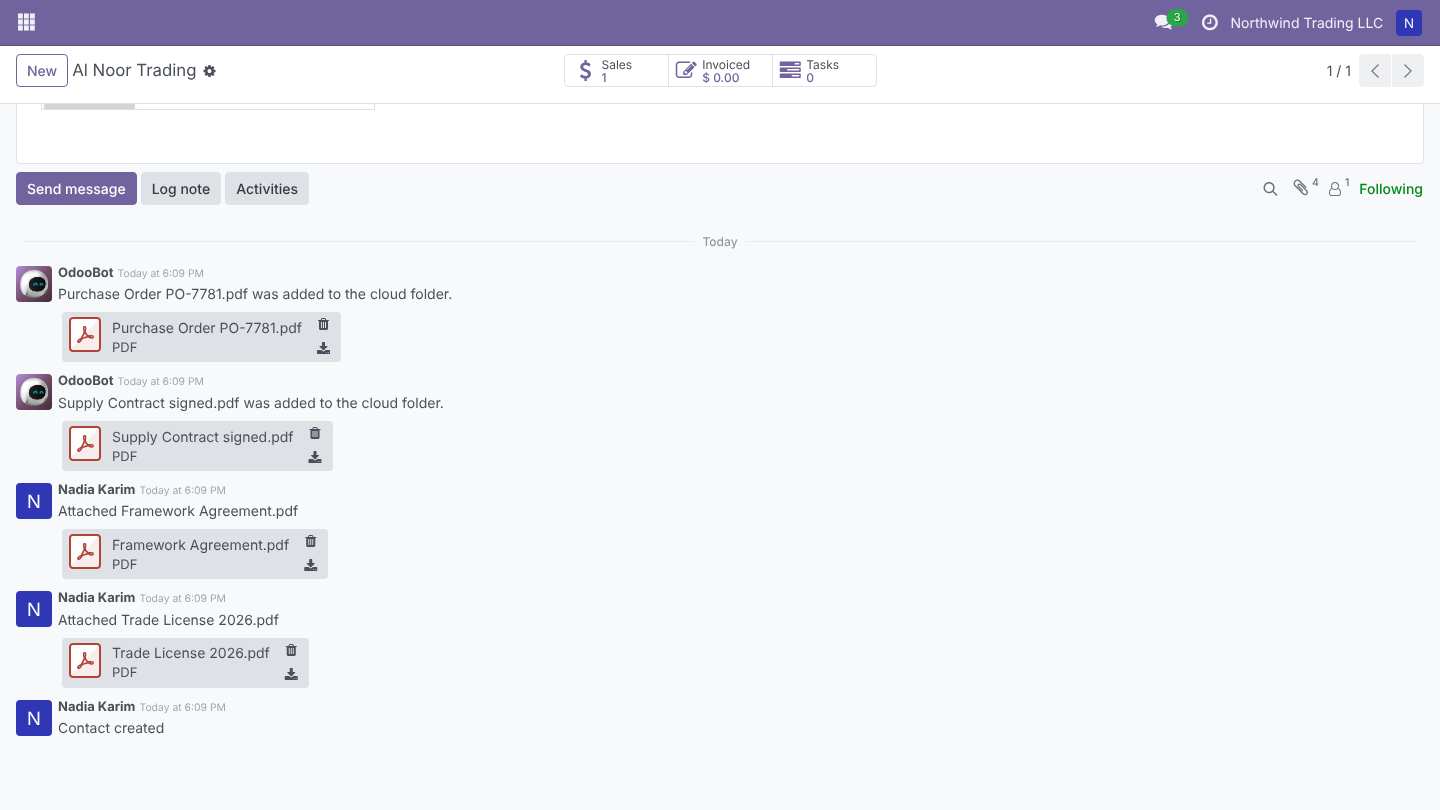
Bring In Cloud Changes in the Cloud Folder dialog, or the download icon in Folders, does it right away for one record.
On Google Drive, two-way sync needs Two-way Access ticked on the account (full Drive permission), otherwise Odoo only sees the files it created. Sign in again after changing it.
Folder paths, subfolders and nesting
| Field | Example | Result |
|---|---|---|
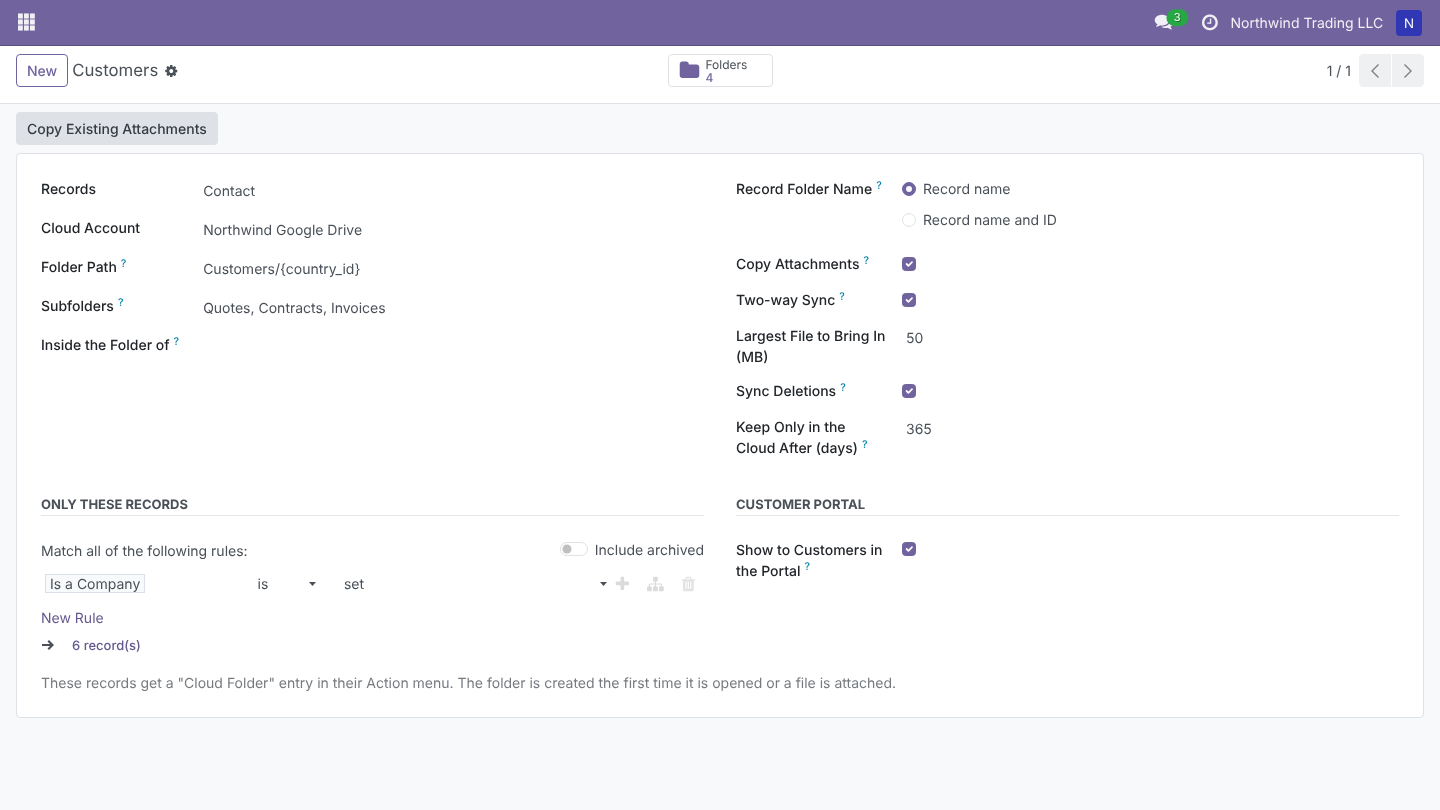
| Folder Path | Customers/{country_id} | Customers / United Arab Emirates / Al Noor Trading |
| Subfolders | Quotes, Contracts, Invoices | Created in every record folder |
| Inside the Folder of | Customer (on Sales Orders) | The order's folder goes inside its customer's folder |
| Only Records | Is a Company is set | Other records get no folder |
| Company | Northwind UAE | The rule applies to that company's records only |
In the path, use any field name in braces, and {year} or {month} of the record's creation date. Every record still gets its own folder at the end of the path. With Inside the Folder of, the record goes into a folder named after Folder (for example Quotes) inside the parent record's folder, when the parent has a rule on the same account.
Shared Drives and SharePoint
On a connected account, Choose Drive lists your own drive, the Google Shared Drives you belong to, or the SharePoint document libraries of the sites you can open. New folders are created in the drive you pick; folders already created stay where they are.
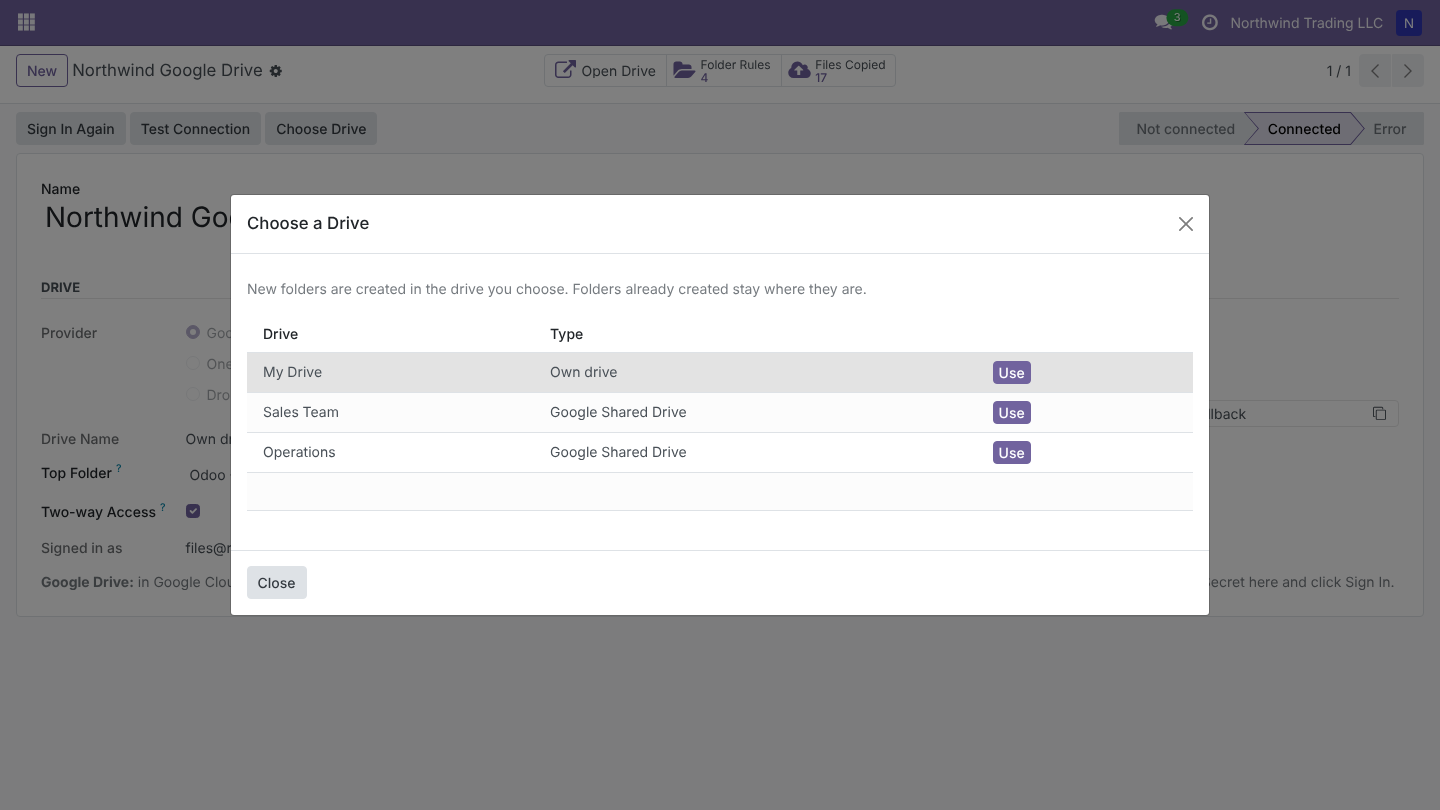
Connect several accounts when different teams or companies use different drives, and pick the account on each rule.
Free disk space
Set Keep Only in the Cloud After (days) on a rule. Once a day, copied files older than that become links to the drive and their space in Odoo is freed. Clicking the attachment opens it in the drive.
- Cloud Drive → Files, filter Only in the cloud shows them.
- Action → Bring Back into Odoo on selected files downloads them again.
- Action → Keep Only in the Cloud does it now for selected files.
Leave it at 0 for files Odoo needs to send again later, such as invoice PDFs, unless you are fine with sending links.
Customer portal
Tick Show to Customers in the Portal on a rule. For records other than contacts, choose the Customer Field (for example Customer on sales orders).
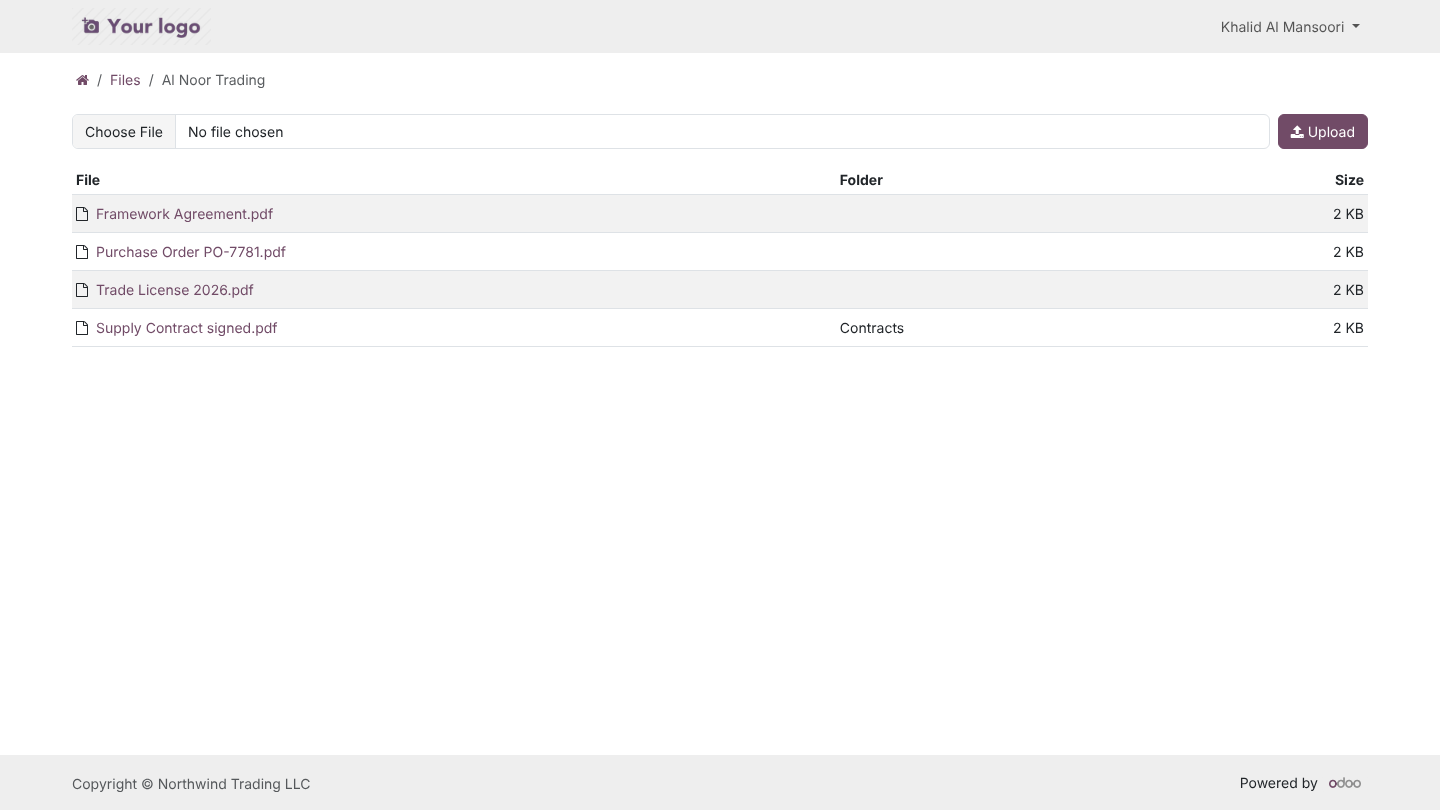
Portal users then see Files in My Account: the folders of their company and of their records. They can download files and upload new ones. Uploads are attached to the record, copied to the drive and noted in the chatter. The drive itself stays private.