Connect your drive
Who can do what
| Who | What they can do |
|---|---|
| Administrators (Settings access) | See the Cloud Drive menu: accounts, folder rules, folders and files. Only they see the Client ID, Client Secret and tokens. |
| Internal users | Open Action → Cloud Folder on records with a folder rule, and upload to the folder when they can edit the record. |
| Portal users (Pro) | See and upload to the folders of their own company's records under My Account → Files. |
How it connects
Odoo talks to the drive directly with an app you create at Google, Microsoft or Dropbox. Nothing passes through Novator. Each provider gives you a Client ID and a Client Secret; you paste them into Odoo and sign in once.
- Cloud Drive → Accounts → New.
- Choose the Provider and the Top Folder (default
Odoo - <company>). Every record folder is created inside it. - Copy the Redirect URI shown on the form. You need it at the provider.
- Create the app at the provider (below), paste the Client ID and Secret, and click Sign In.
- Sign in with the account that should own the files and allow access. You come back to the account form with the status Connected.
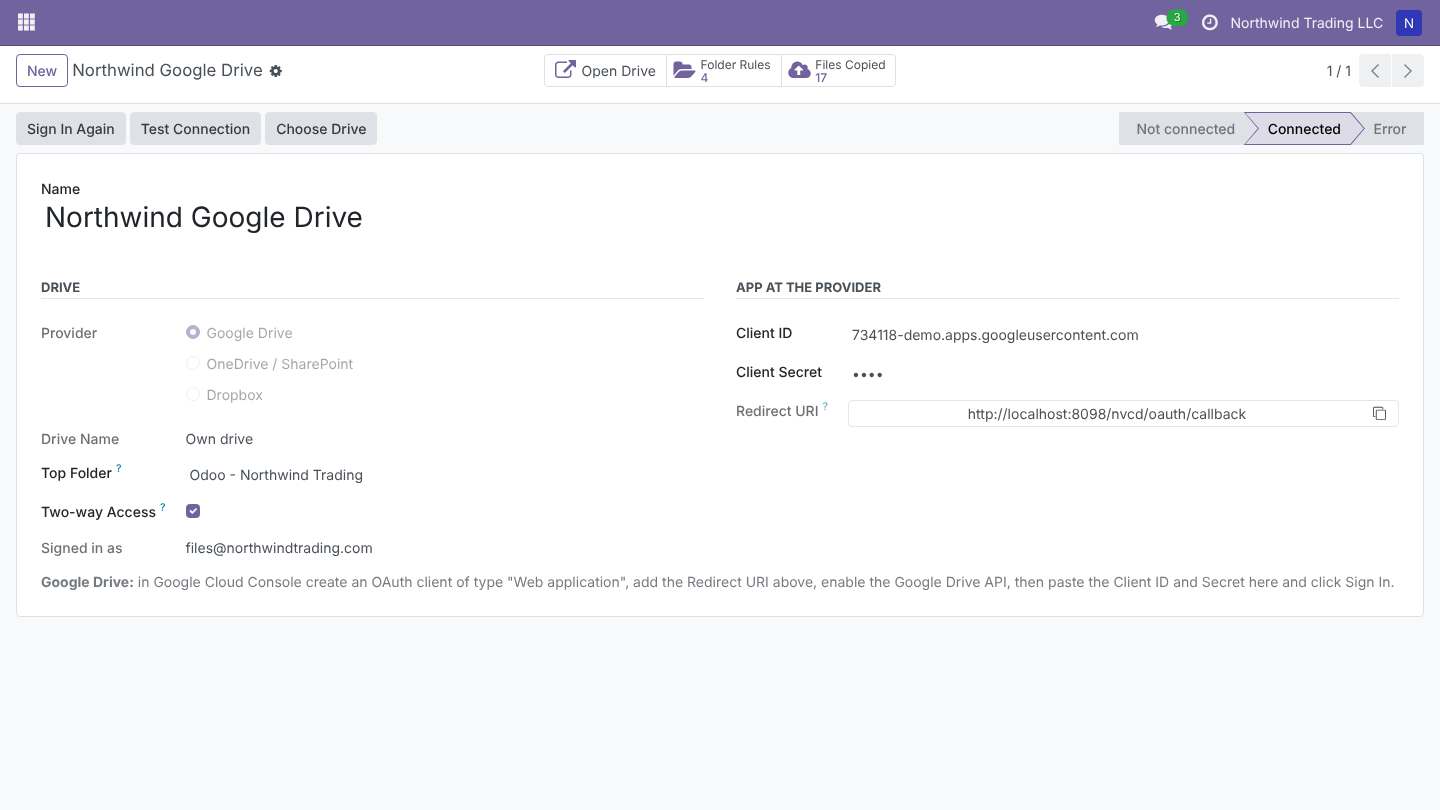
The Redirect URI uses Odoo's web.base.url. Open Odoo with the address your users use (for example https://erp.example.com) before you copy it, and use HTTPS.
Google Drive
- In Google Cloud Console, create a project (or pick one).
- APIs & Services → Library: enable the Google Drive API.
- APIs & Services → OAuth consent screen: on Google Workspace choose Internal, so only your organization can sign in and no review is needed.
- APIs & Services → Credentials → Create credentials → OAuth client ID, type Web application. Under Authorized redirect URIs add the Redirect URI from Odoo.
- Paste the Client ID (it ends in
.apps.googleusercontent.com) and the Client secret into Odoo.
The free app asks for the drive.file permission: Odoo only sees the folders and files it creates. Cloud Drive Pro asks for full Drive access when Two-way Access is ticked, so it can see files people add. With an External consent screen Google requires a verification for full Drive access; an Internal app on Google Workspace does not.
OneDrive and SharePoint
- In Microsoft Entra admin center, App registrations → New registration.
- Supported account types: your organization only, or any organization and personal accounts. Redirect URI: platform Web, the Redirect URI from Odoo.
- Certificates & secrets → New client secret. Copy the secret Value (not the ID). Note when it expires.
- API permissions → Add → Microsoft Graph → Delegated:
Files.ReadWrite.All,Sites.ReadWrite.All,offline_access,User.Read. Grant admin consent if your organization requires it. - Paste the Application (client) ID and the secret into Odoo. In Directory (tenant) ID keep
common, or enter your tenant ID if the app is for your organization only.
Dropbox
- In the Dropbox App Console, Create app: Scoped access, Full Dropbox.
- Permissions tab: tick
account_info.read,files.metadata.read,files.content.readandfiles.content.write, then Submit. - Settings tab: add the Redirect URI from Odoo under OAuth 2 → Redirect URIs.
- Paste the App key as Client ID and the App secret as Client Secret.
Check the connection
- Test Connection reads the account and creates the top folder if it is missing.
- Open Drive opens the top folder in the drive.
- If the status is Error, the reason is shown at the top of the form. Most often the Redirect URI does not match, the secret expired, or access was removed: click Sign In Again.
Renaming the Top Folder creates a new top folder the next time a folder is needed. Folders already created stay where they are.