Promotions
Foodpanda > Promotions lists your campaigns. A campaign belongs to one store and has products with a promo price.
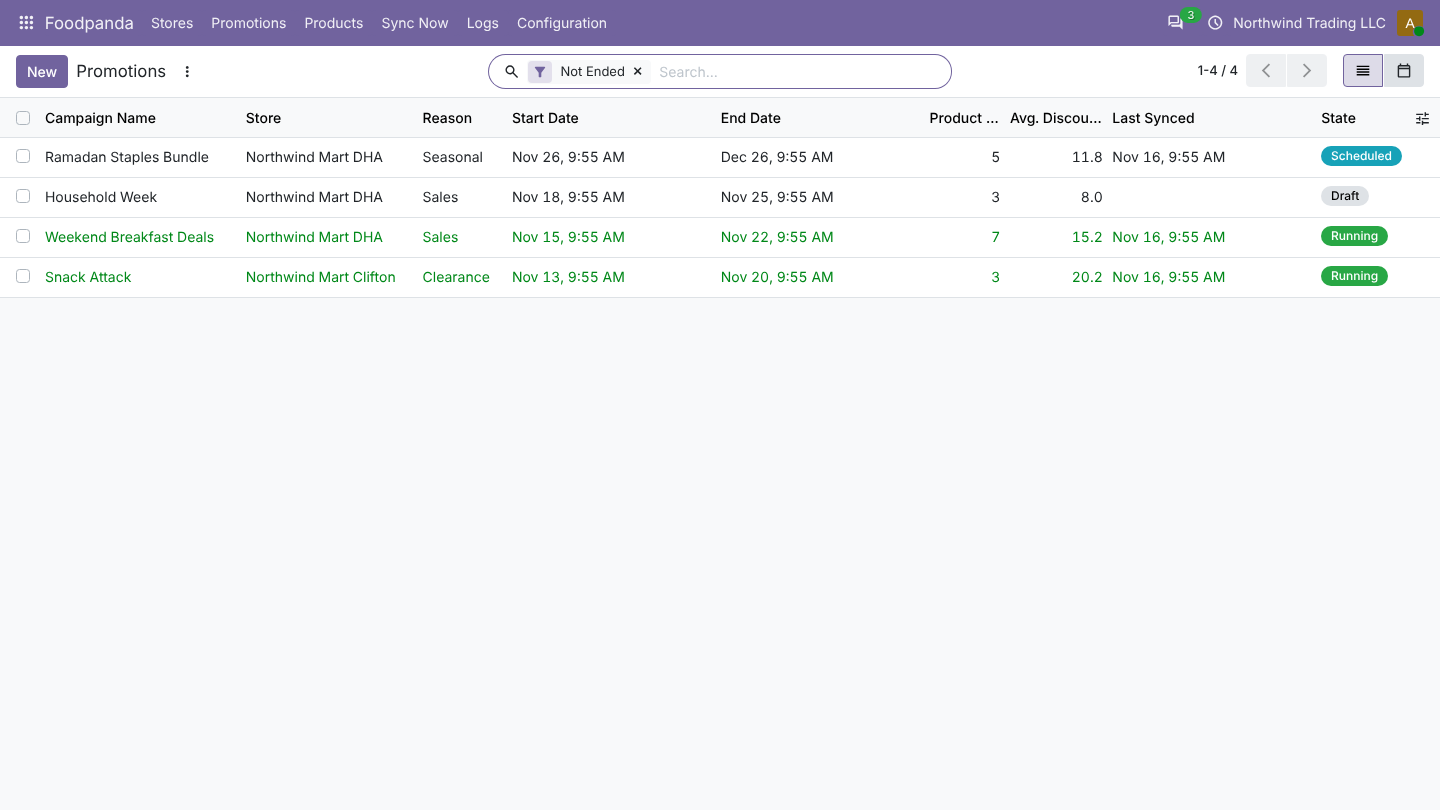
Create a campaign
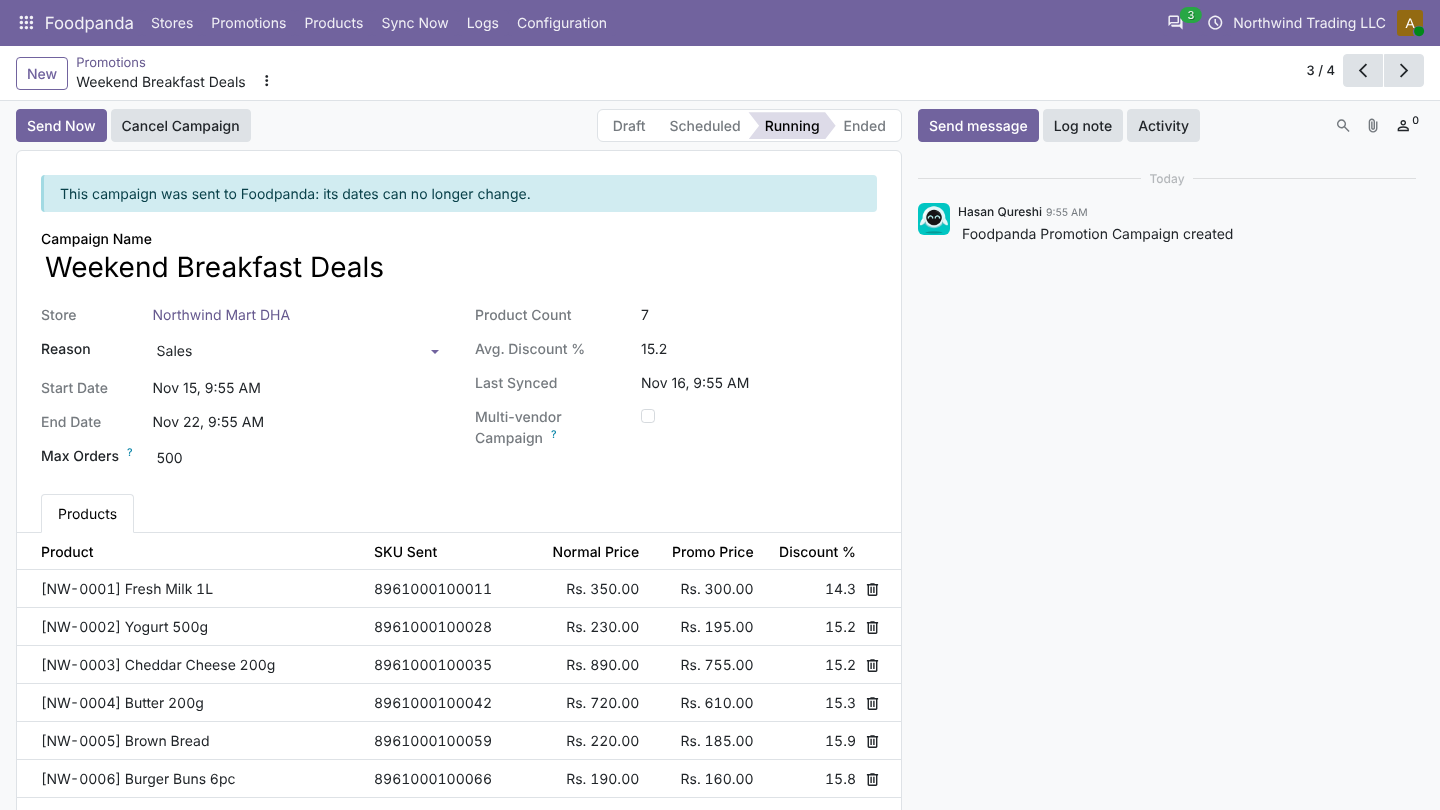
Click New:
| Field | Meaning |
|---|---|
| Campaign Name | Shown on Foodpanda. |
| Store | The store it is sent for. |
| Reason | Sales, Competitiveness, Clearance, Seasonal or Other. |
| Start Date / End Date | When the promotion runs. |
| Max Orders | Limit of orders at the promo price. 0 means no limit. |
Add products in the Products tab with a Promo Price lower than the Normal Price. The discount % is shown per line.
Add many products at once
Click Add Products:
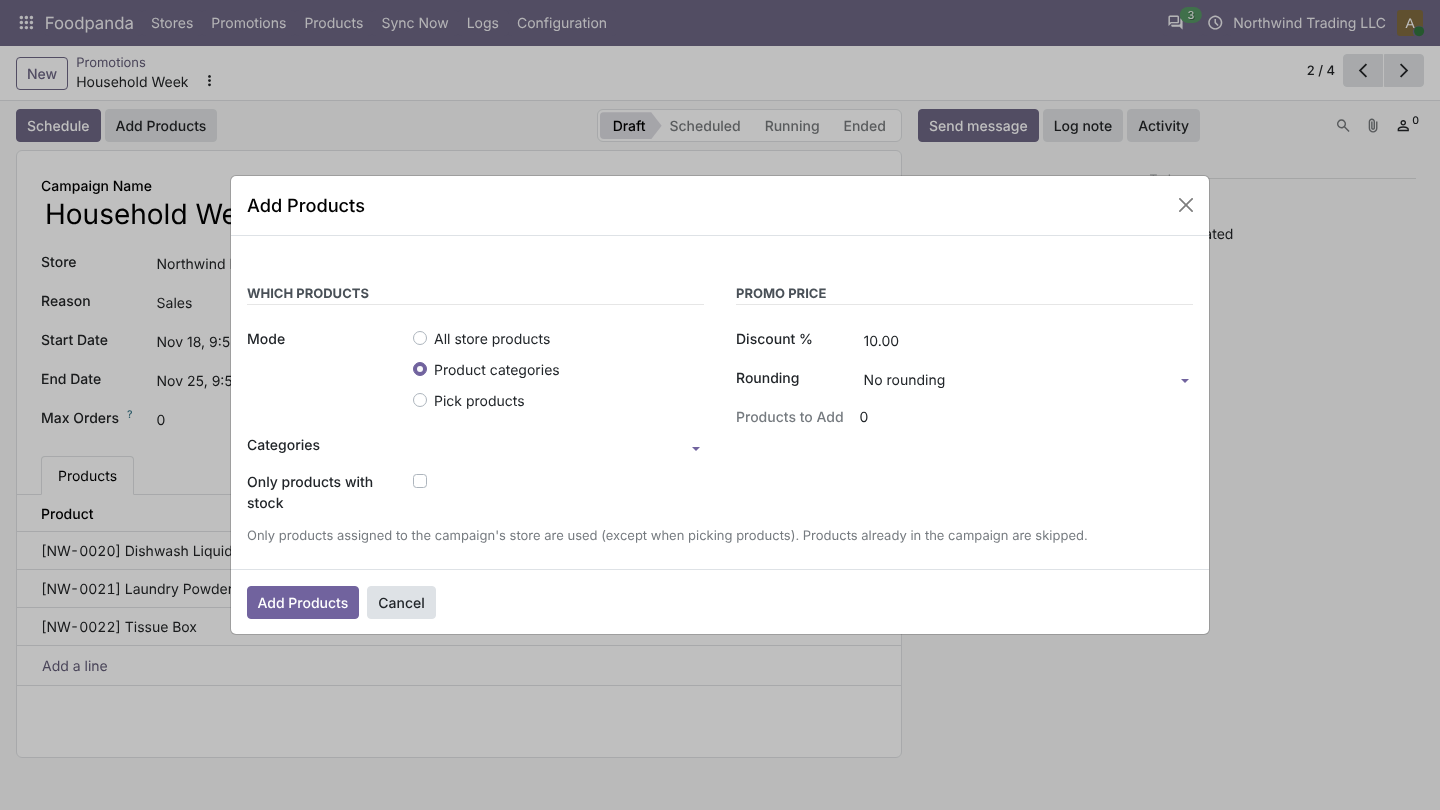
- Which products: all products of the store, some product categories (with their subcategories), or products you pick.
- Only products with stock: skip products at or below the sales buffer.
- Discount % and Rounding (none, to 1, 5 or 10, or ending in .99).
- Products to Add shows the count before you confirm. Products already in the campaign are skipped.
Life cycle
| Status | Meaning |
|---|---|
| Draft | Being prepared, not sent. |
| Scheduled | Click Schedule: sent with the next promotion sync, waiting for its start date. |
| Running | Start date passed. Set automatically. |
| Ended | End date passed. Set automatically, no longer sent. |
| Cancelled | Switched off, see below. |
Send Now uploads the store's promotions at once.
Foodpanda does not allow changing the dates of a campaign after it was created. After the first upload Odoo locks Start Date and End Date. To change them, cancel the campaign and create a new one.
Switch a campaign off
Click Cancel Campaign. The campaign is sent once more with campaign_status 0, which switches it off on Foodpanda; a yellow note shows until that upload is done. This upload goes out at the next scheduled run (within 10 minutes) even if the promotion interval is longer. Foodpanda may take up to 90 minutes to process promotion files.
A campaign that was sent cannot be deleted while it is Scheduled or Running: cancel it first, so it is switched off on Foodpanda too.
Multi-vendor campaigns
For a chain with several Vendor IDs, tick Multi-vendor Campaign and fill Vendor IDs (comma separated, or all) and Exclude Vendor IDs. These campaigns go into a separate file named <prefix>.csv with vendors and exclude columns.
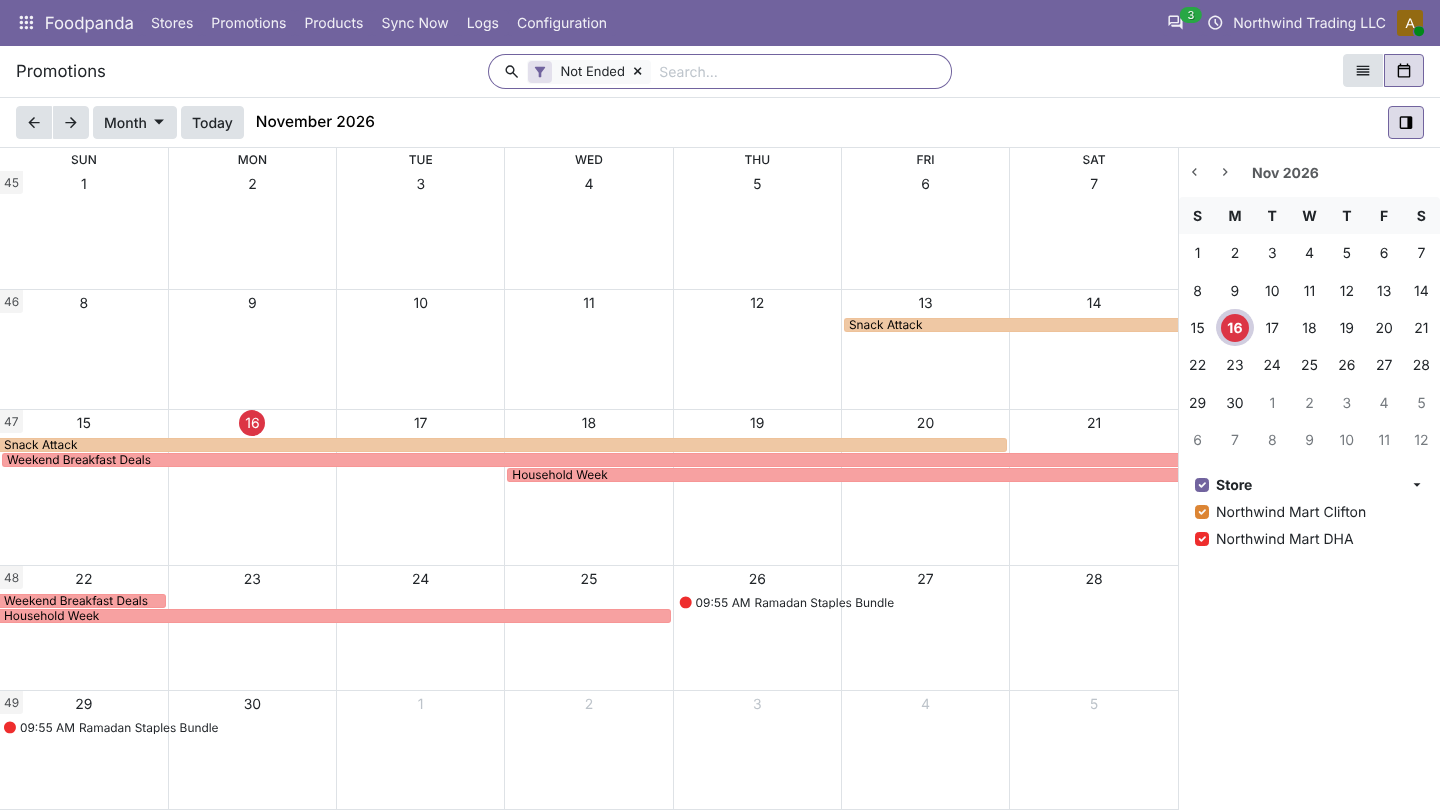
Calendar
Switch the Promotions view to Calendar to see all campaigns across stores.
The promotions file
<prefix>_<VendorID>.csv in the promotions folder. Columns: barcode (empty), sku, campaign_name, reason, start_date, end_date, discounted_price, max_no_of_orders, campaign_status. The campaign fields are only on the first line of each campaign, as Foodpanda requires.