Tickets, portal and KPIs
The inbox
Helpdesk → Inbox is where agents work. It has three parts: the queues on the left, the ticket list, and the open ticket with the customer panel on the right.
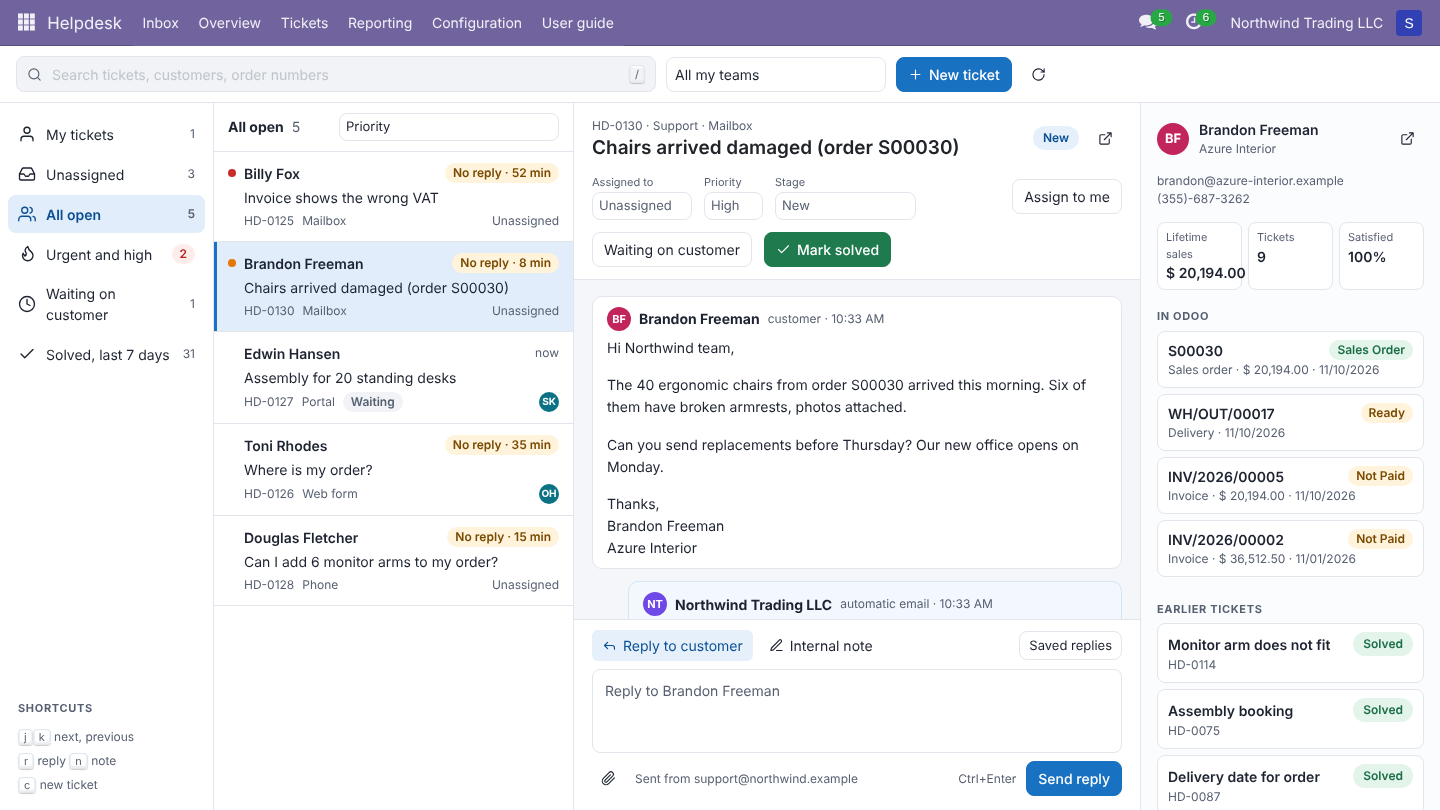
Queues: My tickets, Unassigned, All open, Urgent and high, Waiting on customer and Solved, last 7 days. Pick a team at the top to see only its tickets. Search finds tickets by number, subject, customer or email.
Customer panel: the customer's sales orders, deliveries with tracking, invoices with their payment state, and earlier tickets. When the customer gave an order number, that order is shown first and linked to the ticket.
Keyboard shortcuts
| Key | Action |
|---|---|
j / k | Next / previous ticket |
r | Reply to the customer |
n | Internal note |
/ | Search |
c | New ticket |
Ctrl+Enter | Send the reply or note |
Reply or add a note
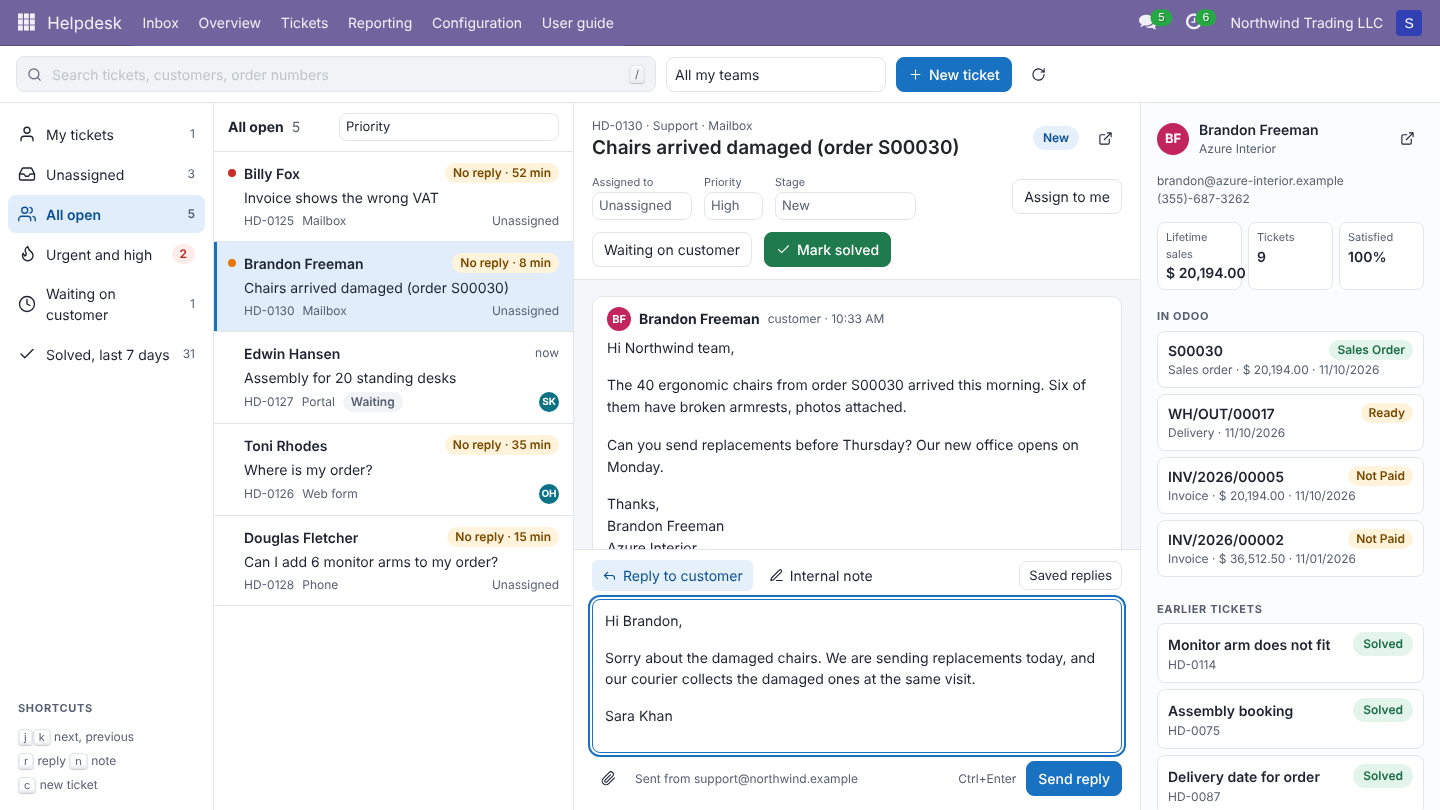
- Reply to customer sends an email. On a team with a connected mailbox the reply goes out from that mailbox (for example support@) and is filed in its Sent folder; otherwise it goes through Odoo's outgoing mail server.
- Internal note is visible to your team only.
- Saved replies inserts a prepared text with the customer's name, your name and the ticket number filled in.
- Set the stage, priority, type, tags and the assigned agent at the top of the ticket. Mark solved solves it and, if the team asks for ratings, sends the customer a one-click rating.
A customer who replies to a solved ticket reopens it.
Kanban and lists
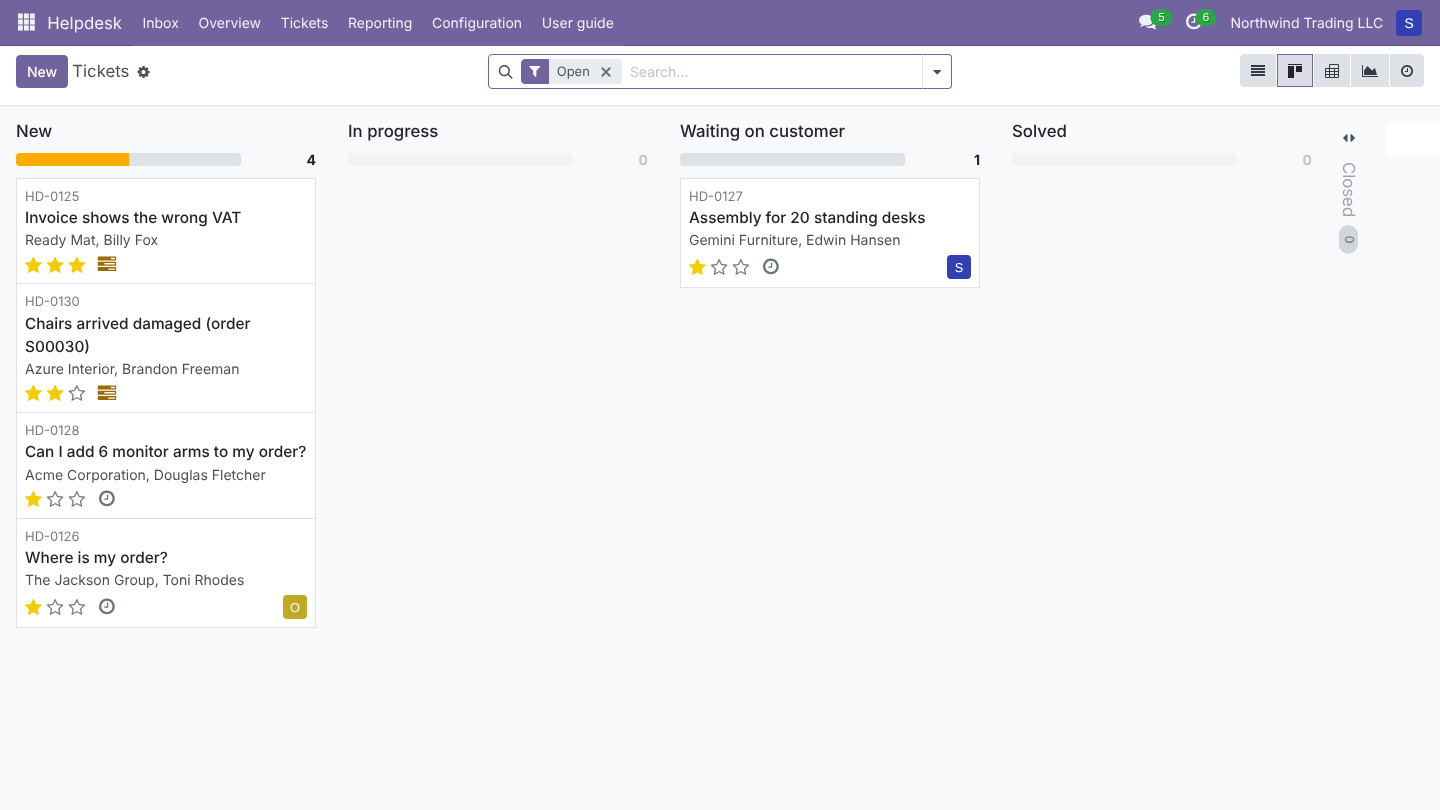
Helpdesk → Overview shows one card per team with its open, unassigned and urgent tickets. Tickets → My tickets and Tickets → All tickets give the classic Odoo kanban, list and form views, with filters and grouping.
What the customer sees
- Request form (
/support): name, email, order number (optional), what it is about, team, subject, description and up to 5 photos or files. - Confirmation email with the ticket number, the usual first reply time of the team and a secure link to the ticket. No account is needed.
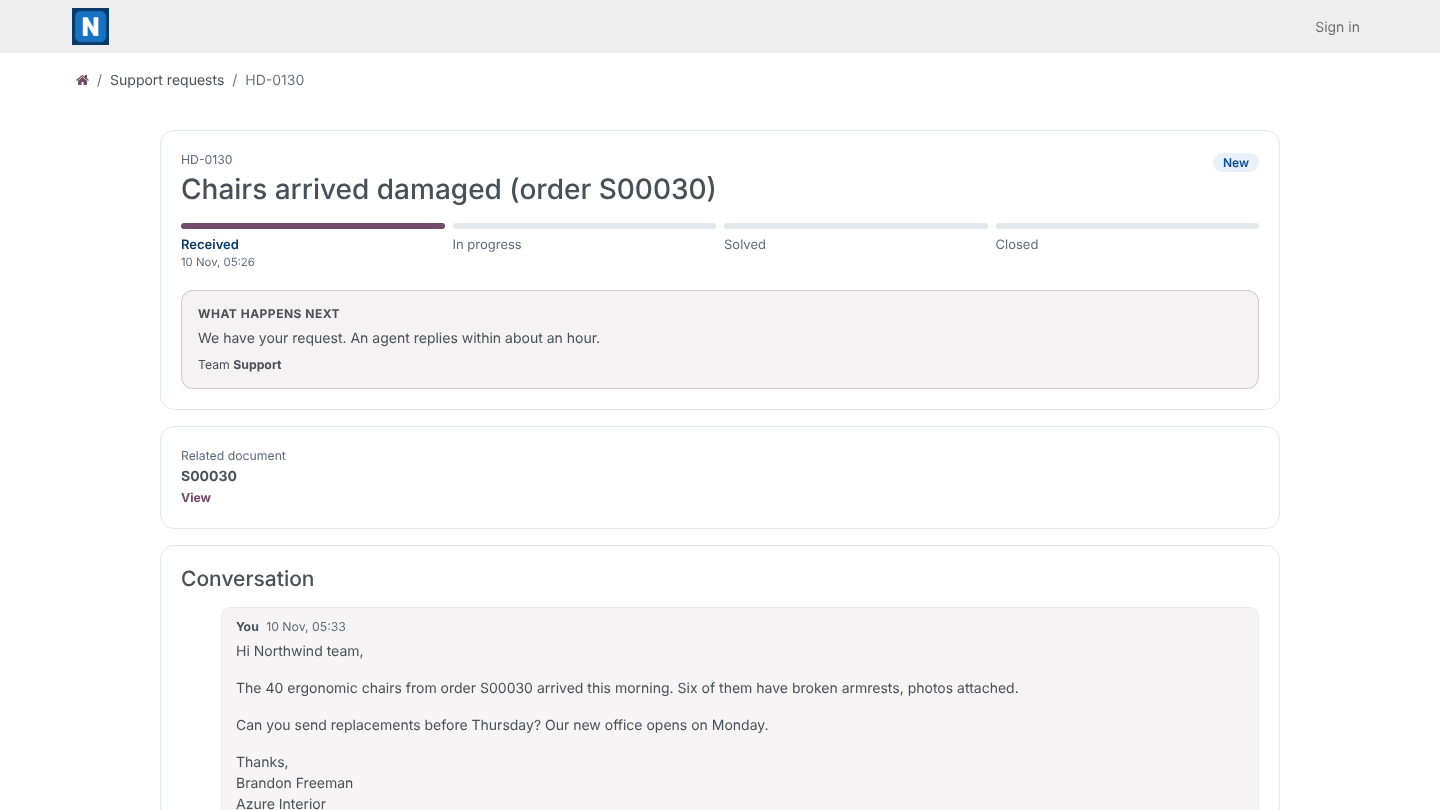
- Ticket page: the progress (received, in progress, waiting on you, solved), the next step from the stage description, the conversation, a reply box and files. When the ticket is linked to an order, the order is shown too.
- Lost the link? Under Follow your request on
/support, the customer enters their email and receives a sign-in link to all their requests. No password needed; the link works for 30 minutes. - Rating when solved: one click on Satisfied, Okay or Not satisfied in the email or the portal, with an optional comment.
Portal users also see their tickets under My Account → Tickets.
KPIs
Helpdesk → Reporting → KPIs shows the numbers for today or the last 7, 30 or 90 days, for all your teams or one:
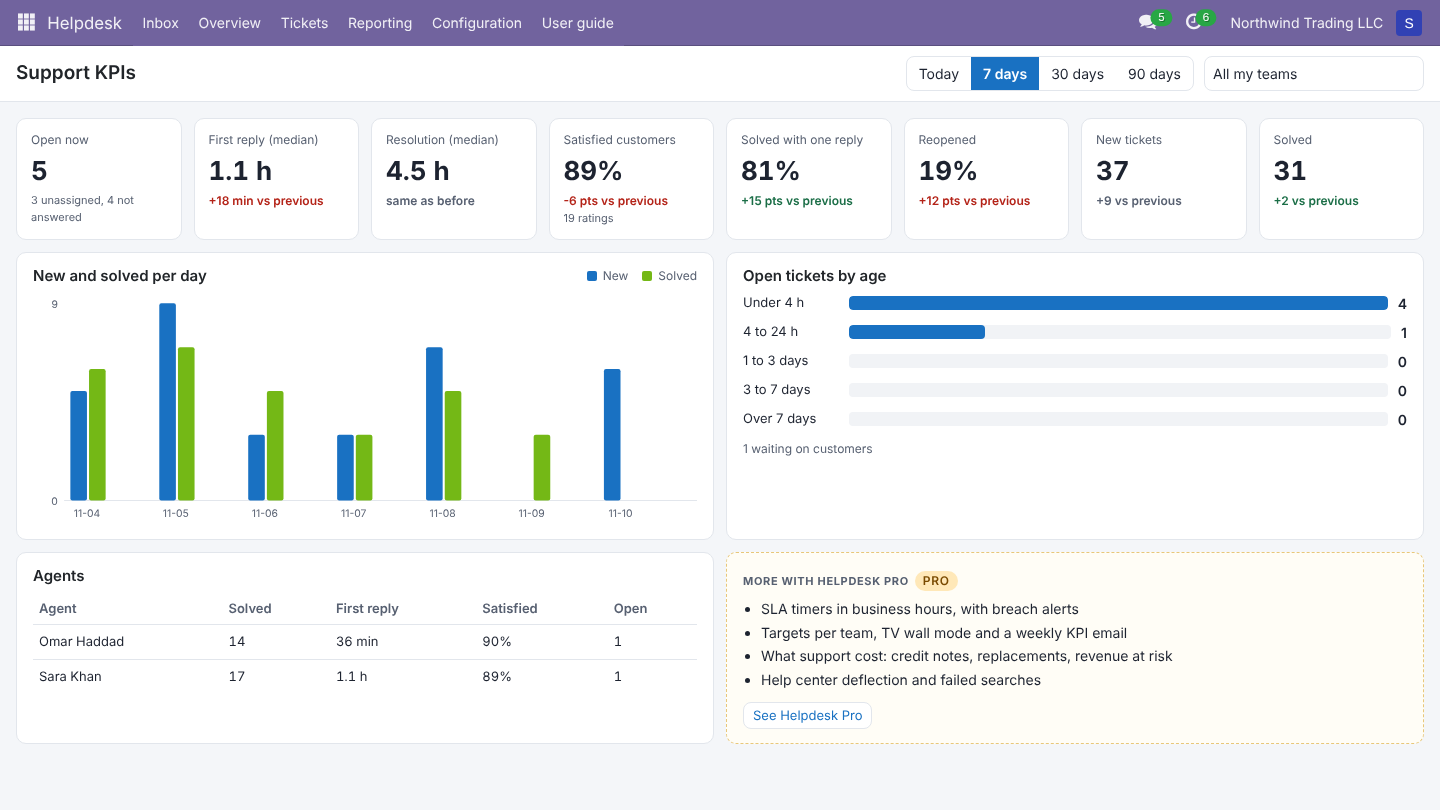
| KPI | Meaning |
|---|---|
| First reply (median) | Time from a new ticket to the first answer by an agent. |
| Resolution (median) | Time from a new ticket to solved. |
| New tickets, Open now, Solved | Volume in the period and the backlog right now. |
| Satisfied customers | Share of Satisfied ratings among the rated tickets. |
| Solved with one reply | Tickets solved after a single agent answer. |
| Reopened | Solved tickets the customer reopened. |
| Open tickets by age | Open tickets under 4 h, 4 to 24 h, 1 to 3 days, 3 to 7 days and over 7 days. |
A table per agent completes the page. Managers find every ticket field in Reporting → Ticket analysis (pivot and graph).