Set up Helpdesk
Who can do what
| Group | What it allows |
|---|---|
| Helpdesk / Agent | Work tickets in the inbox, reply, add notes, see the KPIs. |
| Helpdesk / Manager | Everything an agent does, plus Helpdesk → Configuration (teams, stages, types, tags, saved replies; SLA policies and macros with Pro) and Reporting → Ticket analysis. |
Give the groups in Settings → Users & Companies → Users, section Helpdesk. Portal users see only their own tickets.
Create a team
Helpdesk → Configuration → Teams → New. A team is a queue of tickets with its own agents, email address and customer settings. A Support team is created when you install the app.
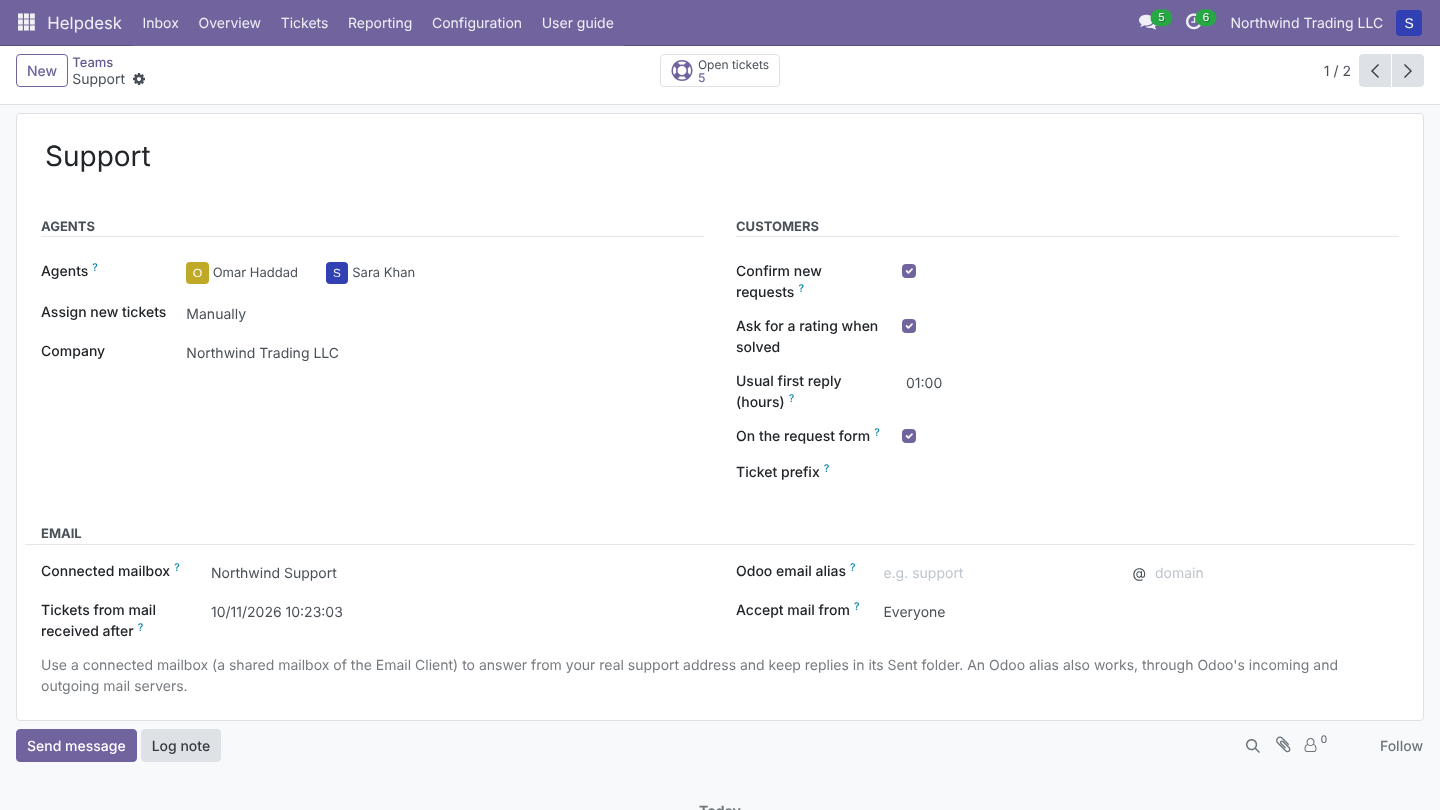
| Field | What it does |
|---|---|
| Agents | Users who see and work on this team's tickets. Leave empty to open the team to every helpdesk user. |
| Assign new tickets | Manually, Each agent in turn, or Agent with the fewest open tickets. |
| Confirm new requests | Sends the customer a confirmation with the ticket number and a link to follow it. |
| Ask for a rating when solved | Sends a one-click rating when the ticket is solved. |
| Usual first reply (hours) | Shown to customers as the time they can expect a first reply. |
| On the request form | Customers can choose this team on the request form. |
| Ticket prefix | Optional, for example SUP-. Leave empty to use HD-. |
Receive tickets by email
Choose one way per team, or both.
Your real support mailbox (recommended)
Tickets come from your actual support address (for example [email protected]) and replies go out from it, so they also land in its Sent folder and look normal in Gmail or Outlook.
- In Email, connect the support address as your own mailbox (see the Email Client setup). The free Email Client is enough.
- On the team, set Connected mailbox to that mailbox. Only the mailbox owner can do this: you see your own mailboxes here, and shared mailboxes you are a member of.
- Tickets from mail received after is filled with the current time: older mail stays in the mailbox and does not become tickets. Set an earlier time to import recent mail too.
Agents work the tickets in Helpdesk and their replies leave from the support address, but they don't get access to the mailbox itself. If several people should also open and work the support mailbox in Email, make it a shared mailbox with members (Email Client Pro).
New mail in the mailbox's inbox becomes a ticket. A reply from the customer is added to the same ticket (matched by the mail thread, or by the ticket number such as [#HD-0001] in the subject).
An Odoo email alias
Fill in Odoo email alias on the team (for example support at your alias domain) and choose who to Accept mail from. This uses Odoo's own incoming and outgoing mail servers, like the alias of a sales team.
Stages
Helpdesk → Configuration → Stages. The app comes with New, In progress, Waiting on customer, Solved and Closed.
- State tells Helpdesk what the stage means for the KPIs, the SLA timers (Pro) and the customer portal. You can rename stages and add your own, as long as each has a state.
- Teams: leave empty to use the stage in every team.
- Description is shown to the customer in the portal as the next step, for example "We are checking stock and will reply within a day."
Types and tags
- Types (Configuration → Types): what the request is about, such as Question, Problem with an order, Return or refund, Invoice or payment. Types marked On the request form are offered to customers.
- Tags (Configuration → Tags): free labels for agents and reports.
Saved replies
Helpdesk → Configuration → Saved replies. Text agents insert with one click from Saved replies in the composer. Placeholders:
| Placeholder | Becomes |
|---|---|
{customer} | First name of the customer |
{agent} | The agent's name |
{ticket} | The ticket number |
Leave Teams empty to offer a reply in every team.
The request form and portal
The request form is at /support on your website (for example https://yourcompany.com/support). Customers enter their name, email, an optional order number, what it is about, the team, a subject, what happened and up to 5 photos or files. No account is needed: they get an email with a secure link to follow the ticket.
Customers with a portal account also find their tickets under My Account → Tickets (/my/tickets). Link /support from your website menu, footer or order emails.