Set up Email Client
Who can do what
| Group | Who has it | What it allows |
|---|---|---|
| Email Client / User | Every internal user | Connect and use their own mailboxes, and shared mailboxes they are a member of (Pro). |
| Email Client / Administrator | The administrator | Settings and the Mailbox overview (status and storage per mailbox). No access to anyone's mail. |
A mailbox is visible to its owner only. Not even an administrator can open someone else's mail, list their messages or read pending changes. A shared mailbox (Pro) is visible to its members.
Choose how mailboxes sign in
| Provider | How it signs in | What the administrator does first |
|---|---|---|
| Gmail, Google Workspace | Sign in with Google | Create a Google OAuth client once |
| Microsoft 365, Outlook.com | Sign in with Microsoft | Register a Microsoft app once |
| Gmail without OAuth | App password | Nothing: each user creates an app password in their Google account |
| Anything else (Zoho, Yahoo, cPanel, your server) | IMAP and SMTP with a password | Nothing |
Odoo never sees the Google or Microsoft password: users sign in on the provider's own page.
Google
Do this once, in the Google Cloud project of your company.
- Open console.cloud.google.com, create a project (for example Odoo mail).
- APIs & Services → OAuth consent screen: choose Internal if every user is in your Google Workspace, otherwise External. Add the scopes
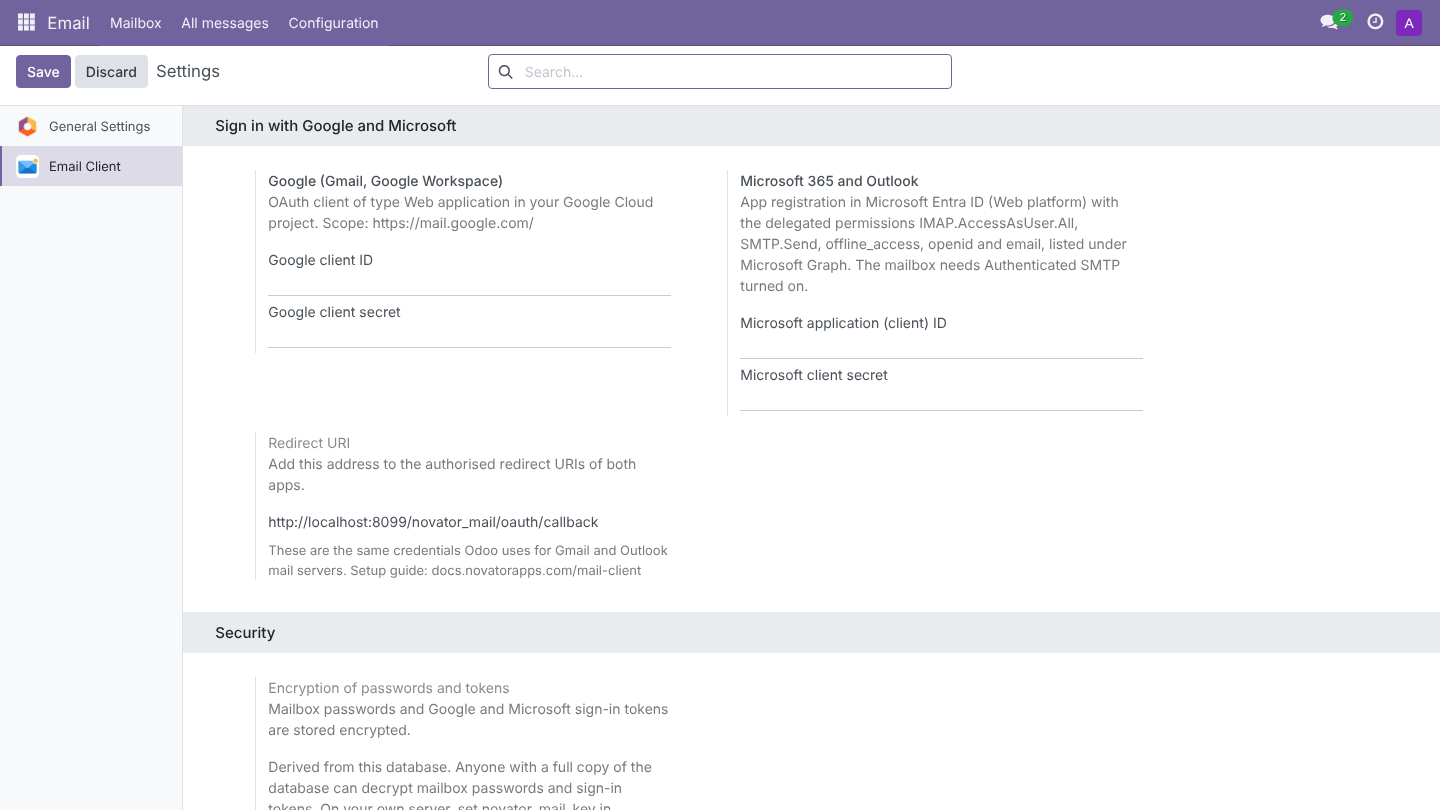
https://mail.google.com/,openidandemail. - Credentials → Create credentials → OAuth client ID, type Web application. Under Authorised redirect URIs add the address shown in Odoo under Email → Configuration → Settings → Redirect URI. It looks like
https://your-odoo.com/novator_mail/oauth/callback. - Copy the Client ID and Client secret into Email → Configuration → Settings → Google and save.
With External, Google keeps the app in Testing until you publish it: only the test users you add can sign in, and they must sign in again every 7 days. Publishing an app with the Gmail scope requires Google's verification. With Internal (Google Workspace) there is no verification.
These are the same keys Odoo uses for Gmail outgoing and incoming mail servers, so if they are already filled in, you are done.
Microsoft
Do this once, in your Microsoft Entra admin center.
- Open entra.microsoft.com → App registrations → New registration.
- Name it (for example Odoo Email Client). Under Supported account types pick Accounts in this organizational directory only for your own company, or any Entra ID tenant and personal Microsoft accounts to allow Outlook.com too.
- Redirect URI: platform Web, the address from Email → Configuration → Settings → Redirect URI.
- Certificates & secrets → New client secret. Copy the Value right away; Microsoft shows it once.
- API permissions → Add a permission → Microsoft Graph → Delegated permissions:
IMAP.AccessAsUser.All,SMTP.Send,offline_access,openid,email(User.Readis there already). Then Grant admin consent. - Copy the Application (client) ID and the secret value into Email → Configuration → Settings → Microsoft and save.
Microsoft 365 turns off sending with SMTP by default. For each mailbox that sends from Odoo: Microsoft 365 admin center → Users → Active users → the user → Mail → Manage email apps → tick Authenticated SMTP. Reading works without it.
The secret expires (24 months at most). Put a reminder in your calendar to create a new one and paste it in Settings before it does.
Connect a mailbox
Each user does this for their own mailbox.
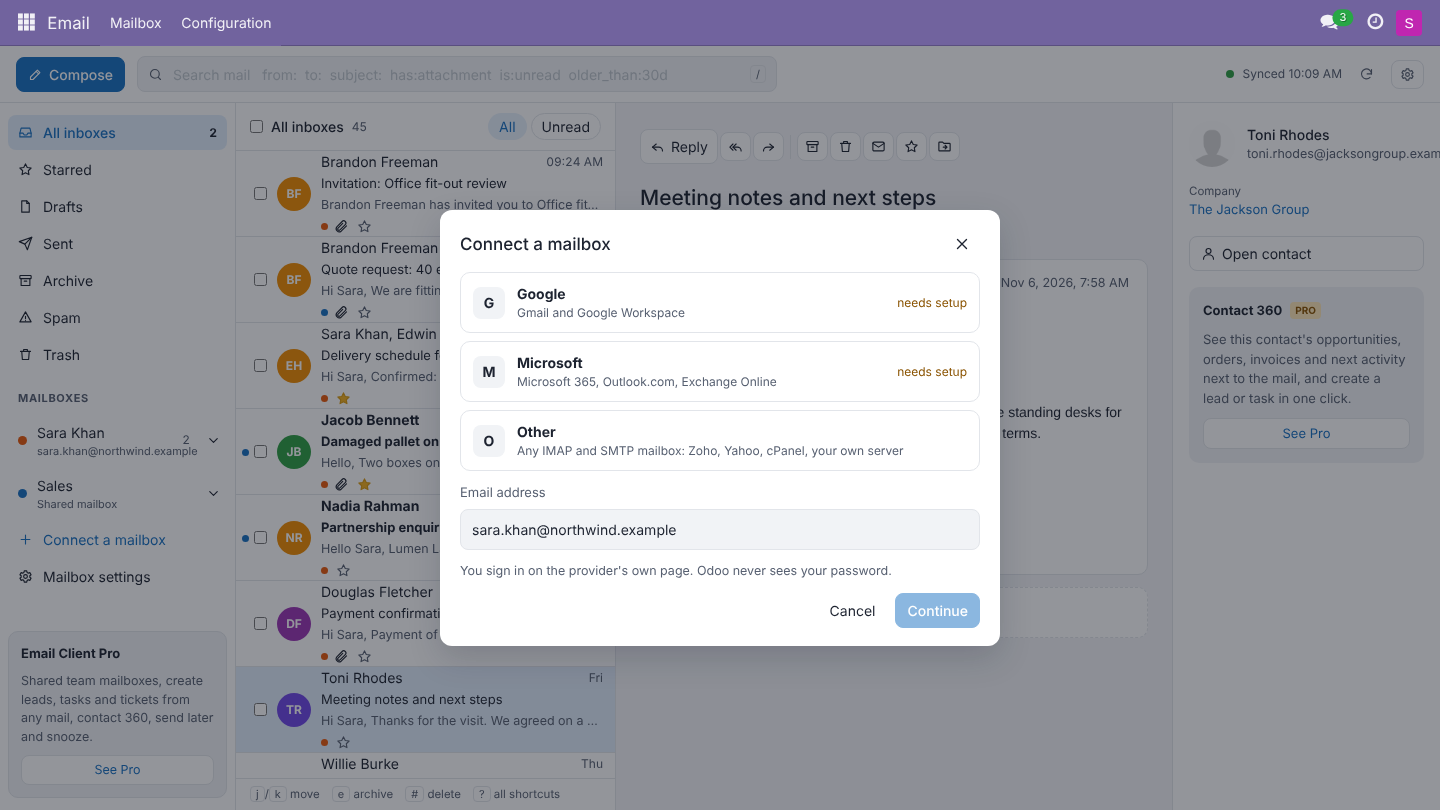
- Open Email and click Connect a mailbox.
- Pick Google, Microsoft or Other, check the email address and click Continue.
- Google and Microsoft: sign in on their page and allow access. Other: fill in the IMAP and SMTP server, port, security and password (for Gmail and Microsoft the servers are filled in for you).
- New mail arrives first, then older mail fills in. You can work in the mailbox right away.
A big mailbox takes a while the first time. Pause older mail in the sidebar if you only need new mail now, and resume it later.
Settings per mailbox
Email → Configuration → Mailboxes, open a mailbox:
| Setting | Default | What it does |
|---|---|---|
| Sync window (days) | 365 | Mail older than this stays on the server only. |
| Keep bodies (days) | 30 | Older mail keeps its headers in Odoo; the text and files load from the server when you open it. Keeps your database small. |
| Signature | empty | Added to new mail, replies and forwards. |
| Gmail tabs | on | Gmail mailboxes only: sorts the inbox into Primary, Promotions, Social, Updates and Forums like Gmail. |
Security
Passwords and sign-in tokens are stored encrypted. By default the key is derived from your database, so anyone with a full copy of the database could decrypt them. On your own server, set a separate key in the Odoo configuration file:
[options]
novator_mail_key = a-long-random-string
Settings → Email Client → Security shows which key is in use. Changing the key later means every mailbox signs in again.