Pro features
Email Client Pro ($99, one-time) installs on top of the free Email Client; your mailboxes and mail stay as they are. Get it on the Apps Store.
Contact 360
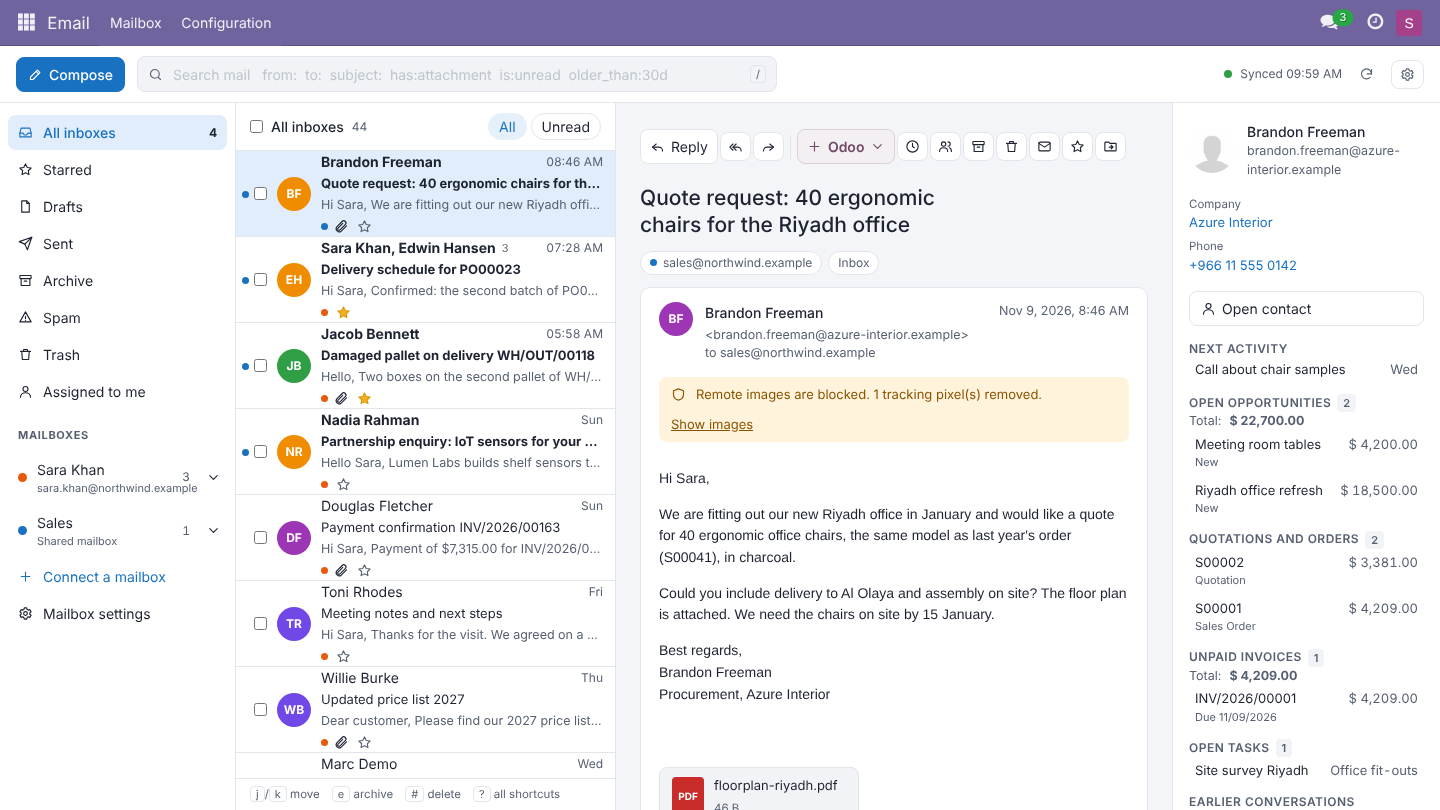
Next to every mail, the sender's Odoo data: next activity, open opportunities, quotations and orders, unpaid invoices, open tasks and earlier conversations. Each user sees only what their Odoo rights allow. Sections appear for the apps you have installed (CRM, Sales, Invoicing, Project, Helpdesk).
Create a record from a mail
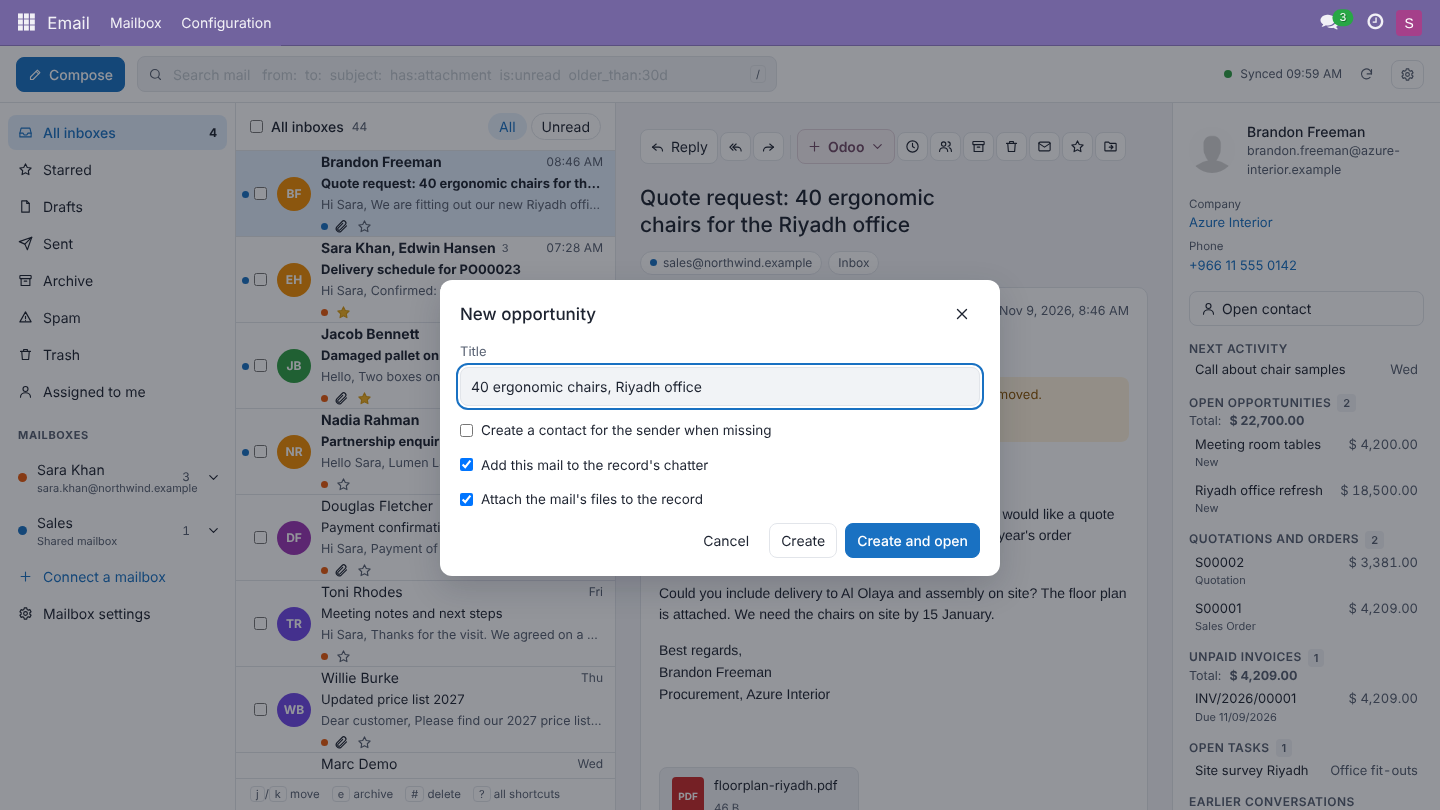
- Open the mail and click Odoo in the toolbar.
- Pick what to create: lead or opportunity, task (or a personal to-do without a project), helpdesk ticket, quotation.
- Adjust the title. Choose whether to add the mail to the record's chatter, attach its files, and create a contact for the sender when it is missing.
- Create stays in the mailbox, Create and open opens the record.
Link a mail to a record
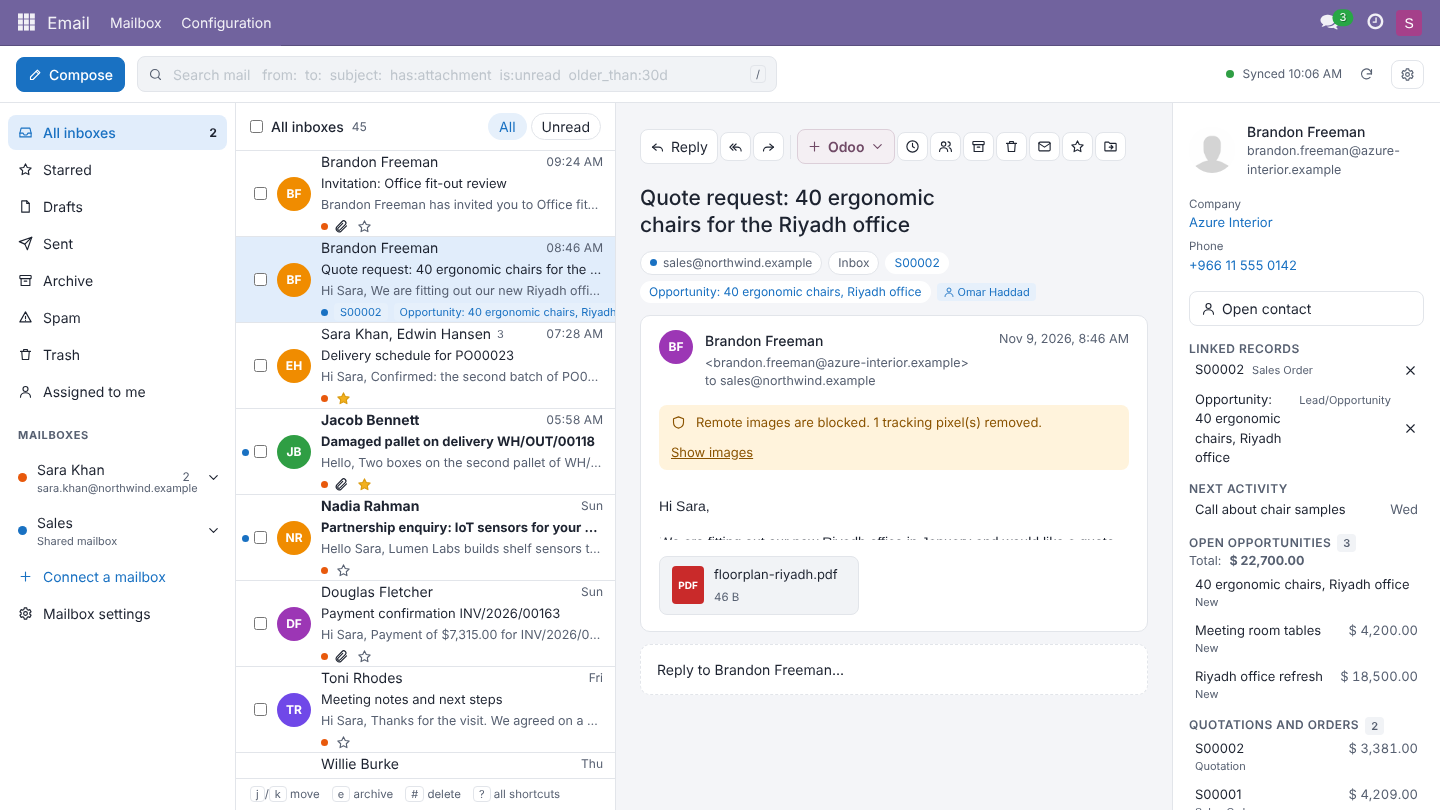
Odoo → Link to a record connects a conversation to any contact, lead, order, invoice, purchase, project, task or ticket. Linked records show as chips on the mail and in the list; click a chip to open the record. Remove a link with the cross in Contact 360.
A mail only reaches a chatter when you create or link a record and tick Add this mail to the record's chatter. Nothing is copied automatically.
Shared mailboxes
For addresses a team answers together, such as sales@ or info@.
- The owner connects the mailbox like any other.
- Email → Configuration → Mailboxes, open it, tick Shared mailbox and add the Members.
- Members see it in their sidebar. Assign (the people icon on a mail) gives a conversation to a member; Assigned to me lists yours.
- Mail shows Sent by and Answered by, so everyone knows who replied.
Members see the shared mailbox only, never each other's personal mail.
Send later and follow-ups
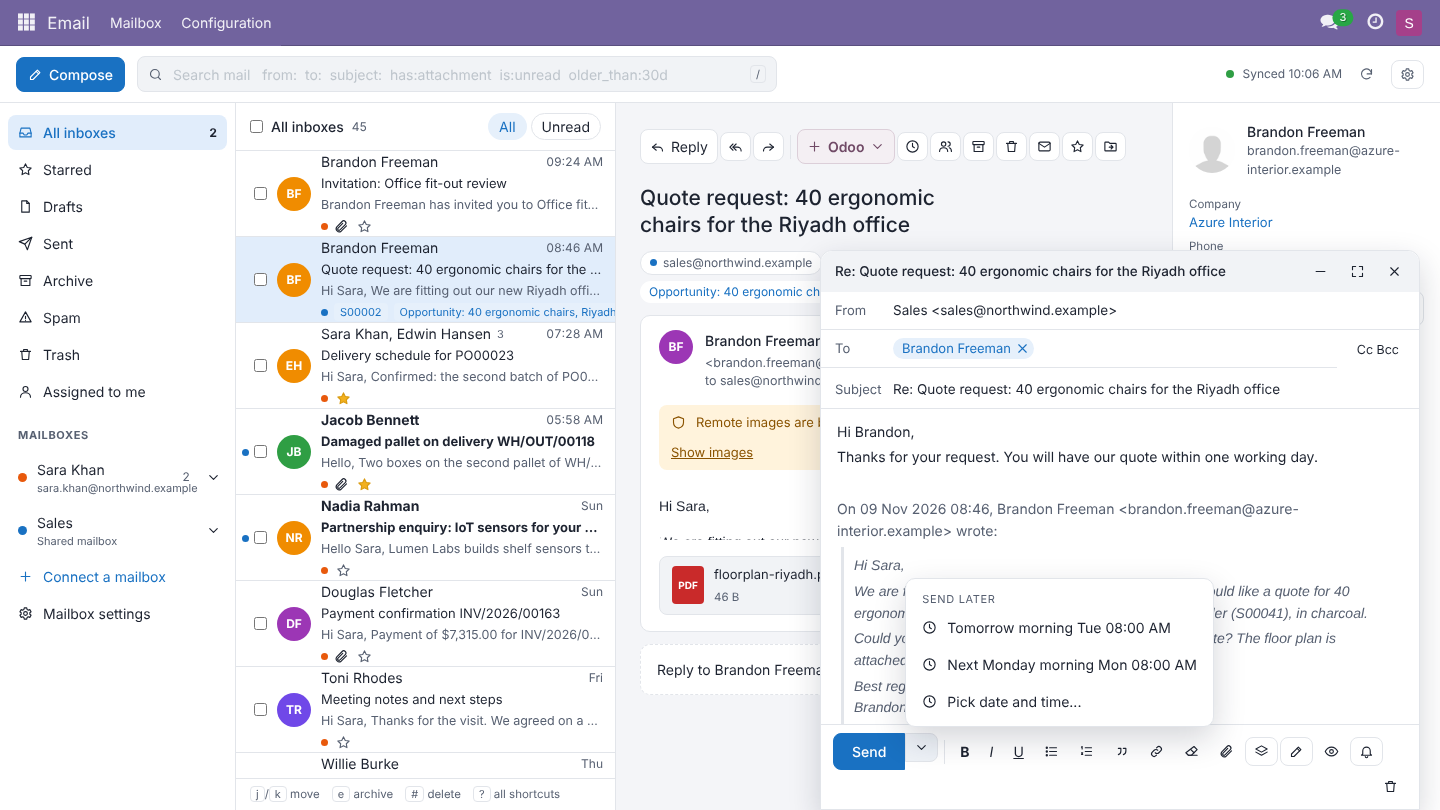
In the composer, the arrow next to Send offers Tomorrow morning, Next Monday morning or Pick date and time. Scheduled mail waits in Scheduled and can be edited or cancelled until it goes.
The bell button asks for a reminder when nobody replies (for example after 3 days): you get an Odoo activity, and it closes itself when an answer arrives.
Snooze
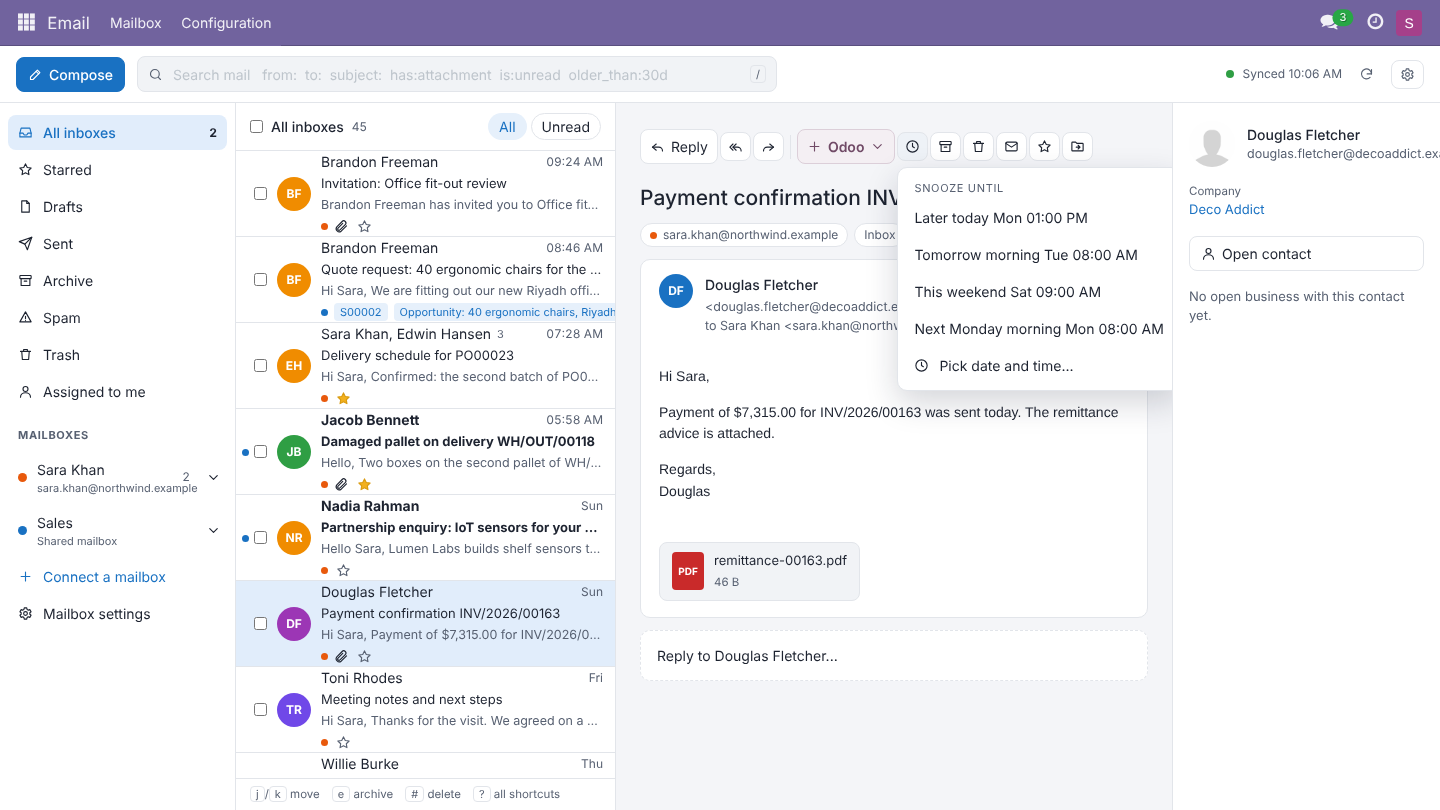
The clock button on a mail hides the conversation until later today, tomorrow morning, the weekend, next Monday or a time you pick. It comes back on top of the inbox, unread. Snoozed lists what is waiting.
Quick replies, templates and signatures
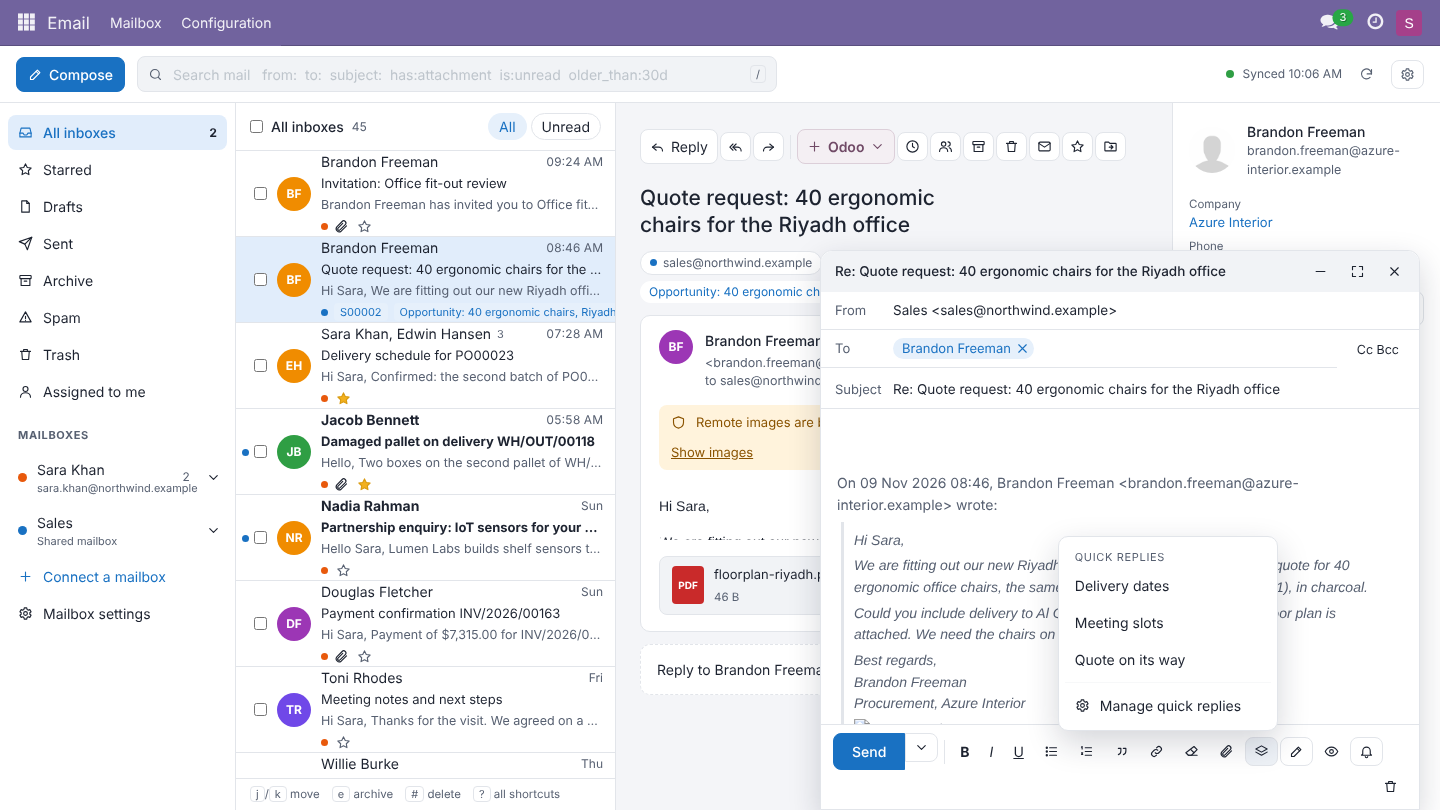
- Email → Configuration → Quick replies: saved texts with placeholders such as the contact's first name. Share one with everyone or keep it for yourself.
- In the composer, the layers button inserts a quick reply or any Odoo email template.
- Email → Configuration → My signatures: several signatures, one default per mailbox. The pen button in the composer switches.
Calendar invitations and meetings
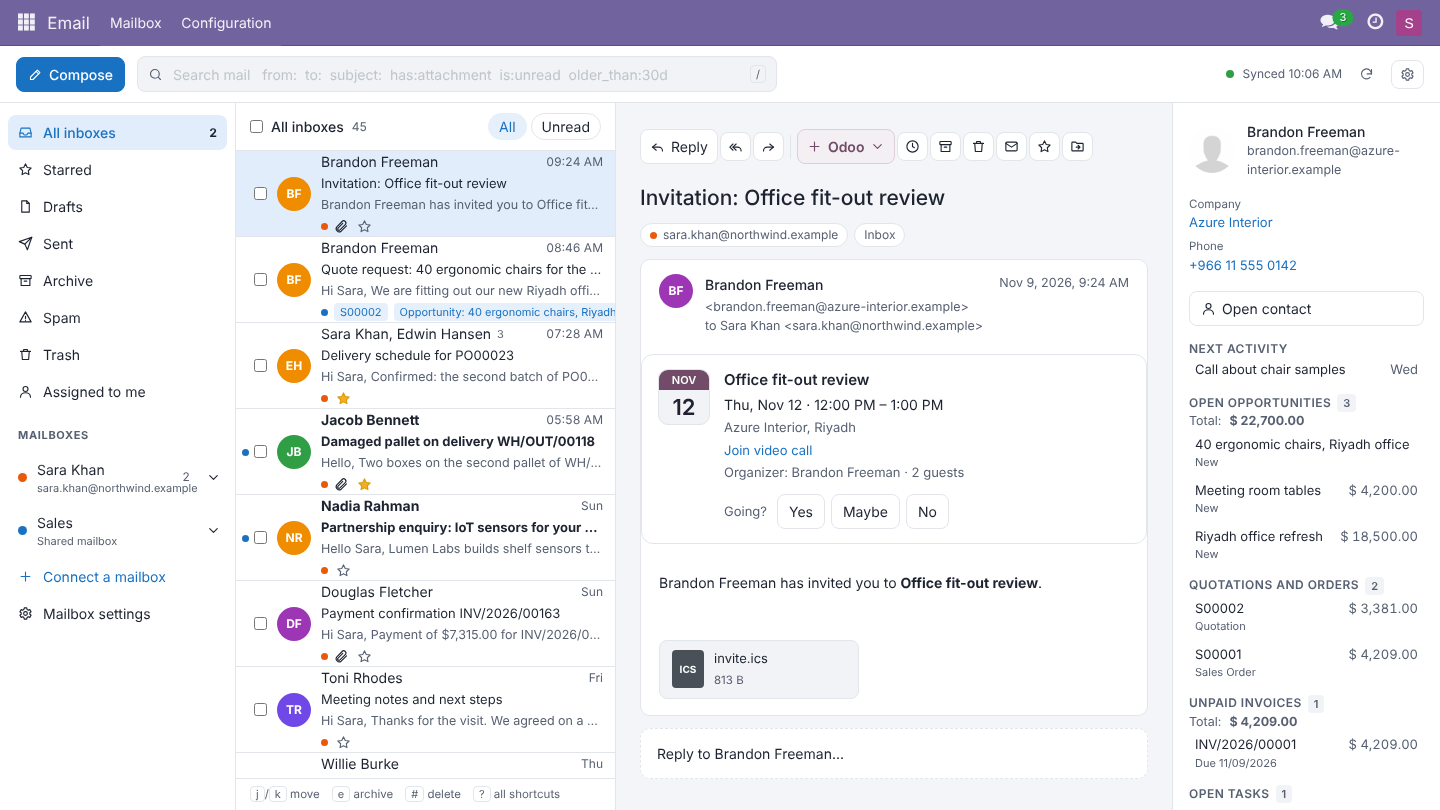
Invitations from Google Calendar, Outlook and Teams show as a card with date, place, guests and the video link. Yes, Maybe or No sends the answer from your mailbox and adds the event to Odoo Calendar (unless Odoo's own Google or Outlook calendar sync already does). Cancellations and updates are recognised.
From any conversation you can also plan a meeting with its people, with an Odoo video link (Odoo 16.0 and later) and invitations.
Send Odoo mail through your mailbox
Quotations, invoices and chatter messages you send from Odoo can go out through your own mailbox and appear in its Sent folder, instead of Odoo's mail server.
- Email → Configuration → Mailboxes, open your mailbox.
- Tick Send my Odoo mail through this mailbox.
If the mailbox fails to send, Odoo's own server takes over for 15 minutes and the mailbox shows the error. Mass mailings are never routed this way.
Read receipts
Off by default. An administrator turns them on under Settings → Email Client → Email Client Pro → Read receipts; users then choose per mail with the eye button in the composer. Many mail apps block or preload images, so treat an open as a hint.