Sharing, search and history
Sections and access
| Section | Who sees it |
|---|---|
| Workspace | Every employee, who can edit or only read. |
| Shared | The people you add, each with Can edit or Can read. |
| Private | Only you. |
Access is set on the top article. Pages inside an article follow it, wherever they are in the tree. Knowledge Administrators see everything.
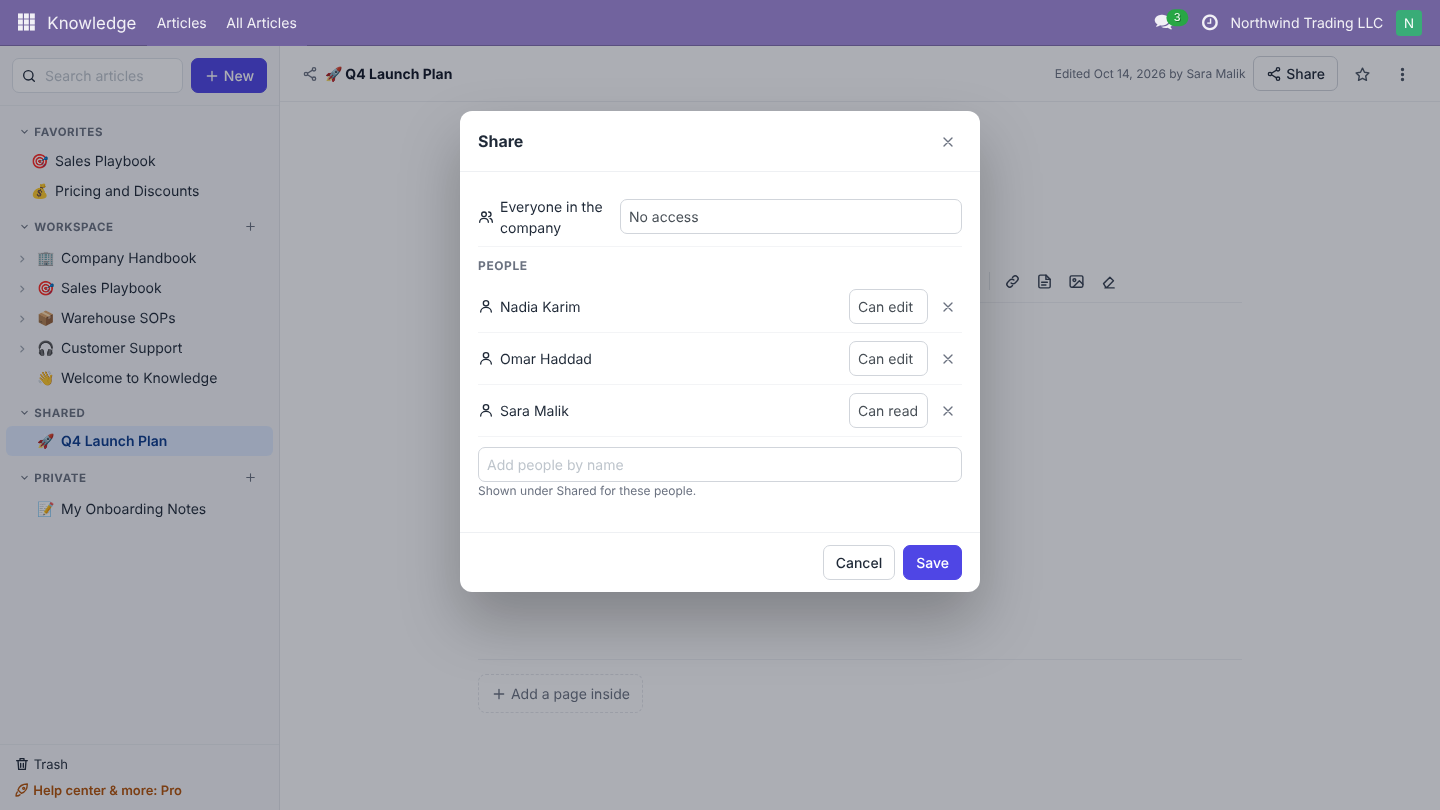
Share on any article opens the access of its top article:
- Everyone in the company: Can edit, Can read or No access.
- People: add people by name, and choose Can edit or Can read for each.
Setting No access with only you as a member makes the article private; with other people it shows under Shared for them. You cannot remove your own edit access unless everyone can edit.
Read-only articles show Read only in the top bar and have no toolbar.
Search
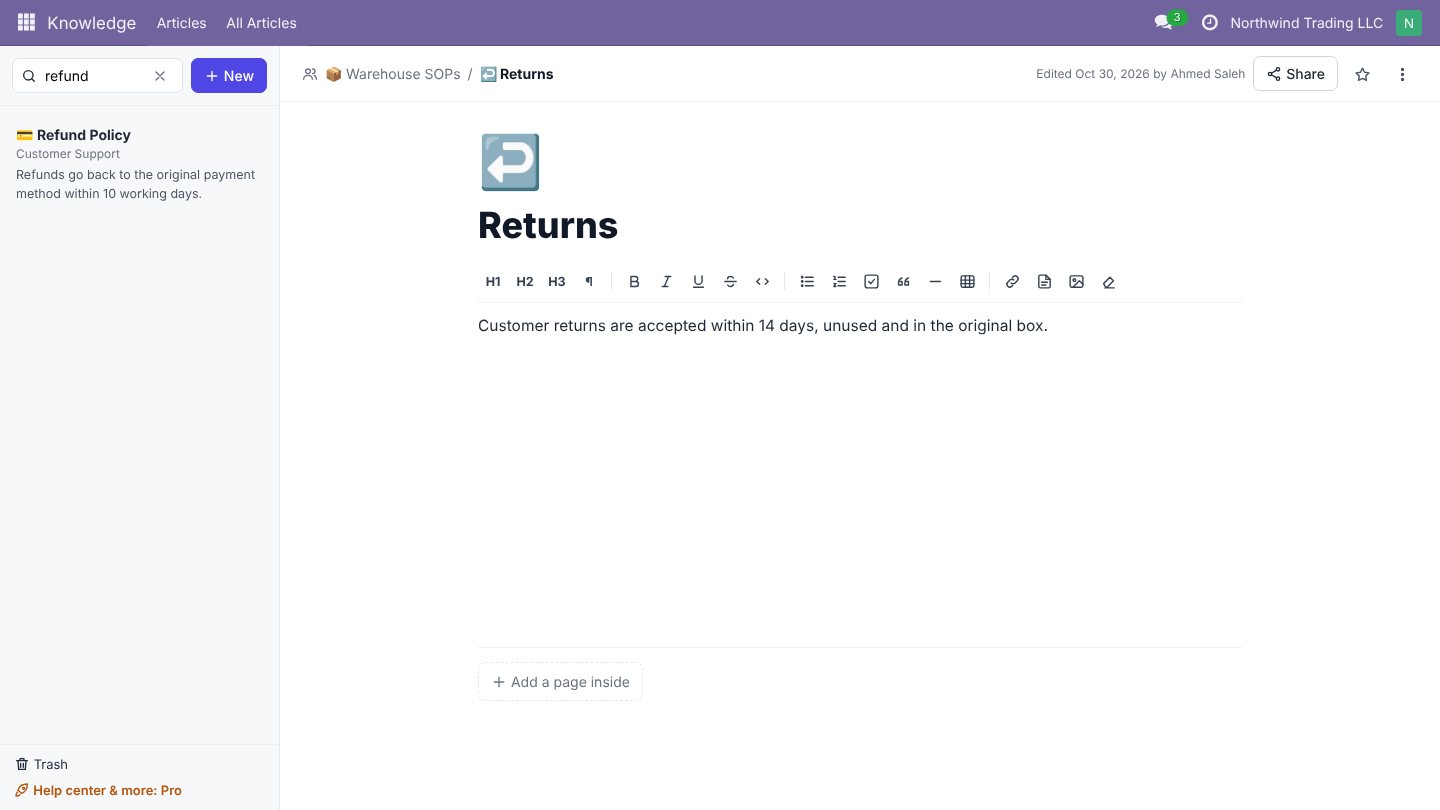
Type at least two letters in Search articles. Titles and text of every article you may open are searched; each result shows where the article is and a snippet around the match. Clear the search with the cross.
History
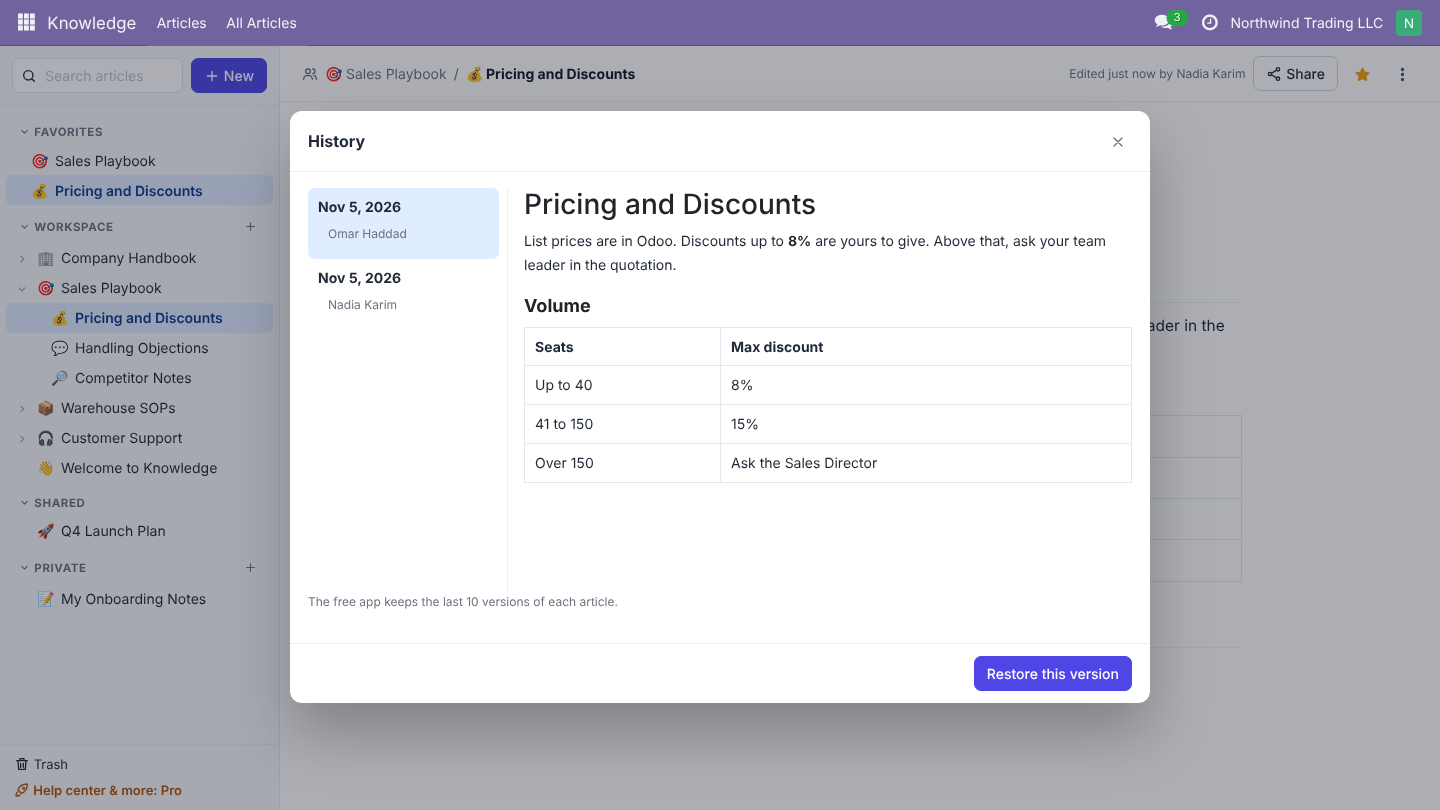
History in the article menu lists earlier versions with who wrote them. Click one to read it, then Restore this version. The current text is kept as a version too, so restoring can be undone.
A version is kept when someone else starts editing, or when you edit again after ten minutes, so a long editing session is one version. The free app keeps the last 10 versions of each article; Knowledge Pro keeps all of them.
Trash
Move to trash in the article menu moves the article and the pages inside it to the Trash (bottom of the sidebar). From the trash, Restore brings them back, and Delete removes them for good (owner or Knowledge Administrator only).
All Articles
Knowledge Administrators also have Knowledge → All Articles: a list with filters (Workspace, Shared, Private, In the trash) and grouping by top article or owner, and a form with the chatter.