Write and organize
Open Knowledge from the main menu. The sidebar on the left lists the articles you can open; the article you open fills the rest of the screen.
Who can do what
| Who | What they can do |
|---|---|
| Employees | Read and write the articles shared with them, create Private and Shared articles, and Workspace articles unless an administrator turned that off (Pro). |
| Knowledge Administrators | See and edit every article, delete any article, publish to the help center (Pro). Settings administrators are Knowledge Administrators. |
| Portal users and visitors | Nothing inside Odoo. With Pro they read the published help center. |
Create an article
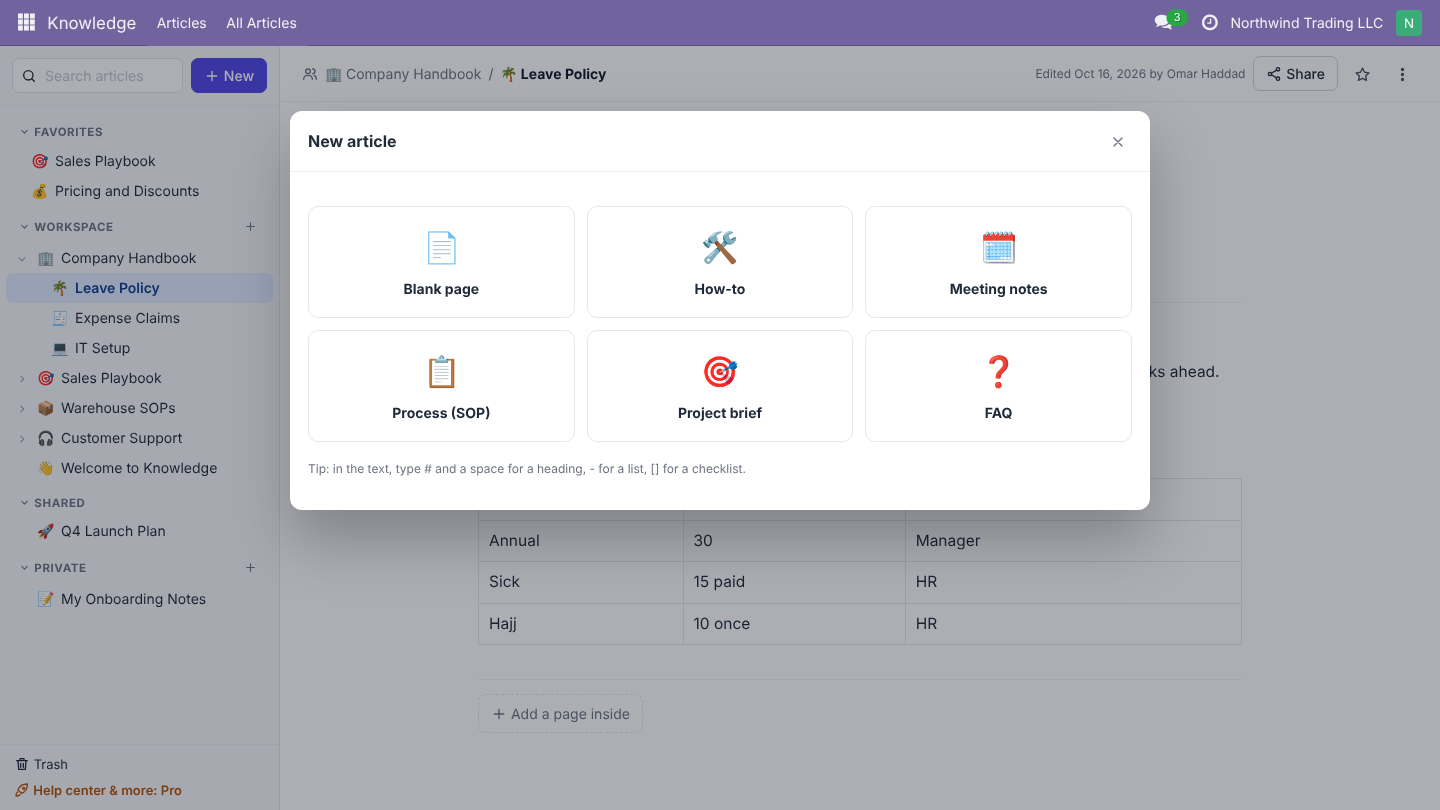
- New at the top of the sidebar opens the templates: blank page, how-to, meeting notes, process (SOP), project brief and FAQ.
- + next to Workspace or Private creates an empty article in that section.
- + on an article's line, or Add a page inside at the bottom of an article, creates a page inside it.
Type the title, press Enter and write. Changes are saved as you type; the top bar shows Saving... and then Saved.
The editor
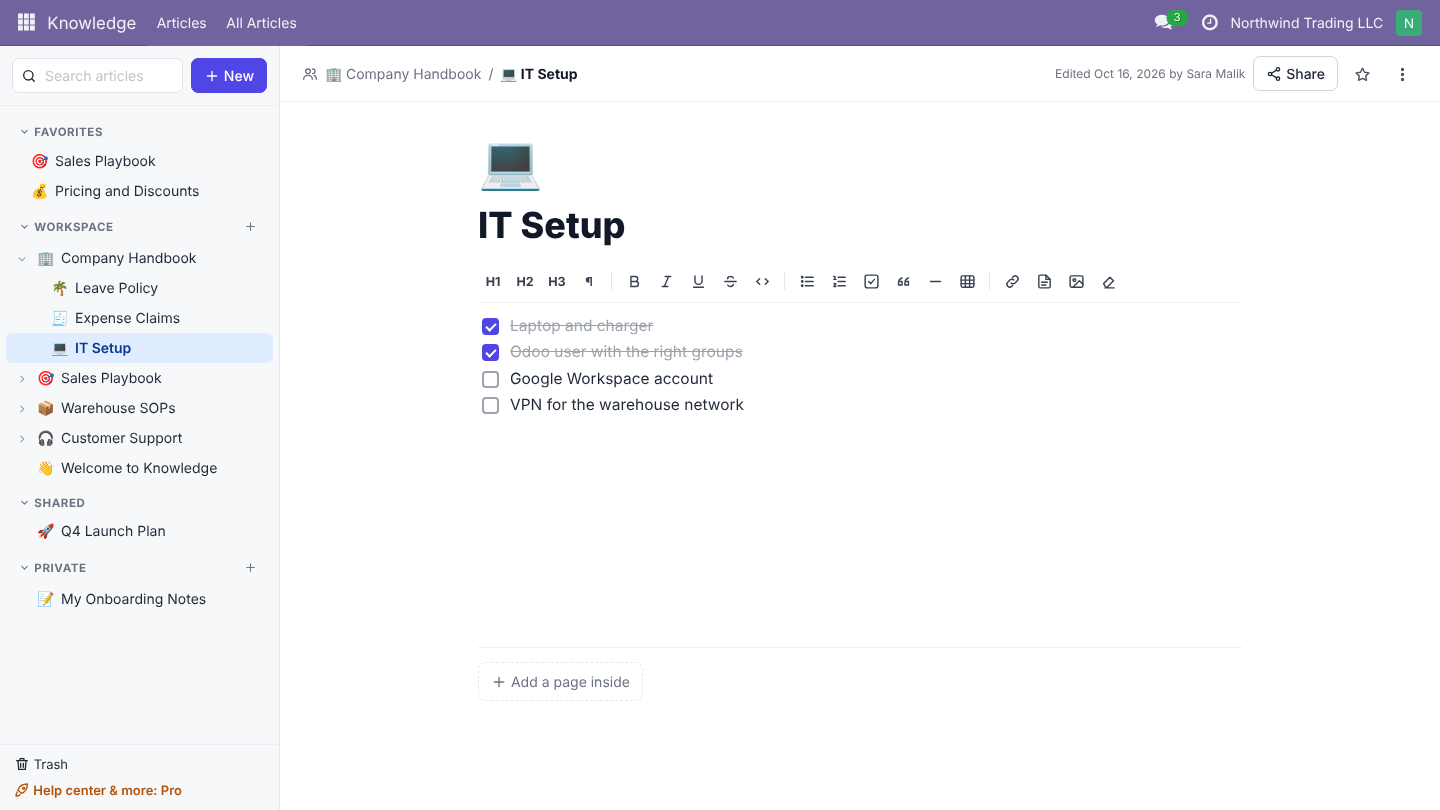
The toolbar has headings (H1 to H3), text, bold, italic, underline, strikethrough, code, bullet and numbered lists, checklists, quotes, dividers, tables, links, links to other articles, images and files, and clear formatting.
| Type at the start of a line, then a space | You get |
|---|---|
#, ##, ### | Heading 1, 2 or 3 |
- or * | Bullet list |
1. | Numbered list |
[] | Checklist |
> | Quote |
``` | Code block |
- Ctrl+B / Ctrl+I / Ctrl+U for bold, italic, underline; Ctrl+K for a link.
- Click the box of a checklist item to tick it.
- Paste a screenshot, or drop an image or file on the page. Files up to 25 MB are stored as Odoo attachments.
- Paste from Word or Google Docs keeps headings, lists and tables.
- The emoji above the title is the article's icon: click it to change it.
Organize
- Drag an article onto another one to put it inside; drop it on the top edge of an article to place it before; drop it on Workspace or Private to make it a top article there.
- Move to... in the article menu (the three dots) does the same from a list.
- Star an article to add it to Favorites at the top of the sidebar. Favorites are per person.
- Link to an article in the toolbar inserts a link that opens the other article in place.
- Duplicate, Print or save as PDF, and Comments and details (the article in a standard Odoo form with the chatter) are in the article menu.
Was this page helpful?