Branch stock in the POS
Open the table
In the POS, open the product's information:
- Odoo 16.0: add the product to the order, then click Info above the numpad.
- Odoo 17.0 and 18.0: click the i icon in the corner of the product card.
- Odoo 19.0 and 20.0: press and hold the product card, or select an order line and click Info in the actions.
The Branch Stock section appears in the product information, below Odoo's own Inventory section.
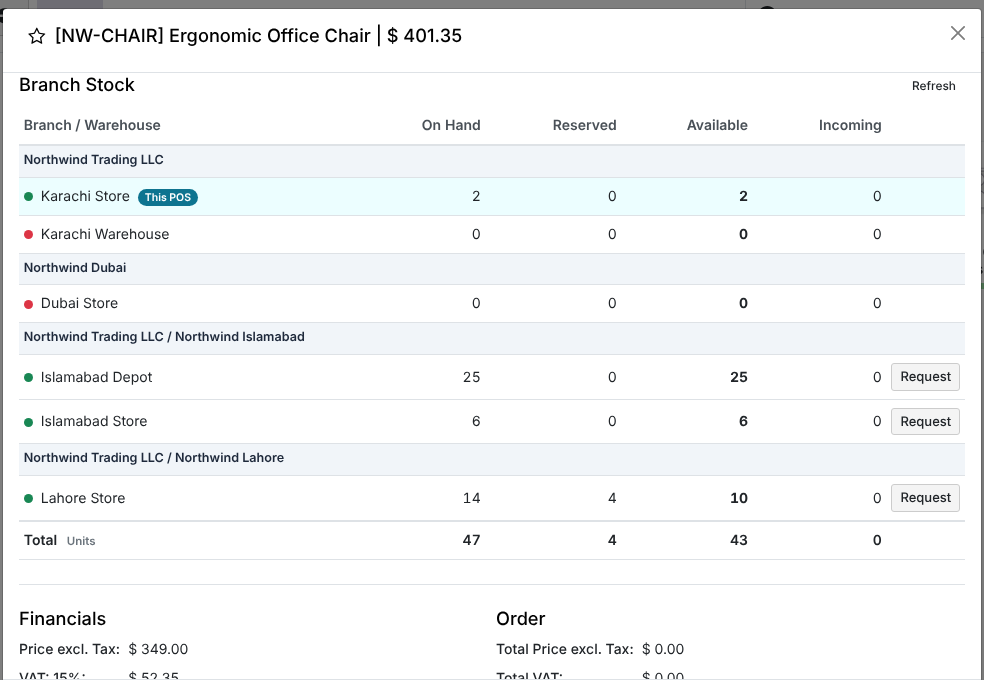
Read the table
Warehouses are grouped by company. A branch is shown as Parent / Branch (for example Northwind Trading LLC / Northwind Lahore). This POS's company comes first, and this POS's own warehouse is the first row, marked This POS.
| Column | Meaning |
|---|---|
| Branch / Warehouse | The warehouse. The dot is green when some stock is available, orange when everything on hand is reserved, red when there is none. A grey dot with not stocked here means the product does not exist in that company (see below). |
| On Hand | Quantity in the warehouse's stock locations now. |
| Reserved | Part of the on-hand quantity already reserved for other deliveries or transfers. |
| Available | On hand minus reserved: what the branch can still give. |
| Incoming | Quantity on its way into the warehouse (receipts and transfers not done yet). Shown when Show Incoming Quantity is on. |
The Total row adds up all listed warehouses, in the product's unit of measure.
Click Refresh to read the quantities again.
Products with variants
When the product has several variants, a Variant list appears above the table: pick the variant to see its stock. Opened from an order line, the table starts with that line's variant.
Products of one company only
Products shared by all companies are used as they are. When the product belongs to one company, the app looks for the same product in each other company, first by Barcode, then by Internal Reference. A branch without a match shows not stocked here.
Send a transfer request
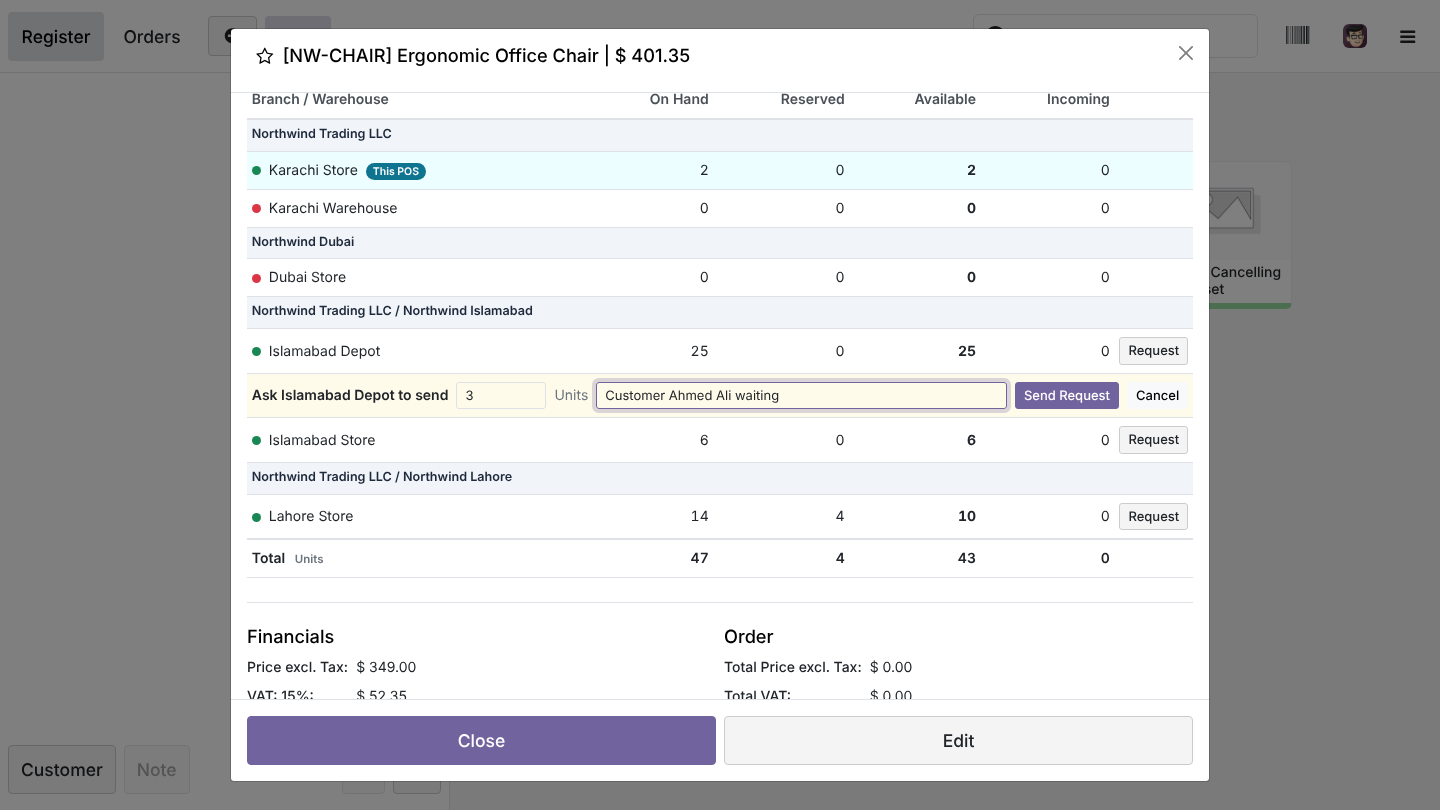
- Click Request next to a warehouse that has stock available. The button is shown for other warehouses with available stock, when Transfer Requests is on.
- Enter the quantity and, if you like, a note such as the customer's name.
- Click Send Request.
The POS confirms with the request's reference, for example Request BSR/00008 sent to Islamabad Depot.
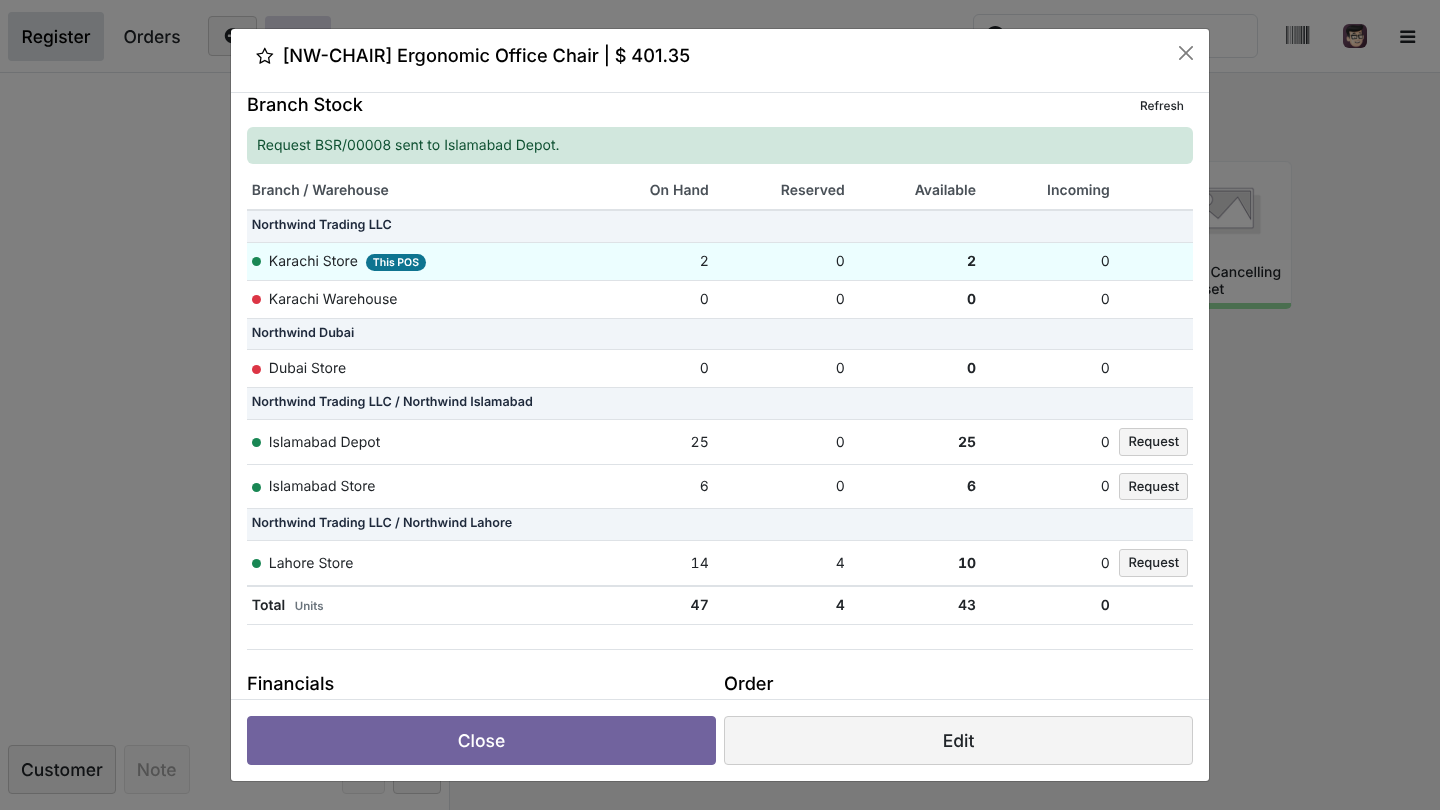
The request asks the chosen warehouse to send the quantity to this POS's own warehouse. Nothing moves yet: the branches handle it in the back office, see Transfer requests.
What is sent
The POS sends the product and this POS's ID to your own Odoo server. The server checks that the cashier may use this POS and read the product, then returns the quantities. Nothing leaves your database.