Transfer requests
Find the requests
- Point of Sale → Orders → Branch Stock Requests
- Inventory → Operations → Branch Stock Requests (Inventory users)
The list opens with the Open filter (new requests and requests with a transfer). Use To Send (my branches) for requests other branches sent to your warehouses, and To Receive (my branches) for requests your POS sent.
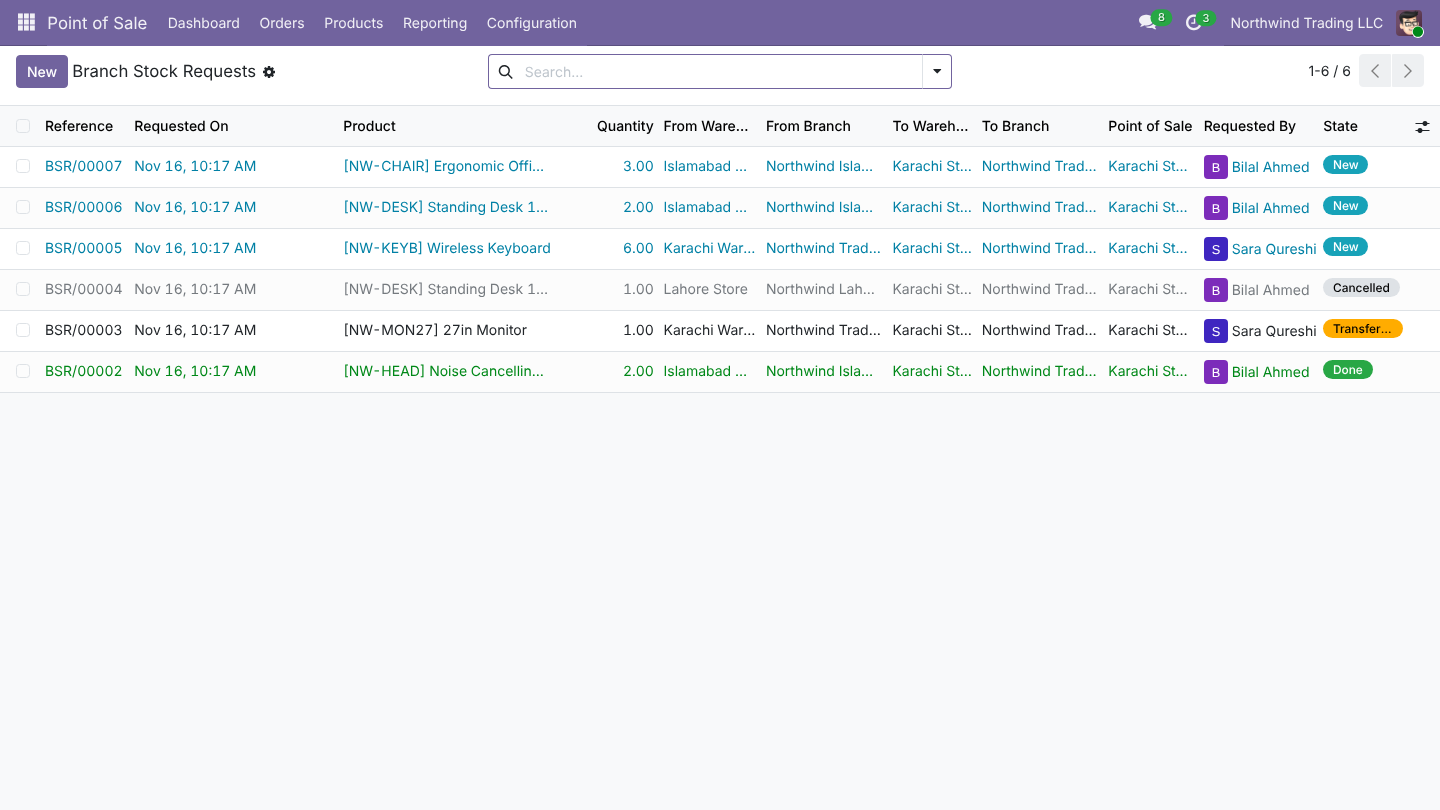
Both the sending and the receiving company see a request. Users of other companies do not.
The request
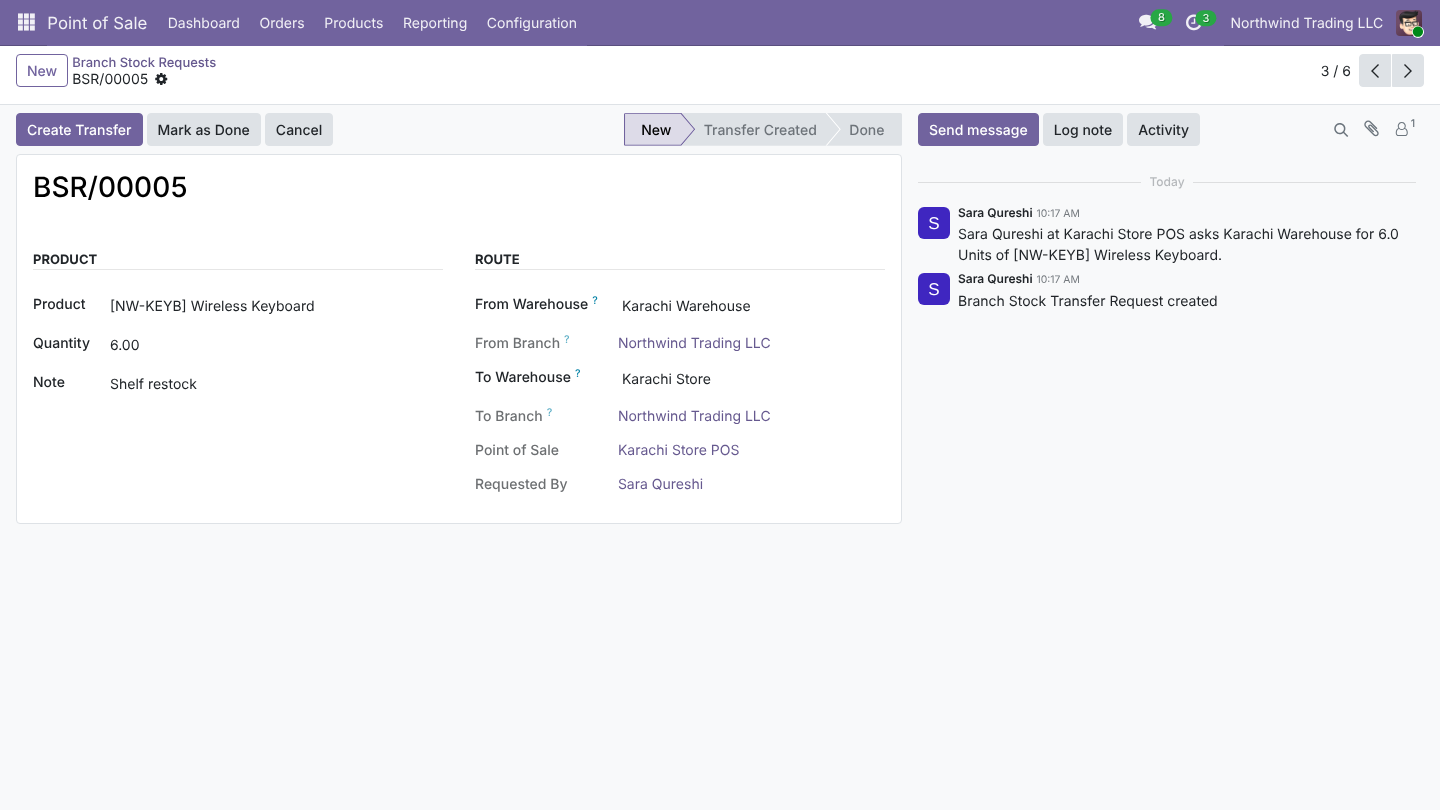
| Field | Meaning |
|---|---|
| Reference | BSR/ followed by a number. |
| Product, Quantity | What the POS asked for, in the product's unit. |
| Note | The cashier's note, for example the customer's name. |
| From Warehouse / From Branch | The warehouse asked to send the stock, and its company. |
| To Warehouse / To Branch | The POS's own warehouse, and its company. |
| Point of Sale, Requested By | Where and by whom the request was made. |
| Transfer | The internal transfer, once created. |
The chatter shows who asked for what, and every change of status. Use Activity to give someone a to-do.
Statuses and buttons
| Status | Buttons |
|---|---|
| New | Create Transfer (same company only), Mark as Done, Cancel |
| Transfer Created | Mark as Done, Cancel. The Transfer button opens the transfer. |
| Done | None. |
| Cancelled | Reset to New |
The buttons need the Inventory / User right.
Create the transfer
When both warehouses belong to the same company, click Create Transfer. The app creates and confirms an internal transfer:
- operation type: the internal transfers of the sending warehouse
- from: the sending warehouse's stock location
- to: the POS warehouse's stock location
- source document: the request's reference
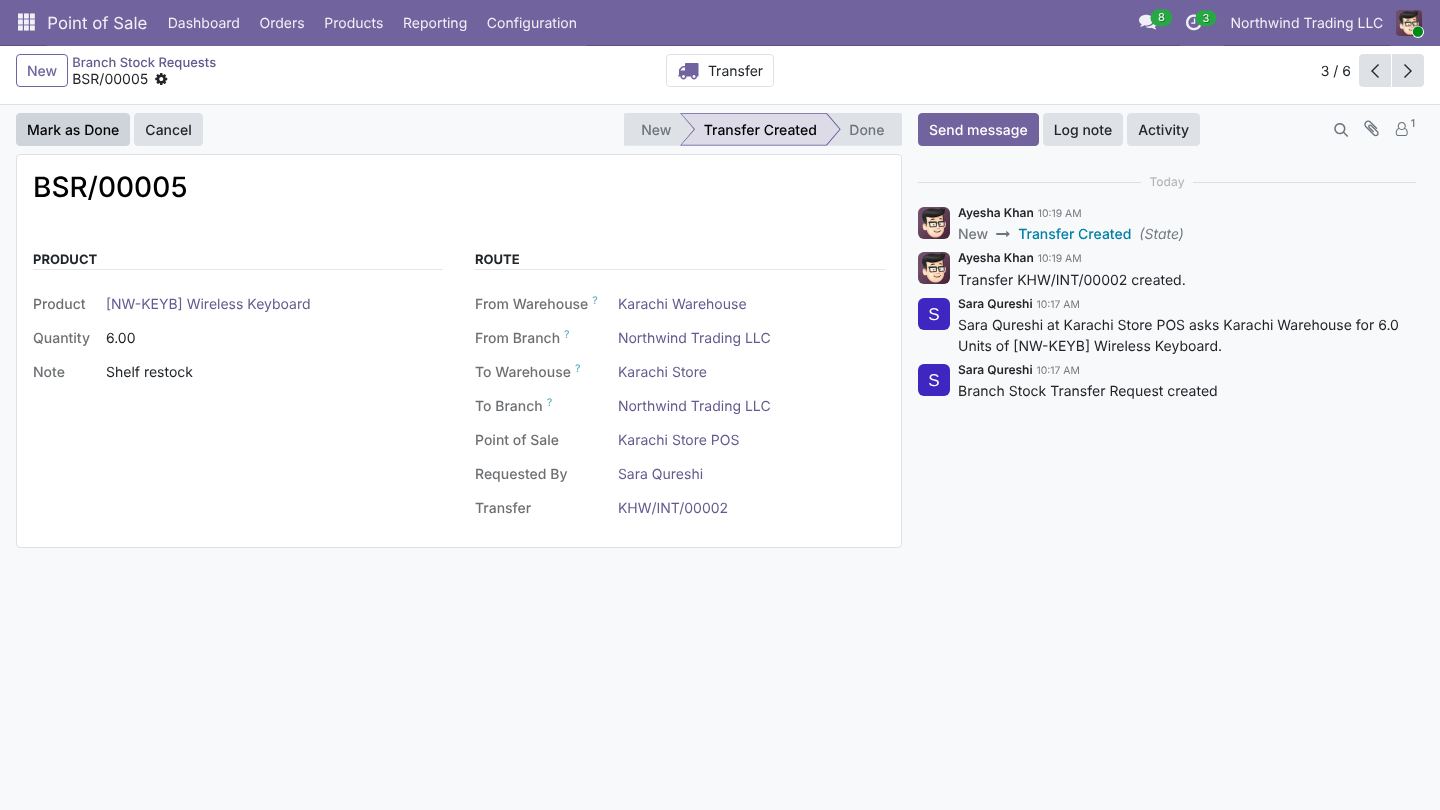
Validate the transfer as usual in Inventory, then click Mark as Done on the request.
Between two companies
When the warehouses belong to different companies, the request shows a note instead of Create Transfer. Send the stock with your usual inter-company flow (for example a delivery to the other company and a receipt there, or Odoo's inter-company rules in Enterprise), then click Mark as Done.