Set up
Branch Stock is set per Point of Sale. You need the Point of Sale / Administrator right.
- Go to Point of Sale → Configuration → Settings.
- At the top, choose the Point of Sale to set up.
- Scroll to the Branch Stock section and tick Branch Stock.
- Choose the options below and click Save.
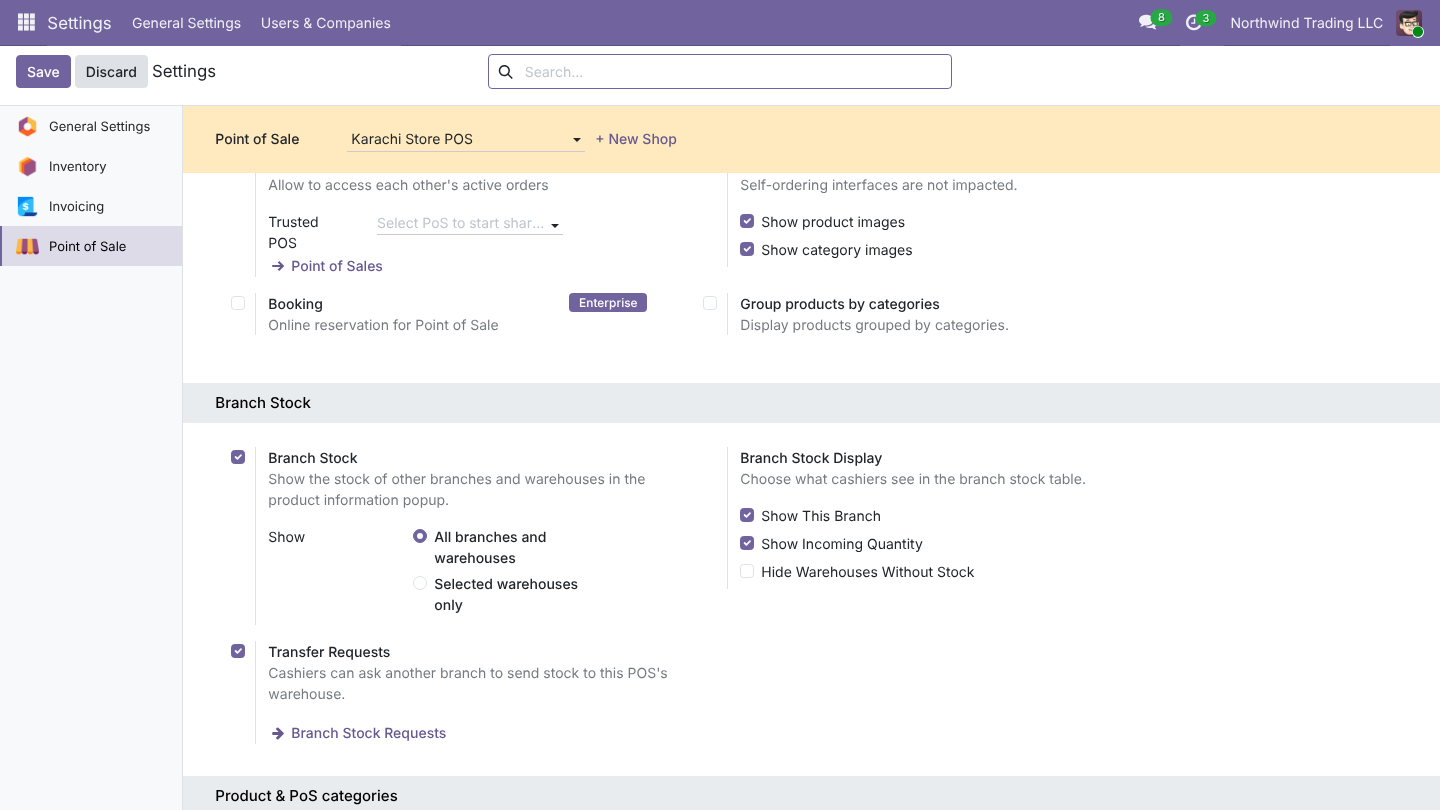
Settings
| Setting | What it does |
|---|---|
| Branch Stock | Shows the Branch Stock table in the product information of this POS. Off by default. |
| Show | All branches and warehouses: every active warehouse of every company in the database. Selected warehouses only: just the warehouses you list in Warehouses. |
| Warehouses | Shown with Selected warehouses only. Pick warehouses from any branch or company, shown as Warehouse (Branch). You do not need to tick the other companies in the company switcher. |
| Show This Branch | Also lists the warehouses of this POS's own company, at the top. On by default. When off, only other companies are listed. |
| Show Incoming Quantity | Adds the Incoming column: stock on its way into each warehouse (receipts and transfers that are not done yet). On by default. |
| Hide Warehouses Without Stock | Hides warehouses that have the product neither on hand nor incoming. This POS's own warehouse is always shown. |
| Transfer Requests | Shows the Request button next to warehouses that have stock available. On by default. The Branch Stock Requests link below it opens the request list. |
Changes apply the next time a cashier opens a product's information. There is no need to close the POS session.
Which warehouse is "this POS"
The POS's own warehouse is the warehouse of its Operation Type (in the Inventory section of the same settings page). Transfer requests from this POS are delivered to that warehouse.
Who sees what
- Cashiers (Point of Sale / User) see the table and can send requests. They get no access to the other companies: the server reads the quantities and sends back numbers only.
- Inventory / User can read and handle the requests of their own companies, and Inventory / Administrator and Point of Sale / Administrator can also delete them. See Transfer requests.
Was this page helpful?