Set up
The app works right after installation: every Point of Sale is set to Live push + button and keeps the old price of items already in a cart. You can change this per Point of Sale. You need the Point of Sale / Administrator right.
Odoo 16.0 to 20.0
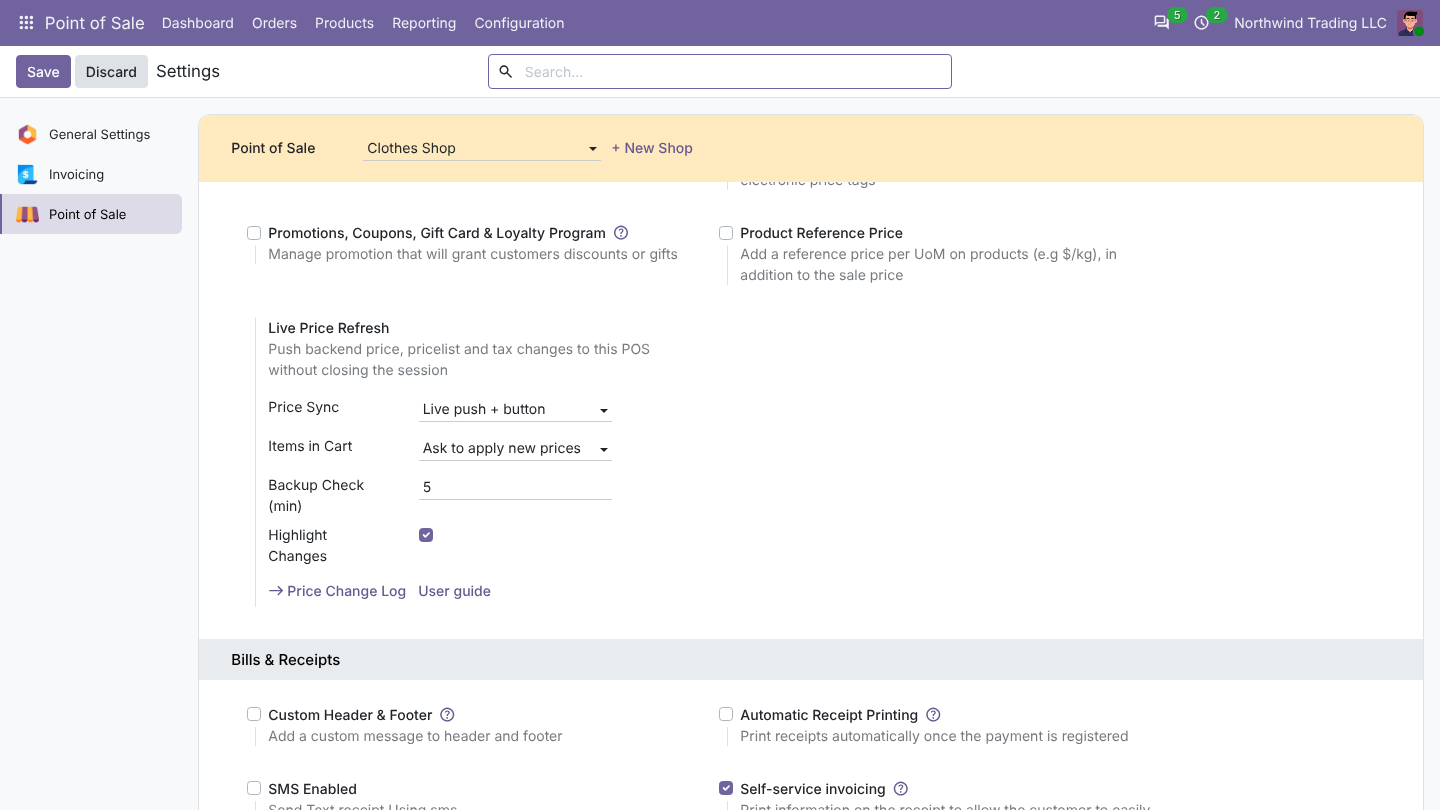
- Go to Point of Sale → Configuration → Settings.
- At the top, choose the Point of Sale to set up.
- In the Pricing section, find Live Price Refresh.
- Change the options below and click Save.
Odoo 13.0 to 15.0
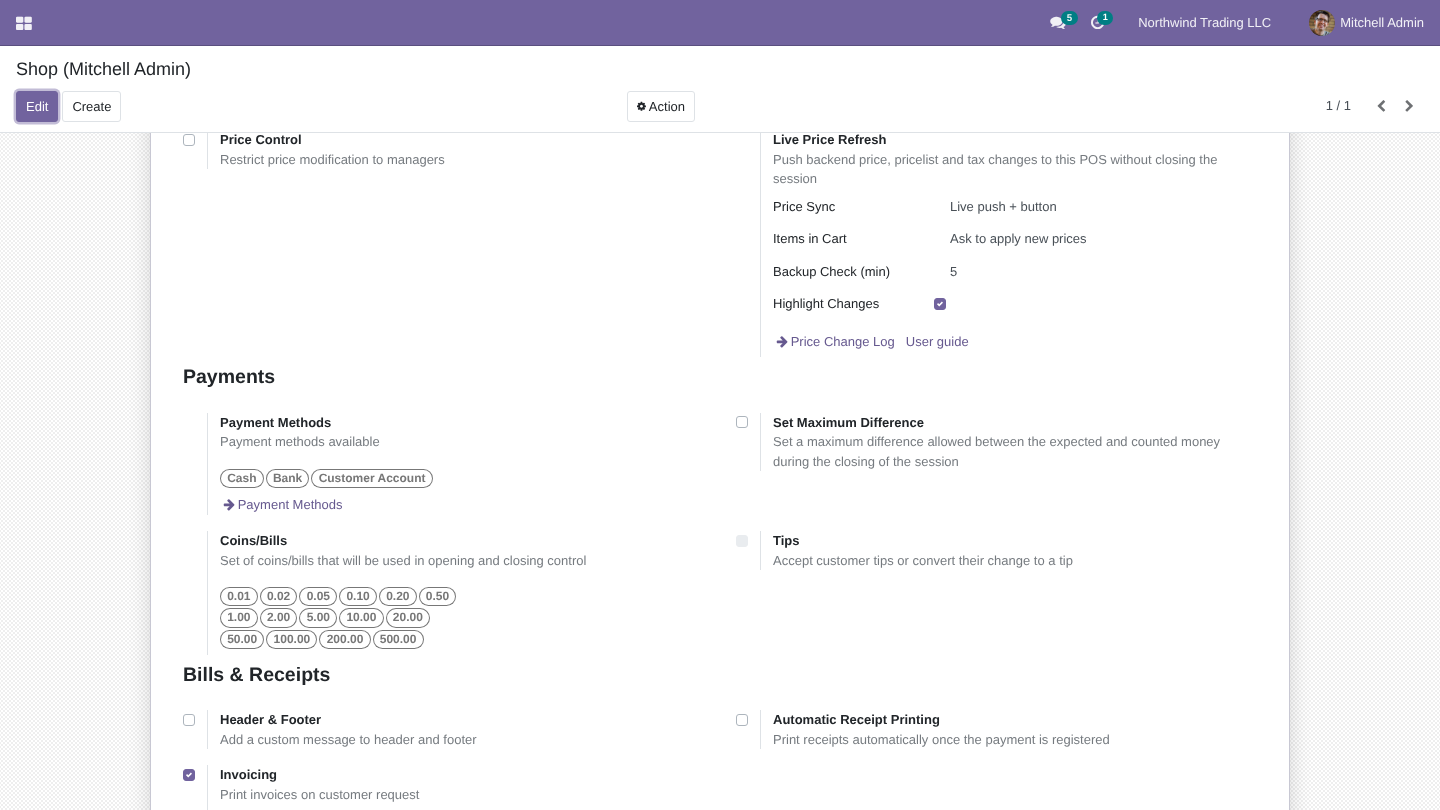
- Go to Point of Sale → Configuration → Point of Sale and open your Point of Sale.
- In the Pricing section, find Live Price Refresh.
- Change the options and click Save.
On 13.0, Odoo does not allow changes to a Point of Sale while one of its sessions is open: close the session first.
Settings
| Setting | What it does |
|---|---|
| Price Sync | Live push + button (default): changes reach the POS within seconds and cashiers also have the Refresh Prices button. Button only: nothing arrives by itself; cashiers press Refresh Prices to load the changes. Off: standard Odoo behaviour, prices change when a new session is opened. |
| Items in Cart | What happens to order lines added before a price change. Keep their old price (default): the lines keep their price and the cashier sees a notice. Ask to apply new prices: a window lists each order, item, old and new price; Apply new prices updates them. Wait until cart is empty: the changes are held until the current sale is finished, then loaded. |
| Backup Check (min) | Shown with Live push + button. Every so many minutes the POS also checks for changes, in case the live connection dropped. Default 5. Set 0 to turn it off. |
| Highlight Changes | Briefly marks the product cards whose price just changed (Odoo 14.0 to 20.0). |
Price Change Log opens the list of changes. User guide opens this guide.
A POS reads these settings when it starts. After changing them, reload the POS page (or open the session again) for them to apply.
What counts as a change
| Change in the back office | What the POS gets |
|---|---|
| Sales price, taxes, name, barcode, internal reference, POS category, unit of measure of a product | The product with its new values |
| A product made available in the POS, or a new product available in the POS | The new product |
| Available in POS or Can be Sold unticked, product archived or deleted | The product disappears from the POS |
| Variant added, archived or changed; attribute extra price changed | The product's variants |
| Pricelist rule created, changed or deleted | The rules of the POS's pricelists |
| Pricelist name, currency or archive status | The pricelist and its rules |
| Tax amount, computation, name or included-in-price setting | The tax |
Changes are only recorded while at least one POS session is open: a session that opens later loads everything from the server anyway.
Was this page helpful?