Receipt designs
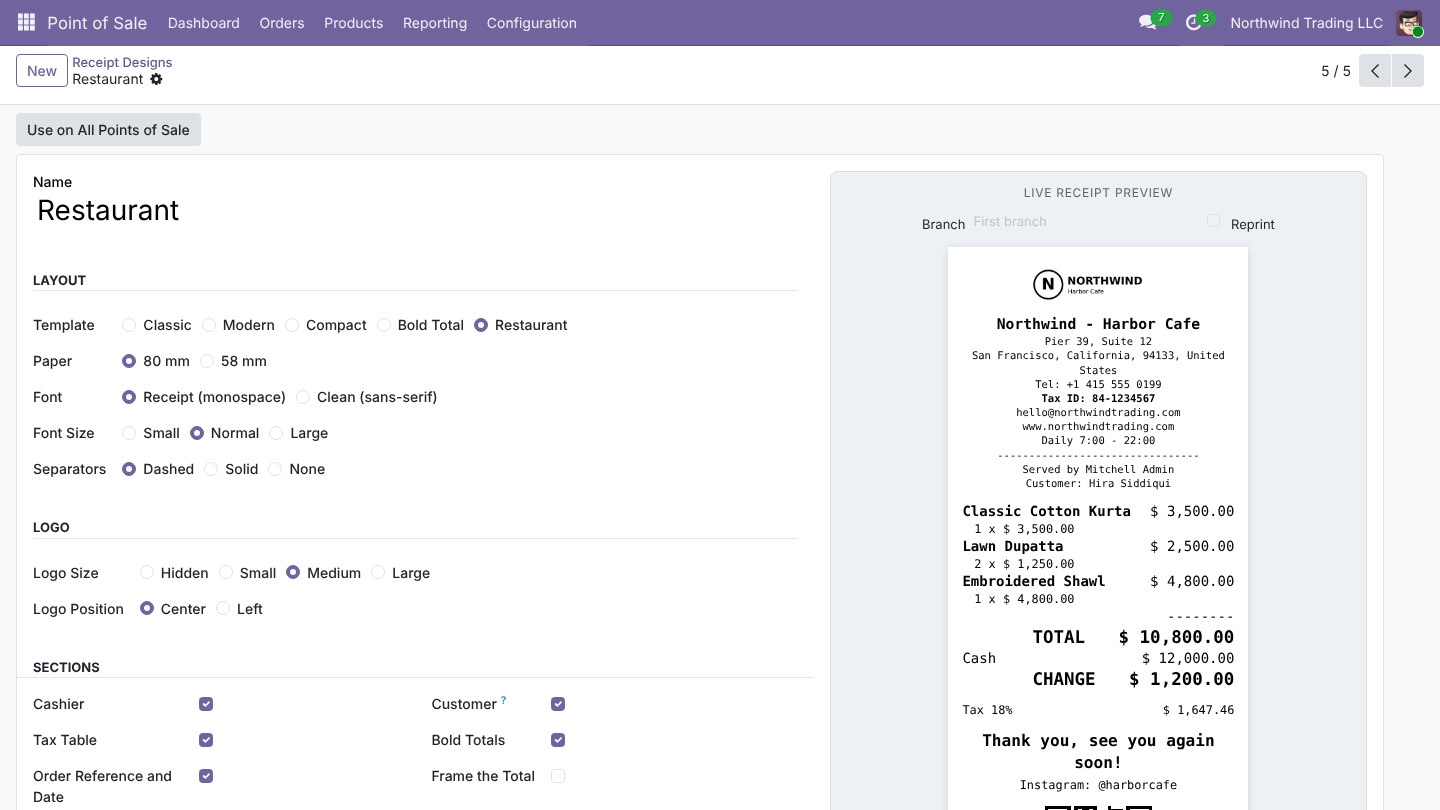
Receipt designs come with Odoo POS Receipt Designer. You need the Point of Sale / Administrator right.
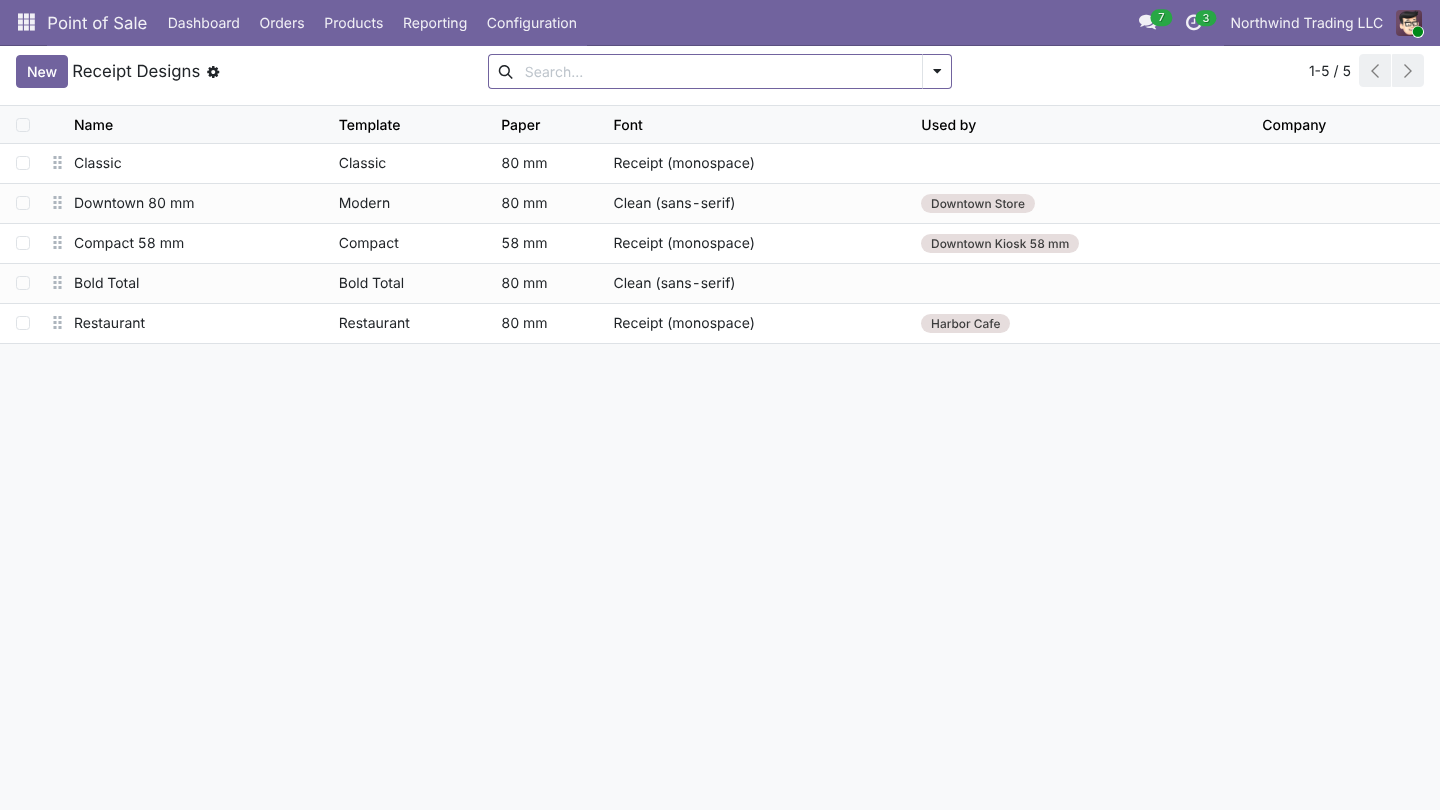
Go to Point of Sale → Configuration → Receipt Designs. Five designs are ready to use: Classic, Modern, Compact 58 mm, Bold Total and Restaurant. Open one to change it, or click New to start your own.
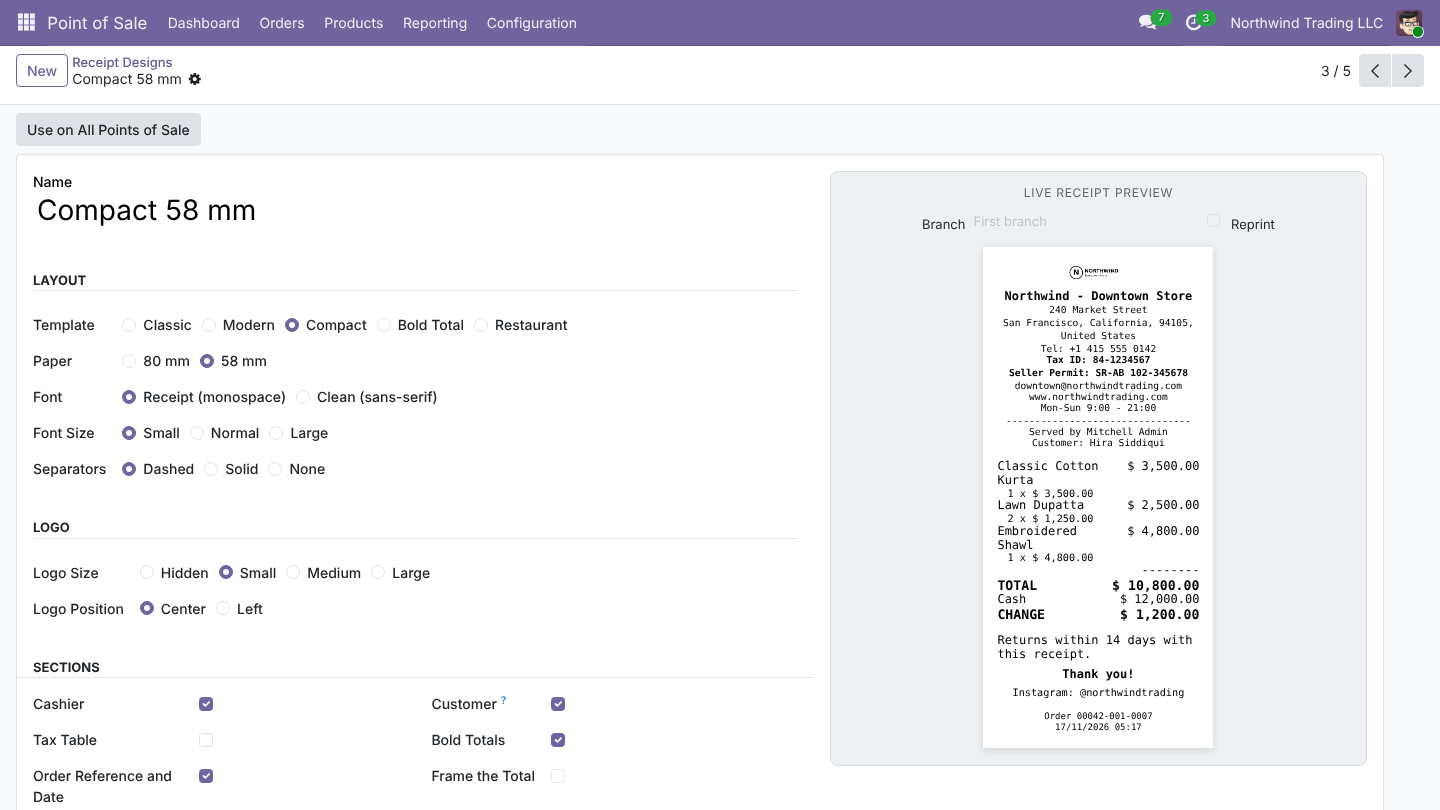
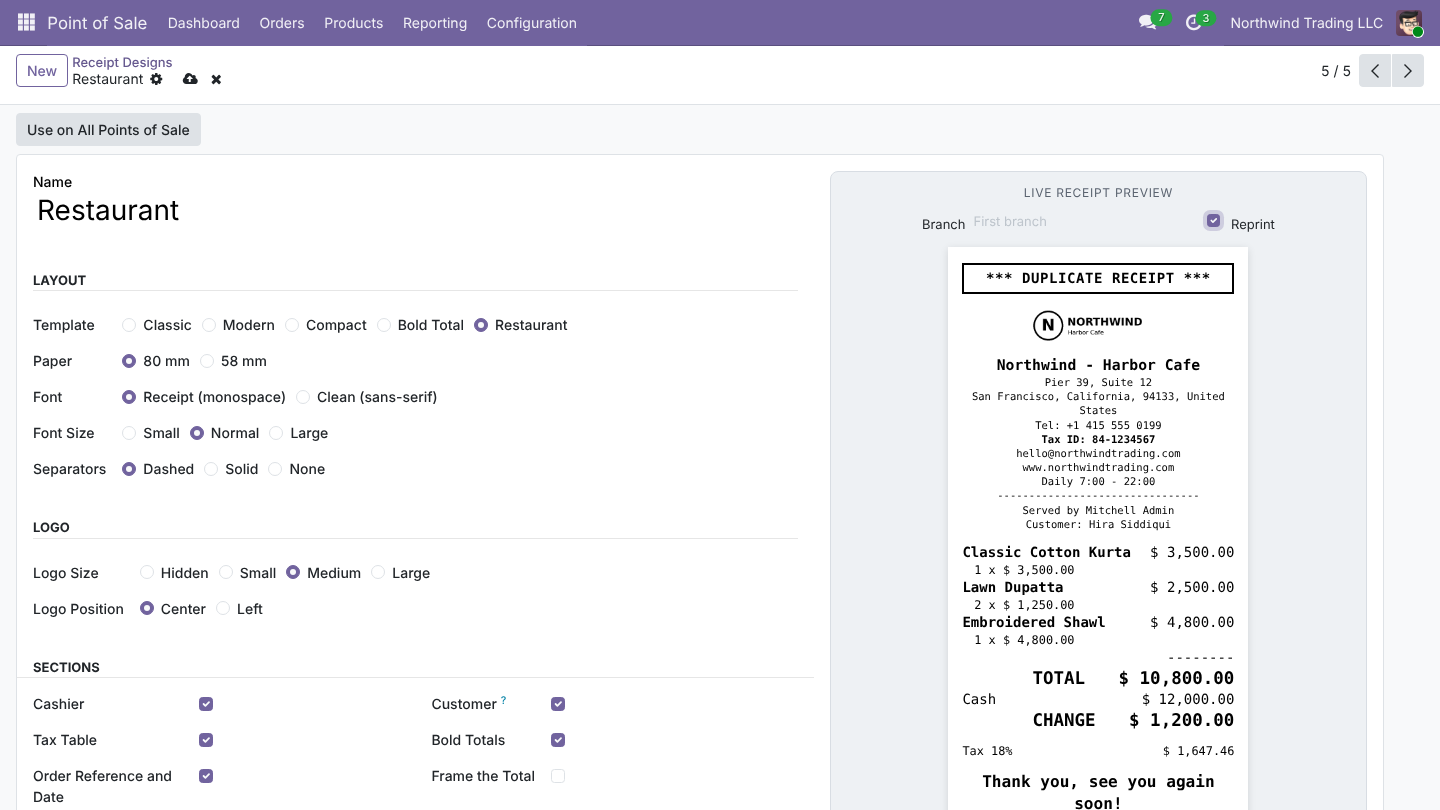
The Live receipt preview on the right shows a sample order with every change. Use Branch above the preview to see the design with another branch's logo and details, and tick Reprint to see the DUPLICATE banner.
Layout
| Field | What it does |
|---|---|
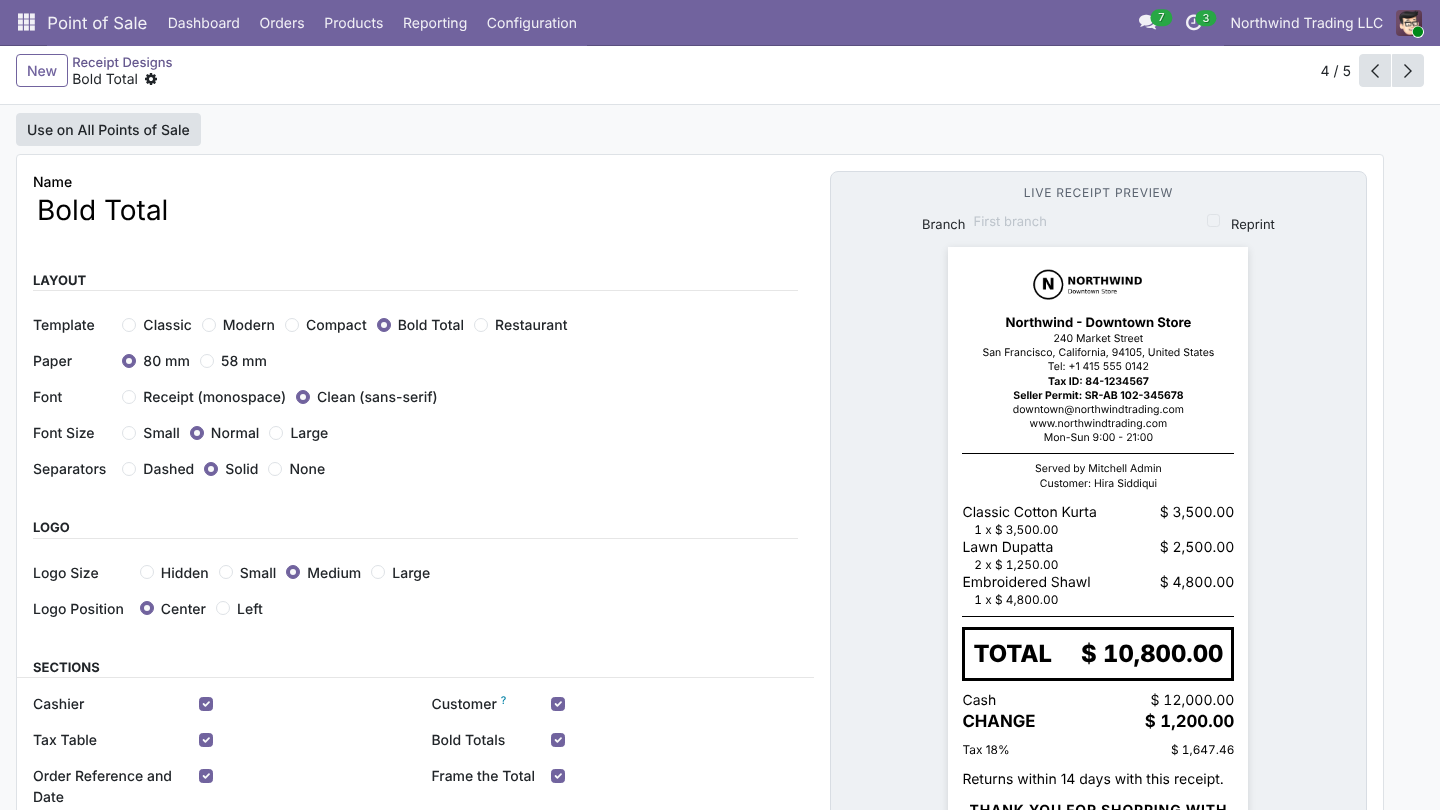
| Template | The base look. Classic: Odoo's layout, cleaned up. Modern: left-aligned header, total between two lines. Compact: tight spacing for narrow paper. Bold Total: a large, framed total. Restaurant: a large order number and bold item names. |
| Paper | 80 mm or 58 mm. The image sent to the printer is sized for the paper: 512 or 384 dots wide. |
| Font | Receipt (monospace) or Clean (sans-serif). |
| Font Size | Small, Normal or Large. |
| Separators | Dashed, Solid or None for the lines between sections. |
Logo
| Field | What it does |
|---|---|
| Logo Size | Hidden, Small, Medium or Large. |
| Logo Position | Center or Left. Left also aligns the branch details to the left. |
Sections
| Field | What it does |
|---|---|
| Cashier | Shows "Served by ...". |
| Tax Table | Shows the taxes block. |
| Order Reference and Date | Shows the order number and date at the bottom. |
| Customer | Shows the customer (Odoo 19.0 and 20.0 print the customer on the receipt). |
| Bold Totals | Prints the total and change in bold. |
| Frame the Total | Draws a box around the total. |
Footer
| Field | What it does |
|---|---|
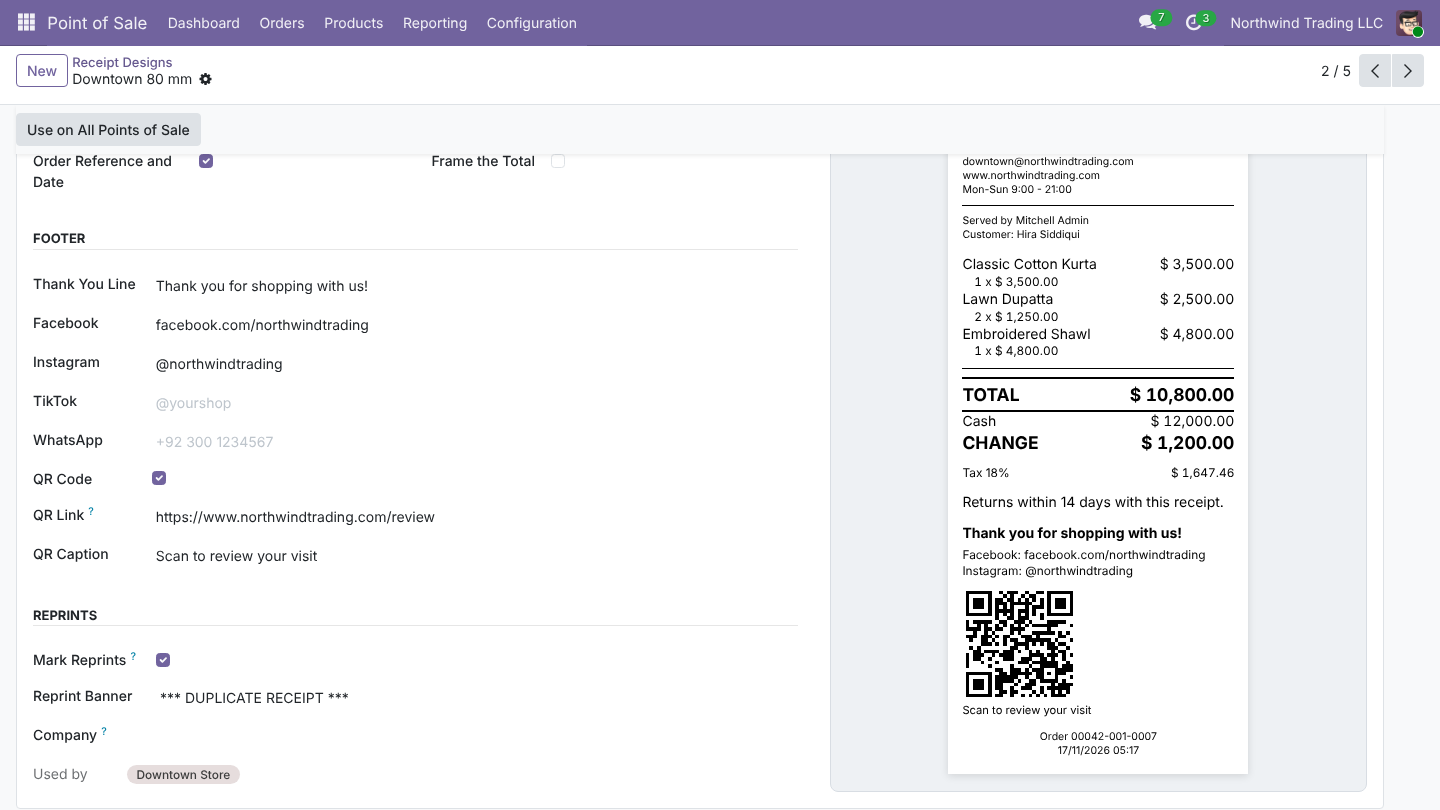
| Thank You Line | A bold line under the receipt, for example "Thank you for shopping with us!". Translatable. |
| Facebook, Instagram, TikTok, WhatsApp | Printed one per line, for example "Instagram: @yourshop". Leave empty to hide. |
| QR Code | Prints a QR code. |
| QR Link | Any link: your Google review page, your menu, a loyalty sign-up. The QR code is made in Odoo and prints without internet. |
| QR Caption | A short line under the QR code, for example "Scan to leave a review". |
Reprints
| Field | What it does |
|---|---|
| Mark Reprints | Receipts printed a second time carry a banner. On by default. |
| Reprint Banner | The banner text, by default *** DUPLICATE RECEIPT ***. |
A reprint is a receipt printed again from the Orders screen, or printed again after the first print (Odoo 18.0 and later count prints). The receipt shown on screen after a sale stays clean.
Use a design
- In the settings of a Point of Sale, set Receipt Design under Bills & Receipts (see Branches), or
- open the design and click Use on All Points of Sale to set it on every Point of Sale of the current company.
Close and reopen the POS session to load the new design.