Set up
You need the Point of Sale / Administrator right, and access to the company's Fatoora portal (fatoora.zatca.gov.sa) to get one-time passwords (OTP).
1. Company data
ZATCA checks the seller data on every invoice. Open Settings → Companies → (your company) and fill in:
| Field | Note |
|---|---|
| Tax ID (VAT) | 15 digits, starting and ending with 3. |
| Street, Street 2 (district), City, ZIP, State | The national address. ZIP has 5 digits. |
| Building Number | 4 digits. |
| Identification Scheme and Identification Number | Usually CRN (commercial registration) and its number. |
The setup wizard lists what is still missing at the top.
2. One ZATCA unit per till
ZATCA calls each device that issues invoices an EGS unit. In Odoo a unit is a sales journal with its own certificate and its own chain of invoices (ICV and previous invoice hash). Give every till its own unit: two tills that share one journal share one chain.
- Go to Point of Sale → ZATCA → Overview.
- On the till's card, click Set up ZATCA unit.
- Choose the ZATCA environment: Sandbox to try (any OTP works), Simulation (Pre-Production) to test with your real Fatoora simulation account, Production to go live. The environment is set for the whole company.
- Choose the Mode:
- Create a dedicated ZATCA unit (journal) for this point of sale: creates a sales journal (name and code below) and makes it the till's invoice journal. Use this when the till shares its journal with another till or with the back office.
- Onboard the current invoice journal: onboards the journal the till already uses.
- On the Fatoora portal, go to Onboard new solution unit/device and generate an OTP. Enter it in OTP.
- Click Onboard.
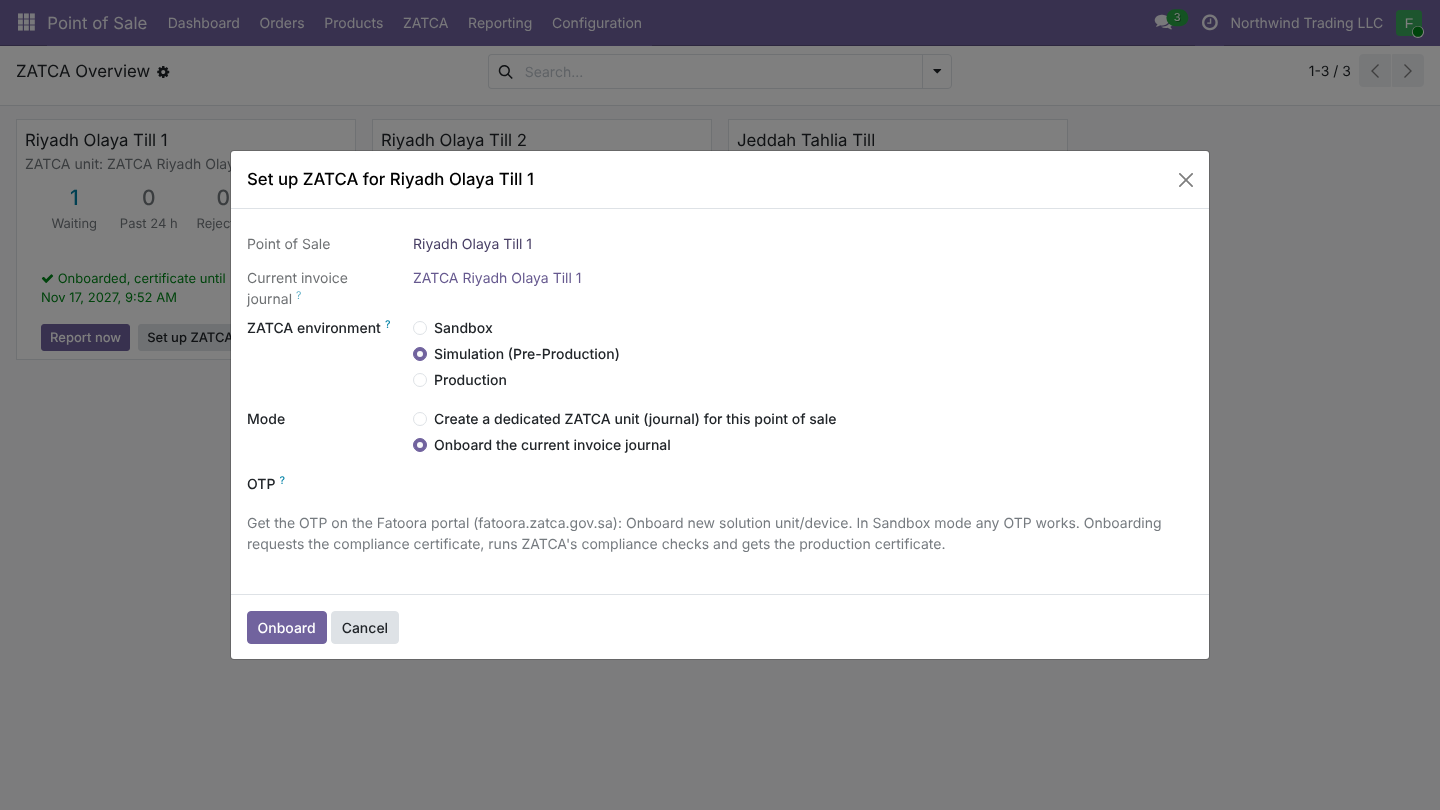
Onboarding runs Odoo's own three steps: compliance certificate (CCSID), ZATCA's compliance checks, then the production certificate (PCSID). When it succeeds, the card shows Onboarded with the certificate's end date. If ZATCA refuses, the error is shown and nothing is changed.
Close the till's open session first: the invoice journal of a till cannot change while a session is open.
3. Settings
Go to Point of Sale → Configuration → Settings, choose the Point of Sale at the top, and scroll to ZATCA Phase 2. The section shows for companies in Saudi Arabia only.
On Odoo 15.0 the two per-till settings are on the Point of Sale form instead (Point of Sale → Configuration → Point of Sales → (till) → ZATCA Phase 2); the alert settings stay in Point of Sale → Configuration → Settings.
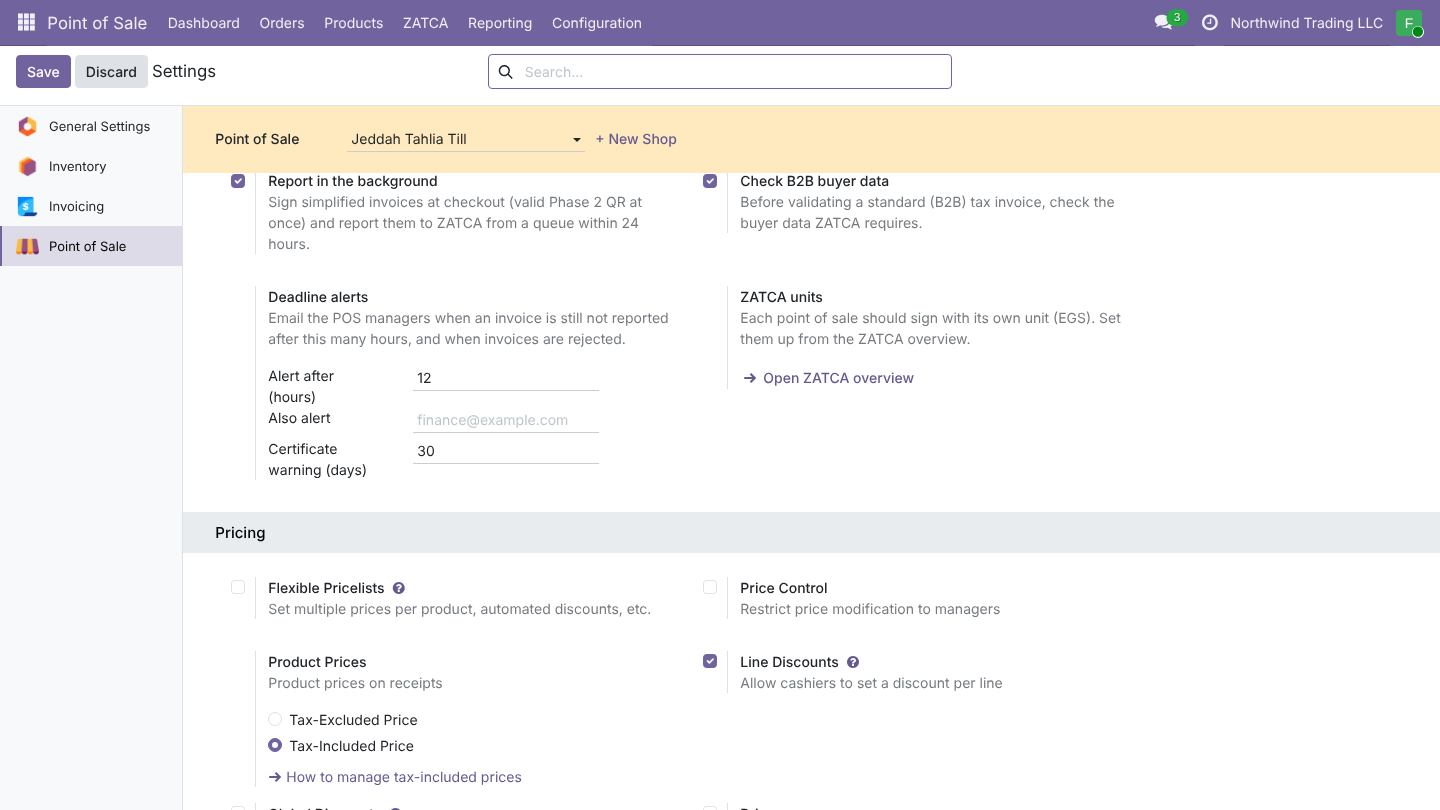
| Setting | What it does |
|---|---|
| Report in the background | Per till. Simplified invoices are signed at checkout and reported from the queue. On by default. When off, the till uses Odoo's own flow. |
| Check B2B buyer data | Per till. Before a standard (B2B) tax invoice is validated, the till checks the buyer data ZATCA needs. On by default. See At the till. |
| Alert after (hours) | For the whole database. An email goes to the POS managers when a simplified invoice is still not reported this many hours after the sale. Default 12. ZATCA allows 24. |
| Also alert | Extra email addresses for the alerts, comma separated. |
| Certificate warning (days) | How many days before a unit's production certificate expires the managers get an email. Default 30. |
The alerts go to every active user in the Point of Sale / Administrator group of the company who has an email address, plus Also alert. The database needs a working outgoing mail server.
The background jobs
Two scheduled actions come with the app (Settings → Technical → Scheduled Actions):
- ZATCA POS: report signed invoices: every 2 minutes, and also right after each sale.
- ZATCA POS: deadline and certificate alerts: every hour.
Keep both active.