Point of Sale
POS Court Booking puts a Book Court button in the Odoo Point of Sale.
Turn it on
In Point of Sale > Configuration > Settings, choose the till, then under Court Booking:
- tick Court Booking,
- choose the Facility types this till can book,
- choose the Advance product used when a player pays part now (a service product with its own income or liability account, as your accountant prefers).
Quick Book
Book Court opens Quick Book: pick the day and the playing time, and the free start times appear with their price and how many courts are free. Tap a time to add the booking to the order.
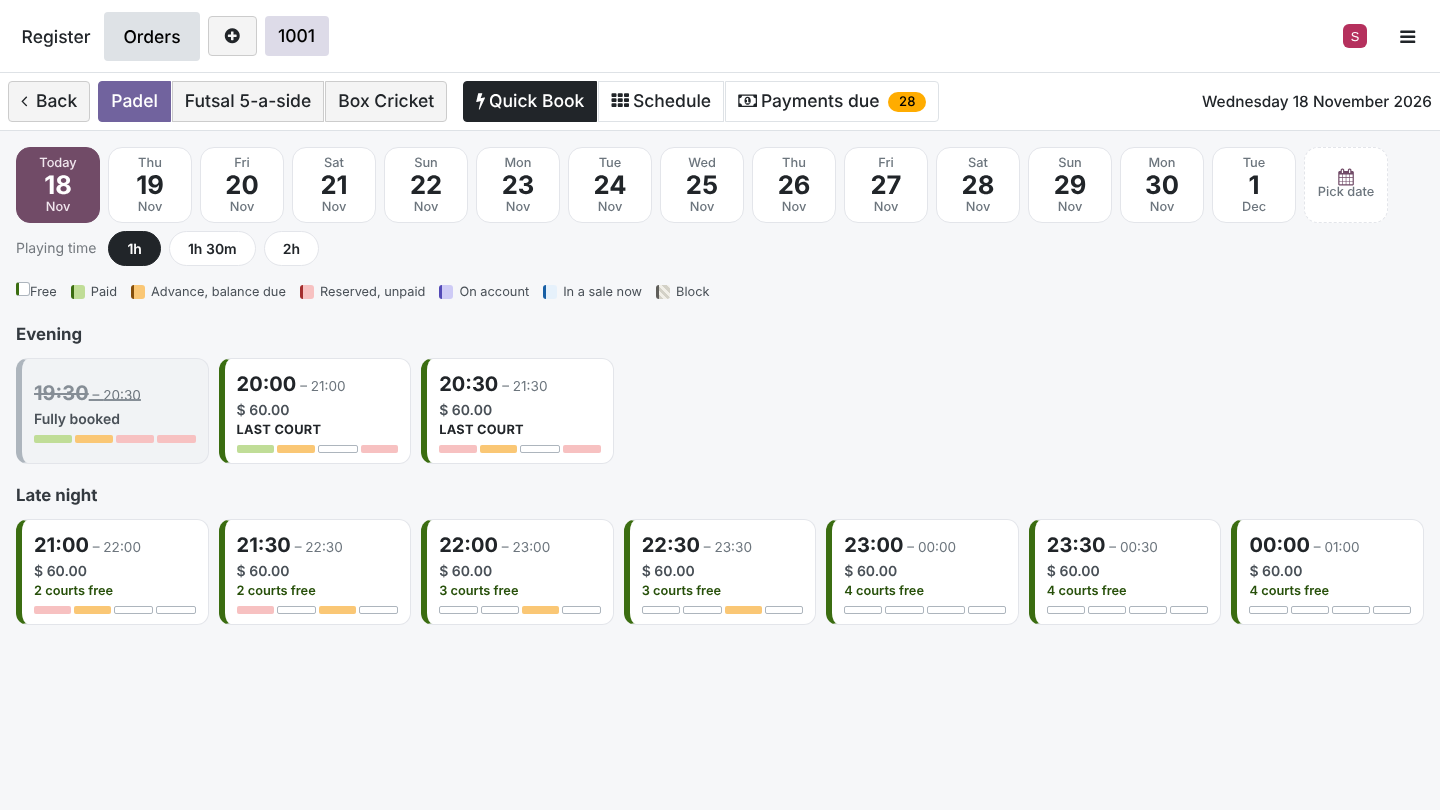
The booking is a line on the order like any product, so discounts, promotions, bank offers and taxes apply to it, and the court and time print on the receipt. While the order is open, the court shows as In a sale now everywhere, so nobody else can take it.
The schedule at the till
Schedule shows every court of the day, as in the back office. Tap a free slot to book a specific court, or a booking to see it.
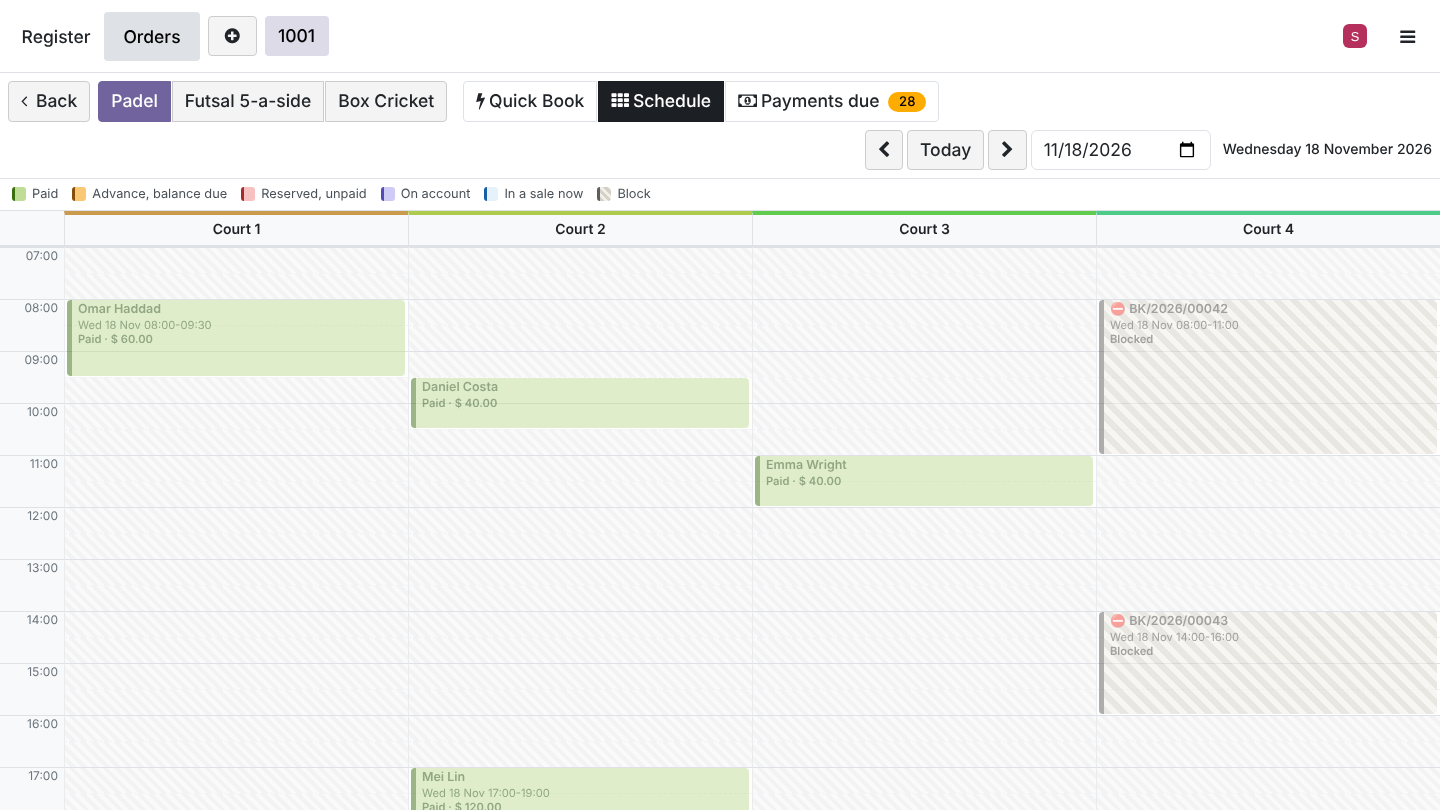
Payments due lists today's bookings that are not fully paid, so the cashier can collect when the players arrive.
Ways to pay
- Pay in full: the booking is paid and turns green.
- Advance: take part of the price now with the advance product. The booking is confirmed; on arrival, the advance and any online deposit are deducted automatically from the balance.
- Reserve now, pay on arrival: the booking is confirmed unpaid (red) and appears under Payments due.
- On account: with a customer account payment method, the booking counts as charged to the customer.
Several bookings can go on one order, together with drinks, rentals and coaching.
Refunds and cancellations
Refunding the booking line in the POS cancels the booking and frees the court. Refunding an advance cancels the booking it was paid for.