Import orders
When orders arrive
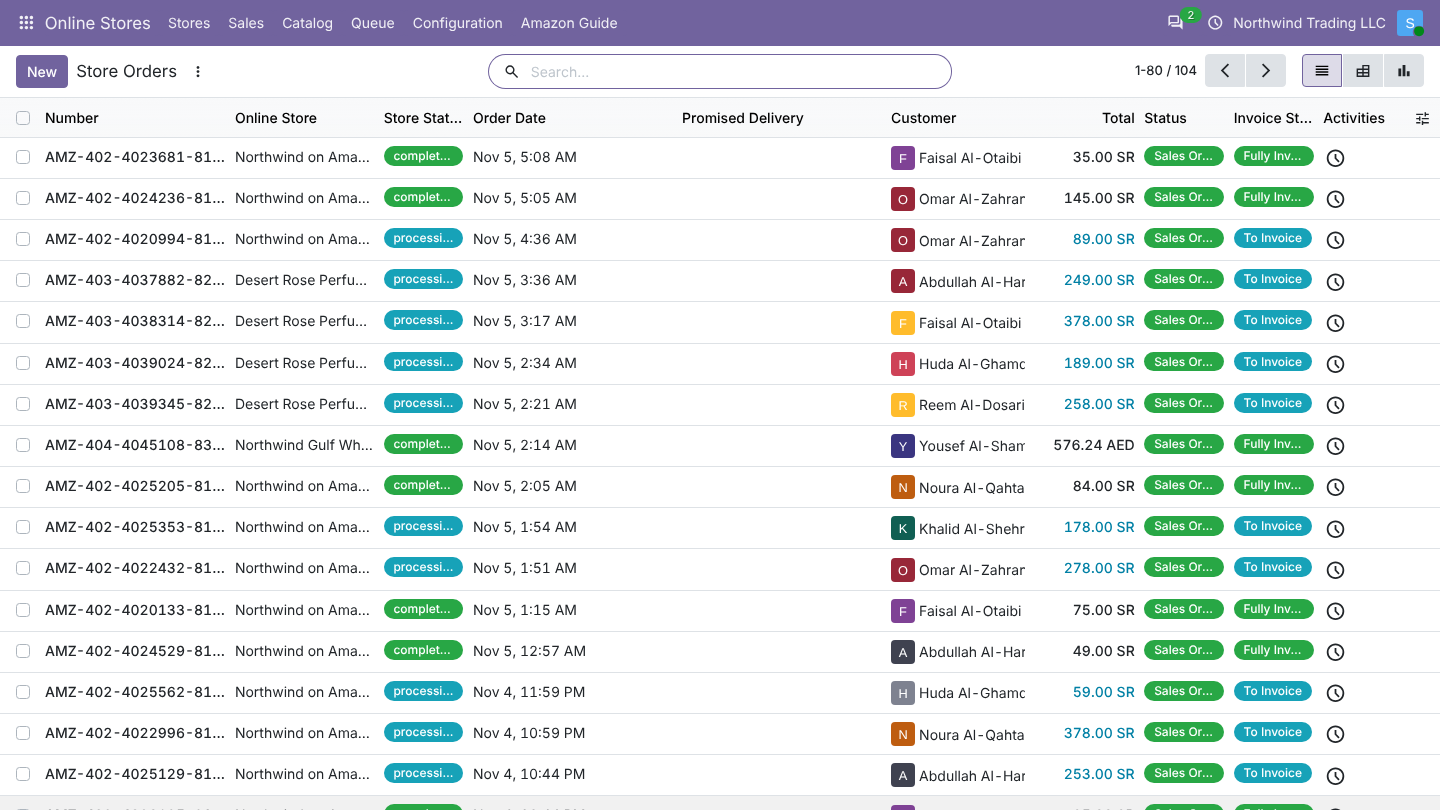
- Every 15 minutes (change it on the Schedules tab) Odoo asks Amazon for orders created or changed since the last check, on every active marketplace of the store. Check Orders Now on the store (or Sync Orders on its card) checks at once.
- The first check starts from Import Orders From on the Orders tab. To import older orders, set an earlier date and click Check Orders Now.
- Each order becomes a sales order named with the store prefix and the Amazon order number, for example AMZ-403-4037056-8259392, and keeps the date the buyer ordered.
Amazon statuses
| Amazon status | In Odoo |
|---|---|
| Pending (payment not confirmed) | Waits, or imported as a quotation with Import Pending Orders as Quotations |
| Unshipped, Partially shipped (FBM) | Confirmed order, delivery ready in your warehouse |
| Shipped (FBM) | Invoiced and paid (with the default Amazon FBM payment method) |
| Shipped (FBA) | Delivered from the FBA warehouse and invoiced |
| Canceled | Cancelled in Odoo, see Cancellations |
Later changes (status, cancellation) update the same Odoo order.
What an order contains
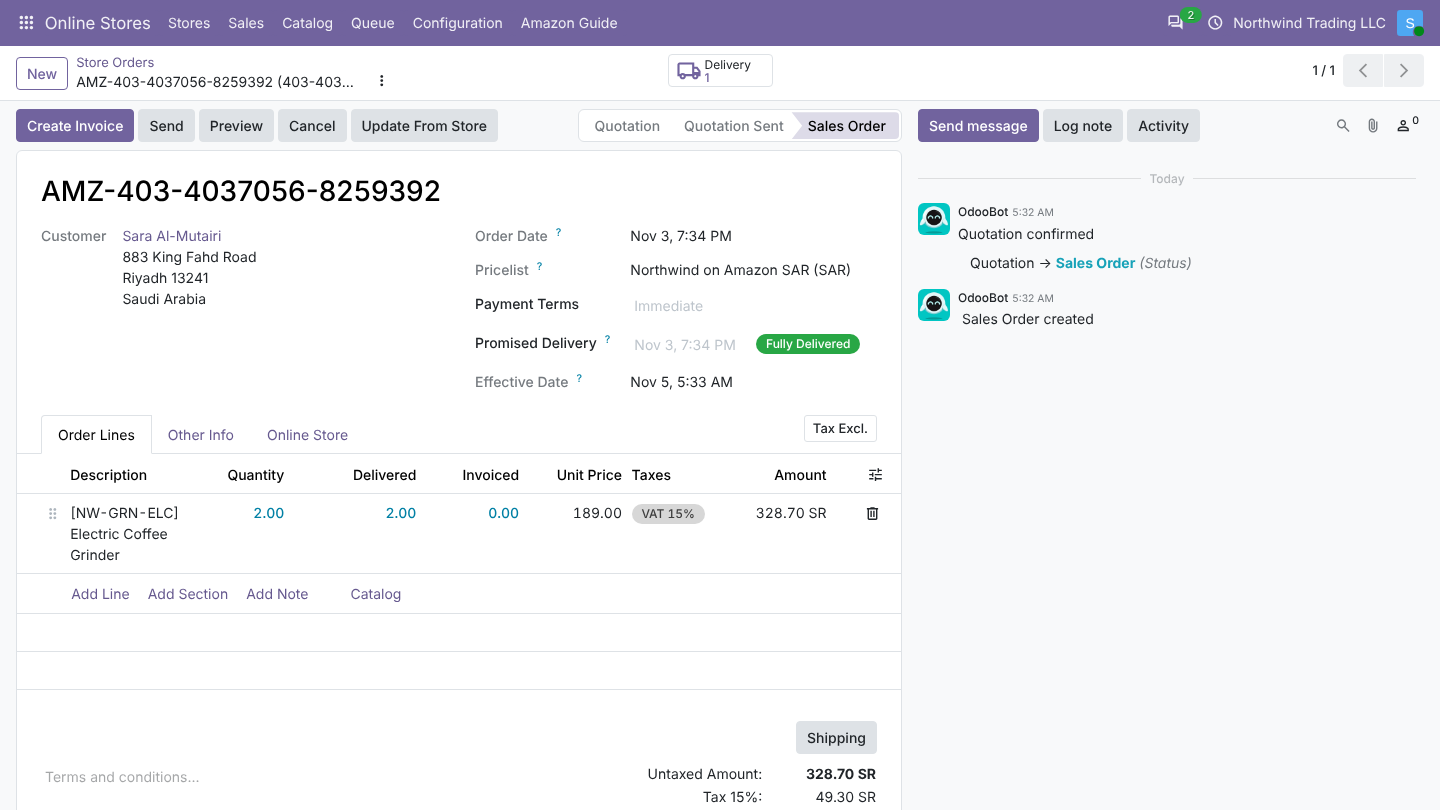
- Customer: the buyer's name and Amazon's anonymised e-mail (for example
[email protected]). Each buyer e-mail is one customer, so repeat buyers are found again. - Delivery address from the order (FBM orders, with the restricted role Direct-to-Consumer Shipping). Removed after the days set in Remove Buyer Addresses After.
- Product lines by seller SKU, matched with your listings. Unknown SKUs: with Import Unknown Products With Orders (on by default) Odoo creates the product from the Amazon listing; with it off, the order waits with Products not found in Odoo.
- Shipping, gift wrap and promotions as separate lines, with their VAT.
- VAT mapped to your Odoo taxes, see Taxes and VAT. Odoo compares its total with Amazon and flags orders that differ.
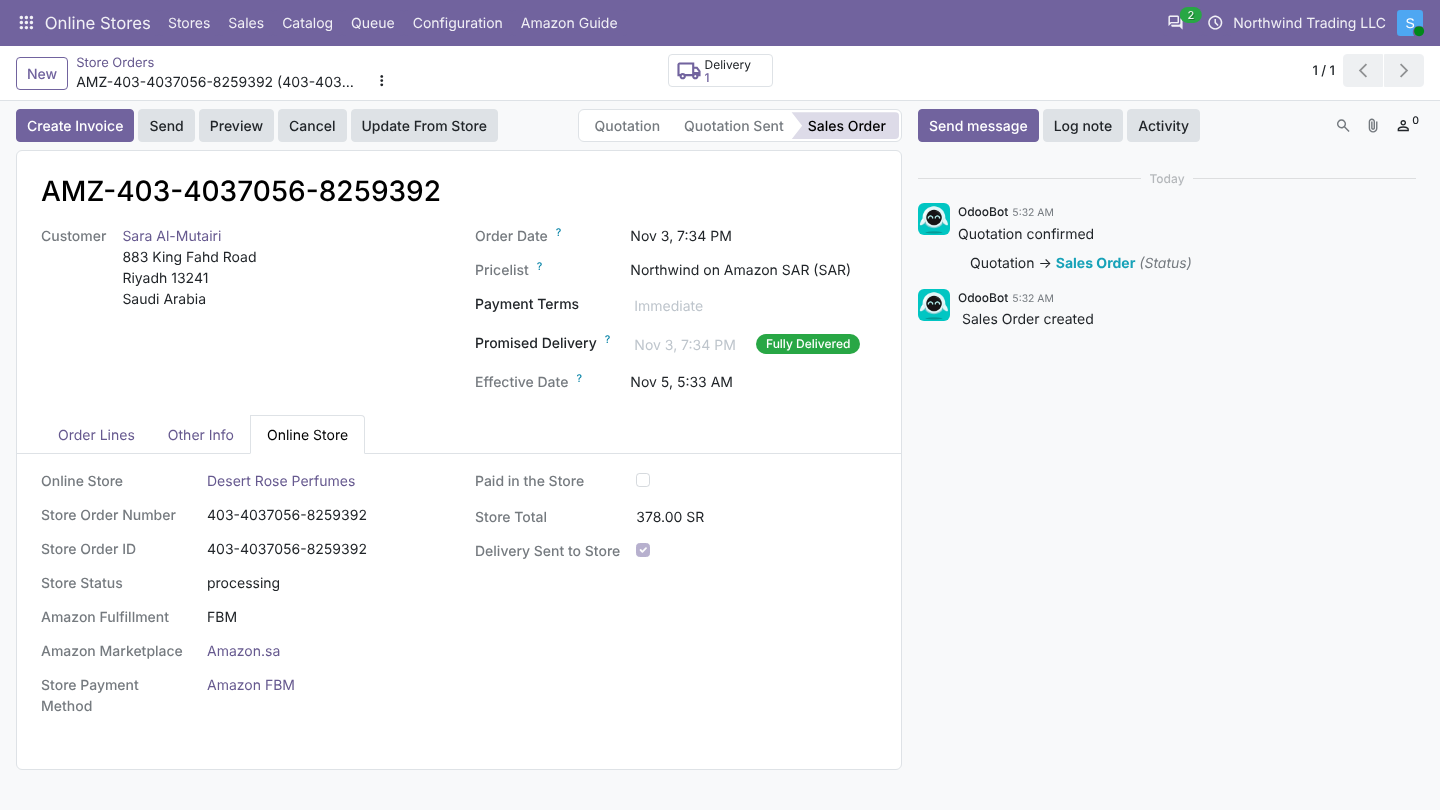
- The Online Store tab shows the Amazon order number and status, the marketplace, FBM or FBA, and whether the shipment was sent.
Besides product lines, an imported order can have shipping, discount and fee lines. Each uses a product, so they land on the right accounts and reports.
Shipping
- Every shipping method Amazon uses gets a line in Online Stores > Configuration > Shipping Methods (name and Store Code) the first time it appears.
- Set an Odoo Product on a method to book its shipping lines on that product, for example one product per carrier. Empty: the store's Shipping Product (Shipping (online store),
CB-SHIP). - Set an Odoo Delivery Method on a method to put that carrier on the order and its delivery (carrier name and tracking on the delivery slip, carrier reports). The shipping price stays the one the store charged.
- The line amount is the shipping price after shipping discounts, without tax, with the tax the store charged on shipping.
- Without any shipping product, the order waits with Set a shipping product on the store.
Discounts
Product lines are imported at their price before discounts. The discounts (discount codes, automatic discounts, coupons) become discount lines with the Discount Product (Discount (online store), CB-DISC), with a negative price:
- one discount line per combination of taxes, so each discount reduces the right tax (a store with 13% and 5% products gets two discount lines);
- labelled Discount, or Discount (CODE1, CODE2) with the codes used; the codes are also shown in Coupons on the order's Online Store tab.
Separate discount lines keep the product prices clean in your sales reports, and show the total discount given per order.
Fees
Fee lines (sent by some platforms, for example a payment surcharge or gift wrap) use the Fee Product (Fee (online store), CB-FEE). Without a fee product, such an order waits with Set a fee product on the store.
Tips and duties
- A tip the customer added at checkout becomes a line with the Tip Product (Tip (online store),
CB-TIP), at the tip amount, without tax. - Import duties charged on a cross-border order become a line with the Duties Product (Duties (online store),
CB-DUTIES). - Both are services, so they are invoiced with the order but never delivered. Without them the order total would differ from the store.
Custom items, deleted products and gift cards
- A line without a product in Amazon (a Shopify custom item added by hand, or a product deleted in the store after the order) uses the store's Custom Item Product (Custom item (online store),
CB-CUSTOM), with the store's line name and price. Set Custom Item Product (shipped) to use a storable product for custom items that need shipping. - Gift cards sold in the store use the Gift Card Product (Gift card (online store),
CB-GIFTCARD), a service. - Without such a product, the order waits with Set a custom item product on the store (Orders tab).
Good to know
- The products are created when the app is installed. You can rename them, change their accounts and taxes, or choose other products on the store.
- Change the products before the first import: existing orders keep their lines.
Orders without prices
Amazon sends prices once the payment is confirmed. If a confirmed order still arrives without the price of a line, Odoo confirms it so the stock stays reserved, but it does not deliver, invoice or register a payment. The order shows Amazon Price Missing, the Log names the SKUs and the Alert Users get a to-do. Check the prices against Seller Central, correct the lines, then untick Amazon Price Missing: the next update of the order continues as usual. Filter Amazon Price Missing in the sales orders to see them all.