Create your developer app
Odoo talks to Amazon through the Selling Partner API (SP-API) with a small app that you register for your own seller account. It is free and only your Odoo uses it. You do this once per seller account. Plan for one to two days in total: the steps take about an hour, then Amazon reviews your identity and your profile.
- Use the login of the primary user of the seller account (the account owner). Other users, even with full admin rights, do not see Develop Apps or get Not Authorized: ask the account owner to do these steps, or to sit with you.
- You need a Professional selling plan.
- Have at hand: your commercial registration (company name exactly as on the seller account) and an identity document of the account owner or the company's legal representative. Amazon may also ask for a selfie or a short video check.
- Amazon charges nothing for registering or for using the API.
- Prefer one click instead of keys? Link with Amazon is coming soon (see Connect the store).
1. Open the Solution Provider Portal
- Sign in to Seller Central of your home marketplace (for example
sellercentral.amazon.sa) with the primary user's login. - Open the menu and go to Apps and Services > Develop Apps (on some marketplaces: Partner Network > Develop Apps). You can also open
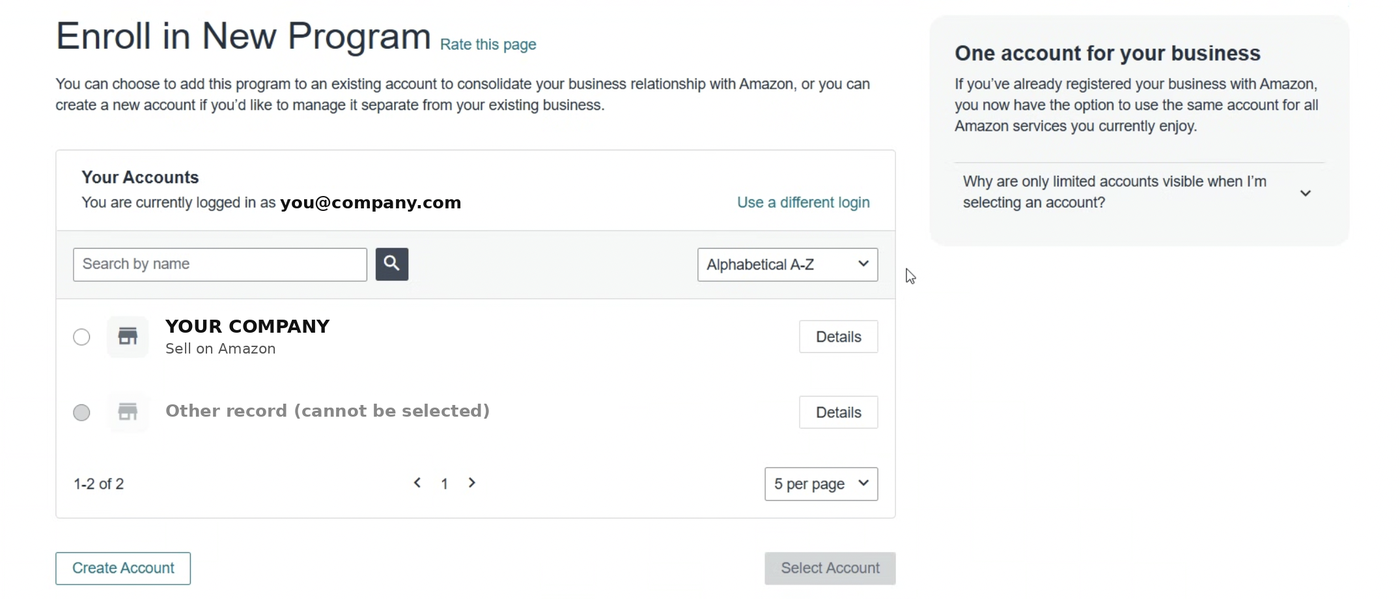
https://solutionproviderportal.amazon.com/developer/registerdirectly in the same browser. - Amazon shows Enroll in New Program with your accounts. Select your seller account (it says Sell on Amazon) and click Select Account.
-
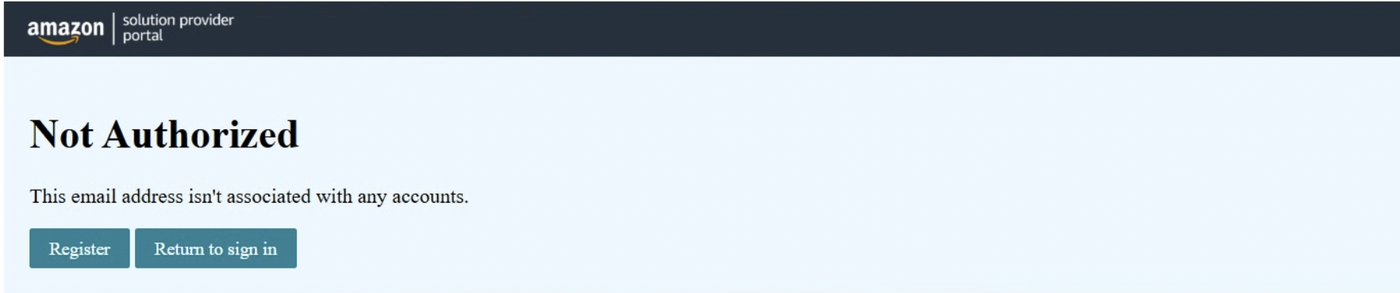
This email address isn't associated with any accounts: the browser is signed in with another Amazon login. Sign out of Amazon (or use a private window) and start again from Seller Central.
-
Do not click Create Account or Register on these pages: that creates a separate account that is not linked to your seller account.
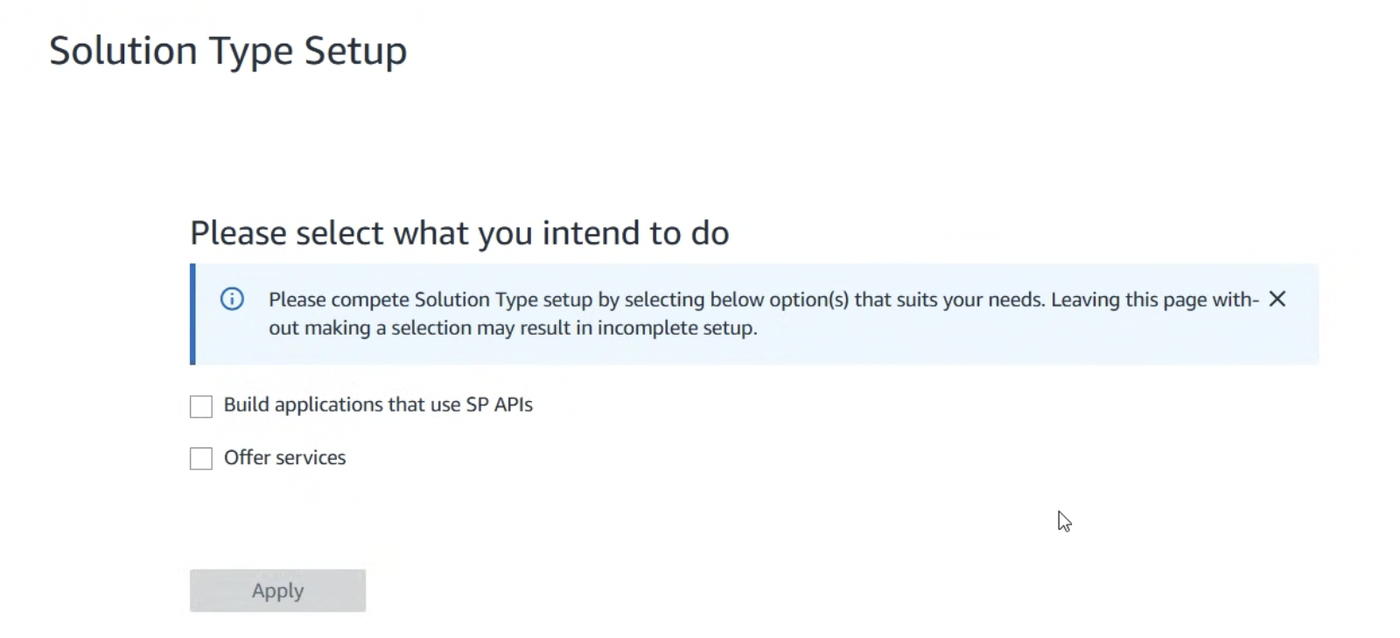
- On Solution Type Setup, tick only Build applications that use SP APIs and click Apply.
2. Verify your identity
-
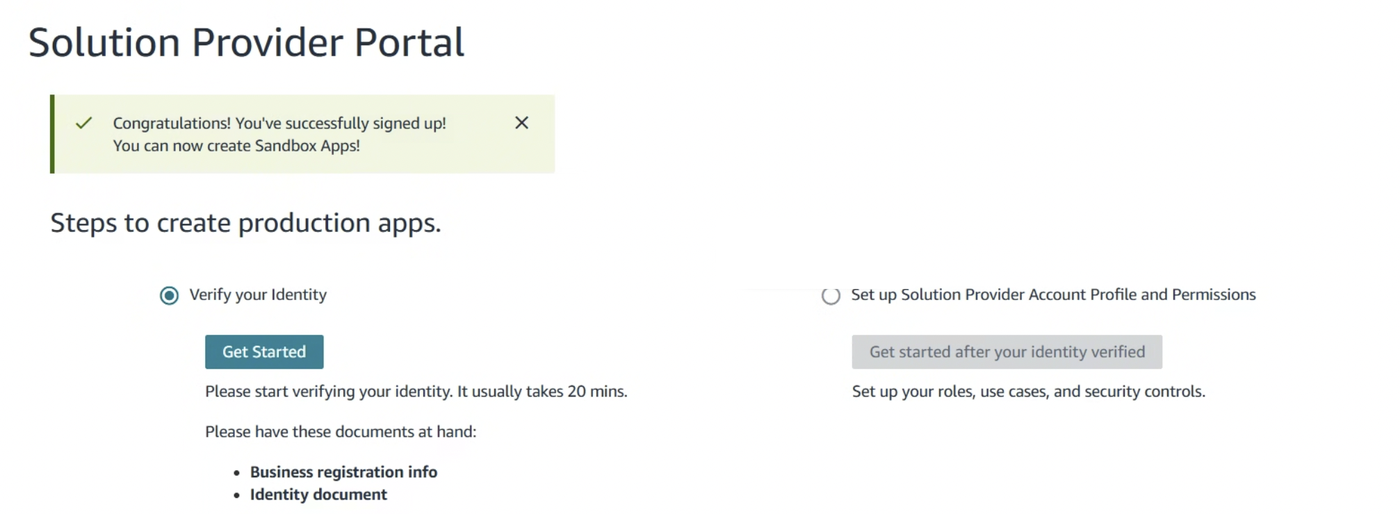
On the portal home page, under Steps to create production apps, click Get Started next to Verify your Identity.
-
Enter the business registration details and upload the identity document. The person verifying must be the account owner or the company's legal representative.
-
Amazon says it usually takes 20 minutes; it can take a day or two. If your seller account is already verified, Amazon often confirms your identity straight away (Based on partner accounts associated with your profile, we have confirmed your identity) and returns you to the portal home page.
Until then the portal only lets you create sandbox apps, which return test data and cannot reach your store.
3. Set up your developer profile
- When your identity is verified, click Set up Solution Provider Account Profile.
- Under Data Access choose Private Developer: I build application(s) to integrate my own company with Amazon. Do not choose Public: that is for companies that sell apps to other sellers.
- Fill in the organisation and contact details, and explain that you connect your own Amazon account to your own Odoo ERP.
- Select the marketplaces you sell in and the roles below. Amazon asks a few questions about how you protect data for some of them; suggested answers follow the table.
| Role | Why the connector needs it |
|---|---|
| Product Listing | Read your listings and offers; send prices. |
| Pricing | Read and send prices per marketplace. |
| Inventory and Order Tracking | Read orders; send FBM stock and shipment confirmations. |
| Amazon Fulfillment | Read FBA stock and FBA customer returns. |
| Finance and Accounting | Read refunds and settlements. |
| Selling Partner Insights | Read your marketplaces (Test Connection). |
| Direct-to-Consumer Shipping (restricted) | Read the buyer's name and delivery address of FBM orders, so you can ship them. |
| Tax Invoicing (restricted) | Read the buyer's billing details for invoices. |
The two restricted roles give access to buyer data. You need them for FBM orders with addresses. If you only sell FBA, you can leave them out: orders then come without the buyer's address.
Suggested answers to Amazon's data protection questions (adapt them to your company):
- Buyer data is stored only in our own Odoo database, which is protected by user logins and access rights, reached over HTTPS, and backed up by our hosting provider.
- Buyer addresses are removed from Odoo a set number of days after delivery (the store setting Remove Buyer Addresses After).
- Invoices keep the buyer's name and billing address as long as tax law requires. If Amazon asks how long you keep personal data, choose the option that matches your invoice retention and explain this.
- No third party receives the data.
- Security incidents are reported to Amazon ([email protected]) within 24 hours.
Answer Yes to the security questions only where it is true for your company.
- Submit. Amazon usually approves within a day; the restricted roles can take a few days and sometimes a follow-up question by email. To start sooner, you can leave the restricted roles out and add them later.
4. Add the app
- In the portal, open Apps > Add new app client (on Seller Central: Develop Apps > Add new app client).
- App name: for example Odoo. API type: SP API. No OAuth URIs are needed.
- Select the same roles as in your profile and save.
5. Copy the keys
- In the list of apps, next to your app, click View under LWA credentials: copy the Client identifier (starts with
amzn1.application-oa2-client.) and the Client secret. - Click the arrow next to Edit App and choose Authorize, then Authorize app: copy the refresh token (starts with
Atzr|). - Your Seller ID: Seller Central > Settings > Account Info > Merchant Token.
The client secret and the refresh token give access to your Amazon account. Paste them only into Odoo (only Online Stores administrators can see them), never into email or chat.
Rotating the client secret
Amazon asks you to rotate the client secret every 180 days and shows the deadline next to the app. When you rotate it:
- In Develop Apps, generate the new secret.
- In Odoo, open the store, paste the new LWA Client Secret, save and click Test Connection.
If the deadline passes, the old secret stops working and the jobs fail with invalid_grant until you paste the new one.
Next step
Connect the store in Odoo.