Store settings
Open the store in Online Stores > Stores. The settings below are on its tabs.
Orders tab
The Orders tab of a store decides how Amazon orders become Odoo sales orders. Open it from Online Stores > Stores, click the store, then the Orders tab.
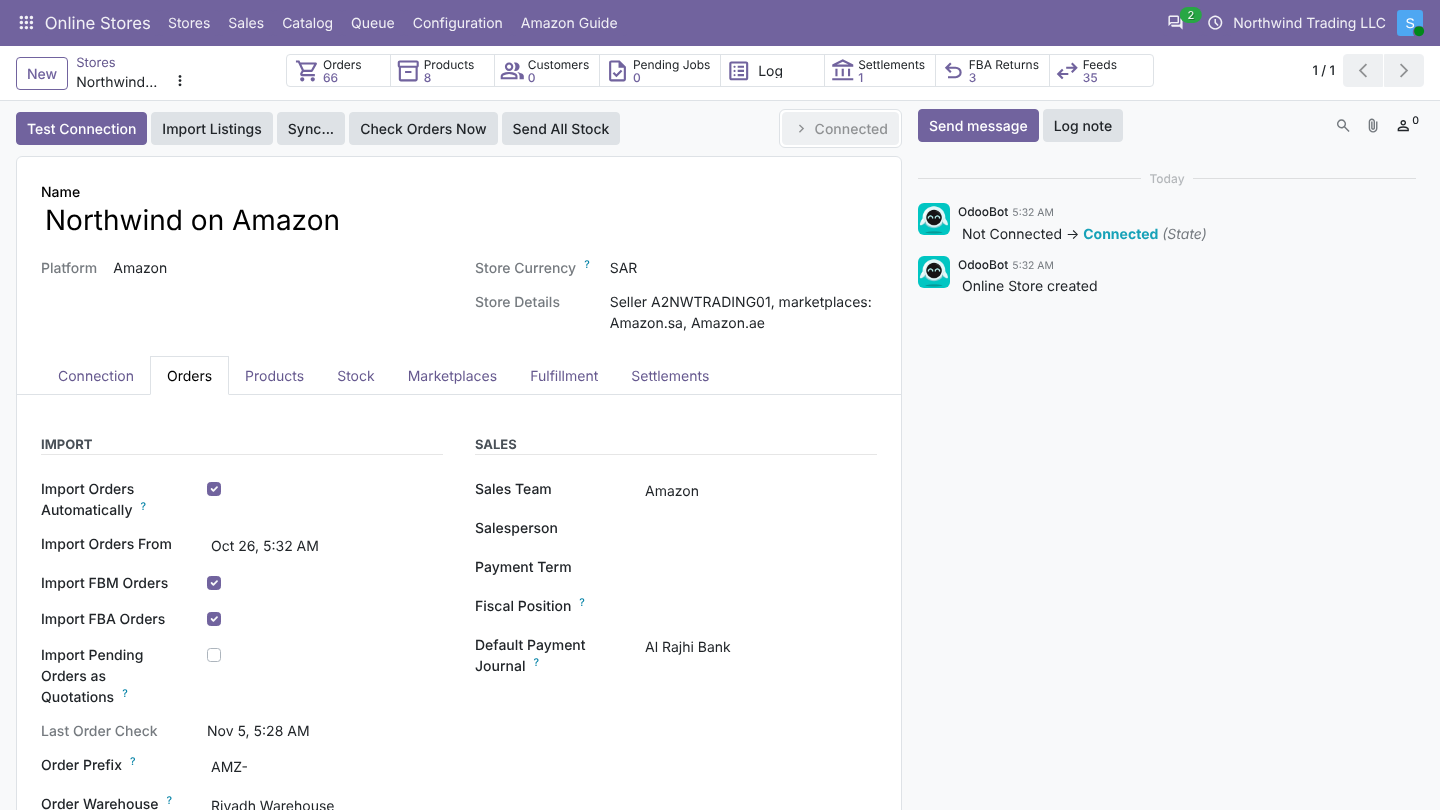
Import
| Field | Default | What it does |
|---|---|---|
| Import Orders Automatically | On | Every 15 minutes (change it on the Schedules tab) Odoo asks Amazon for orders created or changed since the last check. This is the safety net next to webhooks: orders placed while Odoo was offline or while a webhook failed still arrive. |
| Import Orders From | The moment the store was created | The scheduled check never goes further back than this date. Set it before the first check if you want older orders; leave it if you only want new orders. |
| Last Order Check | Empty | Read only. When the scheduled check last ran. The next check starts from here (minus two minutes, so nothing on the edge is missed). Empty means the next check starts from Import Orders From. |
| Order Number | Store order number | Store order number: the Odoo order is named after the Amazon order, with the prefix below. Odoo sequence: Odoo numbers the order as usual (for example S00042); the store number is shown under the platform badge on the order and kept in Customer Reference and Store Order Number, so you can still search by it. Changing it affects new orders only. |
| Order Prefix | AMZ- | Only with Store order number. Added in front of the Amazon order number to build the Odoo order reference, for example AMZ-1001. The plain store number is also kept in Customer Reference and Store Order Number. Change it before the first import: existing orders keep their names. |
| Order Warehouse | The first warehouse of the company | Imported orders are delivered from this warehouse. |
| Pricelist | Empty | The pricelist of imported orders, and the regular prices sent to the store (see prices). When an order comes in another currency, Odoo uses a pricelist in that currency instead (see below). |
When an order's currency differs from the store Pricelist, Odoo takes the first pricelist of the company in that currency. If there is none, Odoo creates one named after the store and the currency (for example Northwind Store CAD) and activates the currency if needed. If the currency does not exist in Odoo at all, the order stops with Currency XXX does not exist in Odoo.
Sales
| Field | Default | What it does |
|---|---|---|
| Sales Team | Empty | Sales team of imported orders. |
| Salesperson | Empty | Salesperson of imported orders. Empty: the salesperson of the customer, if the customer has one, otherwise none. The background jobs never set themselves as salesperson. |
| Payment Term | Empty | Payment term of imported orders. A payment term on the payment method wins over this one. |
| Shipping Policy | Empty | As soon as possible: products in stock are delivered first, the rest follows in a backorder. When all products are ready: one delivery when everything is available. Empty: Odoo's default (Inventory settings). |
| Lock Confirmed Orders | Off | Orders confirmed by the workflow are locked, so nobody changes them by mistake. Updates from the store still apply. Unlock an order from its Unlock button. |
| Customer Receivable Account | Empty | Set on the customers this store creates (and their company), so their invoices are booked on it. Useful to reconcile each store's receivables on their own account. Existing customers keep theirs. Empty: Odoo's default. |
| Invoice and Payment on the Order Date | Off | Invoices and payments created by the workflow are dated on the store order date instead of the import date. Useful when orders are imported late (first import, Odoo offline). |
| Store Order Number as Payment Reference | Off | Invoices carry the store order number (for example #1001) as their payment reference, so bank and payout lines match them easily. Off: Odoo's own invoice reference. |
| Fiscal Position | Empty | Optional. Empty: Odoo picks one from the customer address, as for any sales order. |
| Default Payment Journal | Empty | Given to every payment method Odoo sees for the first time in an order, and Register Payment When Paid is switched on for it when a journal is set. Change it per method later in Configuration > Payment Methods. |
Taxes and Extra Lines
| Field | Default | What it does |
|---|---|---|
| Taxes | Use the taxes charged by the store | Use the taxes charged by the store: every line gets the Odoo tax mapped to the tax Amazon charged. Use the store taxes, then apply the fiscal position: the same, then the order's fiscal position maps them (for example to export or exempt taxes). Use the Odoo product taxes: lines get the taxes of the Odoo product and fiscal position, as in a manual quotation. See taxes. |
| Create Missing Taxes | On | Only with store taxes. When no Odoo tax matches a store tax, Odoo creates one. Off: the order waits in the queue until you map the tax. |
| Tax Rate Decimals | 4 | Only with store taxes. Store rates are rounded to this many decimals before Odoo looks for a tax of the same rate. With 2, a rate the store reports as 15.0199% matches your 15.02% tax. |
| Tax Account | Empty | Only with store taxes and Create Missing Taxes. Set on the taxes this store creates, so their amounts are booked on your tax account. Empty: Odoo's default. |
| Tax Account on Credit Notes | Empty | The same, for credit notes. Empty: the Tax Account above. |
| Shipping Product | Shipping (online store) CB-SHIP | Product of shipping lines, unless the shipping method has its own product. |
| Discount Product | Discount (online store) CB-DISC | Product of the discount lines. |
| Fee Product | Fee (online store) CB-FEE | Product of extra fee lines, for platforms that send fees. |
| Custom Item Product | Custom item (online store) CB-CUSTOM | Product of lines that have no product in the store: Shopify custom items, or products deleted in the store after the order. The line keeps its store name and price. |
| Custom Item Product (shipped) | Empty | Optional. Used instead of the product above for custom items that need shipping, for example a storable product so they appear on the delivery. |
| Gift Card Product | Gift card (online store) CB-GIFTCARD | Product of gift cards sold in the store (a service). |
| Tip Product | Tip (online store) CB-TIP | Product of tips customers add at checkout (a service). Book it on its own income account if tips go to staff. |
| Duties Product | Duties (online store) CB-DUTIES | Product of import duties charged on cross-border orders (Shopify Markets). |
Status Changes
| Field | Default | What it does |
|---|---|---|
| Cancel Orders Cancelled in the Store | On | An order cancelled in Amazon is cancelled in Odoo, unless it is already delivered or invoiced. |
| Cancel in the Store When Cancelled in Odoo | On | Cancelling an imported order in Odoo cancels it in Amazon. |
| Send Deliveries to the Store | On | When the delivery of an imported order is validated in Odoo, the delivery (with tracking number) is sent to Amazon. |
| Send Tracking Note to the Customer | On | Shown when the field above is on. Amazon tells the customer about the shipment. |
| Import Refunds as Credit Notes | On | Refunds made in Amazon become credit notes in Odoo. |
| Send Credit Notes to the Store as Refunds | On | Posting a credit note for an imported order creates a refund in Amazon. |
| Hold Risky Orders | Off | For stores that send a fraud analysis (Shopify). Orders the store recommends to Investigate or Cancel stay quotations with a to-do Fraud risk: check before confirming, until the store accepts them or you confirm them yourself. Off: they follow the usual workflow, with a red banner on the order. |
What Odoo does after an order is imported (confirm, deliver, invoice, register the payment) is not on this tab. It is set per payment method in Configuration > Payment Methods.
Amazon adds these fields:
| Field | Use |
|---|---|
| Import FBM Orders | Orders you ship yourself. On by default. |
| Import FBA Orders | Orders Amazon ships from its warehouses. On by default. |
| Import Pending Orders as Quotations | Amazon lists an order as Pending until the payment is confirmed, and gives no address yet. Off (default): Odoo waits and imports the order once Amazon confirms it. On: the order comes in as a quotation and is confirmed later. |
| Amazon Taxes | Taxes charged by Amazon on the order (default): the VAT on each order is mapped to Odoo taxes, see Taxes. No taxes: for marketplaces where Amazon collects and pays the tax itself (marketplace facilitator, for example most US states), the order comes in without tax. |
Marketplaces tab
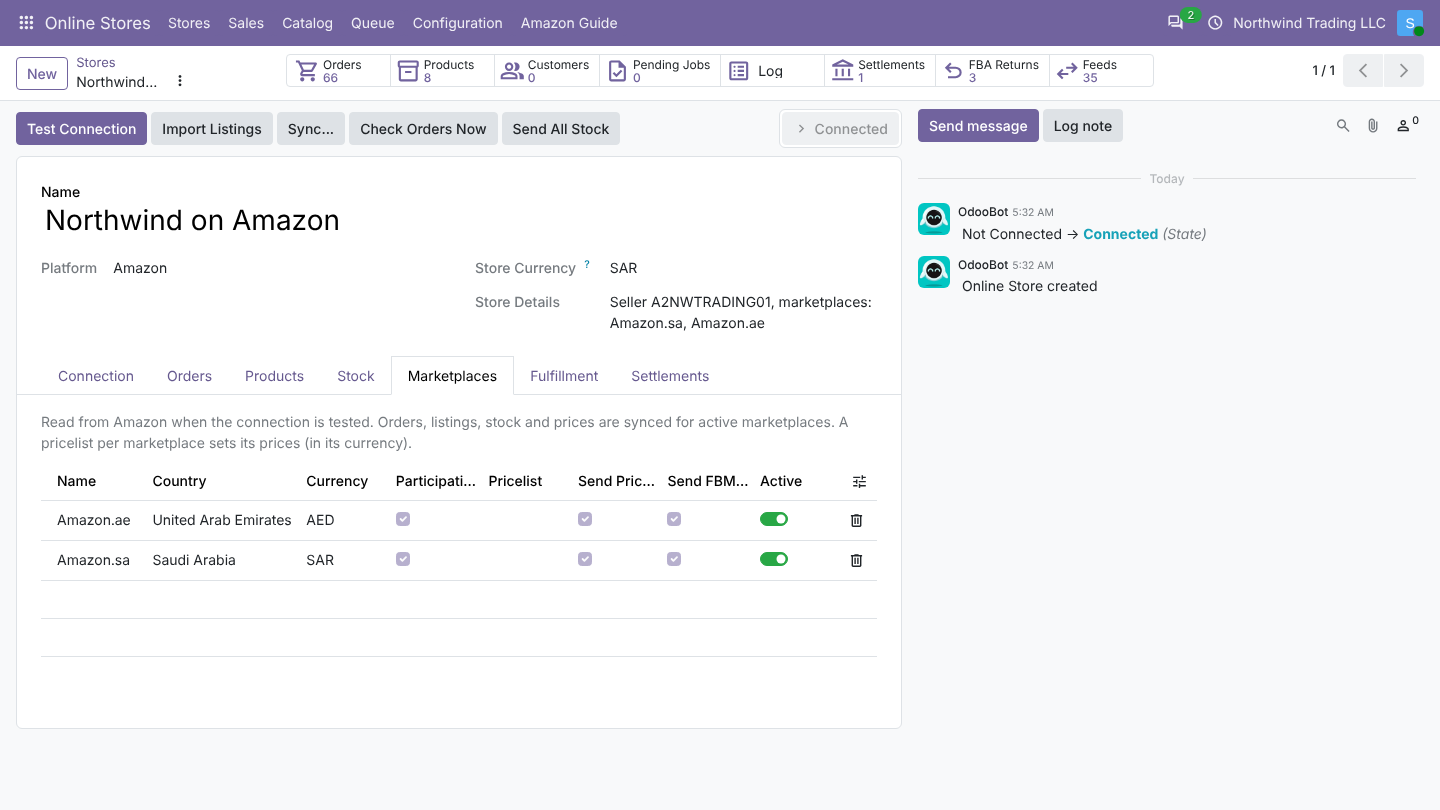
One line per marketplace of the seller account, read by Test Connection.
| Column | Use |
|---|---|
| Participating | Amazon says the account sells on this marketplace. |
| Pricelist | Prices sent to this marketplace and used for its orders, in the marketplace currency. Empty: the store pricelist. |
| Send Prices | Send prices to this marketplace. |
| Send FBM Stock | Send FBM quantities to this marketplace. |
| Active | Untick to leave this marketplace out of Odoo: no orders, stock or prices. |
Stock tab
The warehouses whose stock is sent for FBM SKUs, the quantity (free, on hand or forecasted) and a buffer. FBA SKUs are never sent: Amazon holds that stock. See Stock and prices.
Fulfillment tab
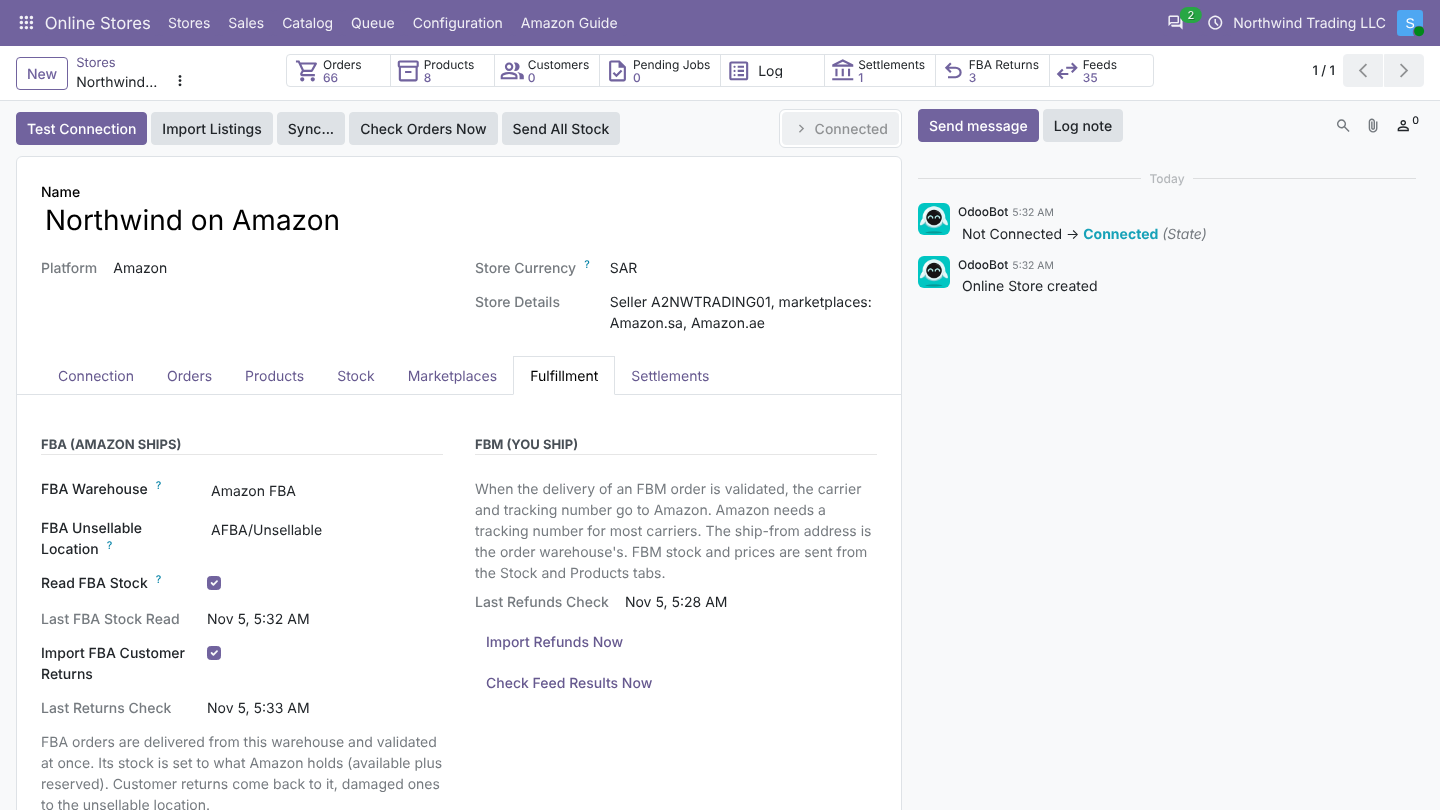
| Section | Fields |
|---|---|
| FBA (Amazon ships) | FBA Warehouse and FBA Unsellable Location (Create FBA Warehouse makes both), Read FBA Stock, Import FBA Customer Returns. See FBA. |
| FBM (you ship) | Last refunds check, Import Refunds Now, Check Feed Results Now. Shipments are sent when you validate a delivery, see Shipping FBM orders. |
| Buyer data | Remove Buyer Addresses After (days): delivery addresses of Amazon orders are cleared this many days after delivery. 0 keeps them. Amazon asks you to keep buyer data only as long as needed; 30 days is a common choice. |
| Coming from Odoo's Amazon connector? | Take Over Orders and SKUs, see Switch from Odoo's connector. |
Settlements tab
See Settlements.
Payment methods
Odoo creates two payment methods for each Amazon store: Amazon FBM and Amazon FBA. Their settings decide what Odoo does after importing an order.
What Odoo does with an imported order depends on how it was paid. Each payment method Amazon reports (for example a card gateway, bank transfer or cash on delivery) gets a line in Online Stores > Configuration > Payment Methods, created automatically the first time an order uses it.
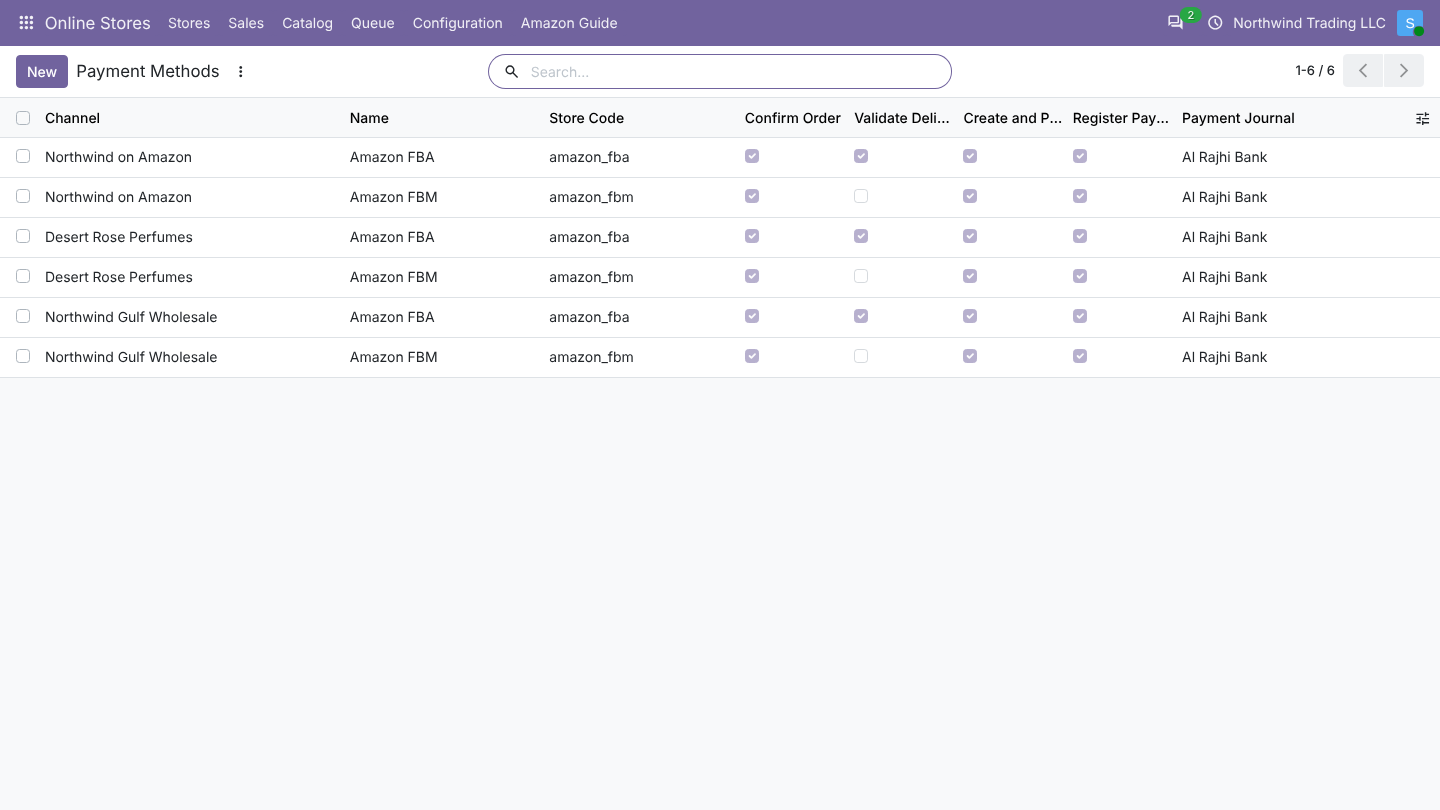
Fields
| Field | Default | What it does |
|---|---|---|
| Store | The store the method belongs to. Each store has its own methods. | |
| Name | The name Amazon sends | Shown in the order's Online Store tab. |
| Store Code | The code Amazon sends | How Odoo recognises the method. Do not change it. |
| Paid: Confirm (Confirm Order) | On | Confirm the quotation into a sales order. Off: no order of this method is confirmed automatically, paid or not. |
| Paid: Deliver (Validate Delivery) | Off | For paid orders: validate the delivery right away when every product is in stock. For digital goods, services or stock shipped by a third party. |
| Paid: Invoice (Create and Post Invoice) | On | Create the invoice and post it. Off: no order of this method is invoiced automatically. |
| Paid: Payment (Register Payment When Paid) | On when the store has a Default Payment Journal | Register the payment on the invoice in the journal below, once the store marks the order paid. |
| Unpaid: Confirm (Confirm Unpaid Orders) | On | For orders not paid yet in the store (cash on delivery, bank transfer, pending): confirm them, so the warehouse can ship. Off: they stay quotations until the store marks them paid. |
| Unpaid: Deliver (Validate Delivery of Unpaid Orders) | Off | The same as Paid: Deliver, for unpaid orders. |
| Unpaid: Invoice (Invoice Unpaid Orders) | When the store completes the order | When the store completes the order: invoiced once the store marks it completed or paid. At import: invoiced right away, the payment follows when the store marks it paid. Never: only once paid. |
| Payment Journal | The store's Default Payment Journal | Bank or cash journal of the payment. Required when Register Payment When Paid is on. |
| Payment Term | Empty | Payment term of orders paid this way. Wins over the store's Payment Term. |
What happens, in this order
Each time an order is imported or updated, Odoo runs these steps. A step that is already done is skipped.
- Confirm, when Paid: Confirm is on (and, for an unpaid order, Unpaid: Confirm too) and the store status is one the connector treats as confirmed (paid, processing, on hold or completed). Unpaid orders the connector imports as pending stay quotations. With Hold Risky Orders on the store, an order the store flags as fraud risk stays a quotation with a to-do.
- Validate the delivery, when Paid: Deliver (paid orders) or Unpaid: Deliver (unpaid orders) is on and every product can be reserved. If something is missing, the delivery stays open and Odoo tries again at the next update of the order. A delivery that needs a decision (for example lots or serial numbers) is left for you, with a warning in the log.
- Invoice, when Paid: Invoice is on and the order is paid in the store, or, for an unpaid order, as Unpaid: Invoice says (when completed, at import, or never). An order is invoiced once: credit notes of later refunds never lead to a second invoice.
- Register the payment, when Register Payment When Paid is on, a journal is set and the order is paid in the store.
Without a payment method (some orders have none, for example a free order), Odoo confirms the order and invoices it once it is paid or completed, but registers no payment.
A step that fails (for example an invoice that cannot be posted because of a missing account) does not stop the import. The order is kept, the failed step is listed in the log as a warning, and it is tried again with the next update of the order. Click Update From Store on the order to try right away.
Recommended setups
| Payment method | Confirm | Validate Delivery | Invoice | Register Payment | Journal |
|---|---|---|---|---|---|
| Card gateway (paid at checkout) | On | Off | On | On | A bank or clearing journal for that gateway |
| Bank transfer | On | Off | On | On | Your bank journal (the payment is registered when the store marks the order paid) |
| Cash on delivery | On (Unpaid: Confirm on) | Off | On (Unpaid: Invoice at import if you want the invoice with the parcel) | On | A cash or courier journal. The payment is registered once the store marks the order paid. |
| Marketplace or gift card paid elsewhere | On | Off | On | Off | Reconcile the payout yourself |
FAQ
Why is my order not invoiced? The order is not paid or completed in Amazon yet, or Create and Post Invoice is off for its payment method, or the order is already invoiced. Check the order's Online Store tab (Paid in the Store, Store Status) and the log.
Can I change the settings later? Yes. New settings apply to the next import or update of each order. Orders already invoiced are not touched.
A method appears twice. Amazon sends a different code (for example after you renamed or reinstalled a payment app). Set both lines the same way.
The defaults fit most sellers: FBA orders are delivered from the FBA warehouse and invoiced at once; FBM orders are confirmed, then invoiced and paid when Amazon reports them shipped.