Use the inbox
Conversations → Inbox is where agents work. It updates by itself every few seconds.
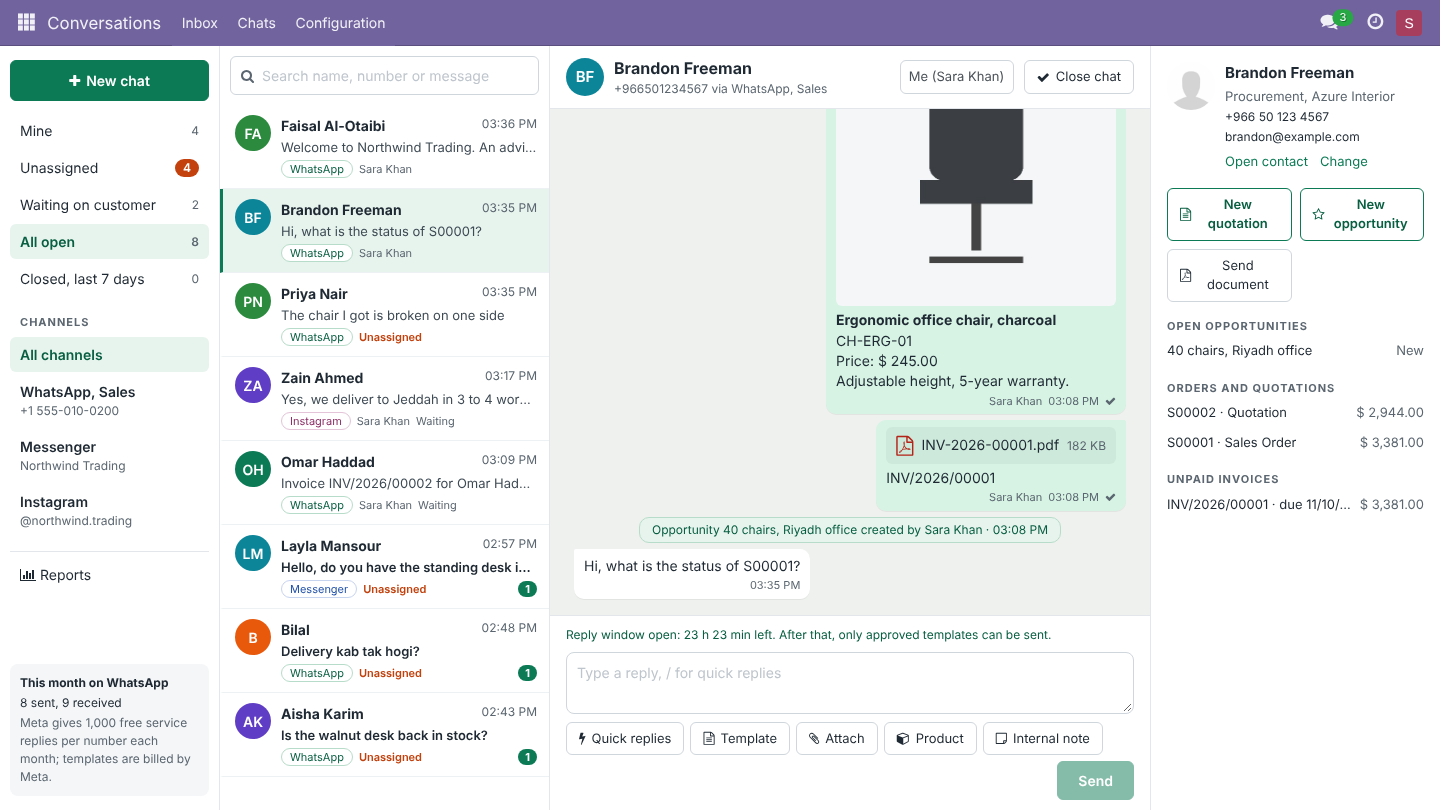
Queues
| Queue | Shows |
|---|---|
| Mine | Open chats assigned to you. |
| Unassigned | Open chats nobody owns yet; the red number counts those with unread messages. |
| Waiting on customer | Chats where you answered last. |
| All open | Every chat that is not closed. |
| Closed, last 7 days | Closed chats. A closed chat reopens when the customer writes again. |
Filter by channel on the left, search by name, number, contact or message text at the top of the list. Keys j and k move to the next and previous chat.
Answer
- Type and press Enter to send, Shift+Enter for a new line. Drafts are kept per chat.
- / opens your quick replies (Configuration → Quick replies; shared or personal).
- Attach a file, drop it on the composer or paste a picture.
- Hover a message and click Reply to quote it.
- Internal note writes a yellow note that only agents see.
- The bar above the composer shows how long the reply window stays open. When it is closed on WhatsApp, choose Template.
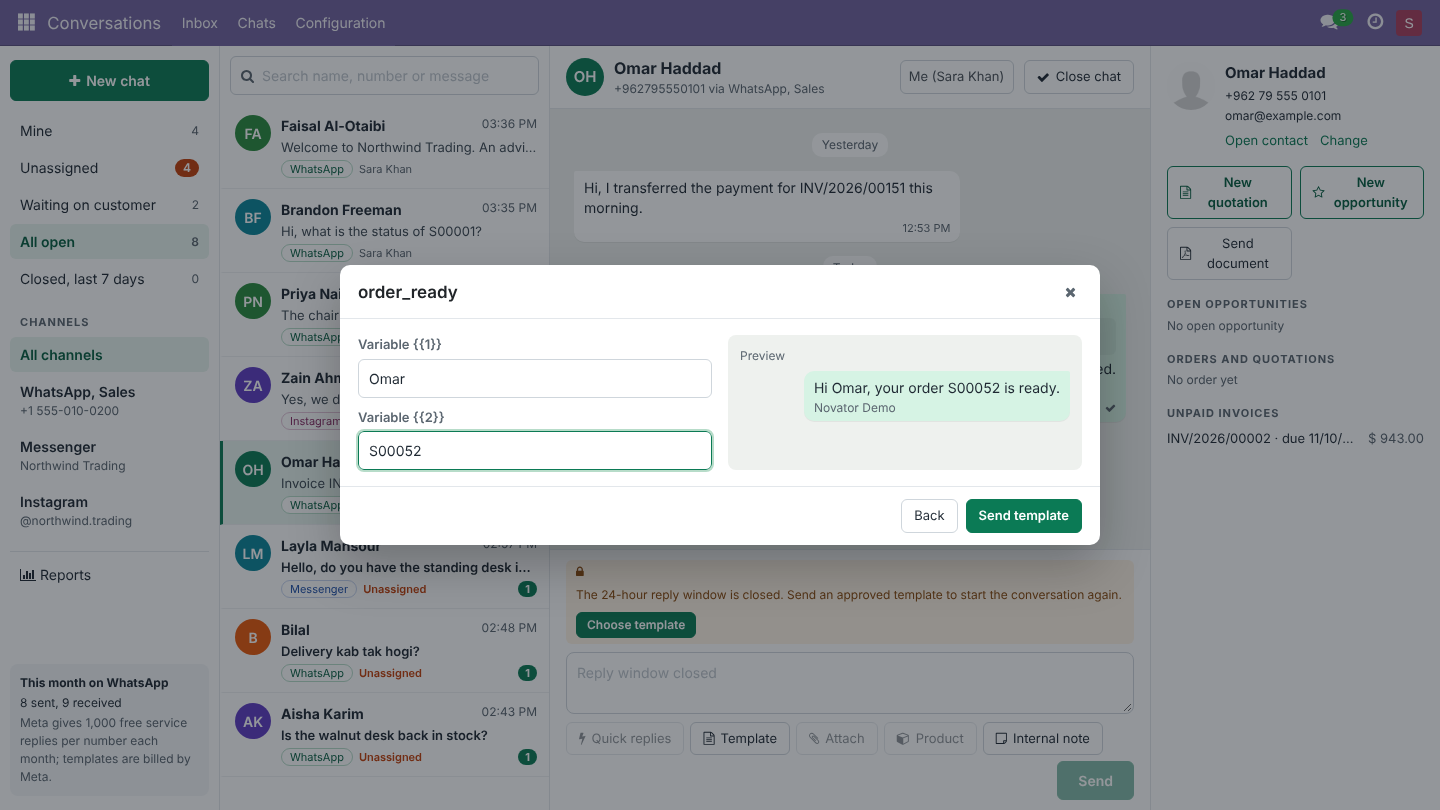
The ticks under your messages show sent, delivered and read (blue). A red mark means Meta refused the message: the reason is shown with a Retry link.
Work as a team
- Assigned to in the header gives the chat to someone; sending the first reply assigns an unassigned chat to you.
- When a colleague has the same chat open, the header says "Omar is viewing this chat" or "is typing".
- Close chat when the conversation is done.
- New chat (WhatsApp) starts a conversation with a contact or number; Meta requires an approved template first.
Who can do what
| Group (Settings → Users) | Allows |
|---|---|
| Conversations / Agent | The inbox for the channels they belong to (or every channel without agents), and chats assigned to them. |
| Conversations / Manager | Every chat, channels, templates, broadcasts, auto-replies and the analysis menus. |
Was this page helpful?