Connect WhatsApp
Conversations talks to the WhatsApp Cloud API with your own Meta app. You need a Meta Business account, a phone number that is not used in the WhatsApp app on a phone, and an Odoo that is reachable from the internet over HTTPS (Odoo.sh and most hosted servers are).
1. Create the Meta app
- Open developers.facebook.com and create an app of type Business, linked to your Meta Business account.
- Add the WhatsApp product. Meta shows a test number; add your own business number under API Setup and verify it.
- Note the Phone number ID and the WhatsApp Business Account ID shown on the same page.
- In App settings → Basic, note the App ID and click Show next to App secret.
2. Get a permanent token
The token on the API Setup page expires after 24 hours. For daily use:
- In Meta Business settings open Users → System users and add a system user with the Admin role.
- Assign assets: your app (full control) and your WhatsApp account (full control).
- Generate new token for your app with the permissions
whatsapp_business_messagingandwhatsapp_business_management, and expiry Never.
Paste tokens only into Odoo; never send them by email or chat.
3. Connect the number in Odoo
Conversations → Configuration → WhatsApp numbers → New.
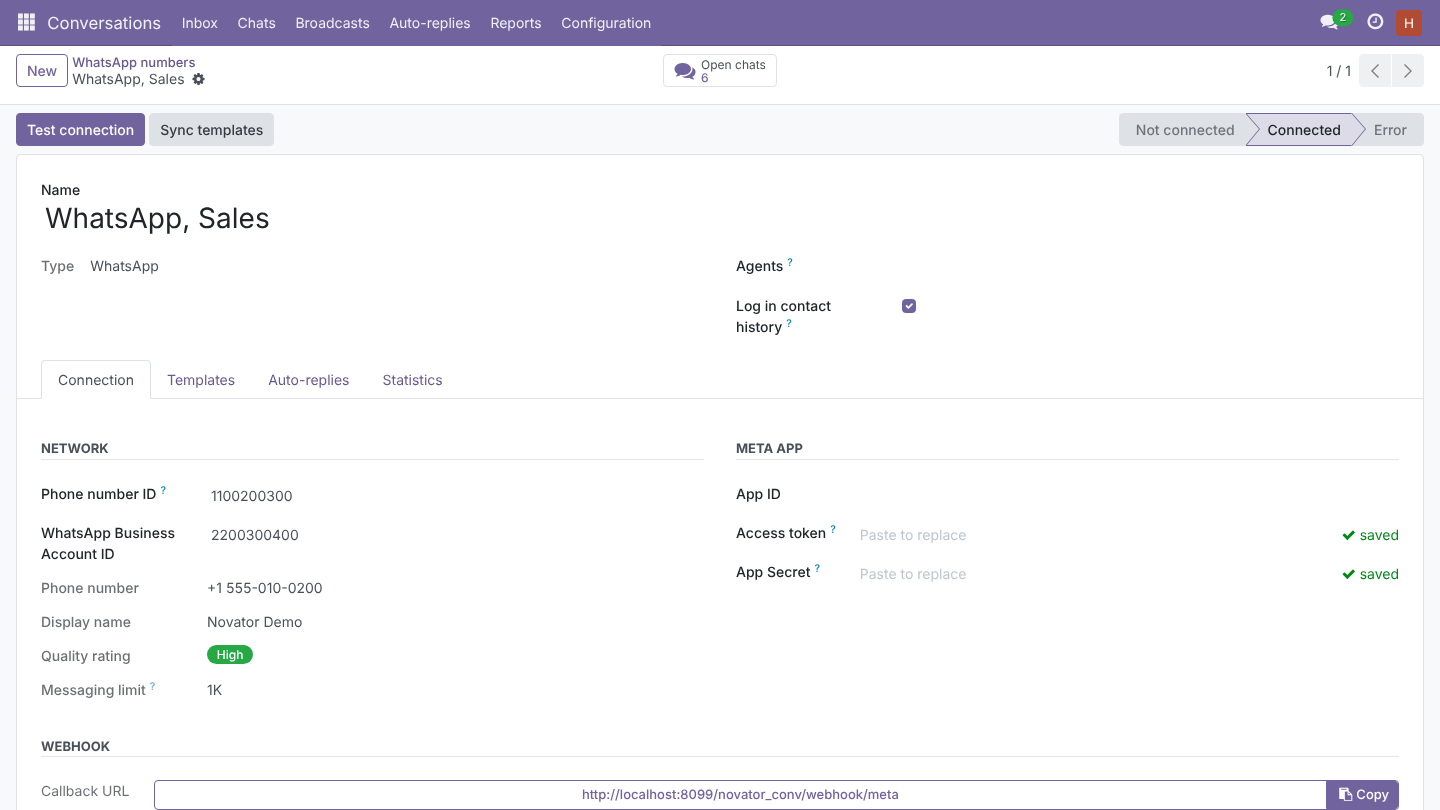
| Field | What to enter |
|---|---|
| Name | How agents see the channel, for example WhatsApp, Sales. |
| Phone number ID, WhatsApp Business Account ID | From the API Setup page. |
| App ID, Access token, App secret | From step 1 and 2. The token and secret are stored encrypted and only managers can replace them. |
| Agents | Who answers this number. Leave empty to let every Conversations user answer. |
| Log in contact history | Copies every message to the contact's chatter (on by default). |
Click Test connection. Odoo reads the number, its display name, quality rating and messaging limit, subscribes your app to the WhatsApp account and syncs your approved templates.
4. Add the webhook
In your Meta app open WhatsApp → Configuration → Webhook → Edit:
- Callback URL and Verify token: copy them from the Webhook section of the Odoo form.
- Click Verify and save, then Manage and subscribe to the messages field (and message_template_status_update to follow template approvals).
Send a message to your business number from a phone: it appears in Conversations → Inbox within seconds.
Templates
WhatsApp lets a business reply freely for 24 hours after the customer's last message. After that, and to start a new chat, only approved templates can be sent. Create them in WhatsApp Manager → Message templates, wait for Meta's approval, then press Sync templates on the number in Odoo.
On a template in Conversations → Configuration → Message templates you can:
- set Use on (for example Invoices) so the template is preselected when sending from that kind of document;
- fill the variables automatically: Field of the document (for example
nameorpartner_id.name), Field of the contact, or Fixed text.
Costs
Meta bills messages directly to your WhatsApp account at its own rates. Since October 2026 the first 1,000 service replies per number each month are free; templates are billed by category (marketing, utility, authentication) and by the customer's country. Reports shows what you sent this month.