Odoo in the chat
Contacts and history
A chat is matched to the Odoo contact with the same phone number (spaces and dashes do not matter). The panel on the right shows the contact; without a match, Create contact or link an existing one. Every message is copied to the contact's chatter, so the history is there for anyone in Odoo. Switch this off per channel with Log in contact history.
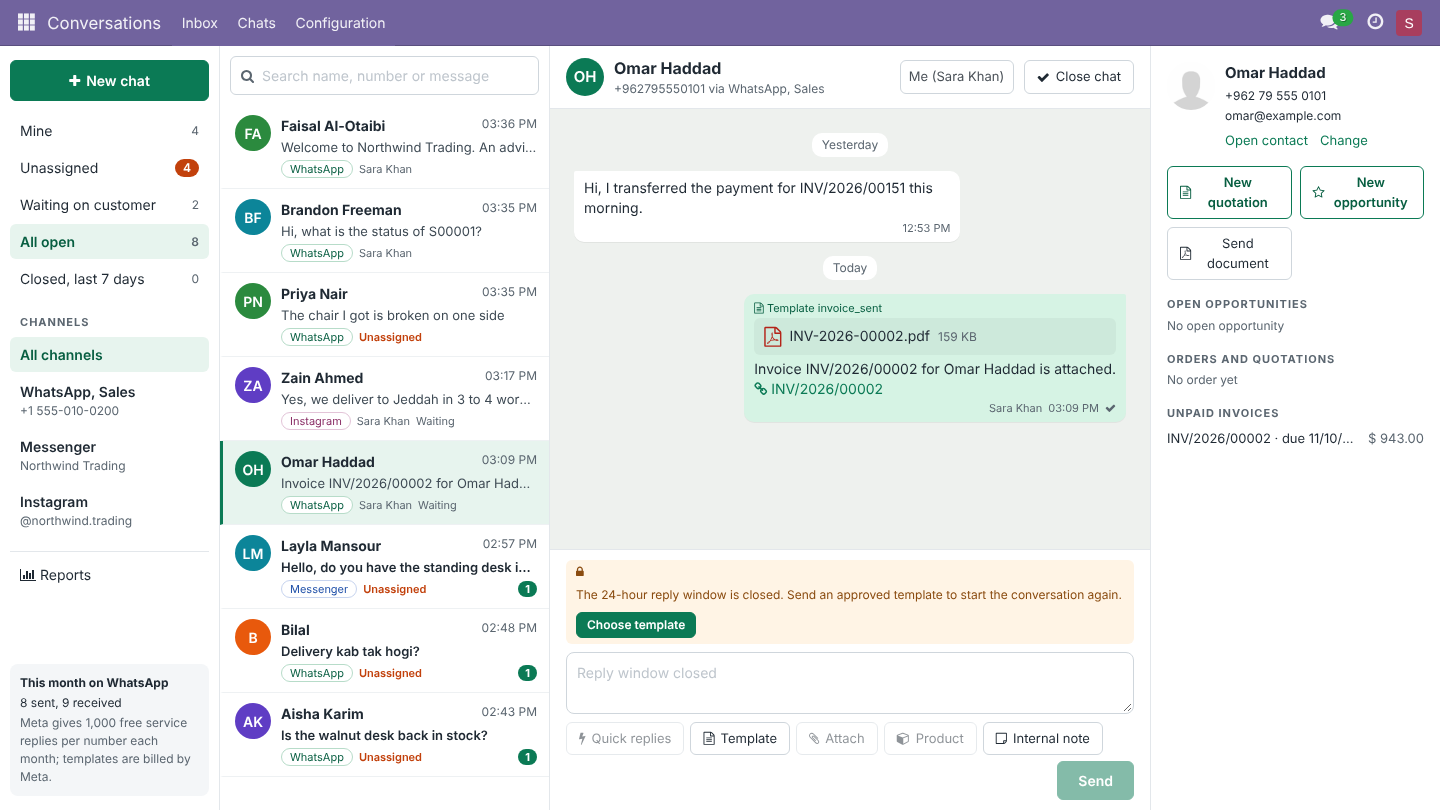
The panel also lists open opportunities, orders and quotations and unpaid invoices of the contact's company; click one to open it.
Opportunities, quotations and tickets
New opportunity, New quotation (once the chat has a contact) and Create ticket (Complete, with Novator Helpdesk or Odoo Enterprise Helpdesk) open the form over the inbox with the contact filled in. When you save, a line in the chat links to the new record and the conversation so far is posted on it.
Send a document
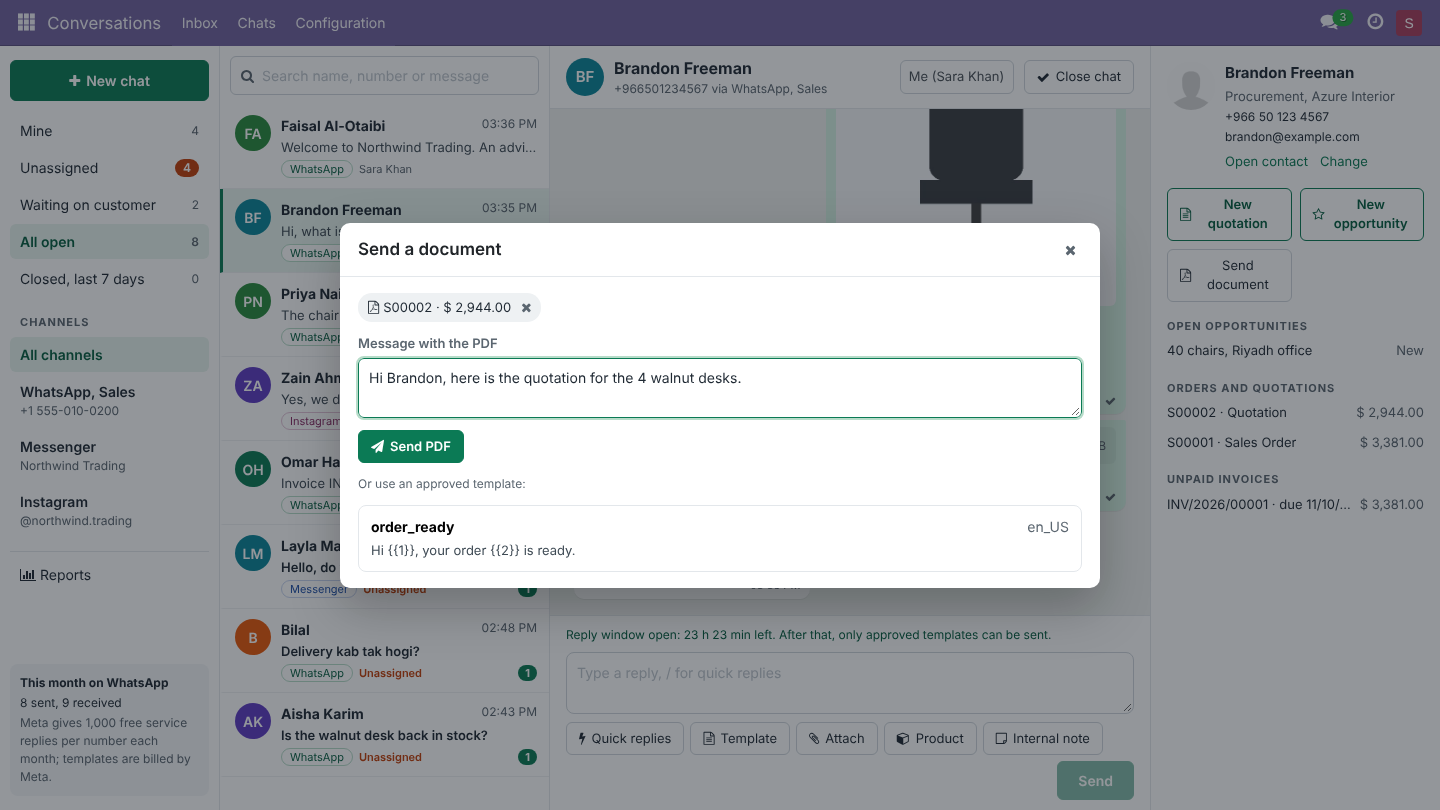
Send document lists the contact's quotations, orders, invoices and deliveries. Pick one:
- while the reply window is open, send the PDF with a message;
- or choose an approved template: templates with a document header carry the PDF, and their variables are filled from the document.
From any contact, opportunity, quotation, order, invoice or delivery you can also use Action → Send by WhatsApp. The recipient and number come from the document, the template set for that kind of document is preselected, and the message is logged on the document.
Product cards
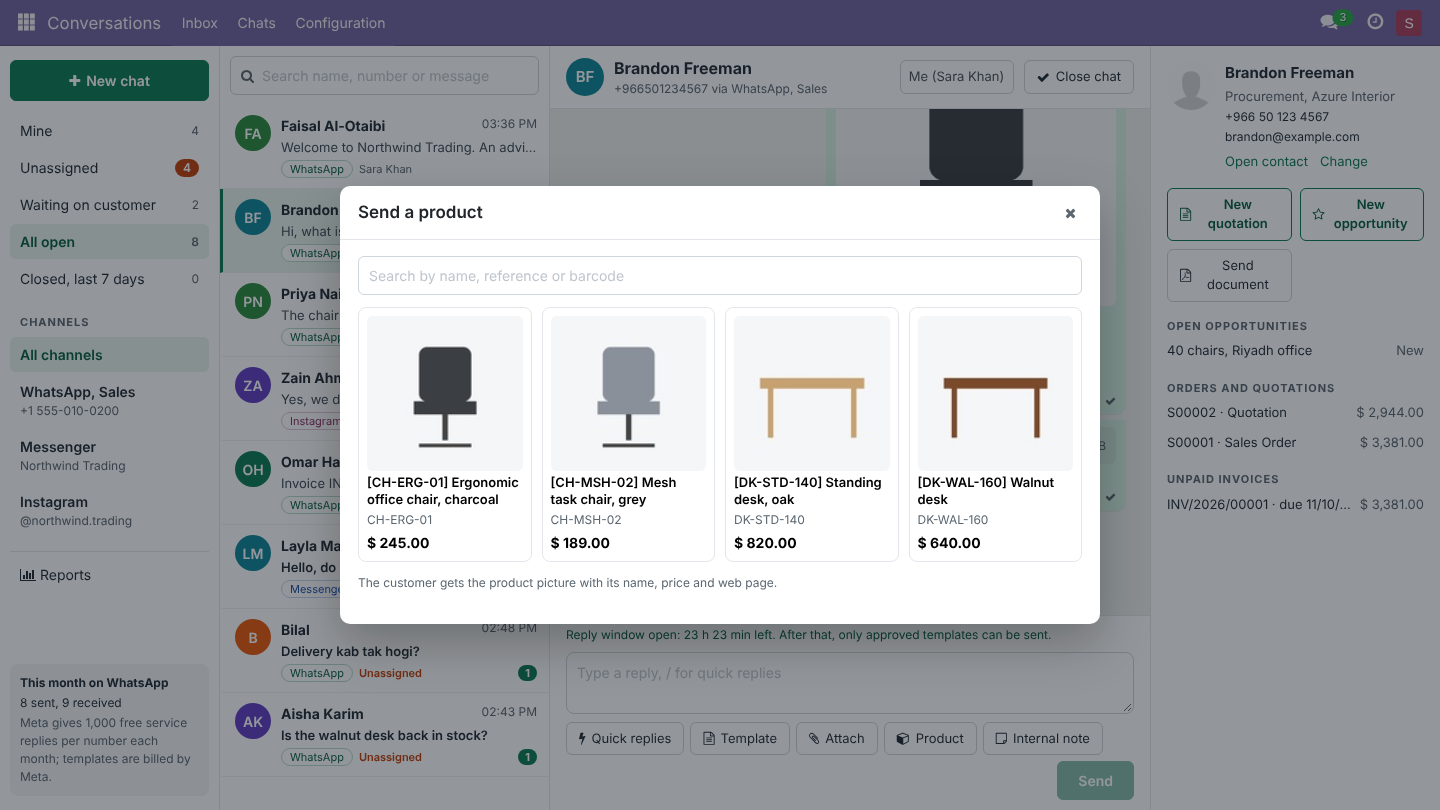
Product in the composer searches by name, reference or barcode and sends the product picture with its name, reference, the customer's price (their pricelist), the sales description and the web page when the product is published.