Build a workflow
You need the CRM Workflow Builder / Administrator right to create and change workflows (administrators have it). The CRM Workflow Builder / User right can see workflows and enroll records.
Create a workflow
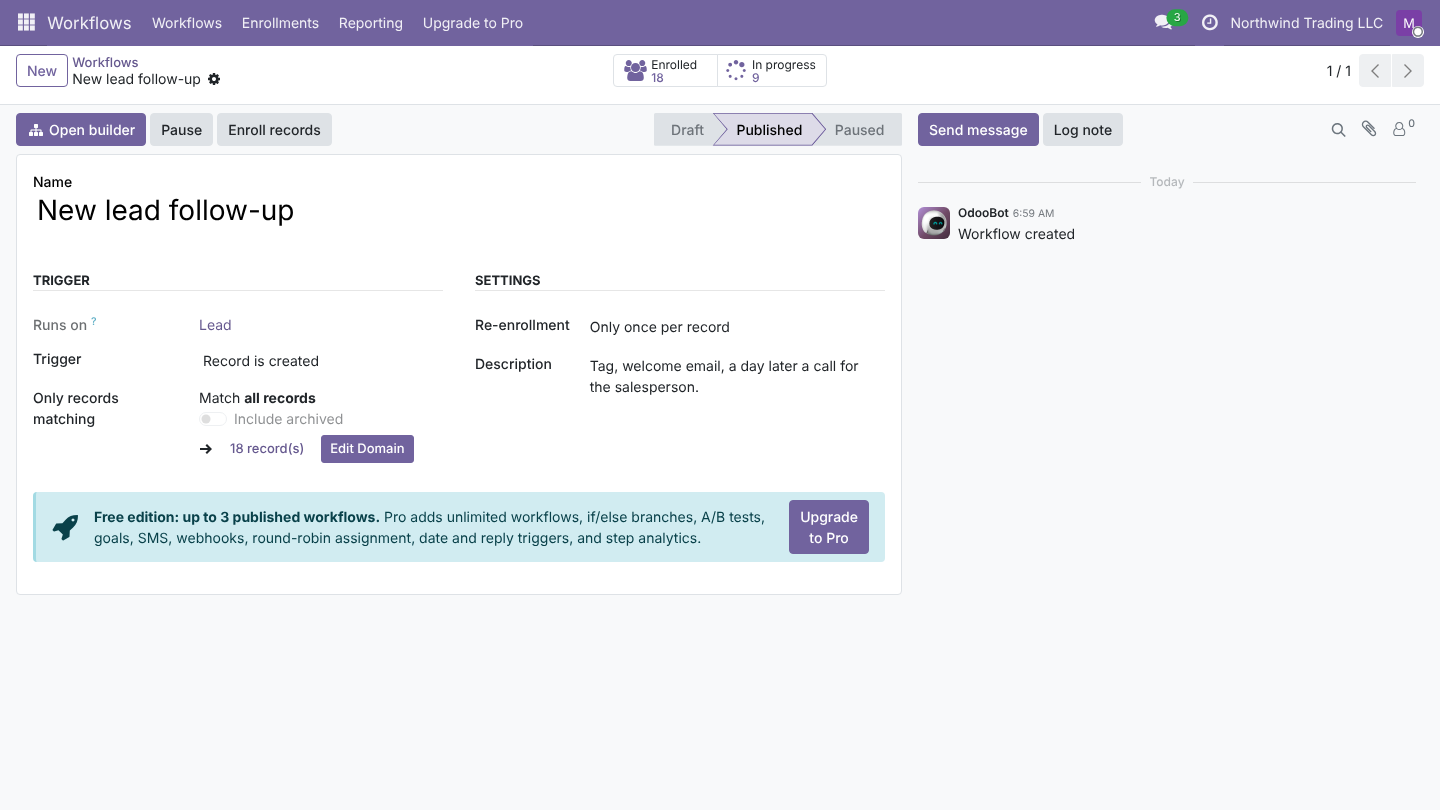
- Open the Workflows app and click New.
- Fill in:
| Field | What it does |
|---|---|
| Name | For example "New lead follow-up". |
| Runs on | The kind of record that enters the workflow: Lead/Opportunity, Contact, Sales Order, Journal Entry or any model with a chatter. It cannot change once records have entered. |
| Trigger | What starts the workflow. See Triggers. |
| Only records matching | A filter. Only records that match enter the workflow, for example leads with the tag Website. |
| Re-enrollment | Only once per record, Again after the previous run ended, or Every time the trigger fires. |
| Description | A note for your team. |
- Click Open builder.
The builder
The builder shows the trigger at the top and the steps below it, connected by arrows.
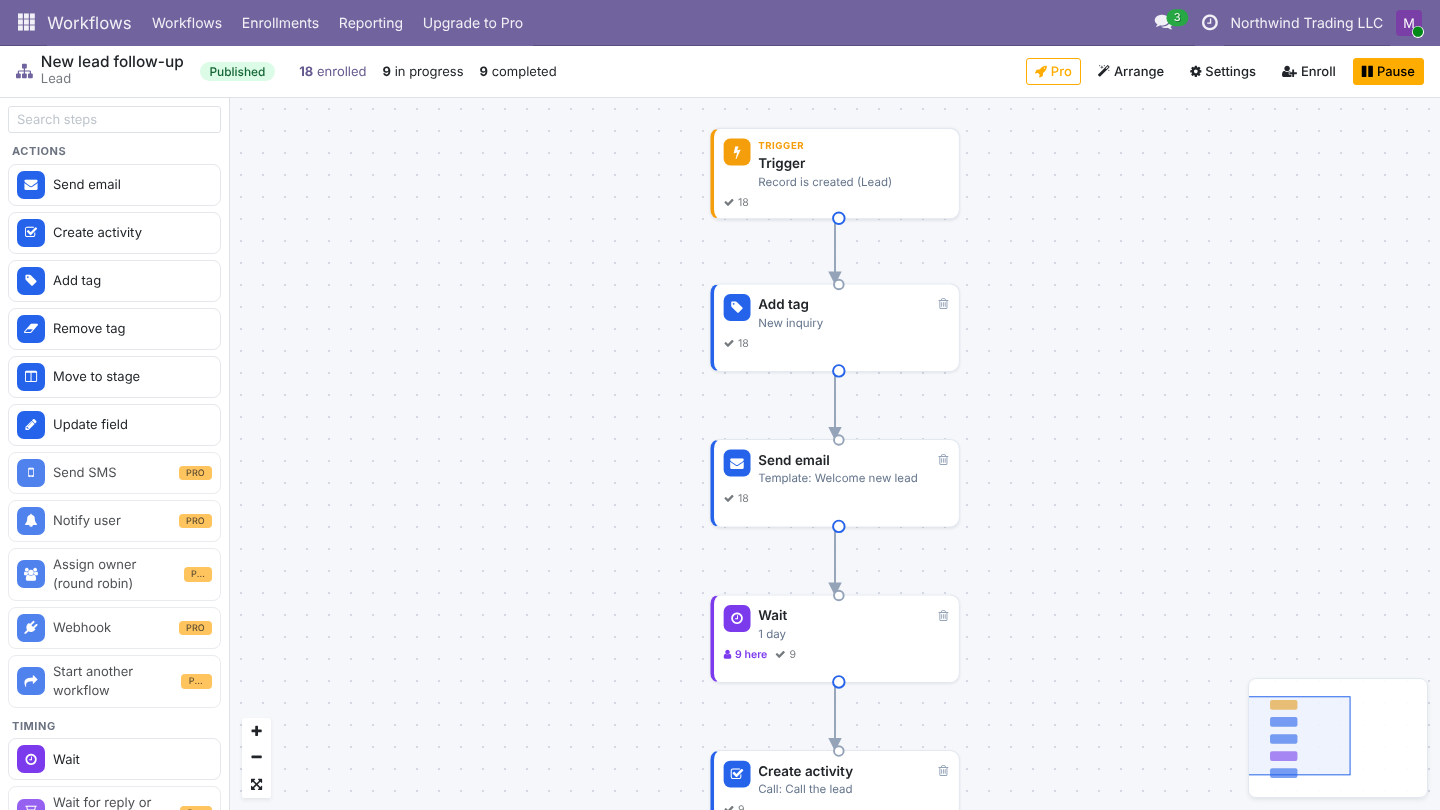
- Add a step: drag it from the panel on the left onto the canvas, or onto a step to add it right after that step. You can also click the + under a step and pick from the menu, or click a step in the panel while a step is selected.
- Set up a step: click it. A dialog opens with its settings; click Save. A step that is not set up yet shows a red message on its card.
- Connect steps: drag from the dot at the bottom of a step to another step. Each output has one connection; drawing a new one replaces it.
- Remove a connection: hover the arrow and click the x in its middle.
- Delete a step: click the bin icon on the card, or select it and press Delete. The steps before and after it are connected again.
- Arrange: lays the steps out as a tree.
- Move around: drag the background to pan, scroll to move, Ctrl + scroll to zoom, or use the +, - and fit buttons at the bottom left. The mini map at the bottom right shows where you are; click it to jump.
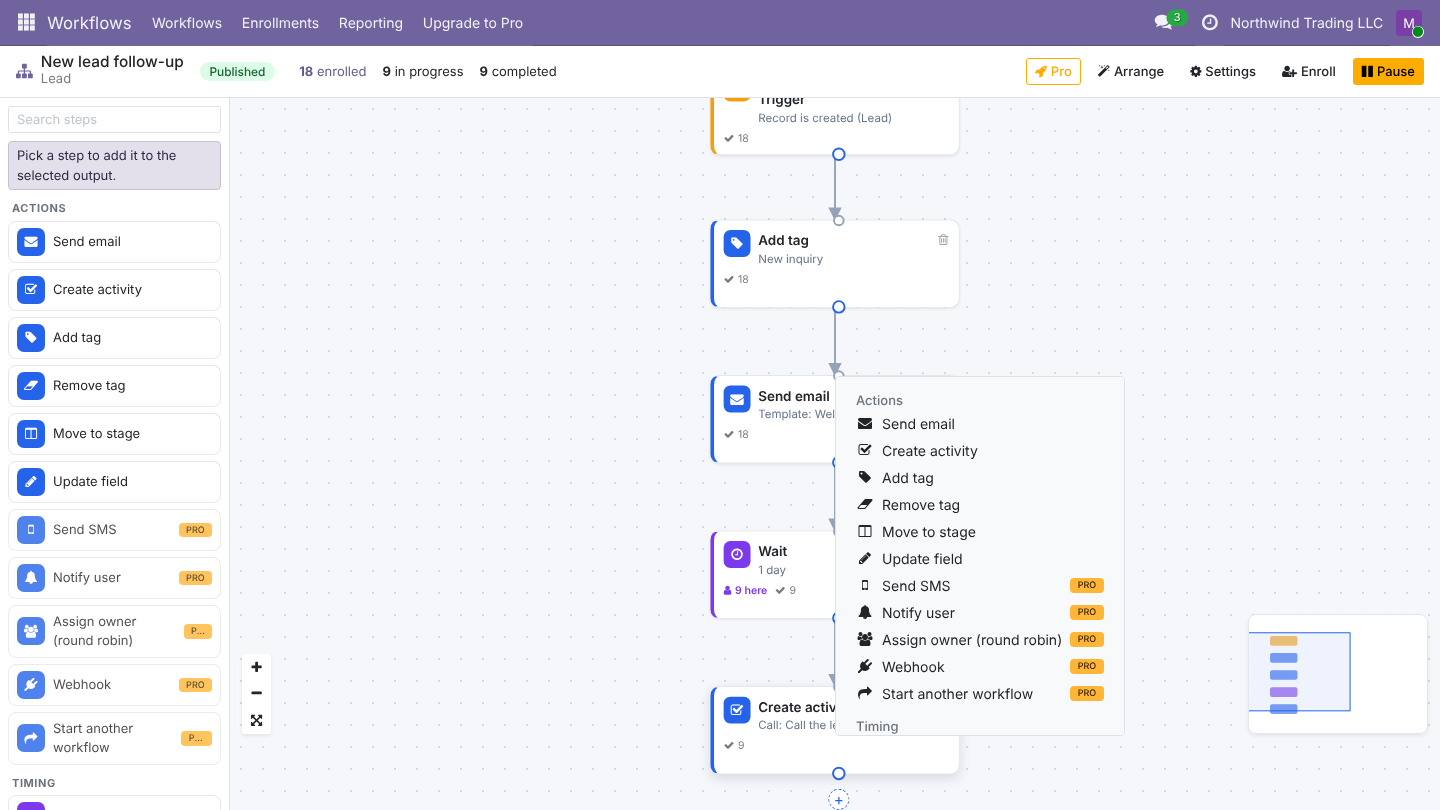
The toolbar shows the status of the workflow and how many records are enrolled, in progress, completed and failed. Click enrolled to see the records.
Publish
Click Publish. The workflow is checked first: it needs at least one step after the trigger, and every step must be set up. From then on, matching records start it. Pause stops new records from entering and holds the ones inside; they continue when you publish again.
The free app runs up to 3 published workflows at a time. Drafts and paused workflows do not count. CRM Workflow Builder Pro has no limit.