Run and track
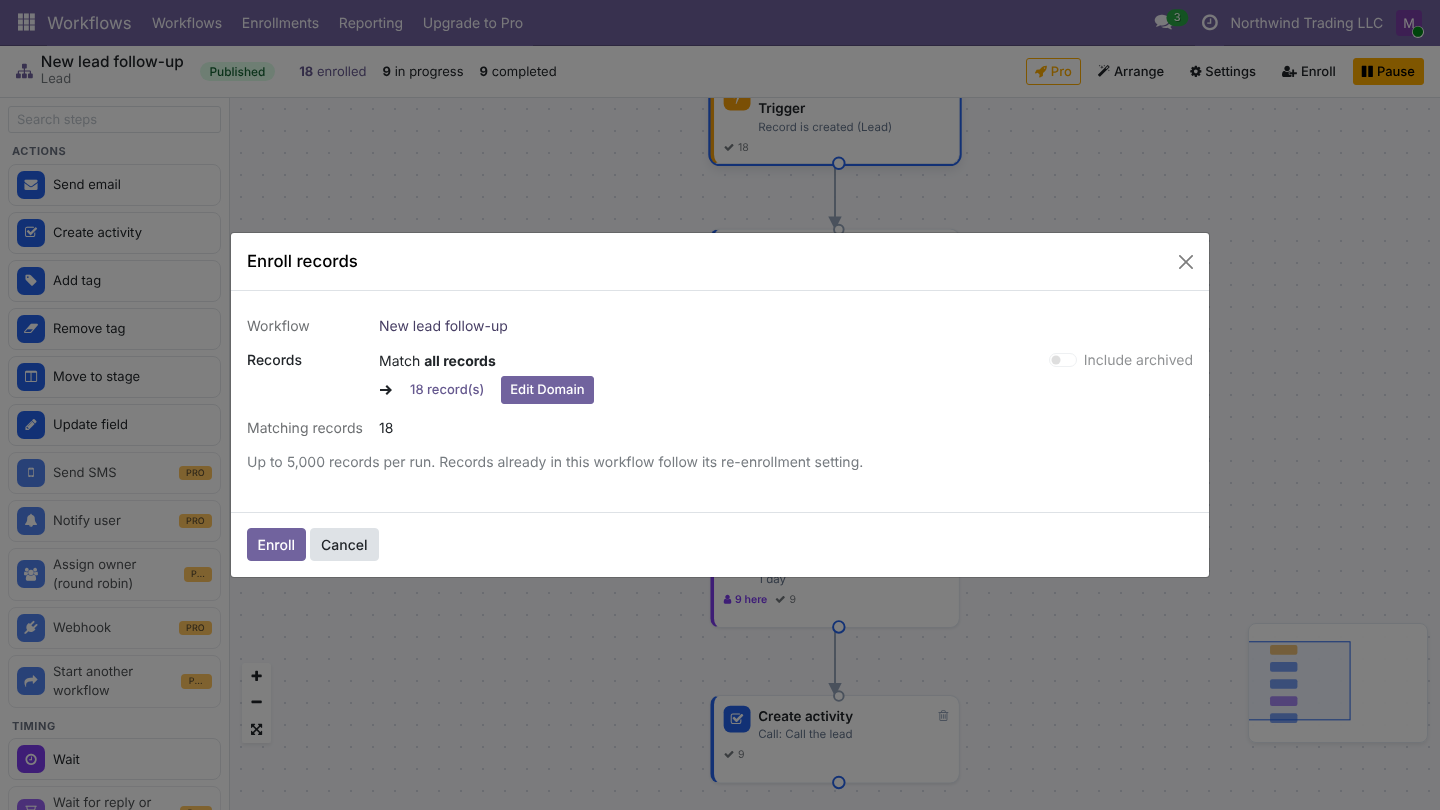
Enroll existing records
A published workflow only starts for records that trigger it from now on. To put records you already have through it:
- In the builder, click Enroll, set the filter, check Matching records and click Enroll. Up to 5,000 records per run.
- Or, in any list or form of that model, select records and choose Action → Enroll in: (workflow name).
Records already in the workflow follow its Re-enrollment setting.
Follow each record
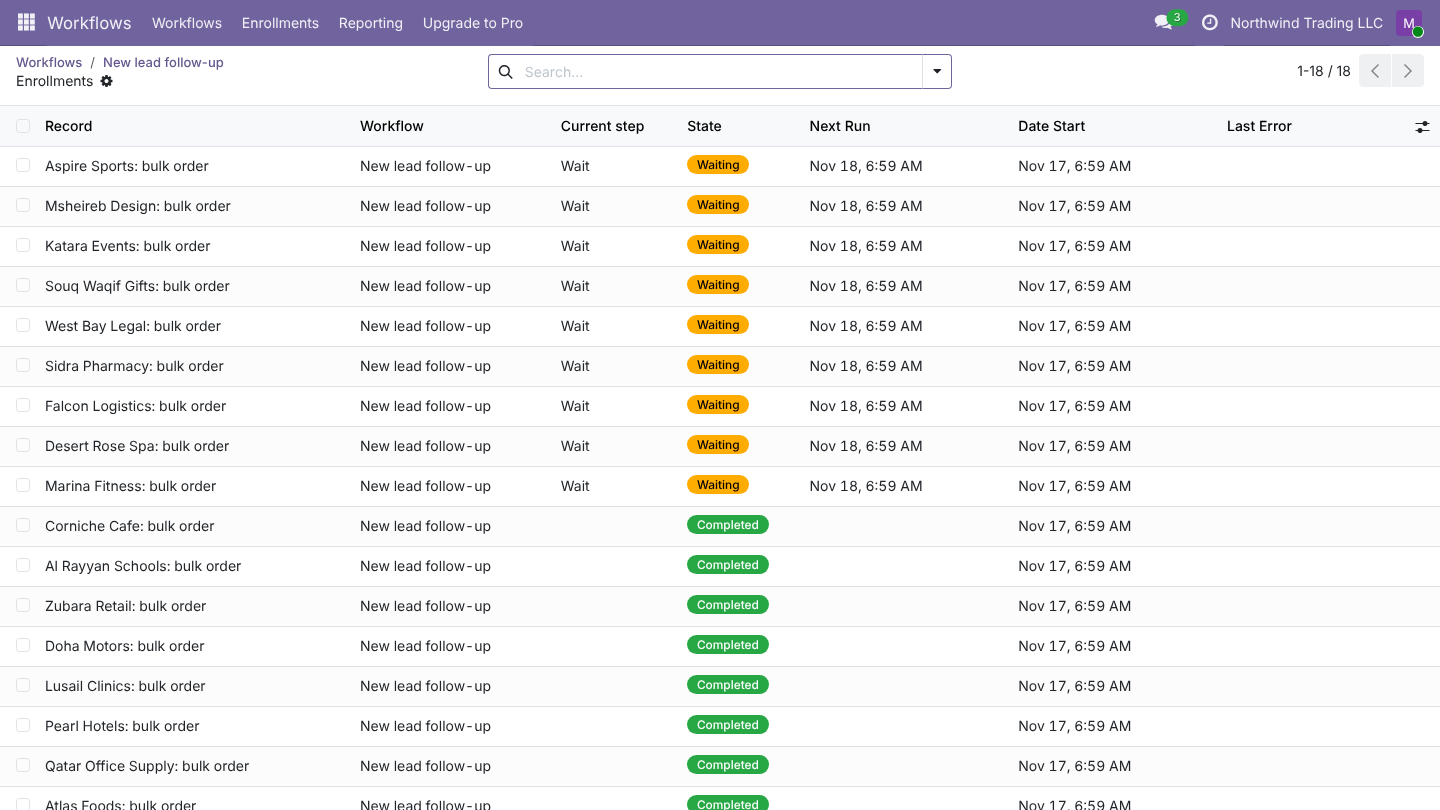
Workflows → Enrollments lists every record in a workflow with its current step, status and next run. Filter In progress, Failed or Completed, or group by workflow or step. In the builder, the here counter on a step opens the records waiting there.
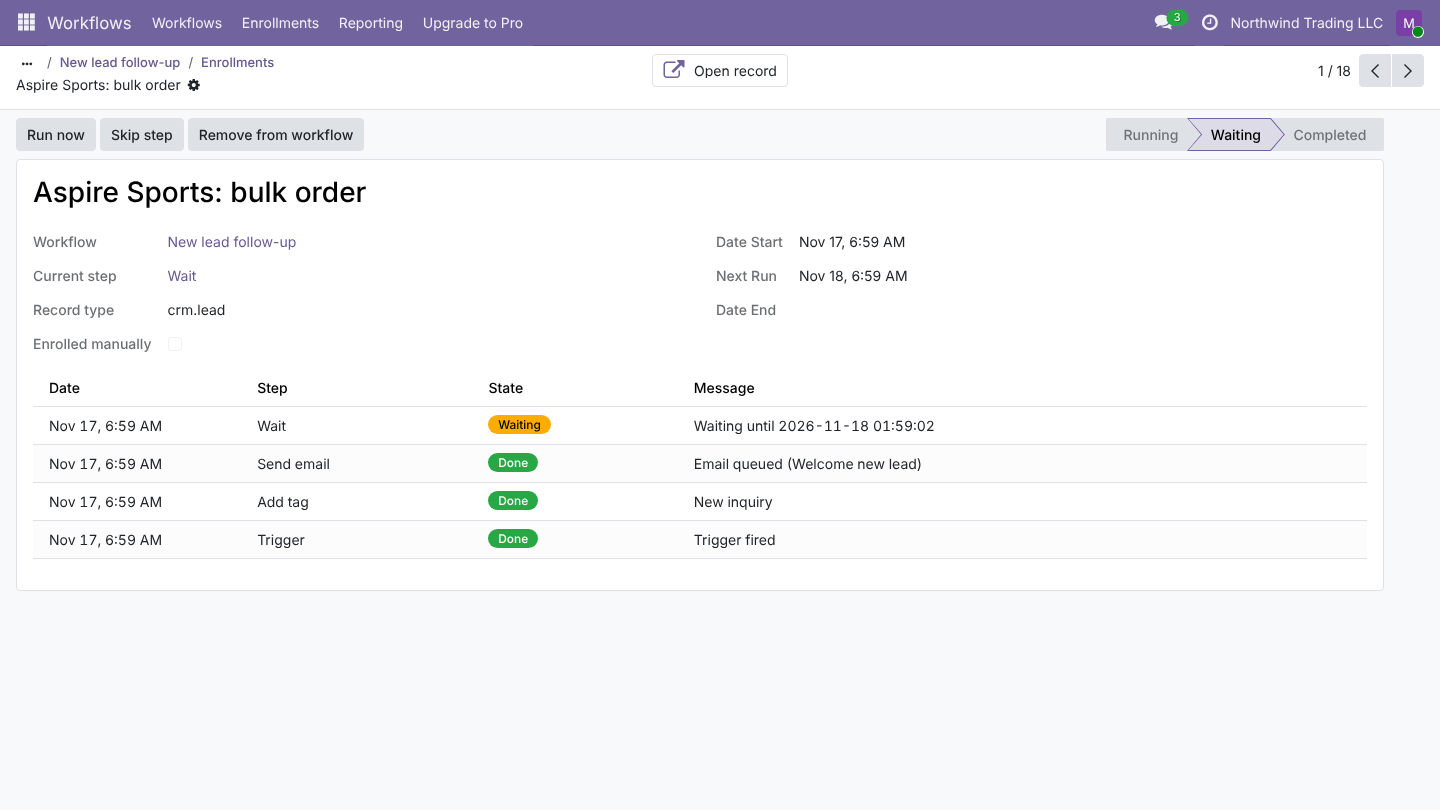
Open an enrollment to see its step log: every step with time, result and message.
| Status | Meaning |
|---|---|
| Running | Being processed. |
| Waiting | In a wait. Next Run shows when it continues. |
| Completed | Reached the end. |
| Exited | Left early: removed by a user, the record was deleted, or (Pro) the contact replied. |
| Failed | A step failed. The error is on the enrollment. |
Buttons: Retry step (after you fixed the cause, for example set up the template), Skip step, Run now (skip the rest of a wait), Remove from workflow, Open record.
When a step fails
The record stops at that step; the others carry on. Common causes:
- Send email: the template has no recipient for this record.
- Update field: the value does not fit the field (a selection key that does not exist, a text in a number field).
- Send SMS (Pro): the record has no valid phone number.
- Webhook (Pro): the other system answered with an error or did not answer within 10 seconds.
Workflows → Reporting → Step log lists all steps of all workflows; filter Errors to find failures.
Results (Pro)
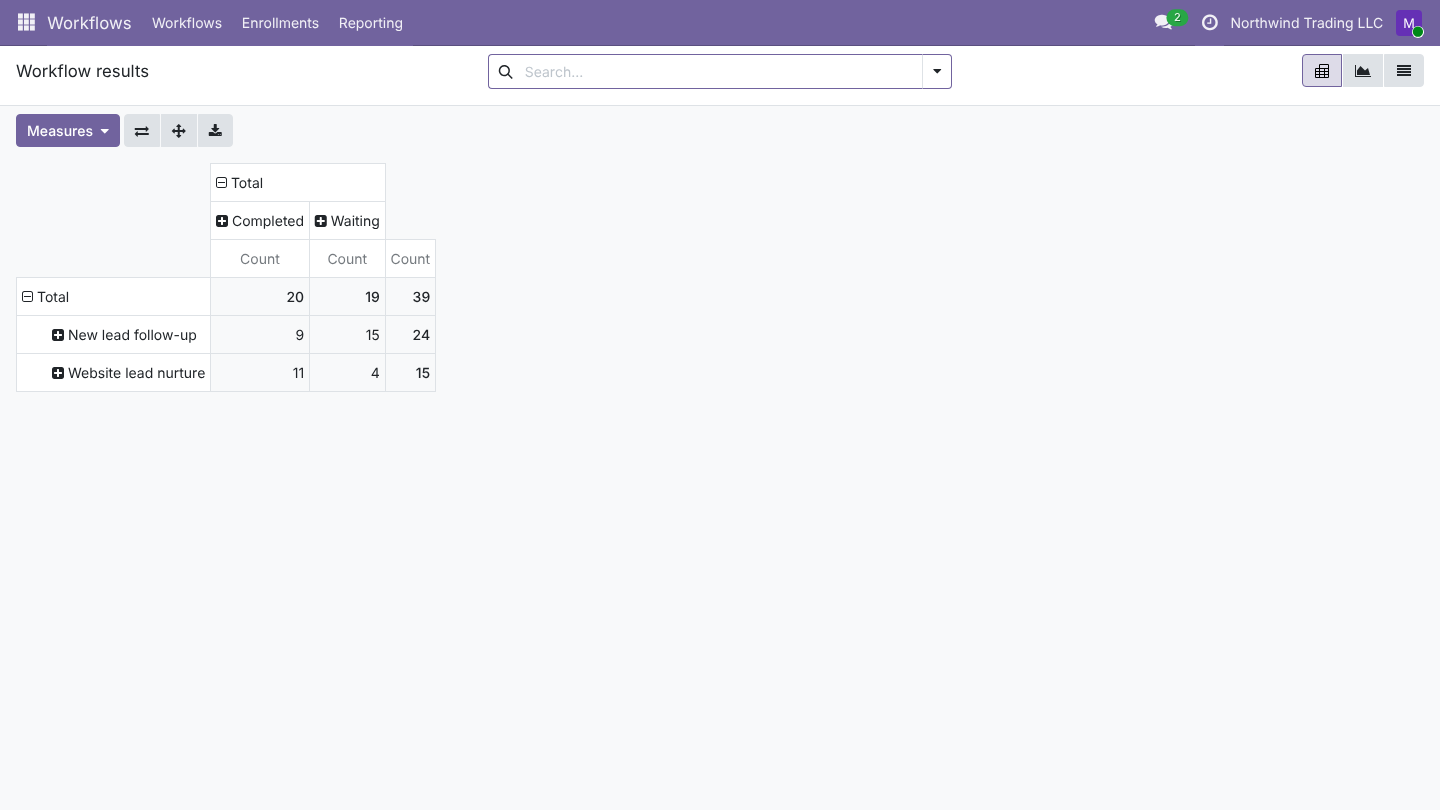
Workflows → Reporting → Workflow results shows enrollments by workflow and status in a pivot and a graph; group by A/B path or Goal reached. Step analysis counts each step's results. The Conversion % button on a workflow shows the share of records that reached a goal, and A/B split and Goal cards show their numbers on the canvas.