The ledger, adjustments and reversals
Reading the ledger
Go to Point of Sale > Loyalty Ledger > Ledger Entries. Each line is one movement:
| Column | Meaning |
|---|---|
| Date | When the balance changed |
| Reference | Ledger number, LL/2026/000123 |
| Customer, Program, Card Code | The card that moved |
| Type | See below |
| Source | Point of Sale, Sales, Website, Backend, Import or System |
| Origin | The POS or sales order, when there is one |
| Added / Taken | Points (or eWallet and gift card amounts) added or taken |
| Balance After | The card's balance after this movement |
Hidden columns (switch them on with the column selector): Card Code, Source, Net, Unit, Done By, Reason / Note, Company.
Types: Opening Balance, Card Issued, Earned, Redeemed, Refund (a POS refund), Adjustment, Reversal, Import, Expired, Reconciliation.
Use the search to filter Added, Taken, Point of Sale, Adjustments and Reversals or Expired, and group by Customer, Program, Card, Type, Source, Done By or Month.
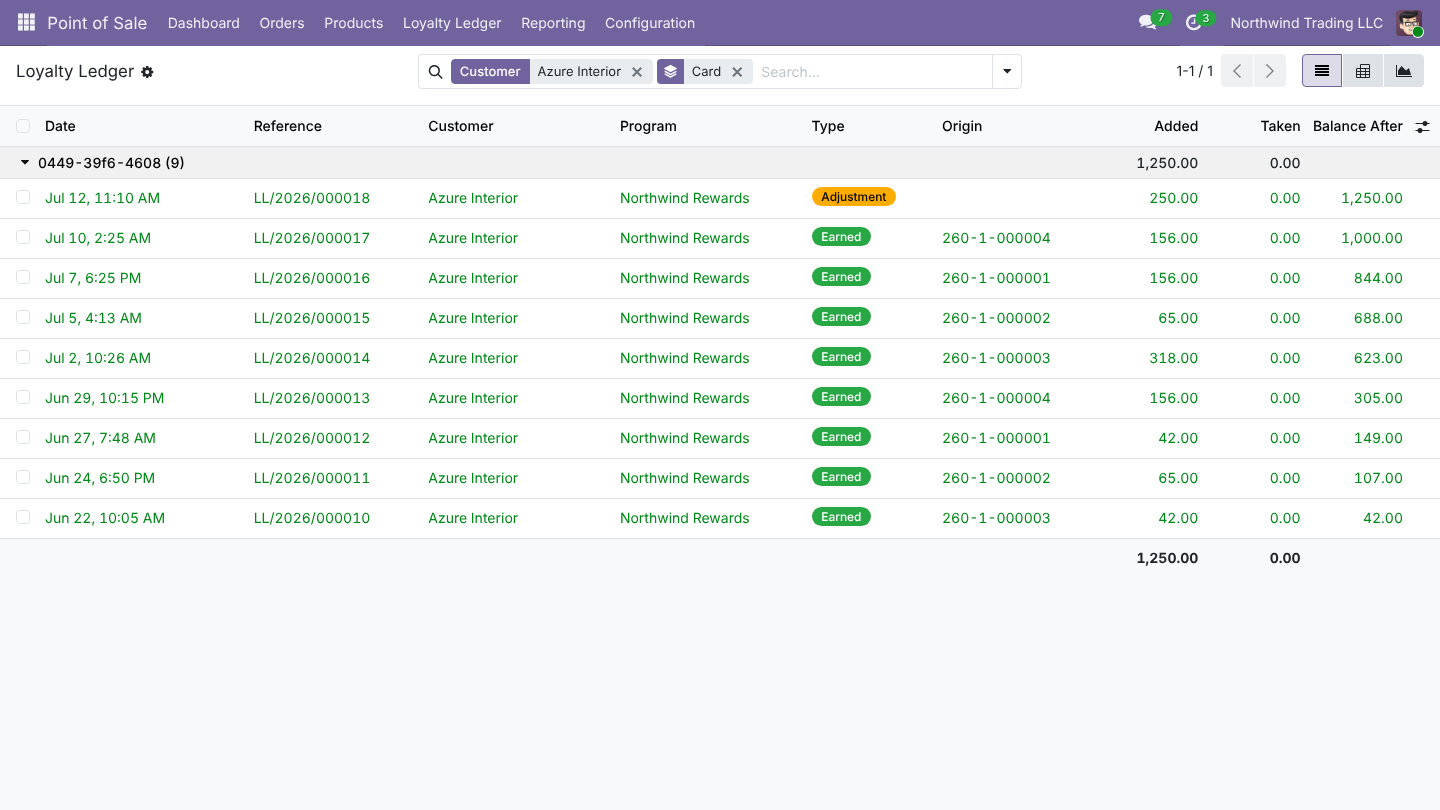
Open an entry to see the balance before and after, the reason, and an Origin button that opens the order.
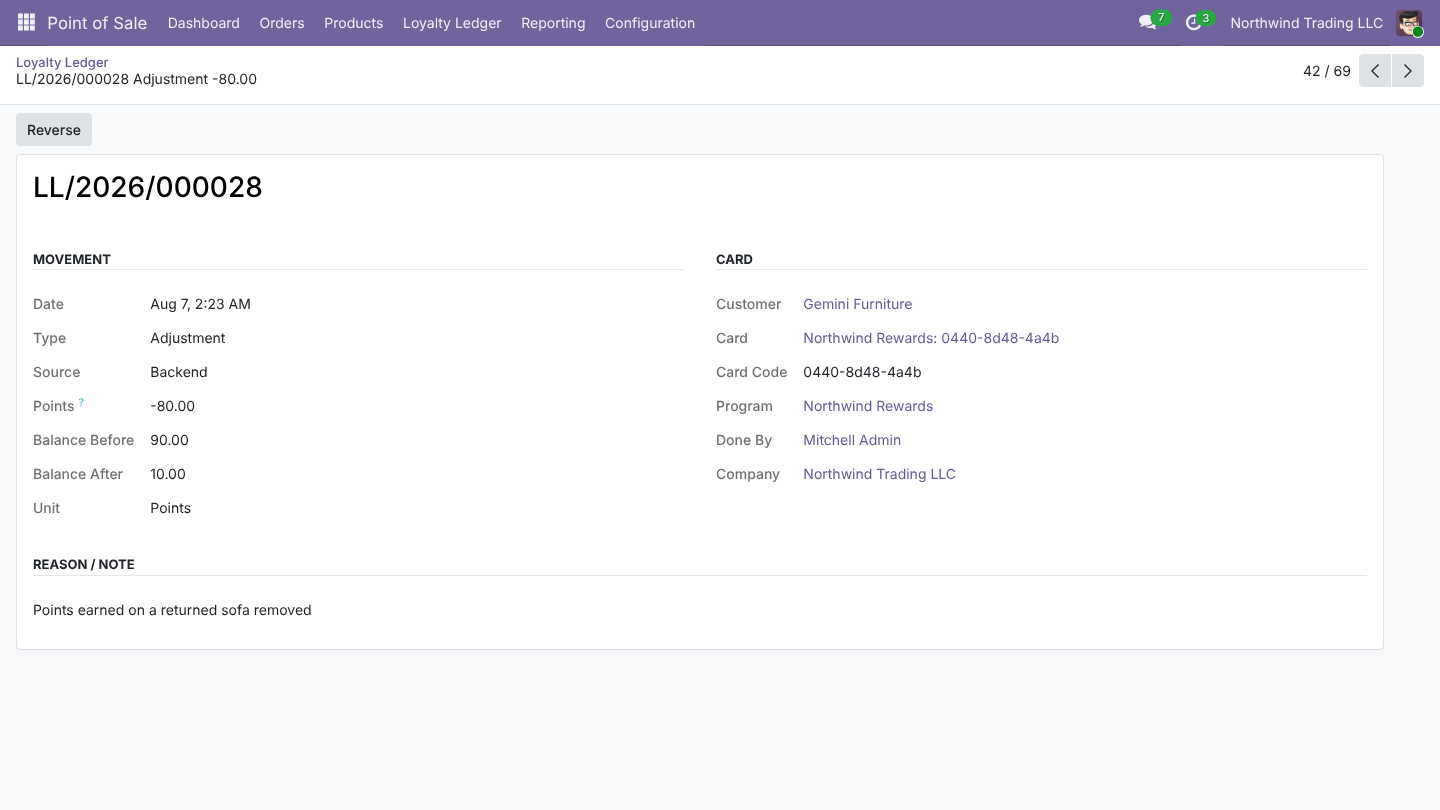
Changes made directly on a card in the backend are recorded too, as an Adjustment with the note Balance edited on the card.
Adjust points
Administrators only.
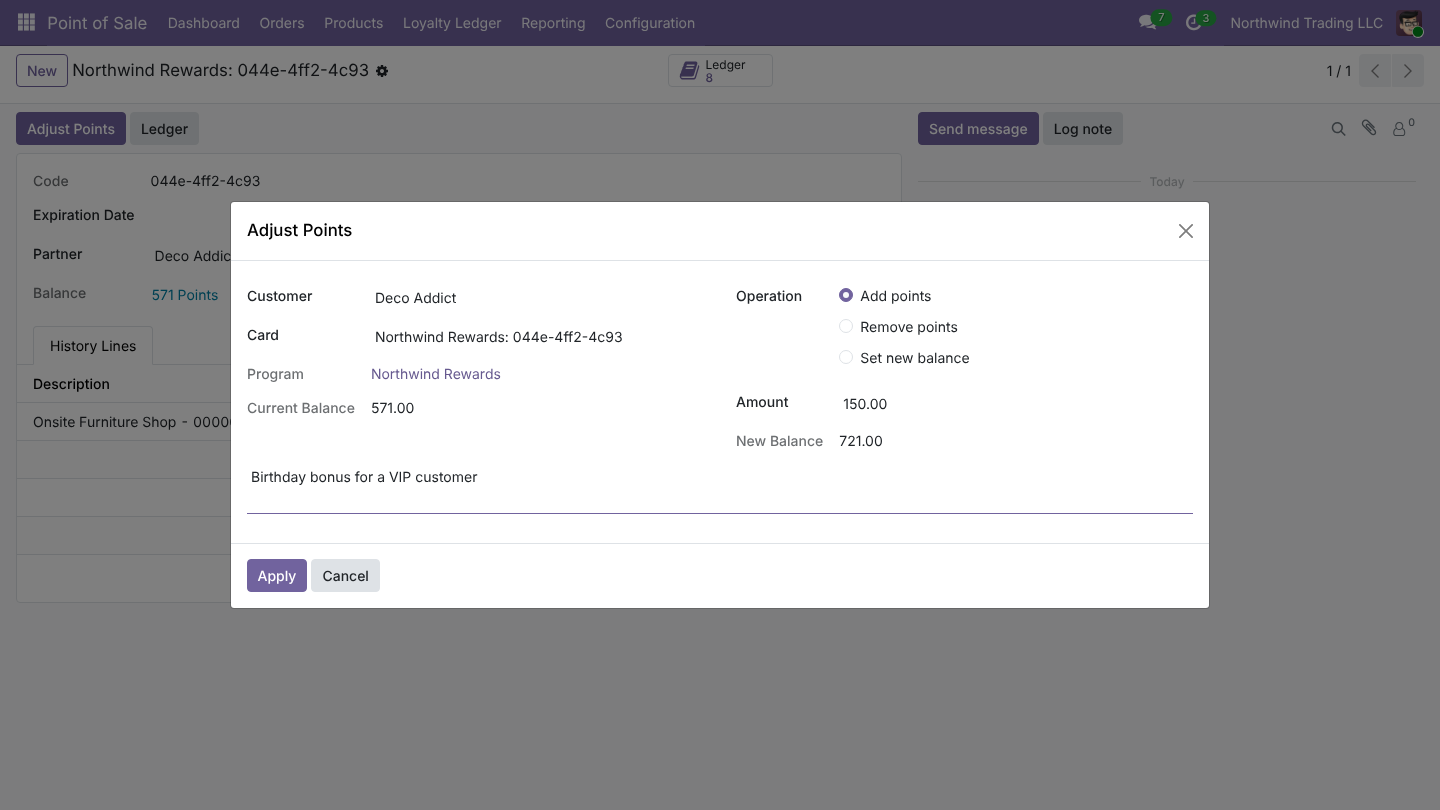
- Open the card (or go to Point of Sale > Loyalty Ledger > Adjust Points) and click Adjust Points.
- Pick the Customer and Card if they are not filled in.
- Choose the Operation: Add points, Remove points or Set new balance, and enter the Amount. New Balance shows the result.
- Type the reason. It is required, saved on the entry and shown on statements.
- Click Apply.
A balance cannot go below zero.
Reverse an entry
Administrators can open any entry and click Reverse. The app creates an opposite Reversal entry and puts the card balance back. Both entries stay in the ledger and point to each other; the original is marked Reversed. An entry can only be reversed once, and a reversal cannot be reversed.
Where entries come from
| Source | How the ledger links it |
|---|---|
| POS orders and refunds | Linked to the POS order |
| Sales orders | Linked to the sales order when it is confirmed in the backend (Odoo 18.0+ also through Odoo's own loyalty history) |
| Website orders | Source Website |
| Card edits, wizards | Source Backend, with the user |
| Scheduled jobs (expiry) | Source System |