The designer
Open a design and click Open Designer (or Design in the list). The canvas on the left is the label at its real proportions, with a 1 mm grid. The panel on the right shows the design and the selected element.
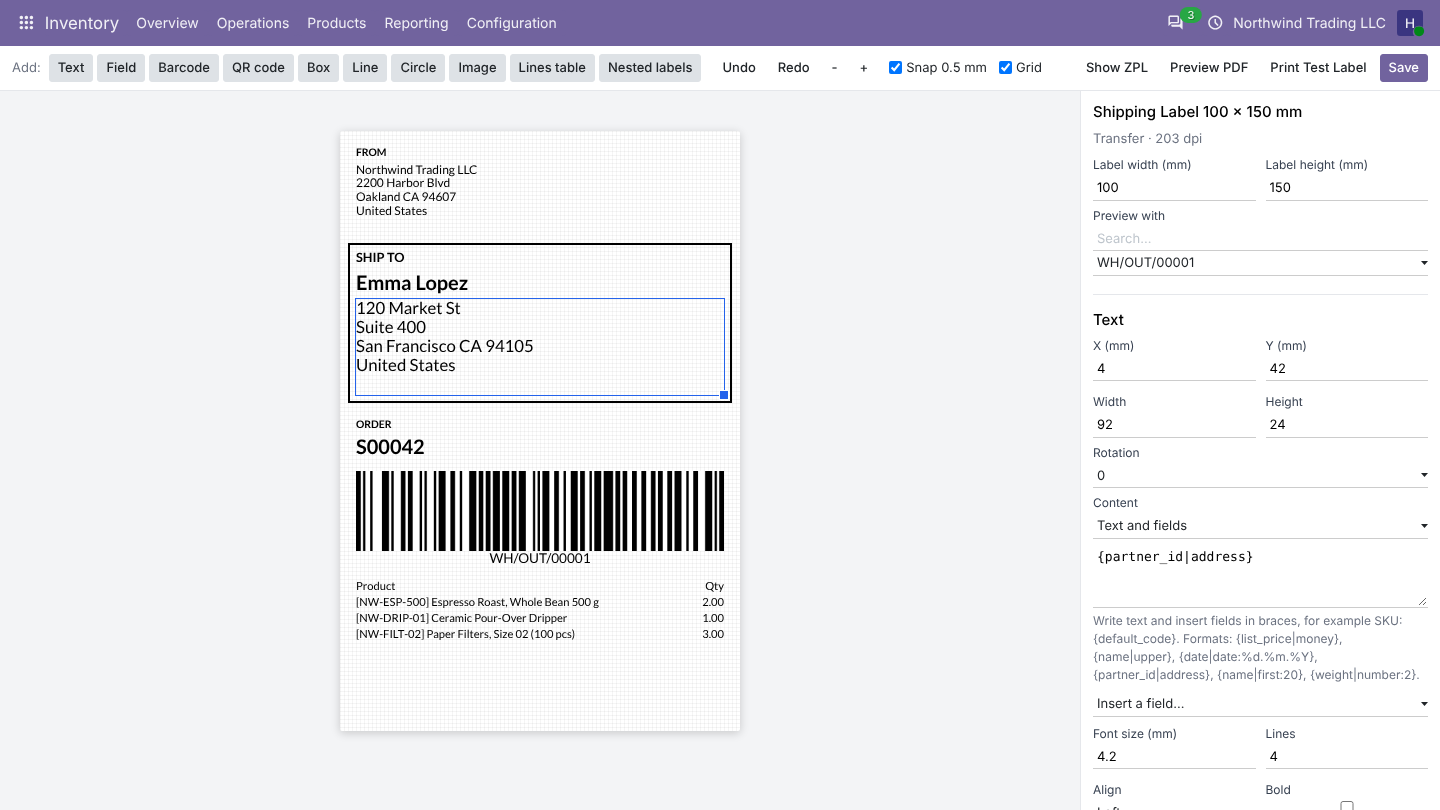
Toolbar
| Button | What it does |
|---|---|
| Text, Field, Barcode, QR code, Box, Line, Circle, Image, Lines table | Add that element at the top left of the label. Field is a text element that starts with {display_name}. See Elements. |
| Undo, Redo | Step back and forward through your changes. |
| - and + | Zoom the canvas out and in. |
| Snap 0.5 mm | Moved and resized elements land on 0.5 mm steps. Untick it for 0.1 mm steps. |
| Grid | Shows or hides the 1 mm grid on the label. |
| Show ZPL | Saves the design and shows the ZPL of the preview record, with a Copy button. |
| Preview PDF | Saves the design and opens the PDF of the preview record. |
| Print Test Label | Saves the design and downloads the ZPL of the preview record. |
| Save | Saves the design. It turns orange and reads Save* when there are unsaved changes. |
Preview with
Under Preview with, choose the record whose values are shown on the canvas. The list offers records with a barcode first; type in Search... and press Enter to find another one. The choice is saved with the design, and the test buttons print that record.
Text on the canvas is wrapped and cut the way the label will print: with the PDF font when the output is PDF or both, with the printer font when the output is ZPL only. Without a preview record, fields show their placeholders, formulas show = formula and barcodes a grey box.
Select, move and resize
- Click an element to select it. Its settings appear in the panel.
- Drag it to move it, drag the blue corner to resize it.
- An empty box only reacts to clicks on its border, so the elements inside it stay easy to select. To select the box, click its border.
- Click the empty label to deselect. The panel then shows the design settings and a short help.
Every element has X (mm) and Y (mm) (the top left corner, from the top left of the label), Width and Height. Text, barcodes and images also have Rotation: 0, 90, 180 or 270 degrees clockwise, around the top left corner, printed the same way in ZPL and PDF. Type exact values in the panel when you need them.
At the bottom of the panel: Duplicate, Bring forward, Send back (the order decides what prints on top) and Delete.
Keyboard
| Key | Action |
|---|---|
| Arrow keys | Move the selected element by 0.1 mm |
| Shift + arrow keys | Move by 1 mm |
| Delete or Backspace | Delete the selected element |
| Ctrl + D | Duplicate the selected element |
| Ctrl + Z | Undo |
| Ctrl + Shift + Z or Ctrl + Y | Redo |
| Ctrl + S | Save |
On a Mac, use Cmd instead of Ctrl. Shortcuts do nothing while you type in a field of the panel.
Label size
Label width and Label height at the top of the panel change the label size, the same as on the design form. Elements keep their position; move the ones that fall outside the new size.